


When your keyboard stops responding, even simple tasks like typing a message, entering a password, or searching online become frustrating. The problem may be caused by a loose connection, low battery, incorrect settings, outdated drivers, or a hardware fault. Fortunately, you can troubleshoot most keyboard problems without replacing the device.
Wondering why your keyboard has suddenly stopped responding?” this guide covers 12 practical fixes for laptop keyboards, wired and wireless keyboards, Bluetooth devices, and keyboards on Windows, Mac, tablets, and phones. Start with the simplest checks and move to more advanced solutions until you identify the cause.
Why Is My Keyboard Not Working?
A keyboard can stop working for several reasons. Identifying the likely cause helps you choose the right solution instead of trying random fixes.
Common causes include:
- A loose USB cable or faulty port
- A drained battery or insufficient power in a wireless keyboard
- Bluetooth pairing problems
- Dust, crumbs, or liquid damage
- Incorrect keyboard or accessibility settings
- Outdated or corrupted keyboard drivers
- A recent operating system update or software conflict
- Physical damage to the keyboard or laptop
When just a handful of keys fail, dirt buildup or hardware damage could be the cause. If the entire keyboard is unresponsive, check its connection, power supply, and software settings first.
12 Fixes for a Keyboard That Is Not Working
1. Check the Keyboard Connection
Start by checking whether the keyboard is connected properly. A loose cable or unreliable USB connection can prevent a wired keyboard from responding.
Unplug the keyboard and reconnect it securely. If you’re using a desktop computer, try another USB port directly on the computer rather than through a USB hub. Check the cable for visible damage.
For a laptop with a built-in keyboard, skip this step and continue with the other troubleshooting methods.
For additional troubleshooting steps, see Microsoft’s guide to troubleshoot keyboard and mouse problems in Windows.
2. Restart Your Computer
Temporary operating system errors can interfere with keyboard input. Restarting your computer may resolve the problem without requiring additional changes.
Use your mouse or touchscreen to open the power menu and select Restart. After the computer starts again, test the keyboard in a text editor or search box.
If the keyboard stops working again after startup, the issue may involve a driver, application, or system setting.
3. Check the Keyboard’s Power and Batteries
When your wireless keyboard stops responding, make sure its battery has enough charge. A low battery or switched-off device can make the keyboard appear disconnected.
Try these steps:
- Make sure the keyboard’s power switch is on.
- Replace disposable batteries with fresh ones.
- Fully recharge a rechargeable keyboard.
- Check the manufacturer’s instructions for any charging or status indicators.
- If the keyboard uses a USB receiver, reconnect the receiver to another port.
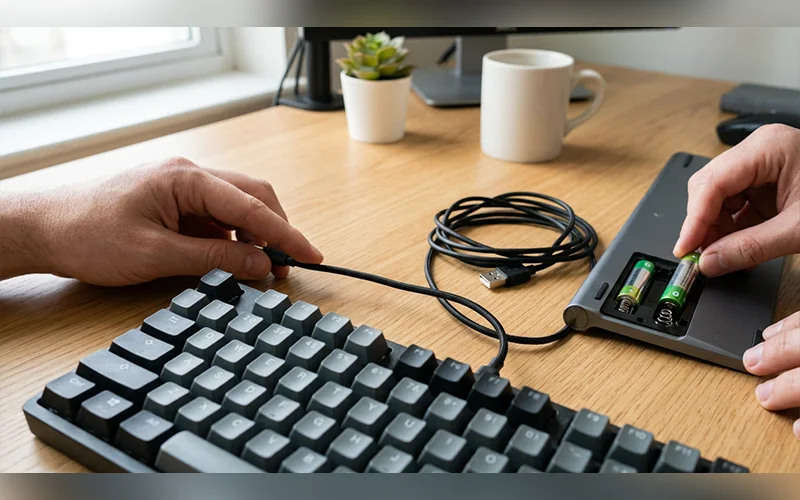
After checking the power supply, test the keyboard again. If it remains unresponsive, proceed to check the wireless network settings.
4. Reconnect Your Bluetooth Keyboard
Bluetooth keyboards can disconnect because of pairing errors, interference, or connection problems. Reconnecting the device may restore normal operation.
In Windows Settings, go to Bluetooth and devices to confirm Bluetooth is turned on. Then locate your keyboard in the connected devices list. If necessary, remove it and pair it again using the manufacturer’s instructions.
On macOS, go to System Settings and click Bluetooth. Make sure Bluetooth is enabled and reconnect the keyboard.
Place the keyboard near your computer while connecting it. If pairing does not work, recharge the keyboard and make sure it is not linked to a different device.
5. Clean the Keyboard Carefully
Dust, food crumbs, and other debris can prevent individual keys from registering. This is especially common when certain keys stop working while the rest of the keyboard functions normally.
Turn off the device and disconnect the keyboard before cleaning it. Use a soft brush or compressed air according to the manufacturer’s instructions to remove loose debris around the keys.
Do not spray cleaning liquid directly onto the keyboard. Do not take off the keycaps unless the manufacturer confirms they can be removed and explains the correct procedure.
If the keyboard has been exposed to liquid, disconnect it immediately if safe to do so. Do not continue powering it on to test the keys; liquid damage may require professional inspection.
6. Check Keyboard Settings and Function Keys
Incorrect keyboard settings can make some keys behave unexpectedly. For example, the numeric keypad may stop entering numbers, or function keys may perform different actions than expected.
Check the following:
- Num Lock: If the numeric keypad is not typing numbers, check whether Num Lock is enabled.
- Fn Lock: Some laptops use an Fn key combination to switch between function-key actions. The shortcut varies by manufacturer.
- Keyboard layout: An incorrect language or layout can cause different characters to appear when you type.
- Accessibility options: Features such as Filter Keys can change how Windows responds to keystrokes.
Check your device manual if you are unsure which shortcut controls a particular keyboard feature. Not every keyboard uses the same key combinations.
7. Test the Keyboard Outside the Current Application
Sometimes the keyboard itself works correctly, but a particular application stops accepting input. Testing it in another program helps you distinguish an app-specific problem from a system-wide issue.
Open a simple text editor, search field, or another application that accepts typing. Try several letters, numbers, and function keys.
If the keyboard works in other applications, close and reopen the affected program. Check for application updates and disable any recently installed extensions or input tools that might interfere with typing.
If the keyboard fails in every application, continue with the operating system troubleshooting steps.
8. Update or Reinstall Keyboard Drivers
On Windows, an outdated or malfunctioning driver can prevent a keyboard from working correctly. Updating the driver or allowing Windows to detect the device again may resolve the problem.
Follow these steps:
- Right-click the Start button and open Device Manager.
- Expand the Keyboards category.
- Right-click the listed keyboard device.
- Select Update driver and follow the available instructions.
- Restart the computer and test the keyboard.
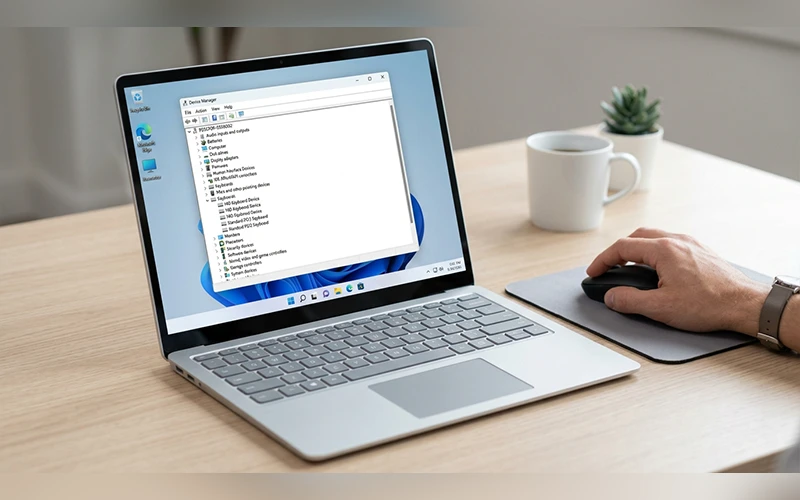
If updating does not help, you can consider uninstalling the keyboard device from Device Manager and restarting Windows. Windows will generally attempt to detect and reinstall the device automatically.
Avoid downloading drivers from unfamiliar websites. Use Windows Update or the official support website for your computer or keyboard manufacturer.
9. Check Windows Accessibility Settings
Windows includes accessibility features designed to change how keyboard input works. If keys seem delayed, repeated presses are ignored, or typing behaves differently than expected, review these settings.
Open Settings and navigate to Accessibility, then Keyboard. Check whether features such as Filter Keys, Sticky Keys, or Toggle Keys are enabled.
If you do not need a particular feature, turn it off and test the keyboard again. Change one setting at a time so you can identify which adjustment affects the problem.
These options do not normally indicate a damaged keyboard. They simply change how the operating system interprets certain key presses.
10. Check for Recent Updates or Software Conflicts
If your keyboard stopped working after a Windows update, driver installation, or new application, a recent software change may be responsible.
First, restart the computer and install any available updates from trusted sources. Check the manufacturer’s support page if the issue began after a specific driver update.
You can also close recently installed keyboard utilities, macro tools, or applications that modify input behavior. If the problem disappears, enable or install those tools individually to identify the conflict.
Avoid uninstalling security updates or making major system changes without evidence that they caused the issue. Back up important files before attempting advanced recovery steps.
If your keyboard problems started after Windows takes longer to load, learn how to fix slow startup Windows to troubleshoot possible startup issues.
11. Test the Built-In Laptop Keyboard
When your laptop keyboard stops responding, check whether the cause lies within Windows or the keyboard hardware itself.
Try plugging in a separate USB keyboard if you have one handy. If it responds normally while the laptop’s built-in keyboard remains unresponsive, the cause could be related to keyboard configuration, software drivers, an internal cable, or a faulty component.
Where supported, test the built-in keyboard in the BIOS/UEFI setup or the manufacturer’s preboot diagnostic environment. If it functions outside Windows but stops working within it, a software issue is more probable. If the problem persists beyond Windows, hardware repair might be necessary.
Do not open the laptop unless you have the necessary experience and the manufacturer’s repair instructions. A damaged internal cable or keyboard assembly may require professional repair.

12. Check Keyboard Settings on Mac, iPad, and Phones
Troubleshooting methods vary on Apple devices, tablets, and smartphones compared with those used on Windows PCs.
On Mac: Access System Settings and check the available keyboard preferences. If you use an external keyboard, check its cable, battery, or Bluetooth connection. Test typing in another application to rule out an app-specific problem.
For iPad: If you use a wired keyboard, verify that it is properly connected and has sufficient power. For a wireless model, go to Bluetooth settings and pair it again if needed. If the on-screen keyboard is missing, tap a text field and check whether an attached keyboard is connected.
On Android: Restart the phone and tap a text field to open the on-screen keyboard. Check the active keyboard under the language or keyboard settings. If only one app has the problem, test another app before changing system settings.
On iPhone: Reboot your phone and check whether the virtual keyboard works in a different app. Review the keyboard options under Settings, General, and Keyboard. If a third-party keyboard is causing problems, switch to the built-in keyboard to test whether the issue continues.
If none of these steps works, check the device manufacturer’s support instructions or seek repair if physical damage is suspected.
How to Decide Between Keyboard Repair and Replacement
Not every keyboard problem requires replacement. Connection issues, depleted batteries, incorrect settings, and driver problems can often be resolved at home.
However, consider professional repair or replacement if:
- Multiple keys remain unresponsive after troubleshooting.
- The keyboard was exposed to liquid.
- The cable or connector is visibly damaged.
- A laptop keyboard fails in preboot diagnostics.
- The device repeatedly disconnects despite a reliable power supply and connection.
If possible, test the keyboard on another compatible device before buying a replacement. This helps confirm whether the keyboard itself is faulty.
How to Prevent Keyboard Problems
A few simple habits can reduce the risk of future keyboard issues:
- Keep beverages and snacks at a distance from your keyboard.
- Clean the keys periodically using the manufacturer’s recommended method.
- Replace or recharge wireless keyboard batteries before they become depleted.
- Keep your operating system and drivers updated through trusted sources.
- Avoid pulling, twisting, or sharply bending keyboard cables.
- Protect laptops from liquid spills, dust, and unnecessary pressure.
Regular care will not prevent every hardware failure, but it can help your keyboard remain reliable for longer.
Final Thoughts
When your keyboard stops working, begin with the basics: check the connection, power supply, batteries, and settings. Try a different program, check driver settings, and examine problems linked to the specific device. These steps can help you identify whether the problem is caused by software, connectivity, or hardware.
If the keyboard still does not respond after these checks, test it on another compatible device or consult the manufacturer’s support team. Identifying the cause before replacing the keyboard can save both time and money.
Frequently Asked Questions
1. Why is my keyboard not working even though it is connected?
A connected keyboard may still fail because of a faulty USB port, low battery, incorrect settings, driver problems, or a hardware fault. Try another port or device, then check the keyboard’s power and settings.
2. Why does my laptop keyboard fail while the touchpad still works?
The touchpad and keyboard use different hardware and drivers. A keyboard-specific setting, driver issue, internal connection problem, or physical fault may affect typing while the touchpad continues working.
3. How can I troubleshoot a wireless keyboard that won’t respond?
Check the batteries, power switch, USB receiver, and wireless connection. If it uses Bluetooth, remove the saved pairing and reconnect the keyboard through your device’s Bluetooth settings.
4. Why is my keyboard typing the wrong characters?
An incorrect keyboard layout or language setting can cause different characters to appear. Check your input language and layout, and review any keyboard remapping tools you use.
5. How do I unlock my keyboard?
First, identify what is preventing input. Check whether the device has a keyboard lock feature, whether Fn Lock or Num Lock is affecting certain keys, and whether accessibility settings are enabled. The correct shortcut depends on the keyboard model.
6. Why do certain keys on the keyboard stop responding?
Individual keys may be affected by dust, debris, wear, liquid damage, or a mechanical fault. Remove any debris from the keyboard carefully, then check the unresponsive keys across different programs. Persistent failures may require repair.
7. Could a Windows update make your keyboard stop working?
Keyboard problems may occasionally stem from recent software or driver changes. Restart the computer, check for additional updates, and consult the device manufacturer’s support instructions if the problem began immediately after an update.
8. When should I consider getting a new keyboard?
If the keyboard fails across multiple compatible devices, has physical damage, or continues to have unresponsive keys after connection and software checks, replacement may be necessary. For a laptop, professional diagnosis can help determine whether the keyboard assembly or its internal connection needs repair.
For more articles like this, visit our site: https://factbreaker.com/