


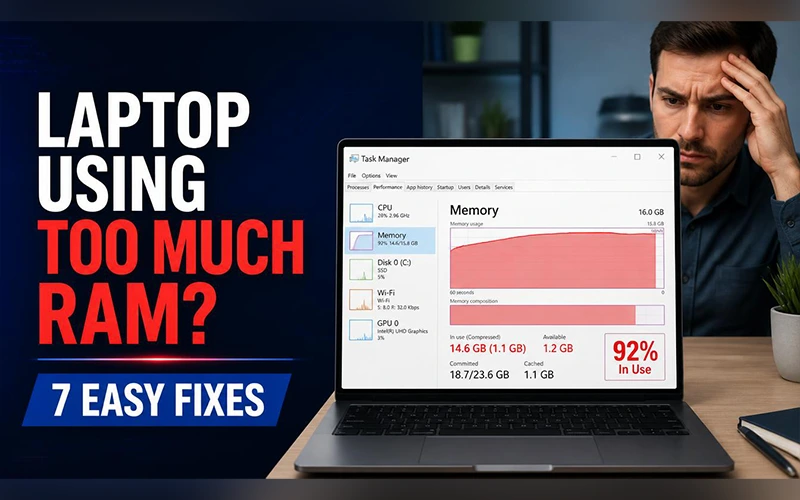

Your laptop was fine yesterday. Today the cursor stutters, Chrome takes ten seconds to open a tab, and Task Manager shows memory at 92%. People who search for high memory usage laptop Windows 10 fixes describe this exact scene, and Windows 11 owners tell nearly identical stories. The good news is that the cause is usually software, not failing hardware. Below you will find how to read your memory numbers correctly, which processes usually cause the trouble, and fixes ordered from easiest to most involved.
What Counts as High Memory Usage?
RAM is your laptop’s short-term workspace. Anything you are actively using sits there because it is far faster than the drive. Windows also fills spare RAM with cached data on purpose, so a bar that looks half full right after startup is normal and even helpful.
A healthy laptop idles between 40% and 60% with a few apps open. Trouble starts when usage stays above roughly 85% during light work. Common warning signs include apps opening slowly, typing lag, a loud fan, and Windows warnings that your computer is low on memory.
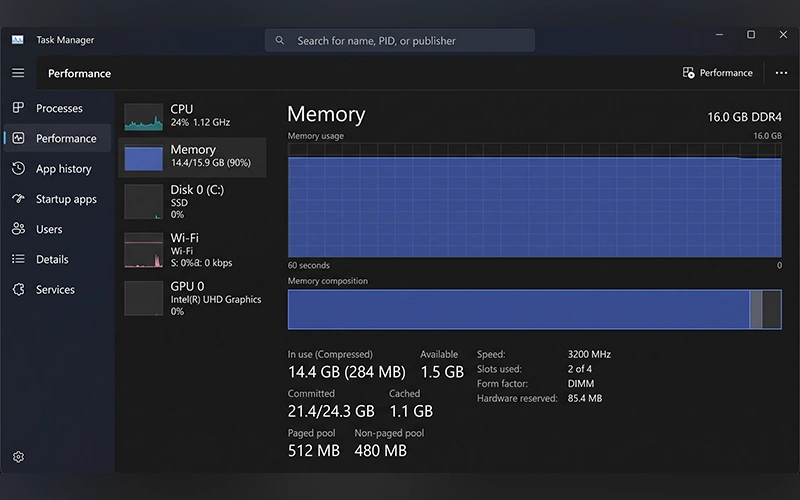
The percentage alone can mislead you. Open Task Manager > Performance > Memory and watch the Available figure and the Committed line (for example, 14.2/18.5 GB) instead. When Available drops close to zero and Committed nears its limit, Windows is shuffling data to the page file on your drive, and that is when the lag becomes real.
If your laptop is also running slowly, check our guide on how to fix a slow Windows laptop for additional troubleshooting steps.
Why Is Windows RAM Usage So High When Idle?
Plenty of people ask, why is my RAM usage so high when nothing is running? Part of the answer is that something is always running. A fresh Windows 11 session often uses 3 to 4 GB for the system alone, a big slice of an 8 GB machine. Windows also keeps helper services active, including telemetry and SysMain (formerly Superfetch), which preloads your most-used programs so they open faster. On a laptop with limited memory, that convenience can cost more than it saves.
Common Causes Behind Excessive RAM Usage
Beyond Windows itself, excessive memory consumption on a laptop usually traces back to one of these:
- Startup programs: Game launchers, chat clients and cloud sync tools load with Windows and stay resident all day.
- Browser load: Chrome and Edge run each tab as a separate process, and every extension adds its own.
- Memory leaks: A buggy app or outdated driver keeps claiming memory and never gives it back, so usage creeps up the longer the laptop stays on.
- Hidden malware: Crypto miners and similar software can hijack RAM for their own work.
- Too little RAM: The machine cannot hold your usual workload, so Windows leans on the drive and everything slows down.
How to Find What Is Using Your RAM
Before trying any fixes, find the real culprit.
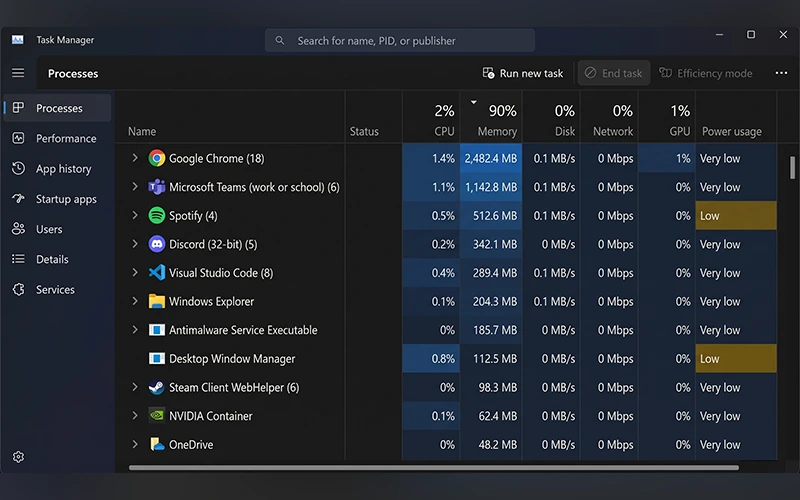
- Press Ctrl + Shift + Esc to open Task Manager.
- Click the Memory column header to sort processes from highest to lowest.
- Check the top of the list. If a third-party app or browser is using several gigabytes, right-click it and choose End task. Leave anything labeled as a Windows system process alone.
If a browser is the culprit, press Shift + Esc inside Chrome or Edge to open its built-in task manager and see which tab or extension is heaviest.
For a closer look, type resmon into the Start menu and open the Memory tab. It breaks RAM into In Use, Modified, Standby and Free, which helps you tell real demand from cache.
Processes That Often Top the List
A laptop struggling with RAM often shows the same handful of names near the top of Task Manager. Here is why each one grows and what to try:
| Process | Why it uses memory | What to try |
| Chrome or Edge | One process per tab, extension and background page | Memory Saver, fewer tabs, fewer extensions |
| Teams, Zoom, Discord, Spotify | Many desktop apps embed a full browser engine | Close them when idle, or use the web version |
| Desktop Window Manager | Draws every window, so it grows with open windows and screen resolution | Update the graphics driver, turn off transparency effects |
| Windows Search indexer | Builds a file index after large file changes | Let it finish, or trim folders in Indexing Options |
Quick Fixes You Can Try Right Now
Start with a restart. Choose Restart, not Shut down, because Fast Startup carries parts of the previous session into the next one and a normal shutdown does not fully reset memory. If memory is already full right after every boot, you can switch Fast Startup off under Control Panel > Power Options > Choose what the power buttons do.
If you have ever typed “how to fix high memory usage laptop” into Google, these three changes give the biggest return without any technical skill.
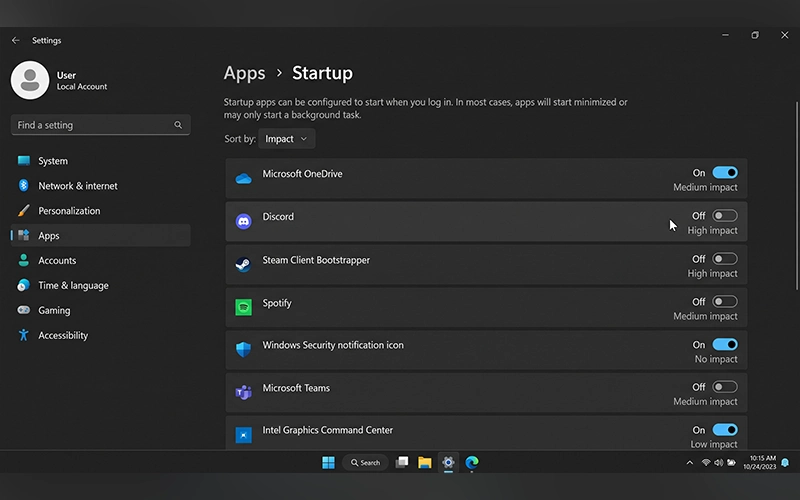
Trim your startup apps. Go to Task Manager’s Startup apps section and check which programs are set to launch automatically when your PC starts. Right-click anything non-essential, such as launchers or sync tools you don’t use daily, and click Disable. Avoid changing your sound drivers or disabling your antivirus and other security tools.
Rein in SysMain. Press Windows + R, type services.msc and press Enter. Find SysMain, open its Properties, set the Startup type to Disabled, click Stop, then Apply. This helps most on laptops with 4 to 8 GB of RAM or a traditional hard drive.
Tune your browser. In Chrome, open Settings > Performance and turn on Memory Saver, which frees RAM from tabs you haven’t touched for a while. Microsoft Edge includes a Sleeping Tabs feature to reduce resource usage by inactive tabs. You can also disable Startup boost in the System and performance settings, as it allows certain browser components to remain active even when Edge is closed. In either browser, also disable “Continue running background apps when browser is closed” so it really exits when you close it. Removing extensions you no longer use helps too.
When Memory Stays Full Even at Idle
If your laptop still sits at 80% or more after those changes, the next suspects are cached memory, driver leaks and malware.
To see whether cache is inflating the number, download RAMMap from Microsoft’s Sysinternals suite, run it as administrator, and choose Empty > Empty Standby List. A sharp drop means cached data was the cause. The relief is temporary because Windows refills the cache by design, so treat RAMMap as a diagnostic tool rather than a daily habit.
To investigate cached memory, download Microsoft Sysinternals RAMMap, a utility that shows how Windows allocates physical memory.
If memory instead climbs steadily over several days, suspect a leak. Open Task Manager > Performance > Memory and watch the Non-paged pool figure. If it keeps growing into several gigabytes, a driver is the likely cause. Install pending updates from Settings > Windows Update, including optional driver updates, and check your laptop maker’s support page for newer graphics and chipset drivers. If the trouble began right after you installed a program, uninstall it and see whether the numbers recover.
Finally, rule out malware. Open Windows Security > Virus & threat protection > Scan options and run a Full scan.
Extra Steps for Windows 10
Windows 10 reached end of support in October 2025, so it no longer gets regular security updates unless you are enrolled in Extended Security Updates. Moving to Windows 11 is worth considering if your hardware qualifies. Until then, Windows 10 users can ease RAM pressure with a few settings:
- Go to Settings > Privacy > Background apps and switch off everything you don’t need.
- Type “View advanced system settings” into Windows Search, open the matching result, and navigate to the Performance settings to disable unnecessary visual effects. That removes animations and transparency effects.
- Let Windows manage virtual memory automatically, and make sure 10–15% of your storage remains available for the paging file.
What Works Best on Windows 11
To reduce excessive RAM consumption in Windows 11, begin by disabling unnecessary programs that run automatically when your PC starts. Open Settings > Apps > Startup and switch off anything you don’t need at sign-in. Next, right-click the taskbar, open Taskbar settings, and turn off Widgets, since the widget board keeps web content loaded in the background. If Copilot isn’t part of your regular workflow, uninstall it through Windows Settings under Installed apps.
For Microsoft Store apps, go to Settings > Apps > Installed apps, click the three dots beside an app, choose Advanced options, and set “Let this app run in the background” to Never. Classic desktop programs don’t offer this switch, so use the startup list for those. Many laptops feel noticeably lighter after these small changes.
When Upgrading RAM Is the Better Option
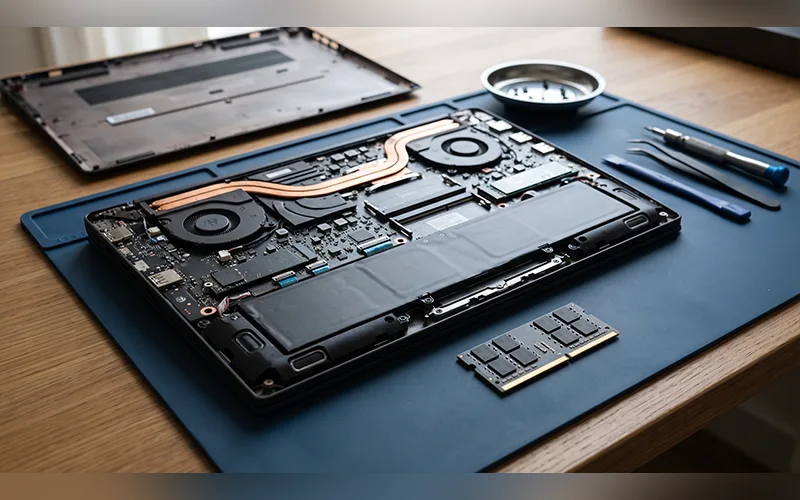
Software fixes have limits. If your laptop has only 4 GB of RAM, no tweak makes up for the missing capacity. Plan on 8 GB for everyday browsing and office work, and 16 GB if you multitask heavily, edit video or run virtual machines.
Before buying, open Task Manager > Performance > Memory. The Form factor line shows SODIMM if you have a removable module, or Row of chips if the memory is soldered to the board and can’t be upgraded. Then check your model’s specification page for the maximum supported RAM.
Simple Habits to Keep Memory Usage Low
- Uninstall programs you haven’t opened in months.
- Swap heavy apps for lighter alternatives where they exist, such as a plain PDF viewer instead of a full suite.
- Avoid installing memory-optimization tools that claim to improve RAM performance instantly. Most of them just force Windows to reload what it just cleared.
- Recheck the Startup apps tab after installing new software, since many installers quietly add themselves.
Final Thoughts
A high memory usage laptop is rarely a lost cause. Fix the biggest consumer first, then retest after a day of normal use, and change one thing at a time so you know what actually worked. If memory still runs high with a clean startup list and current drivers, the workload has outgrown the RAM, and an upgrade is the honest answer.
Frequently Asked Questions
Is 80% memory usage bad on a laptop?
Not on its own. If the laptop stays responsive, Windows is probably holding cache that it will release when apps need it. Worry only when 80% comes with lag, freezing or low-memory warnings.
Is it safe to disable SysMain?
Yes. It is an optimization service, not a core one, and you can set it back to Automatic at any time. The difference is usually small on a laptop with an SSD and plenty of RAM.
Why is Antimalware Service Executable using so much memory?
It is the engine behind Microsoft Defender, and spikes during scans are normal. If memory usage remains elevated, allow any active scans to complete when the laptop is idle, check for pending Windows updates, and verify that another antivirus program isn’t running at the same time.
What is memory compression in Windows?
Windows compresses rarely used data inside RAM instead of writing it to the drive, which keeps apps responsive. It shows up as “Memory compression” in Task Manager. It is normal and should be left on.
How do I know if my laptop RAM is faulty?
Type Windows Memory Diagnostic into the Start menu, choose Restart now and check for problems, and let the test finish. Random blue screens and unexplained crashes are warning signs. If errors are reported, reseat or replace the module.
Will resetting Windows fix a high memory usage laptop?
It can when software is the cause, because it clears leftover apps, services and drivers. Try it only after the steps above, since it is a big job. Back up your files, then go to Settings > System > Recovery > Reset this PC.
Does integrated graphics use my RAM?
Yes. Laptops without a dedicated graphics card share a portion of system memory with the GPU. That is one reason an 8 GB laptop can have less usable memory than the spec sheet suggests.
Why does Task Manager show more memory used than my apps add up to?
The Processes tab lists apps and services, but the Windows kernel, drivers and compressed data use memory too. Open Performance > Memory to see Cached, Paged pool and Non-paged pool for the full picture.
For more articles like this, visit our site: https://factbreaker.com/