



You take a photo, pick up your iPad or Mac a minute later, and it simply isn’t there. Nothing shows an error, yet the upload never happens. It is the kind of problem that sends people to a search bar at midnight to type “why is my iphone not syncing photos to icloud” and hope for a straight answer. The cause is almost always a paused sync, a full storage bar, or a setting that quietly blocks uploads. The fixes below are ordered from the quickest to the more involved, so start at the top.
What Sync Actually Means for Your Library
iCloud Photos keeps one shared library across every device signed in to your Apple Account. Take a picture on the iPhone and it uploads; edit it on the Mac and the change shows up everywhere. That is different from iCloud Backup, which saves a snapshot of the phone itself. A photo can exist in one and be missing from the other, so it helps to know which feature you are counting on.
Uploads also depend on conditions. The phone wants enough battery, a usable connection, and free space in your account. When any of these slips, the iPhone pauses the upload in the background and does not always make that obvious.
Solution 1: Check Your Sync Status and Force a Sync
Before changing anything major, look at what the iPhone thinks it is doing.
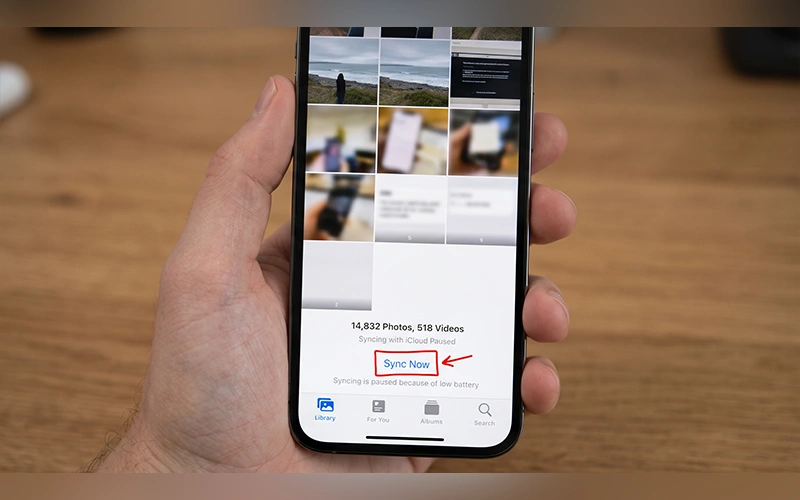
- Open the Photos app.
- Tap Collections, then check the profile button in the upper corner. On older iOS versions, scroll to the very bottom of the Library or All Photos tab instead.
- Read the status line. If it says the sync is paused, tap Sync Now to push the upload manually.
The message often names the reason, such as a low battery or a weak connection, which tells you exactly which fix to jump to.
To confirm a photo has really reached the cloud, open iCloud.com/photos on a computer and look for it there.
Iske baad add karein: “For additional troubleshooting steps, see Apple’s guide on If your iCloud Photos aren’t syncing
Solution 2: Switch Off Power and Data Restrictions
Two built-in modes are the most common silent culprits.
Low Power Mode freezes background activity to save battery, and iCloud uploads are part of that. iOS offers to turn it on when the battery reaches 20%, so many people enable it without thinking. Go to Settings > Battery and switch it off.
Low Data Mode limits network use in the same way. Open Settings > Wi-Fi, tap the (i) icon beside your network, and turn Low Data Mode off. If you rely on mobile data, make the same change under Settings > Cellular > Cellular Data Options.
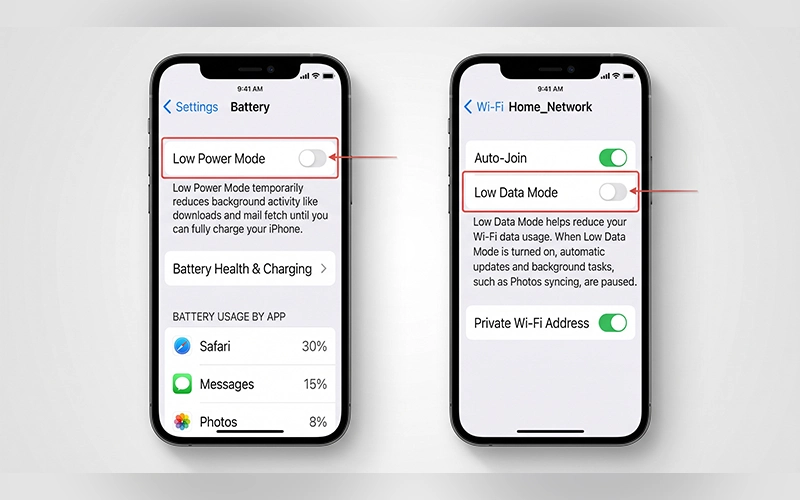
With both modes disabled, return to the Photos status screen and see whether the upload picks up again.
Solution 3: Check Your Storage and Apple Account
A full iCloud account cannot accept new photos, and this is the cause behind a large share of stalled libraries. People who search for “why iphone photos not syncing to icloud” often find that the free 5 GB tier ran out months ago.
Here is how to check:
- Go to Settings and tap your name at the top.
- Confirm you are signed in with the correct Apple Account. A second account created years ago is a surprisingly common mix-up. If a prompt such as Update Apple Account Settings appears under your name, tap it and finish the steps, because syncing cannot continue until you do.
- Tap iCloud and look at the storage bar. If it is full, delete old backups, large attachments, or unused files, or move up to a paid iCloud+ plan.
- Tap Photos just below the bar and make sure Sync this iPhone is switched on.
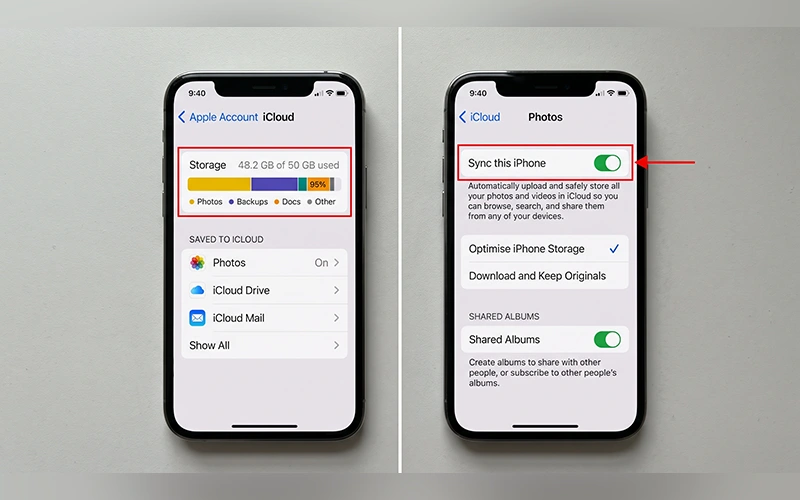
While you are on that screen, notice whether Optimize iPhone Storage or Download and Keep Originals is selected. This only affects what stays on the phone itself, not whether uploads work, but it matters if your iPhone is short on space.
Solution 4: Refresh the Connection
If every setting looks right and nothing moves, the problem may be the connection rather than the configuration.
If you’re also experiencing browsing issues on your device, learn how to clear browser cache on iPhone to remove outdated browser data.
- Charge and connect to Wi-Fi. Leave the phone locked, plugged in, and on a strong Wi-Fi network overnight. Large libraries upload in the background, and this is when iOS is most willing to work through them.
- Turn off any VPN. Active VPN profiles can block the background connections Apple’s servers expect. Disconnect completely, then check Settings > General > VPN & Device Management for leftover configurations.
- Check Apple’s server status. Occasionally the fault is on Apple’s side. The System Status page on Apple’s support site shows whether iCloud Photos is having an outage.
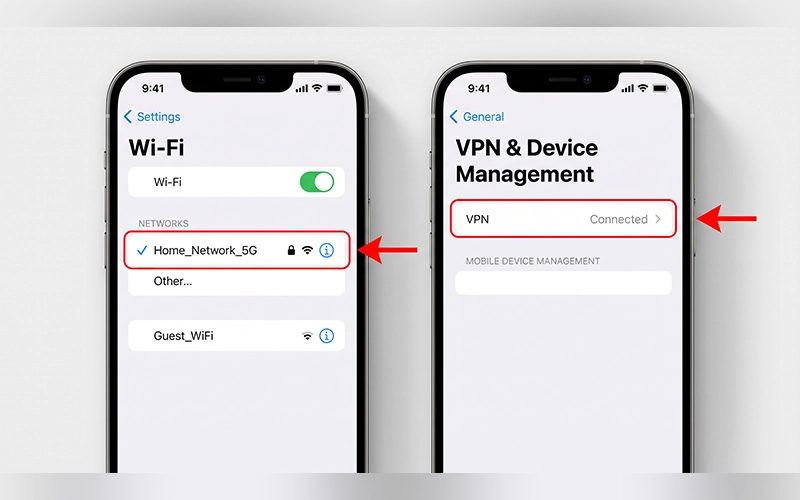
Two quick extras cost nothing: force-close the Photos app and reopen it, or switch Airplane Mode on for ten seconds and off again to reset the connection.
Solution 5: Look for the “Unable to Upload” Album
Open Photos, scroll to the Utilities section under Albums, and look for a folder named Unable to Upload. A single damaged photo or video can jam the queue and hold back everything behind it.
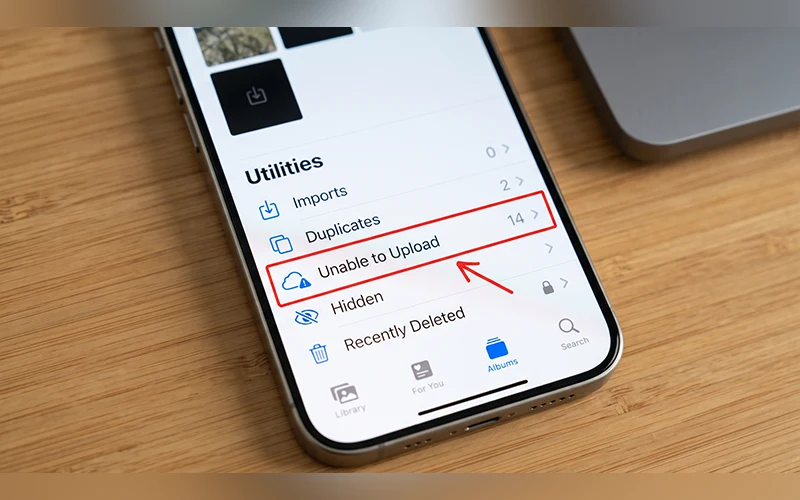
Open the items inside. If a file will not load, copy it somewhere safe if you can, then delete it from the phone. The rest of the library often resumes within minutes.
Solution 6: Update iOS and Reset Network Settings
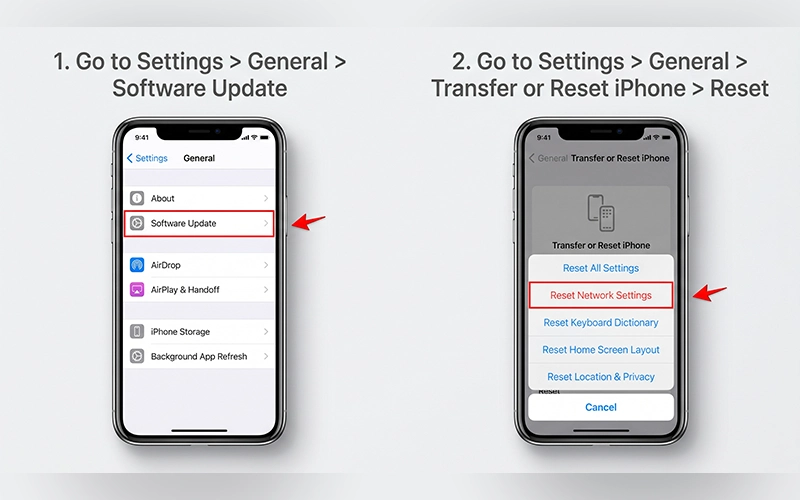
Sync bugs are regularly patched in software updates. Go to Settings > General > Software Update and install anything pending, then restart the iPhone.
If uploads are still stuck, try Settings > General > Transfer or Reset iPhone > Reset > Reset Network Settings. It clears saved Wi-Fi networks and passwords, along with cellular and VPN settings, so expect to reconnect to your networks afterward.
Solution 7: Sign Out and Back In to Your Apple Account
When sync still refuses to cooperate, a fresh sign-in can reset the link between the phone and your account. Before you do it, make sure the photos on the iPhone are safe elsewhere, for example copied to a Mac, because pictures that have not yet uploaded are the ones at risk.
Then go to Settings > [Your Name], scroll down, and tap Sign Out. Restart the phone, sign back in, and confirm Photos is enabled in your iCloud settings again.
When It’s Time to Contact Apple Support
If you have worked through everything above and uploads are still stuck, it is worth getting help. Book a call or chat through Apple Support, or visit a Genius Bar. Mention which steps you have already tried and what the Photos status screen says. That detail saves a lot of back-and-forth, and it points the technician toward account-level or server-side issues that you cannot fix yourself.
Habits That Keep Uploads Running
Two small habits prevent most repeat problems. Keep a cushion of free iCloud storage so a burst of new videos does not fill it overnight. Turn on automatic updates under Settings > General > Software Update > Automatic Updates.
Final Thoughts
Photo sync rarely fails for a mysterious reason. Work through the steps in order, give a large library time to catch up, and your pictures should show up on every device again.
Frequently Asked Questions
How long does iCloud take to sync photos?
A few new pictures usually appear within minutes. A large library, or thousands of photos uploaded for the first time, can take days, depending on your connection speed.
Why do my photos show on my iPhone but not on my Mac or iPad?
Every device needs the same Apple Account and its own iCloud Photos switch. On an iPad, go to Settings > [Your Name] > iCloud > Photos. On a Mac, open Photos, choose Settings > iCloud, and tick iCloud Photos.
If I delete a photo on my iPhone, does it disappear from iCloud?
Yes. With iCloud Photos on, deletions apply across all your devices. The photo stays in the Recently Deleted album for 30 days before it is removed permanently.
Can photos upload over cellular data?
They can. Open Settings > Photos > Cellular Data and allow it, though large libraries can use a lot of your mobile plan.
Do I need to pay for iCloud+ to use iCloud Photos? No. The free plan works for as long as your library fits inside it. A paid plan only becomes necessary once it does not.
How much iCloud storage do I need for my photos?
Check what your library takes up under Settings > [Your Name] > iCloud > Manage Account Storage > Photos. Then pick the smallest paid tier that covers it with room to grow. Plans start at 50 GB and rise to several terabytes.
Will turning off iCloud Photos delete my pictures?
Not automatically. iOS asks whether to download your photos to the iPhone or remove them from it, so choose the download option first. The originals stay in iCloud and on your other devices.
How can I download all my photos from iCloud?
Sign in at iCloud.com/photos on a computer, select the pictures you want, and use the download option. For the whole library, request a copy of your data at privacy.apple.com.
For more articles like this, visit our site: https://factbreaker.com/