
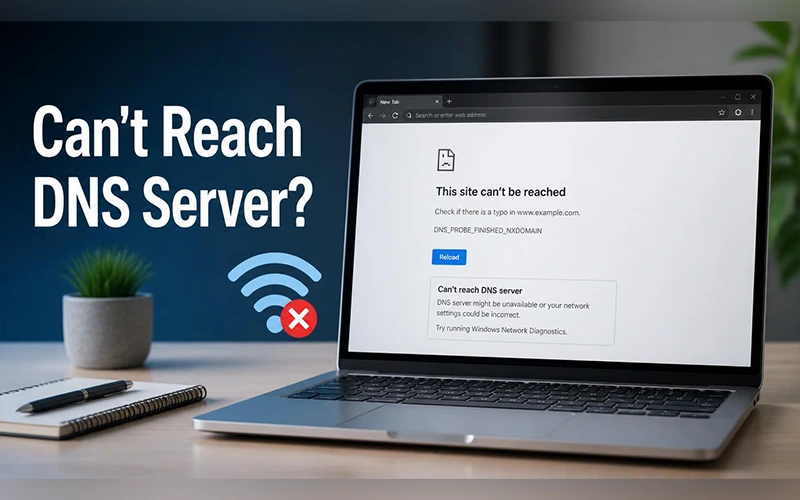

Your wireless icon looks perfectly healthy, yet every page you open just spins and then fails. Instead of a website, you get a “can’t reach DNS server” message, and for all practical purposes you have no internet. Annoying, but rarely serious. You don’t need technical skills to sort it out. The fixes below run from the fastest to the most involved, so work through them in order and stop the moment your pages load.
So, What’s Really Going On?
In plain terms, what does “can’t reach DNS server” mean? Every website lives at a numerical address, such as 142.250.190.46 for google.com, but nobody wants to type a string of digits. A DNS server works like the contacts list on your phone: you tap a name, and it quietly dials the right number. Your device is connected to the network, but that contacts list isn’t answering, so no website name can be turned into an address.
Depending on your device and browser, the error may appear in different forms. Your screen might report a DNS connection problem, display a WiFi-related network warning, or show Chrome’s DNS_PROBE_FINISHED_NO_INTERNET code. Although the wording differs, each message indicates that the device is having trouble resolving a website’s domain name.
Why This Error Keeps Showing Up
The usual suspects are a router that has been running for weeks without a break, a temporary outage at your internet provider, outdated network drivers, and security software or a VPN that interferes with lookups. A weak signal can do it too, and you may even see a warning that the network connection might be low.
Before touching any settings, work out how far the problem reaches. A quick test helps here: if your phone browses fine on the same network but your Windows computer doesn’t, skip the router steps and focus on the computer. This table highlights the areas you should check.
If your laptop shows a WiFi connection but websites still won’t load, follow our guide on laptop connected to WiFi but no internet for additional troubleshooting steps.
| Where the error shows up | Likely cause | Where to start |
| On all devices (phones, TVs, other PCs) | Your router or your internet provider | The modem and router |
| On one computer only | Corrupted DNS cache, mismatched network settings, or firewall and VPN interference | The computer’s own network settings |
Start With the Quick Checks
These take only a few minutes and clear a surprising number of cases.
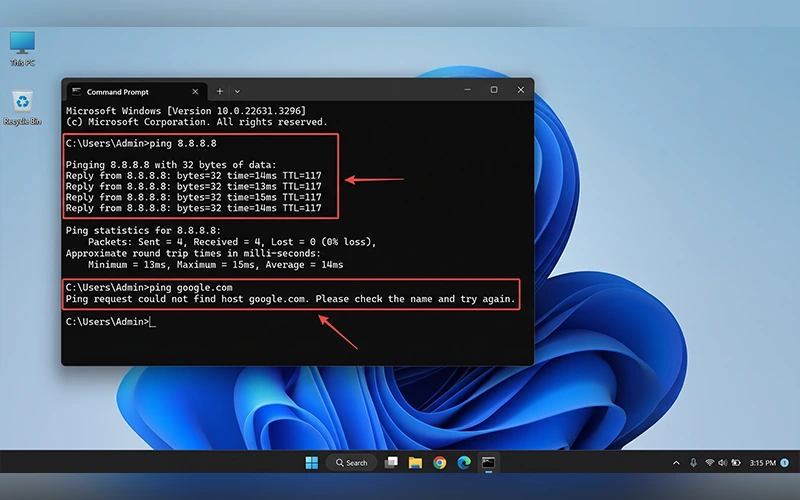
Confirm it’s a DNS problem. Open the Run dialog by pressing Windows + R, enter cmd in the box, and hit Enter to launch Command Prompt. Type ping 8.8.8.8. If replies come back but ping google.com fails, your connection works and only name lookup is broken.
Restart your network devices. Unplug both your modem and router, leave them without power for about 60 seconds, then reconnect them. Reconnect the modem first, then allow a couple of minutes for it to establish a stable connection. After that, turn the router back on and wait until it finishes starting up. This can clear temporary device errors and refresh network data that may be interfering with DNS requests.
Try another browser. If a different browser loads pages normally, the problem is likely inside the first one, such as a faulty extension or stored data, rather than your connection.
Toggle airplane mode. Switching it on and off forces your device to renegotiate its connection from scratch.
Run the Windows troubleshooter. Search Settings for “network troubleshooter” and let Windows scan for common faults.
For additional troubleshooting steps, see Microsoft’s guide to fixing Wi-Fi connection issues, which covers network diagnostics, router restarts, and Windows network commands.
Switch to a Public DNS Server
By default, your device uses the DNS servers chosen by your internet provider. They can slow down or go offline, and a public alternative often bypasses the trouble. Two dependable choices:
- Cloudflare: 1.1.1.1 as preferred, 1.0.0.1 as alternate
- Google: 8.8.8.8 as preferred, 8.8.4.4 as alternate
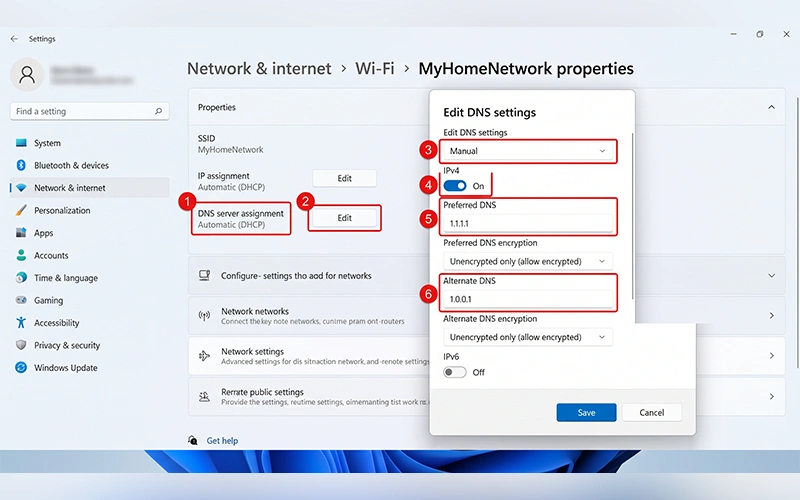
On Windows 11
- Open Settings, then Network & internet.
- Pick your active connection, then choose Hardware properties.
- Next to DNS server assignment, click Edit and switch it to Manual.
- Turn on IPv4, enter one pair of addresses from above, and save.
On Windows 10
- Press Windows + R, type ncpa.cpl, and press Enter.
- Right-click your active connection and choose Properties.
- Select Internet Protocol Version 4 (TCP/IPv4) and click Properties.
- Choose Use the following DNS server addresses, type in your pair of addresses, tick Validate settings upon exit, and click OK.
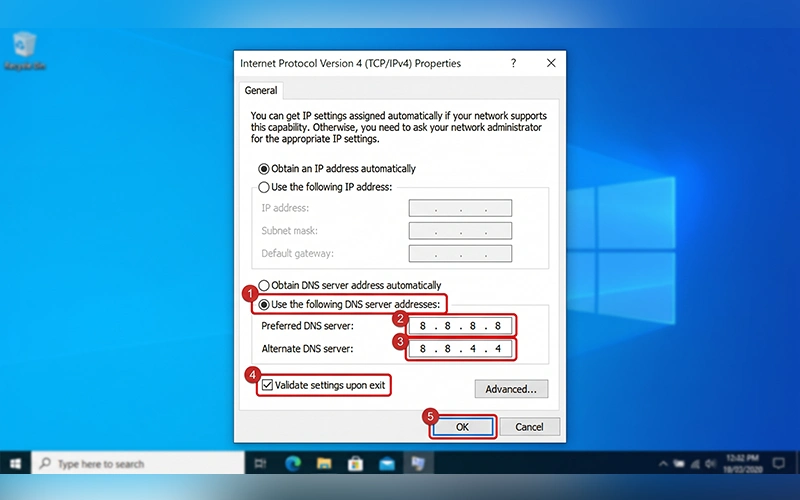
Restart the computer afterwards so the new settings take hold. To undo the change later, set the DNS option back to automatic.
Clear DNS Data and Reset Network Settings
Windows keeps a local record of the websites you’ve visited. If that record gets corrupted, it can block fresh connections. Removing the saved data and resetting the underlying network configuration can resolve issues that persist even after restarting the device.
Search for cmd in the Start menu, right-click Command Prompt, and choose Run as administrator. Enter each command separately, hitting Enter to run it before moving on to the next one.
- ipconfig /flushdns clears the stored website addresses.
- ipconfig /release drops your current IP address.
- ipconfig /renew requests a fresh one from the router.
- netsh winsock reset restores the Windows networking catalog to its default state.
netsh int ip resetcommand restores the TCP/IP network settings to their default configuration.
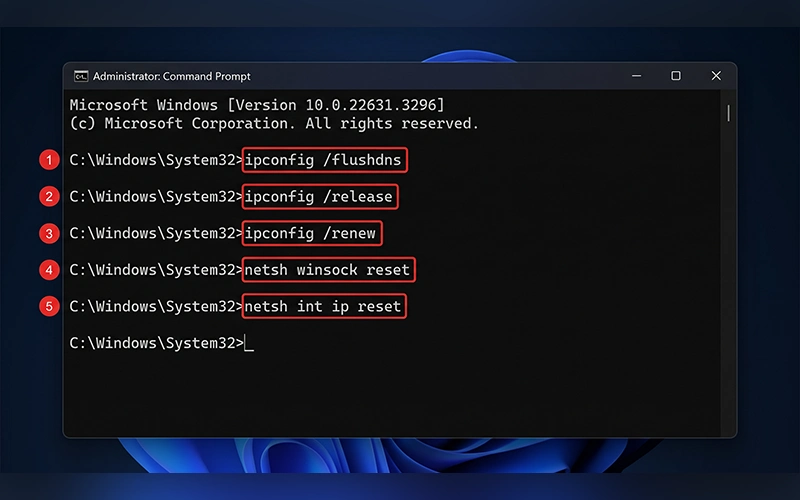
If a page loads after the first command, you can stop there. Otherwise, run the rest and then restart your PC.
Check the Physical Connection
A shaky link causes lookups to fail even when everything else is configured correctly. On a wireless connection, move closer to the router, or try the other band: 2.4 GHz reaches farther through walls, while 5 GHz is faster at close range. If neither helps, plug in a cable. Walls and distance weaken the signal, and requests can drop before they ever reach the server.
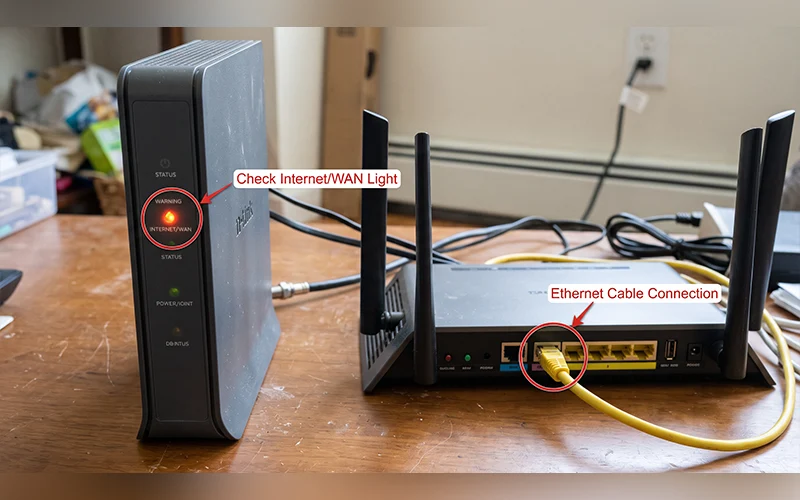
If you’re on Ethernet, reseat the cable at both ends, try a different port on the router, and swap the cable if you have a spare. Then glance at the modem. A blinking red or amber light on the Internet or WAN indicator, or no light at all, means the signal from outside isn’t arriving, and the problem is beyond your home.
Update or Reinstall the Network Driver
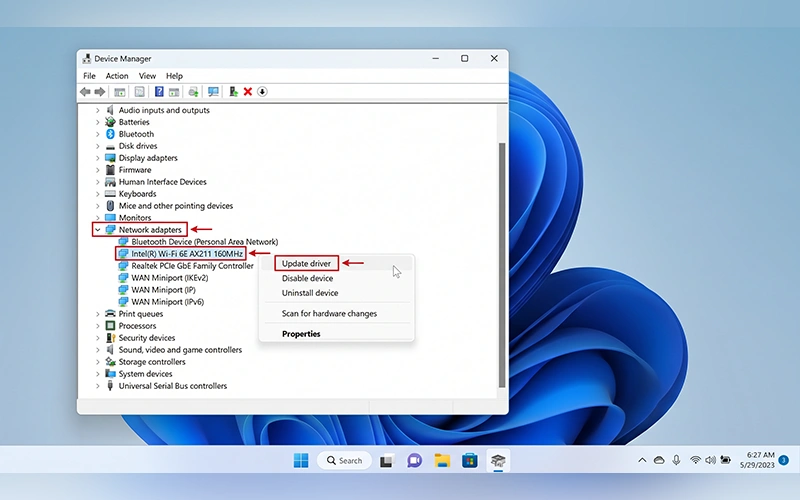
An outdated or damaged adapter driver can break name lookups while the connection itself appears fine. Right-click the Start button, open Device Manager, and expand Network adapters. Open the adapter’s context menu with a right-click, then select the option to update its driver. If the problem began right after a Windows update, open the adapter’s properties and try Roll Back Driver instead. As a last resort, uninstall the device and restart; Windows usually reinstalls a fresh copy on its own.
Rule Out Firewalls, VPNs and Antivirus
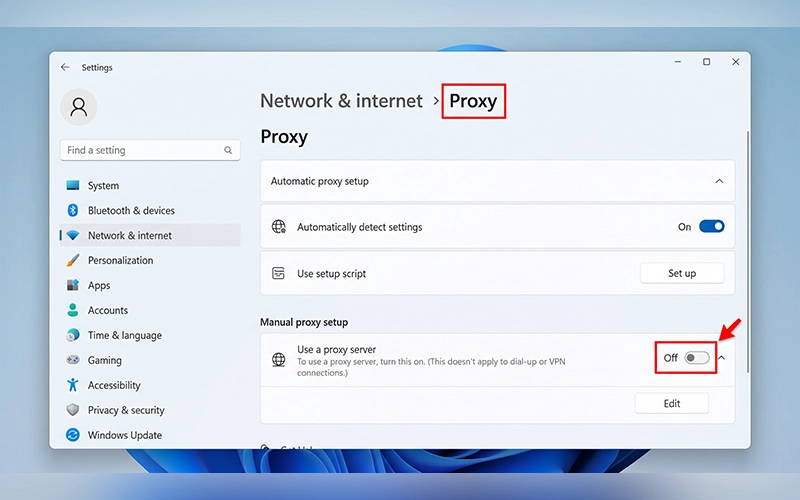
Security tools sometimes get overprotective. DNS traffic travels through port 53, and a strict firewall rule can block it without any warning. A VPN or proxy can also misroute those requests, so if you don’t use a proxy, open Settings, go to Network & internet, then Proxy, and make sure Use a proxy server is off.
Disconnect your VPN first and test again. If nothing changes, pause your antivirus firewall for a few minutes and reload a page. Should that cure it, don’t leave protection off. Switch it back on and adjust the firewall rules, or contact the software’s support, so the block is removed properly.
When the Problem Is on Your ISP’s Side
Some faults can’t be repaired from your couch. If every step above has failed and your modem shows a warning light, your provider is likely dealing with an outage. Check their status page or social media, then call support. Tell them which lights are showing and what you’ve already tried, which spares both of you a repeat of the basics.
You can also log in to your router’s admin page (the address and login are usually printed on a label on the router) and enter a public DNS address there. That applies the change to every connected device at once, and it’s a handy workaround while the provider sorts out their end.
Final Thoughts
Most DNS failures come down to a tired router, a corrupted cache, or an unreliable default server, and each of those has a simple remedy. Go from the cheapest fix to the heaviest, and you’ll often be back online within the first few steps. If you manage to get back online, tell us in the comments which step worked for you. It helps the next person who lands here with the same problem.
Frequently Asked Questions
How long does a DNS problem usually last?
Fixes on your own computer work as soon as you apply them. A provider outage is different and can take a few hours to clear, and only the provider can end it.
Why does the DNS error keep coming back?
A failing or outdated router is the most common reason. Look for a firmware update in its admin page, and consider replacing it if it’s several years old.
Is a DNS error dangerous for my computer?
No. It’s a networking fault, and your files are untouched. The one exception is malware that changes DNS settings on purpose, so if the addresses on your adapter are ones you never entered, run a full antivirus scan.
Which is better, Google DNS or Cloudflare DNS?
Both are fast and dependable, and either one clears this error in most cases. If one doesn’t help, try the other.
Is it safe to use a public DNS server?
Yes, both providers are widely used and well established. The trade-off is privacy: your lookups go to that company instead of your internet provider, so read its privacy policy if that matters to you.
Will changing my DNS affect my internet speed?
It changes only how quickly website names are looked up. Your download and upload speeds stay the same, though pages can start loading slightly sooner with a faster DNS server.
Does resetting the network delete my files?
No. The reset commands touch only networking components, not personal files. They do return settings to default, so a static IP address or other custom setup may need to be entered again.
How to fix a DNS error on Android or iPhone?
Turn Wi-Fi off and on, then forget the network and join it again. If that fails, set a public DNS: on iPhone, tap the network’s info icon in Wi-Fi settings and choose Configure DNS, then Manual. On Android, the Private DNS setting takes a hostname such as dns.google instead of numbers.
For more articles like this, visit our site: https://factbreaker.com/