



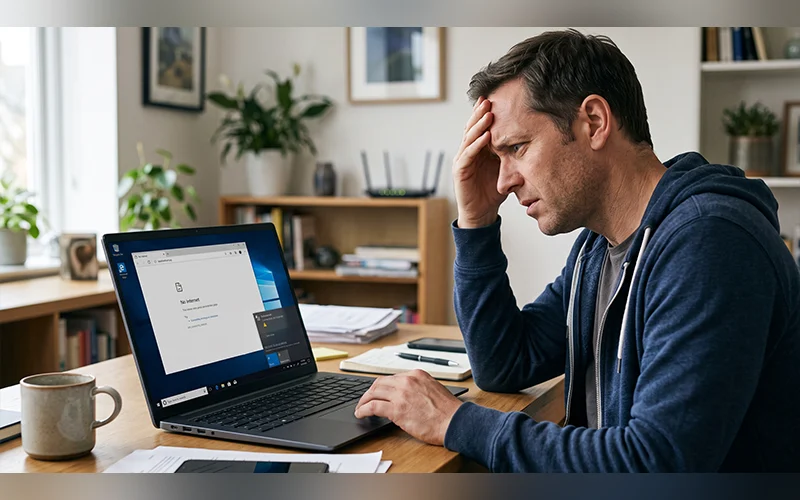
A laptop connected to WiFi but no internet can be frustrating, especially when the wireless connection appears normal but websites, apps, and online services fail to load. This problem can occur because of router issues, incorrect network settings, DNS errors, or outdated WiFi drivers. The good news is that you can try several troubleshooting methods to identify the cause and restore your internet connection.
This problem can result from router faults, incorrect network settings, DNS errors, outdated drivers, or software that blocks internet traffic. Identifying the cause helps you choose the right fix instead of changing settings unnecessarily.
First, connect another device to the same Wi-Fi network to see if it can browse the web normally. This simple test helps determine whether the issue affects your laptop alone or the entire network.
Why Is WiFi Connected but No Internet?
Your laptop may be connected to the wireless network, yet websites can remain inaccessible if the router has lost its internet connection or your device has incorrect network configurations.
Common causes include:
- Router or modem issues: Your device connects to the wireless network, but the router or modem fails to establish a working internet connection.
- IP address issues: Windows cannot obtain a valid address or has conflicting network settings.
- DNS errors: Your laptop cannot translate website names into the IP addresses needed to reach them.
- WiFi driver problems: An outdated or corrupted driver interferes with the wireless adapter.
- VPN or proxy interference: Incorrect settings prevent normal internet traffic.
- ISP outages: A service interruption prevents the router from reaching the internet.
Testing another device on the same network helps narrow down the cause before you change Windows settings.
Check Your Laptop or WiFi
Join the same wireless network on a different device, such as a smartphone, and check whether websites load correctly.
- Other devices work: The issue is more likely related to your laptop’s settings, software, or wireless adapter.
- All devices are offline: Inspect your router, modem, and internet service connection.
- Only some websites fail: Investigate DNS, browser settings, or the affected website.
Use this result to decide which troubleshooting steps to try first.
10 Ways to Fix a Laptop Connected to WiFi but No Internet
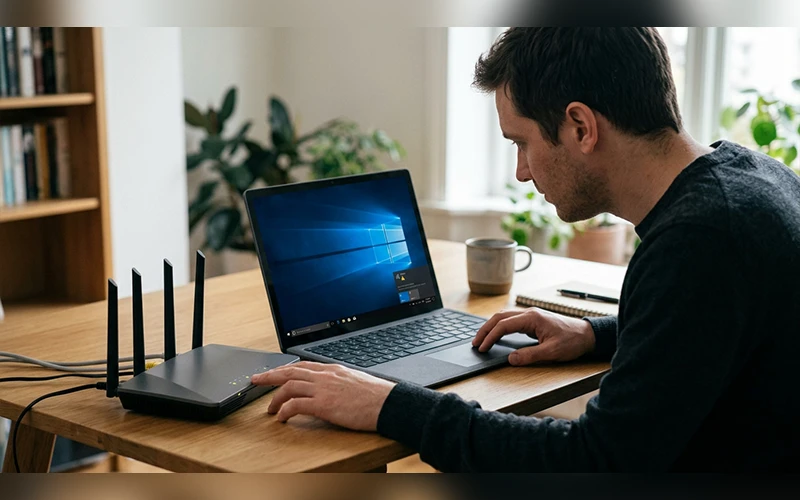
1. Restart Your Laptop and WiFi Router
Restarting your laptop and networking equipment can resolve temporary software and connection problems.
Restart your laptop:
- Save your work.
- Open the Start menu and select Power.
- Choose Restart.
- Reconnect to WiFi and test a website.
Restart your modem and router:
- Disconnect the modem and router from their power sources. If both functions use a single device, remove its power cable instead.
- Wait 30–60 seconds.
- If the modem is a separate unit, restart it first and allow it to reconnect to the network.
- Power on the router and allow a few minutes for it to restart.
- Reconnect your laptop and test the internet.
Boot duration and status light behavior differ between devices. If all devices remain offline, check your ISP’s service status using mobile data or contact the provider.
2. Run the Windows Network Troubleshooter
Windows 10 includes network diagnostics that can identify certain connection problems and suggest possible repairs.
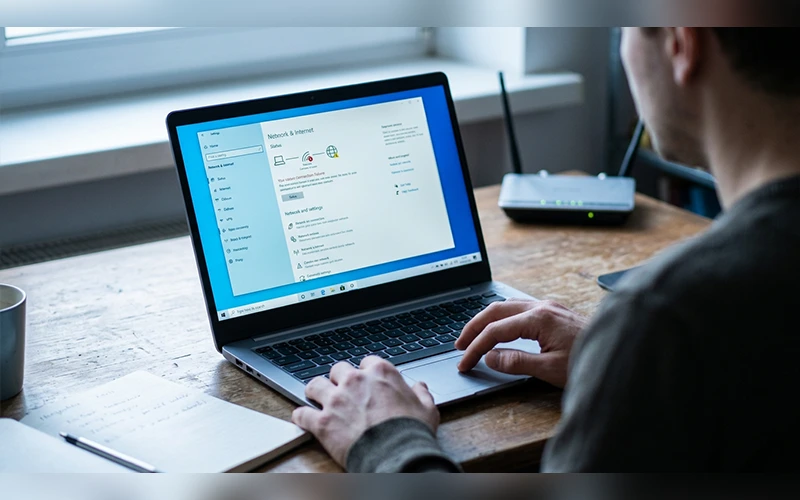
- Go to the Start menu, open Settings, and select Network & Internet.
- Select Status.
- Look for Network troubleshooter and open it if available.
- Follow the on-screen instructions.
- Apply any recommended fix and test your connection.
The available options may vary by Windows 10 version. If the troubleshooter cannot identify or resolve the issue, continue with the next fix.
3. Forget the WiFi Network and Reconnect
A saved wireless profile can sometimes contain outdated credentials or settings. Removing the network and connecting again allows Windows to create a fresh connection profile.
- Go to Settings, select Network & Internet, then open Wi-Fi.
- Select Manage known networks.
- Choose your current WiFi network.
- Click Forget.
- Select the network from the available WiFi list.
- Enter the WiFi password and reconnect.
Make sure you know the WiFi password before forgetting the network. After reconnecting, test a website. If the issue continues, move on to the following solution.
4. Disable and Re-enable the WiFi Adapter
The wireless network adapter is the hardware component that allows your laptop to communicate with WiFi. Temporarily disabling and re-enabling it can resolve some adapter-related glitches.
- Right-click the Start button.
- Open Device Manager.
- Expand Network adapters. Locate your wireless adapter. The listed brand could be Intel, Realtek, Qualcomm, or a different hardware maker.
- Right-click the wireless adapter and select Disable device.
- Confirm the action if Windows asks, then wait about 10 seconds.
- Right-click the adapter again and choose Enable device.
Avoid disabling unrelated adapters. After re-enabling the wireless adapter, reconnect to WiFi and test the internet. If the adapter is missing from Device Manager or shows a warning symbol, check its driver and device status.
5. Check Your VPN, Proxy, and System Date
Privacy controls and security configurations can sometimes disrupt your internet connection. VPN kill switches, incorrect proxy settings, and an inaccurate system clock are worth checking before making more extensive changes.
Disconnect your VPN: Open your VPN application and disconnect from the server. If the application has a kill switch, check whether it is blocking traffic when the VPN disconnects. If you rely on a VPN for work or privacy, turn it back on once testing is complete. Keep necessary security features enabled.
Check proxy settings:
- Open Settings > Network & Internet.
- Select Proxy.
- Review the manual proxy configuration.
- Turn off an unnecessary manual proxy setting if you do not intentionally use one.
Do not remove proxy settings required by your workplace, school, or managed network.
Correct the system clock:
- Go to Settings, select Time & Language, then open Date & time.
- Enable Set time automatically.
- Select Sync now, if available.
An incorrect clock can cause secure website connections to fail because certificate validity checks depend on the system time.
Test your connection after checking these settings. Avoid leaving security software disabled as a permanent workaround.
6. Renew Your IP Address and Clear the DNS Cache
Windows uses an IP address to communicate across the network and a DNS cache to store recent website address lookups. Updating these options may resolve issues with the laptop’s network addressing or DNS lookup process.
- Open Start and type cmd.
- Right-click Command Prompt and select Run as administrator.
- Run these commands one at a time, pressing Enter after each:
ipconfig /release

ipconfig /renew

ipconfig /flushdns
The first command releases the current IPv4 address lease, the second requests fresh IPv4 configuration, and the third clears the local DNS resolver cache.
If ipconfig /renew returns an error, note the message. It may indicate that Windows cannot obtain an address from the router’s DHCP service.
After all commands have run, check whether your internet is working. If the problem remains, move on to the next solution.
7. Reset the Windows Networking Components
If renewing the IP address and clearing the DNS cache do not help, resetting Winsock and TCP/IP may resolve deeper Windows networking problems.
- Open Command Prompt as administrator.
- Run these commands one at a time:
netsh winsock reset
netsh int ip reset
- Wait for the commands to finish.
- Restart your laptop.
- Reconnect to WiFi and test the internet.
These commands reset Windows networking components but cannot repair a router fault or ISP outage. If your laptop uses manually configured network settings or specialised networking software, record the configuration before proceeding.
8. Change the DNS Server Settings
A DNS server translates website names into IP addresses. If your current DNS server is unavailable or responding incorrectly, switching to a reputable public service can help diagnose the problem.
To try Google Public DNS on Windows 10:
- Press Windows + R.
- Type ncpa.cpl and press Enter.
- Right-click your WiFi connection and select Properties.
- Select Internet Protocol Version 4 (TCP/IPv4) and click Properties.
- Choose Use the following DNS server addresses.
- Enter these addresses:
- Preferred DNS server: 8.8.8.8
- Alternate DNS server: 8.8.4.4
- Click OK to save the changes.
- Open a browser and test your connection.
This changes the DNS servers only. Keep the IP address and remaining network settings as they are unless your connection needs custom settings.
If the change does not help, return to the IPv4 properties and select Obtain DNS server address automatically, unless your network administrator has supplied specific DNS addresses.
9. Update or Reinstall the WiFi Driver
A damaged, outdated, or incompatible wireless driver can prevent Windows from communicating correctly with the WiFi adapter. This can happen after a driver change, a system problem, or a hardware-related update.
Start by checking for a driver update:
- Open Device Manager.
- Expand Network adapters.
- Right-click your wireless adapter.
- Select Update driver.
- Choose the option to search automatically for drivers.
If Windows cannot find a suitable update, check your laptop manufacturer’s official support website using your exact laptop model. If needed, use a separate device with internet access to get the correct Wi-Fi driver, then copy it to your laptop.
If the problem started immediately after a driver update, open the adapter’s Properties > Driver tab and check whether Roll Back Driver is available.
If neither a driver update nor a rollback fixes the issue, try removing the wireless adapter driver and installing it again. Open Device Manager, right-click the Wi-Fi adapter, choose Uninstall device, then restart your laptop. Avoid selecting an option to delete the driver package unless you already have a suitable replacement. Windows may reinstall the driver automatically, but you might need to install it manually from the laptop manufacturer’s official support website.
10. Perform a Network Reset in Windows 10
A network reset is a last resort because Windows removes and reinstalls network adapters and restores their settings to default values. Try this option only if the simpler fixes listed above fail to resolve the issue.
Before proceeding, save your work and make sure you know your WiFi password. VPN tools, virtual network adapters, and related connection utilities may require setup again once the process is complete.
Follow these steps:
- Open Settings.
- Select Network & Internet.
- Choose Status.
- Select Network reset.
- Click Reset now.
- Confirm the action and allow the laptop to restart if prompted.
- Reconnect to your WiFi network.
After the reset, test your internet connection before reinstalling or changing other networking software.
Microsoft recommends leaving network reset until other troubleshooting steps have failed because it reinstalls network adapters and resets their configuration. See Microsoft’s official Windows WiFi troubleshooting guide.
Fix WiFi Issues on Windows 10
If your laptop is connected to WiFi but has no internet access in Windows 10, checking its IP address can help identify a network configuration problem.
Open Command Prompt and run:
ipconfigFind the active wireless adapter and check its IPv4 address. An address beginning with 169.254 generally means Windows assigned itself an automatic private address because it could not obtain an IPv4 address from the network’s DHCP server.
If this occurs, restart your router and renew the IP address using the commands in Fix 6. If other devices work normally but your laptop continues receiving this address, investigate the wireless adapter and its network configuration.
If only one website fails, try opening several unrelated websites. If other websites load normally, the issue could be limited to one particular site instead of your internet connection as a whole.
If browsers work but one application does not, check that application’s network permissions, proxy settings, or firewall rules instead of resetting all Windows networking components.
What to Do if Your Laptop Still Has No Internet Access
If none of the previous fixes works, use another network to help identify whether the problem comes from your laptop or home router.
Connect your laptop to a mobile hotspot or another working WiFi network. If the internet works on another network, review your router for blocked devices, parental restrictions, or scheduled connection limits. Adjust these options only if you have permission to manage the router.
If your laptop cannot access the internet on multiple working networks, the wireless adapter, driver, or Windows configuration may require further diagnosis. If all devices fail on your home network, contact your ISP to check for a service outage or line fault.
Windows 10 support ended on October 14, 2025, for most standard editions. Check Microsoft’s official end-of-support guidance to understand your available security support options.
Final Thoughts
When your laptop is connected to WiFi but has no internet access, first determine whether the problem affects one device or the entire network. Then work through the relevant fixes, starting with basic checks and moving to advanced network settings only when necessary.
This approach helps identify the cause while avoiding unnecessary changes to your laptop’s configuration.
Frequently Asked Questions
Why is my laptop connected to WiFi but not accessing the internet?
A laptop can join a Wi-Fi network without receiving a working internet connection. This may stem from IP configuration problems, DNS failures, outdated wireless drivers, or security software interrupting connectivity. Check another device on the same network to narrow down the cause.
What should I do when Windows 10 connects to WiFi but cannot access the internet?
Restart the router, reconnect to WiFi, and run the Windows network troubleshooter. If these steps fail, renew your IP address, clear the DNS cache, check the wireless driver, and use network reset only as a last resort.
Why does Windows show a connected Wi-Fi network without internet access?
Windows may recognize the WiFi connection as active without detecting a working internet connection. Since this warning does not reveal the underlying problem, test another device on the same network to determine whether the issue affects the laptop or the router.
Can a faulty WiFi driver cause internet connection problems?
Yes. An outdated, incompatible, or corrupted driver can interfere with the wireless adapter. Updating or reinstalling the correct driver from the laptop manufacturer’s official support website may resolve the issue.
Why does WiFi work on my phone but not on my laptop?
When other devices browse normally on the same WiFi, the issue may lie in the laptop’s network settings rather than the router or internet provider. Review its stored WiFi details, IP configuration, DNS settings, VPN or proxy setup, and wireless adapter driver.
Can a laptop connect to WiFi without internet access?
Yes. A laptop can connect to a wireless router even when the router has lost its internet connection. Incorrect network settings, DNS problems, or ISP outages can also prevent internet access while WiFi remains connected.
Will resetting network settings delete my WiFi password?
A network reset can remove saved network configurations, so you may need to reconnect to WiFi and enter your password again. Make sure you know the password before resetting your network settings.
Why does my laptop keep disconnecting from the internet even when WiFi is connected?
The issue may stem from router instability, signal disruption, old network drivers, or faulty power settings. Reboot the router, verify wireless strength, and install the latest adapter driver to narrow down the problem.
For more articles like this, visit our site: https://factbreaker.com/