


You unplug your phone at 100% in the morning, and by lunch it’s sitting near 30%. You haven’t gamed, you haven’t streamed anything, and the phone has mostly stayed in your pocket. So why is my phone battery draining fast when you’ve barely touched it?
Short answer: the cause is usually heavy background app activity, a bright or high-refresh screen, a weak signal, heat, or a battery that has simply aged. This guide shows how each one works, how to tell which one is yours, and what to change on both Android and iPhone.
How Much Battery Drain Is Normal?
A healthy phone with its screen off loses roughly 1-2% per hour. Active use is a different story. Video calls, navigation and games can easily take 10-20% in an hour, and that’s expected.
The warning sign is a phone that loses 5-10% an hour while sitting idle. A simple overnight test, described further down, shows which side of that line your phone is on.
Why Is My Phone Battery Draining Fast? The Real Causes
Your screen uses more power than anything else
The display is the biggest consumer on almost every phone. Full brightness hurts, and so does a 120Hz refresh rate, which redraws the image twice as often as a standard 60Hz panel. An always-on display adds a small but constant drain across the whole day.
Apps keep working when you aren’t looking
Social media, maps and email apps refresh in the background, check your GPS location and push notifications even while the screen is dark. One app doing this is harmless. Thirty of them add up quickly.
A weak signal forces the phone to work harder
When coverage is poor, your phone boosts its radio power to find and hold a connection. That’s why the battery melts in basements, lifts, remote areas and buildings with thick walls.
5G adds another layer. Its modems use more power than 4G, particularly where coverage is patchy and the phone keeps hopping between networks. If you don’t need the speed, setting the phone to 4G or “5G Auto” is an easy way to claw back some hours.
Heat and cold both hurt
Heavy gaming and a phone left on a sunny dashboard or in a hot car raise the battery’s temperature. Hot cells waste energy, and sustained heat above roughly 35°C can cause lasting capacity loss.
Cold has the opposite effect. In freezing weather the battery can seem to lose charge suddenly, but this is mostly temporary. Warm the phone up and most of the lost capacity returns.
The battery is simply getting old
Every charge cycle takes a tiny, permanent bite out of a lithium-ion cell’s capacity, and the wear adds up over the years. An older battery also confuses the percentage gauge, which is only an estimate built from voltage, temperature and recent usage. As the cell ages, that estimate drifts, which is how 40% can turn into 25% within minutes. It’s the one cause that software can’t fix.
Widgets, live wallpapers and notifications
These look harmless, but a weather widget that updates every few minutes or a live wallpaper that animates constantly keeps the processor awake. Every notification also wakes the screen and the radios for a moment. A phone that buzzes 200 times a day pays for it in battery.
A buggy app or a stuck process
Sometimes a single app misbehaves after its own update, looping in the background or holding the phone awake by refusing to sleep. These are often the cause when drain appears suddenly, with no change in how you use the phone.
How to Find the Culprit Before Changing Anything
Randomly switching off settings wastes time. A few quick checks will point you in the right direction first.
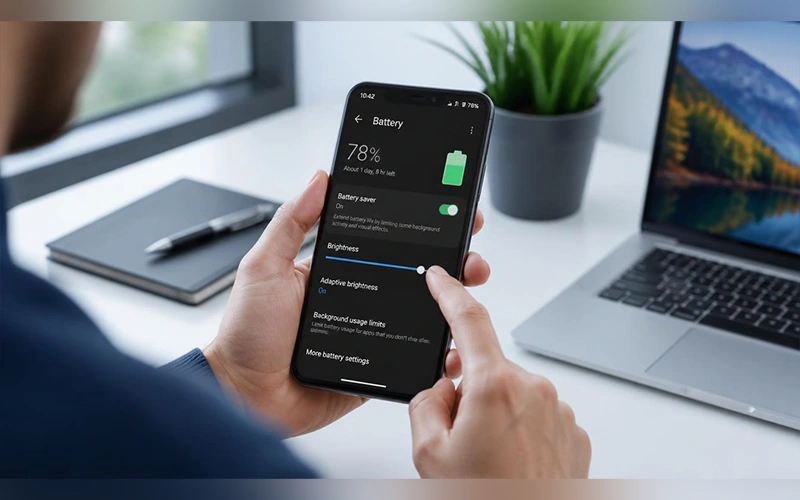
Read the battery usage list. Open Settings > Battery > Battery usage and look at the last 24 hours. An app with a high percentage but very little screen time is the suspect. On iPhone, toggle between Show Battery Usage and Show Activity to compare background use with screen use.
Run the overnight test. Charge to 100%, leave the phone idle overnight, and check it in the morning. A drop of more than 15% means something is running that shouldn’t be, whether that’s background activity or a failing battery. Barely any loss means your daytime habits are the problem.
Try Safe Mode on Android. Hold the power button, long-press “Power off” and confirm. Safe Mode disables downloaded apps, so use the phone normally for a few hours. If the drain disappears, an installed app is responsible. If it continues, the battery itself is the likelier cause.
Read the pattern. When the drain happens tells you as much as which app causes it. Fast loss only while you use the phone points to the screen, the signal or a heavy app. Fast loss while idle points to background activity. A sudden change right after an update means that update is the first suspect, and a slow decline over many months usually means an aging battery.
How to Fix Phone Battery Draining Fast: A Simple Routine
Once you know roughly where the problem lies, work through these steps in order. Each takes a minute or two.
- Restart the phone. This clears stuck processes and crashed apps that may be looping quietly.
- Update your apps and system software. Developers regularly patch battery bugs, and old app versions often clash with newer operating systems.
- Calm the screen. Turn on auto-brightness and Dark Mode (on OLED screens, black pixels switch off completely), set the timeout to 30 seconds, and drop the refresh rate to 60Hz if you can live with slightly less smooth scrolling.
- Limit what apps can track. Change location permission to “Only while using the app” for anything that doesn’t need GPS all the time, and mute notifications from shopping, news and game apps.
- Switch off unused radios. Bluetooth, NFC and hotspot features draw power even when idle.
- Handle bad signal. Use Wi-Fi or Wi-Fi calling when coverage is weak, or flip on Airplane Mode when you don’t need to be reachable.
- Use battery saver on tough days. Low Power Mode on iPhone or Power Saving Mode on Android pauses background activity and trims performance to stretch what’s left.
- Reset settings as a last resort. Resetting all settings, not your data, clears deep configuration problems. A full factory reset should come only after a backup, and only if everything else has failed.
Android Phone Battery Draining Fast: Settings Worth Checking
Android menus change from brand to brand, but these options exist on nearly every phone.
Put rarely used apps to sleep. On a Samsung, go to Settings > Battery > Background usage limits and turn on “Put unused apps to sleep.” You can also add apps to the Deep sleeping list so they never wake up. On a Pixel or other Android phone, open Settings > Apps > See all apps, pick a heavy app like Facebook or TikTok, tap Battery, and change Optimized to Restricted.
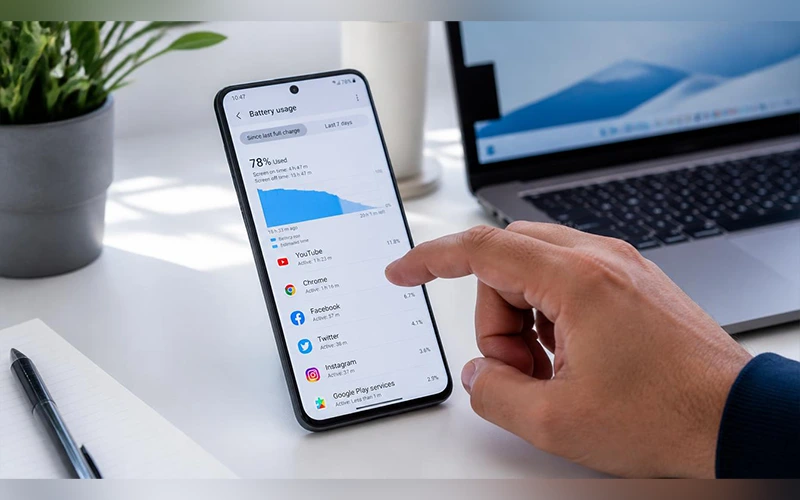
Using a Xiaomi, Oppo, Vivo or Realme phone? You will usually find the same option under Settings > Battery or in an app battery saver menu, though the name changes slightly between brands and software versions.
Stop background scanning. Even with Wi-Fi off, Android keeps looking for networks to improve location accuracy. Turn off both Wi-Fi scanning and Bluetooth scanning under Settings > Location > Location services.
Trim account syncing. Go to Settings > Passwords & accounts, tap your Google account, and switch off sync for things you rarely use, such as Keep or Contacts.
Let Adaptive Battery learn. This built-in feature studies which apps you use and limits the rest. It needs a week or so to get good at it, so don’t judge it after one day.
Check the battery’s own health. Newer Pixel phones show a battery health reading under Settings > Battery, and Samsung’s Members app includes a battery diagnostic. If your phone offers neither, a service center can test the cell in a few minutes.
Why Is My Phone Battery Draining Fast iPhone? Check These Settings
iPhones are efficient, so a sudden drain usually traces back to a short list of settings.
Battery Health. Open Settings > Battery > Battery Health & Charging and look at Maximum Capacity. Below 80%, Apple considers the battery degraded, and the real fix is an official replacement.
Background App Refresh. Go to Settings > General > Background App Refresh and set it to Off, or to Wi-Fi only. Apps stop pulling data in the background, and you’ll barely notice the difference in daily use.
Mail fetch. If your inbox checks for new messages every 15 minutes, that’s a lot of wake-ups. Under Settings > Mail > Accounts > Fetch New Data, switch to manual or hourly.
Analytics. Under Settings > Privacy & Security > Analytics & Improvements, turn off Share iPhone Analytics. It’s a small saving, but it stops the phone from regularly sending diagnostic data.
iPhone Battery Draining Fast After Update: What’s Normal and What Isn’t
Right after installing a new iOS version, a faster drain is completely normal. Your iPhone is re-indexing files, photos and databases, and optimizing apps for the new software. That keeps the processor busy and often makes the phone feel warm. It usually settles within 48 to 72 hours. Android phones do the same thing after a major update.
If three days have passed and nothing has improved, try this:
- Force restart. Press and release Volume Up, then Volume Down, then hold the Side button until the Apple logo appears.
- Recheck your settings. Updates sometimes switch background features back on, so revisit Background App Refresh and location permissions.
- Look for a patch. Apple often releases a small follow-up update within weeks of a major one, and battery bugs are a common reason.
- Charge it overnight on Wi-Fi. Re-indexing and photo analysis mostly run while the phone is locked and plugged in, so a night on the charger lets it finish the job.
Charging Habits That Damage Your Battery
Lithium-ion batteries last longest when they stay between roughly 20% and 80%. Charging to 100% every night and running down to 0% regularly both speed up wear. Turning on Optimized Battery Charging (iPhone) or Adaptive Charging (Android) helps, because the phone holds off on the last 20% until just before you wake up. Newer iPhones and some Samsung models also let you cap charging at 80% or 85% outright.
Cheap, uncertified chargers are the other quiet culprit. They can deliver unstable power, which damages cells over time. A certified charger costs little compared with a worn-out battery.
Heat during charging matters too. Fast charging and wireless pads both generate more warmth than a standard cable, and a thick case traps it. If your phone feels hot on the pad, take the case off or switch to a cable. Demanding games while plugged in add even more heat, so give the phone a break while it charges.
Battery Myths That Waste Your Time
“Closing apps saves battery.” Swiping apps away forces them to reload from scratch next time, which can use more power than leaving them paused in memory. Close an app only if it’s misbehaving.
“Battery saver apps help.” Most cleaner and booster apps run constantly themselves and add to the drain they promise to fix. Your phone’s built-in tools do the job better.
“Drain it to zero to recalibrate.” That advice dates back to older battery types. On a modern lithium-ion cell, deep discharges only shorten its life.
Signs It’s Time to Replace the Battery
Software tweaks have limits. Consider a new battery if:
- The phone shuts off at 20-30% charge.
- The battery health reading has fallen into the degraded range.
- Battery drain continues even in Safe Mode.
- The back panel bulges or the screen lifts from the frame. This is a safety issue, so stop charging the phone and take it to a service center immediately.
If you’ve tried every phone battery draining fast fix above and the problem stays, chemical wear is the cause, and software can’t reverse it. Replacement is the better route: at an authorized service center it usually costs a small fraction of a new phone and can give a good handset another couple of years. Check your warranty first, because an iPhone covered by AppleCare+ with a degraded battery may qualify for a free replacement. Avoid unbranded batteries, since quality varies widely.
Final Thoughts
Most battery problems are fixable, and you rarely need to change everything at once. Pick one setting, give it a full day, then check Battery usage to see whether it helped. Changing things one at a time shows you what actually worked, and it keeps you from switching off features you like for no reason.
Frequently Asked Questions
Is it normal for a new phone to drain fast?
Yes, for the first few days. Restoring a backup, downloading apps and syncing accounts keep the phone busy, and battery life settles once that’s done.
How long should a phone battery last before it needs replacing?
Most keep about 80% of their capacity for 500 to 1,000 charge cycles, roughly two to three years of daily use.
Does Low Power Mode damage the phone?
No. It only limits background activity and some visual effects, so it’s safe to leave on. An iPhone turns it off by itself once charged past 80%.
Does Wi-Fi use less battery than mobile data?
Usually, yes. Wi-Fi needs far less power than cellular, especially when the cellular signal is weak. A Wi-Fi connection that keeps dropping is the exception.
Can a virus or malware drain my battery?
It can, though ordinary apps are a far more common cause. Warning signs are apps you don’t remember installing and unusual data use. Remove them and run a Google Play Protect scan.
Why do TikTok and Instagram use so much battery?
They keep the screen bright, autoplay video and use mobile data constantly. Turning off autoplay and lowering video quality in each app’s settings cuts the load noticeably.
Do smartwatches and Bluetooth earbuds drain the phone’s battery?
A little. Connected devices keep a steady link open and sync data. The drain grows if the companion app syncs constantly, so check its place in your battery usage list.
Does low storage affect battery life?
Indirectly, yes. An almost-full phone struggles to manage cache files and updates, which keeps the processor busier. Leaving roughly 10-15% of storage free is a sensible habit.
For more articles like this, visit our site: https://factbreaker.com/