


Your phone feels fine one minute, then it’s as hot as a pan the next. If that sounds familiar, you need to know how to stop phone from overheating before the heat wears down your battery and slows the processor. The screen dims, apps stutter, and sometimes the whole thing shuts itself off. The good news is that most cases trace back to a few habits and settings you can change today. This guide covers fixes for gaming, charging and long calls, with specific steps for iPhone, Samsung, and other Android models.
What Counts as Too Hot
A phone that feels slightly warmer than your hand is normal, especially during navigation or video. The problem starts when the back panel becomes uncomfortable to hold. Apple rates iPhones for ambient temperatures of 0°C to 35°C, and most Android brands quote similar limits.
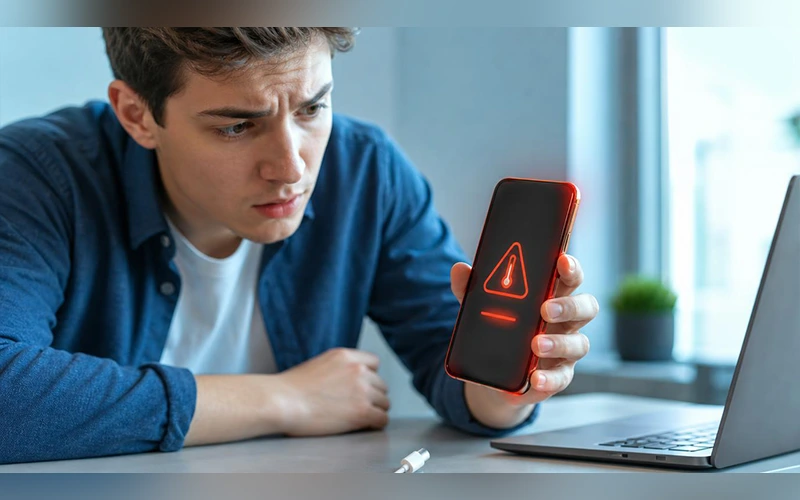
Once the internal temperature climbs too high, the phone defends itself. Brightness drops, charging slows or stops, the camera flash gets disabled, and performance throttles. In extreme cases you’ll see a warning screen or a forced shutdown. None of this is a glitch. It’s a safety system telling you to back off.
Common Reasons Your Phone Runs Hot
Wondering, “Why is my phone overheating so quickly?” Pay attention to when it happens, because the timing usually points to the cause.
- Runaway apps. A glitchy app can get stuck in a loop and hog the processor without you noticing. Constant syncing, GPS tracking and cloud photo backups do the same thing, only more quietly.
- An ageing battery. Lithium-ion cells develop more internal resistance over time, so even ordinary tasks produce extra heat.
- Weak signal. In a poor reception area the modem raises its power output to stay connected. A mobile hotspot piles another heavy load on top.
- Warm surroundings. A hot room or a thick, rubbery case leaves the heat with nowhere to go.
- Old damage. A phone that has been dropped or exposed to water can develop small internal faults that run hot.
This quick table helps you narrow it down:
| When it gets hot | Likely culprit |
| Sitting idle in your pocket | A rogue background app, a cloud backup in progress, or a worn battery |
| Opening one specific app, such as Instagram or TikTok | A poorly optimised app using the camera, GPS and data streaming all at once |
| Opening the camera | Normal during 4K recording, but if it happens instantly, the phone needs a restart or an update |
Cool Your Phone Down Right Now
When it’s already hot, work through these in order:
- Take the case off. Many cases act like a blanket and block the phone’s passive cooling.
- Unplug the charger. Keep it unplugged until the phone cools down.
- Get out of direct sun. Keep it away from car dashboards and closed, airless spaces.
- Rest it face down on a hard, flat surface, like a wooden desk. Beds, pillows and sofas trap heat underneath.
Then ease the load. Swipe away apps you aren’t using, lower the brightness, and switch on your phone’s battery saver to hold back background syncing. If your signal is poor, airplane mode for a few minutes gives the modems a break.
Why Long Gaming Sessions Heat Things Up
Games push the graphics chip and processor harder than anything else you do on a phone. If you’re searching for how to stop phone from overheating while playing games, start with the graphics menu. Dropping from Ultra or High to Medium or Low cuts the workload immediately.
Next, cap the frame rate at 30 or 60 FPS instead of 90 or Max, since every extra frame costs processing power. Shadows and anti-aliasing are heavy effects with almost no competitive benefit, so turn them off too. Most phones from Samsung, OnePlus and Xiaomi include a Game Booster or Gaming Mode that silences notifications and gives the game priority. Switch it on.
Hold the phone loosely enough that your palms aren’t covering the back panel, and sit near a fan or in an air-conditioned room if you can. If you play PUBG Mobile, Genshin Impact or Call of Duty every day, a clip-on cooling fan is a worthwhile purchase. It pulls heat off the back panel and delays thermal throttling.

What to Do When It Heats Up on the Charger
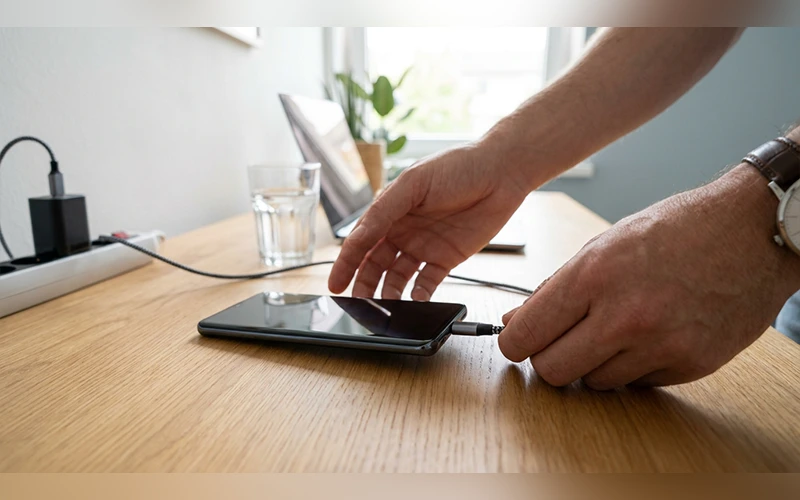
Charging produces heat by itself, and anything extra stacks on top of it. People often ask how to stop phone from overheating while charging, and the simplest answer is to leave the phone alone. Playing games or streaming HD video while plugged in forces the device to handle electrical heat and processing heat together. If it still gets too warm, power it off completely and charge it that way. That removes software heat from the equation entirely.
The hardware matters just as much. Cheap, unbranded bricks and cables often lack proper voltage regulation, which stresses the battery. Stick with the charger that came in the box or a reputable certified brand like Anker or Ugreen. When temperatures rise, disable fast charging if your phone supports this option, as slower charging can help limit excess heat buildup in the battery. Wireless charging runs warmer than a cable because some energy is lost as heat, so switch to a cable when the phone is already warm.
Keeping Video Calls Cool
A video call keeps the camera, microphone and screen running while the phone compresses and sends your video in real time. iPhones have no fan, so that combination warms the chassis quickly. Knowing how to stop phone from overheating on FaceTime starts before the call: charge the phone beforehand instead of plugging it in halfway through.
Use a strong Wi-Fi connection instead of mobile data, because 5G radios draw noticeably more power. Skip SharePlay and screen sharing when the phone already feels warm, since they add a second heavy task to the call. If the conversation drags on, switch to audio only for a while and let the camera rest.
iPhone Settings That Actually Help
Apple builds several useful tools into iOS. If you’ve searched how to stop phone from overheating iPhone and found only scattered advice, start with Low Power Mode under Settings > Battery. It reduces background activity, pauses automatic downloads and lowers the screen refresh rate.
Go to Settings > Battery > Battery Health & Charging and turn on Optimised Battery Charging, which reduces the time the battery spends at full charge and eases strain during overnight charging. Then open Settings > General > Background App Refresh and either switch it off or set it to Wi-Fi only. Open Settings > Privacy & Security > Location Services and adjust apps with frequent location access to use your location only while they’re open.
While you’re in Battery Health, check Maximum Capacity. Below 80%, the battery is worn enough to generate extra heat, and a replacement is the real fix. If your iPhone still gets too hot despite having a battery in good condition, restarting it may resolve background processes that are consuming excessive resources.
If you see the black screen that says “iPhone needs to cool down before you can use it,” power the phone off and move it into the shade. Don’t use it or charge it until the warning goes away on its own.
Samsung and Android Settings to Change
Samsung hides most of its cooling tools under Settings > Device Care, which is where anyone searching how to stop phone from overheating Samsung should begin.
- On One UI 5.1 and newer, set the Performance profile to Light.
- Open Battery > Background usage limits, turn on Put unused apps to sleep, and add heavy social media or navigation apps to the Deep sleeping apps list.
- Under Charging settings, switch on Protect battery to stop charging at 80 or 85%.
- If the phone suddenly spikes in temperature, restart it, then tap Optimize now in Device Care.
Other brands need a different approach. When people search “how to stop phone from overheating Android,” the useful answer comes down to three things: finding hungry apps, lowering the refresh rate, and trimming connections.
- Open Settings > Battery > Battery usage. If an app you barely touch shows a high percentage, restrict it or force stop it.
- Under Display, move a 90Hz or 120Hz screen back to Standard 60Hz until things cool off.
- Turn off Bluetooth and Quick Share when you aren’t sending anything.
- If your 5G signal is patchy, switch the preferred network type to 4G/LTE so the phone stops straining to hold a weak connection.
- Clear the cache of your browser or a social app (Settings > Apps > Storage > Clear Cache), but leave the data alone.
- If the heat started after you installed something new, boot into Safe Mode. If the phone stays cool there, a third-party app is the cause.
Cooling Tricks That Do More Harm
It’s tempting to toss a hot phone into the fridge or freezer, or to press ice against it. Don’t. A sudden drop in temperature creates condensation inside the device, and that moisture can permanently damage the motherboard. Let it cool down gradually instead.
The same goes for third-party cleaner or cooler apps. They rarely lower the temperature. Most run ads and tracking processes in the background, which adds heat rather than removing it.
Habits That Prevent Overheating
Knowing how to stop phone from overheating for good mostly means building a few habits. Check your system settings and app store regularly, since updates often include thermal and battery fixes. Install apps only from the official store, since hidden mining or malware apps can keep the processor busy all day.
When Overheating Points to a Bigger Problem
Some heat problems can’t be solved with settings. A swollen battery is the most serious one. If the back panel is lifting, the screen is bulging, or you notice a burning smell, stop using and charging the phone and take it to an authorised service center right away. Frequent shutdowns, or heat that returns after a restart, an update and light use, also deserve a professional look. Technicians can test the battery and charging port, and if the battery is the cause, replacing it is usually the safest fix. Never press on or puncture a swollen battery.
Final Thoughts
Learning how to stop phone from overheating mostly comes down to small habits, and most phones recover quickly once you ease the load. If this guide helped, share it with a friend whose phone runs hot, or leave a comment with the fix that worked for you.
Frequently Asked Questions
At What Temperature Does a Phone Become Too Hot?
The maximum safe temperature differs between phone models. If your device feels painfully hot to the touch or displays a temperature alert, stop using it and allow it to cool down.
How much time does a phone need to cool off?
Usually 10 to 15 minutes once the heavy task stops and the case is off. If it is still hot after half an hour with nothing running, something else is wrong.
Can overheating permanently damage my phone?
Repeated heat can. It speeds up battery wear, which shows up as shorter battery life and sudden shutdowns, and it can stress other components over time.
Is charging your phone safe when it feels too warm?
Wait until it cools. Many phones pause charging on their own and show a warning until the temperature drops, which is normal.
Why does my phone overheat following a software update?
After a major update or a restore from backup, the phone re-indexes photos, apps and search data in the background. A day or two of extra warmth is normal. If it lasts longer, check for a follow-up patch.
Do phone cooling fans really work?
Yes, but they only treat the symptom. Check for a rogue app or a worn battery first, or you’ll be cooling a problem that keeps coming back.
Does a factory reset fix overheating?
A reset may help if faulty software or a frozen app is responsible, but save your files beforehand. If overheating persists after setup, the battery or internal components may be at fault.
Can an overheating phone catch fire or explode?
It’s rare, but damaged or swollen batteries and faulty chargers can pose a fire risk. If your phone becomes excessively hot or shows signs of battery damage, stop using it and seek professional inspection. Learning how to stop phone from overheating also means recognizing when the problem requires expert attention.
For more articles like this, visit our site: https://factbreaker.com/