



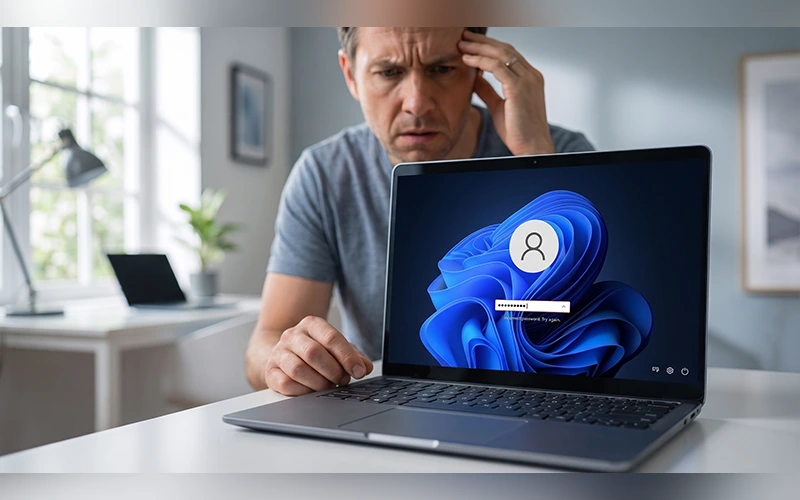
It is a familiar moment of panic: you sit down at your desk, type your password out of habit, and the screen simply refuses to budge. Whether you have forgotten the password on a Windows 11 PC you set up last week or have been locked out of an old Windows 10 laptop for months, the fix is usually more straightforward than you might expect.
Everything depends on one important detail: whether your device uses a Microsoft account or a local account. Once you identify your account type, you can choose the appropriate recovery method instead of wasting time on options that will not work. People searching for the phrase “how to reset windows password” should begin by identifying which type of account they use.
This guide covers practical ways to regain access to your computer, starting with the quickest solutions and moving toward more advanced recovery options for situations where the usual methods fail.
Work Out Which Type of Account You Are Dealing With
Before changing any settings, look closely at your sign-in screen. If it displays an email address beneath your profile picture, your computer is likely connected to a Microsoft account. Your account credentials are managed online, although Windows may also allow you to sign in using a PIN or another configured method.
If the screen displays a username without an email address, you may be using a local account. These accounts are managed directly on the computer and have different password recovery options.
When researching how to reset windows password, first confirm your account type and rule out simple mistakes. An accidentally enabled Caps Lock key or a keyboard layout that has switched to another language can produce the same incorrect-password message as a genuine lockout.
| Account Type | What the Sign-In Screen Shows | Where the Password Is Managed | Fastest Reset Option |
| Microsoft Account | Usually an email address | Through Microsoft’s online account system | Microsoft account password reset page |
| Local Account | Usually a username without an email address | On the individual device | Security questions or a password reset disk |
Resetting a Microsoft Account Password Online
For many people searching for how to reset windows password, the official Microsoft account recovery page is the easiest place to start. You can use another device with an internet connection, such as a phone, tablet, or another computer. This method applies to both Windows 10 and Windows 11.
Start by opening Microsoft’s official account password reset page on your secondary device and entering the email address associated with your locked computer. Microsoft will ask you to verify your identity using an available recovery method, such as a text message or backup email address.
Enter the verification code when it arrives, follow the instructions, and create a new password.
Return to your locked PC and connect it to Wi-Fi or Ethernet if it is not already online. Then sign in using your updated credentials. If you normally unlock your device with a PIN rather than a password, look for the relevant PIN recovery option on the sign-in screen. You may need to complete identity verification before setting a new PIN.
This is often the simplest solution for anyone learning how to reset windows password when the computer uses a Microsoft account. You do not need to modify Windows system files or access another administrator profile.

Recovering a Local Account With Security Questions
To regain access to a local Windows account, first check whether you added security questions during the initial setup. Local accounts use recovery methods stored on the computer, so their password recovery process differs from that of Microsoft accounts.
Type a wrong password into the Windows login field. If your account supports this recovery method, a Reset password link should appear after the failed attempt.
Select the link and answer the security questions you previously configured. If your answers are correct, Windows will let you create a replacement password and return to the sign-in screen.
This method offers a straightforward way to regain access to your local account without knowing your previous password. It does not require third-party software and ordinarily leaves your personal files and settings untouched.
Letting a Second Administrator Account Reset It for You
If another account on your computer has administrator privileges, it may provide another way to regain access to a locked local account. This option is particularly useful on shared household or office computers.
Sign in to the other administrator account and open the available account-management tools. On supported Windows editions, you can open Computer Management, navigate to Local Users and Groups > Users, right-click the relevant local account, and select Set Password if the option is available.
Follow the instructions to establish a replacement password. This option can help when working out how to reset windows password through another administrator account, but it has limitations.
Local Users and Groups is not available in every Windows edition, including many Home installations. Resetting a password through an administrator account can also affect access to certain files or credentials protected by the original password. It does not replace Microsoft’s online password recovery process for a Microsoft account.
If the account-management option is unavailable or the account type is unclear, use the recovery method designed for that account rather than changing unrelated settings.
Using a Password Reset Disk
People looking for how to reset windows password with a reset disk should know that this option works with local accounts and requires preparation in advance.
If you created a password reset disk before getting locked out, insert the USB drive at the sign-in screen and enter an incorrect password if necessary. Select Reset password when the option appears, then follow the password-reset wizard to create a replacement password.
The process is relatively quick and does not require advanced technical knowledge. However, the disk must already exist. A password reset disk must be prepared in advance, as it cannot be created from the sign-in screen once you are locked out of your account.
This method is intended for local accounts, not Microsoft account passwords.
Getting Back In When Standard Recovery Options Fail
If you are still trying to understand how to reset windows password after standard options fail, your remaining choices depend on your Windows configuration and the importance of the files stored on the computer.
First, see if you can access a different account with administrator privileges. If one exists, use the supported account-management tools to investigate whether the locked local account can be recovered.
If no administrator account is accessible, consider Microsoft’s official Windows recovery options. You can reach the Windows Recovery Environment from the sign-in screen by holding Shift while selecting Power > Restart, provided the recovery interface is available. You may also be able to access it through your computer manufacturer’s recovery process or compatible Windows installation media.
From the recovery menu, select Troubleshoot to review the available options. Depending on your device, these may include Startup Repair, System Restore, or Reset this PC.
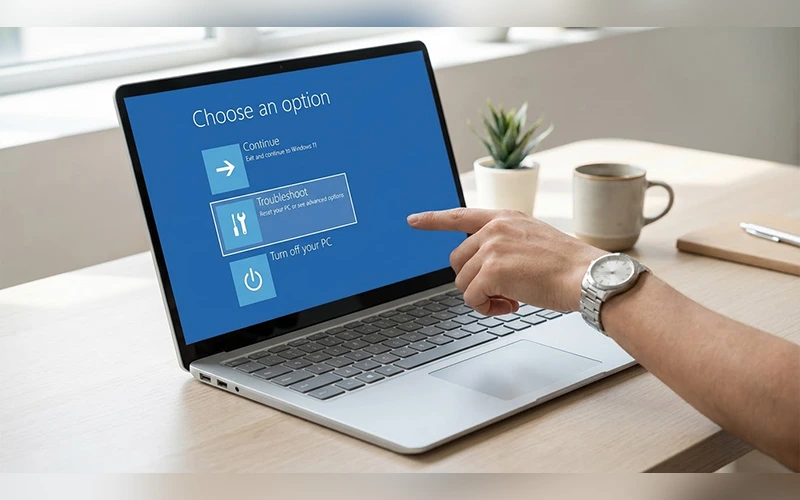
These tools serve different purposes. Startup Repair addresses certain problems that prevent Windows from starting, while System Restore can return system settings to an earlier state if a suitable restore point exists. Neither option is a guaranteed way to reset a forgotten account password.
Avoid replacing Windows system utilities or changing protected system files to bypass the sign-in screen. These changes may disrupt Windows accessibility tools and weaken system protection, making them an unsuitable alternative to the recommended password recovery methods.
Before proceeding with any recovery operation, check whether important files are backed up and whether device encryption is enabled. If you cannot determine which option is appropriate, seek help from Microsoft Support or your computer manufacturer’s support service.
If Other Recovery Methods Fail
Before choosing a full reset to resolve how to reset windows password problems, understand what the process does to your computer. If the available account recovery methods fail and you cannot regain access through another administrator account, resetting Windows may be a last resort.
From the Windows Recovery Environment, select Troubleshoot > Reset this PC if the option is available. Depending on your system, Windows may offer Keep my files or Remove everything.
The Keep my files option reinstalls Windows while aiming to preserve personal files, but it removes applications and resets settings. It is not a substitute for a backup, and you should not assume every file will be recoverable. Remove everything is more destructive and is intended to remove personal files as well as applications and settings.
A Windows reset may also fail to solve every account-related problem in the way you expect, particularly when online account verification or device-management restrictions are involved. Review the options carefully before confirming.
If your files are important and you do not have a backup, seek professional assistance before starting a reset. Recovering access to the account is preferable to taking an action that could make your data harder to retrieve.
Important Risks Before Choosing a Recovery Method
An important part of learning how to reset windows password safely is understanding how encryption and account credentials can affect your files.
If your drive uses BitLocker encryption or Windows device encryption, you may be asked for a recovery key when accessing certain recovery tools or changing system settings. The 48-digit BitLocker recovery key may be available through your Microsoft account, a work or school account, a saved file, a printed copy, or another location where you stored it. Check the appropriate source before making changes that could trigger a recovery prompt.
Files protected with the Encrypting File System (EFS) may also become inaccessible if the relevant encryption keys or certificates are lost. Certain credentials and encrypted data can depend on the original account password or its associated keys, so resetting a password is not always equivalent to recovering the original credentials.
For Microsoft accounts with two-step verification enabled, you may be asked to confirm your identity using an available verification method. An authentication app, backup email address, or phone number may help, depending on the recovery options configured on your account.
If you are unsure which recovery method applies to your situation, contact Microsoft Support or your device manufacturer’s support team before attempting an irreversible operation.
Changing Your Password Once You Are Already Logged In
If you can still sign in, knowing how to reset windows password settings or change your credentials proactively is much simpler than recovering a locked account.
One option is to press Ctrl + Alt + Delete together and select Change a password from the menu, if that option is available for your account. Follow the prompts to enter your existing password and choose a new one.
Alternatively, open Settings and navigate to Accounts > Sign-in options. Select Password and choose Change if the option is available.
For local accounts, Windows may ask for your current password before allowing you to choose a replacement. Microsoft accounts may require you to complete additional verification through the account’s online security settings.
A Windows PIN works separately from your account password, so updating either one will not automatically update the other.
Simple Habits That Prevent This From Happening Again
Taking a few simple steps now can help you avoid trouble with future lockouts. Set up a PIN or Windows Hello facial recognition if your device supports it, giving you a convenient alternative to typing your full password each time.
Keep the recovery email address and phone number associated with your Microsoft account up to date. These details can be important when Microsoft needs to verify your identity during an online reset.
If you use a local account, make sure you remember your security question answers and consider creating a password reset disk in advance. Store recovery information securely rather than leaving it somewhere another person could easily access.
Finally, back up important files regularly. A reliable backup gives you another layer of protection if you eventually need to reset Windows or seek professional help to recover access to your computer.
Final Thoughts
Being locked out of your computer can be frustrating, but the right recovery method depends on whether you use a Microsoft account or a local account. Start by identifying your account type, check for simple sign-in mistakes, and use the recovery options designed for your situation.
Whenever possible, choose a method that restores access without affecting your files. If the usual options fail, review the available Windows recovery tools carefully and make sure your important data is protected before taking more drastic steps. With the right preparation, recovering access to your computer can be much easier and safer.
Frequently Asked Questions
Will resetting my password delete my files?
Usually, no. Standard Microsoft account recovery and local account recovery options generally leave personal files untouched. Resetting Windows is different and can remove files, applications, or settings depending on the option selected.
What can I do if I cannot access a second device to open Microsoft’s password recovery page?
You can temporarily borrow a trusted person’s phone or computer to access Microsoft’s official recovery page. You will need to complete the required identity verification before changing your password.
Is the Command Prompt method safe to use?
Changing protected Windows system files to bypass the sign-in screen is not a recommended password recovery method. Use Microsoft’s supported recovery options or contact a qualified technician if standard methods fail.
Why does my sign-in screen show a name instead of an email address?
Your PC might be signed in with a local profile, which is controlled directly on the computer instead of being linked to a Microsoft account. Check the account details and available sign-in options before choosing a recovery method.
How Can I Prevent Future Windows Password Lockouts?
Enabling a PIN or Windows Hello, updating your Microsoft account recovery information, and preparing a reset disk for a local profile can help you regain access more easily if you forget your password again.
Does the reset process work the same on a laptop and a desktop PC?
Most account recovery methods work on both laptops and desktop computers running Windows 10 or Windows 11. The available options may vary depending on the Windows edition, account type, and device configuration.
What should I do if the Microsoft recovery code never arrives?
Check your spam folder, confirm that your recovery phone number or email address is correct, and review Microsoft’s alternative verification options. if you are unable to confirm your identity, use Microsoft’s official account recovery procedure.
Do I need to reinstall any apps or drivers after resetting my password?
A standard password change or account password recovery generally does not require reinstalling applications or drivers. A Windows reset is different and may remove applications and change system settings, depending on the option you choose.
For more articles like this, visit our site: https://factbreaker.com/