




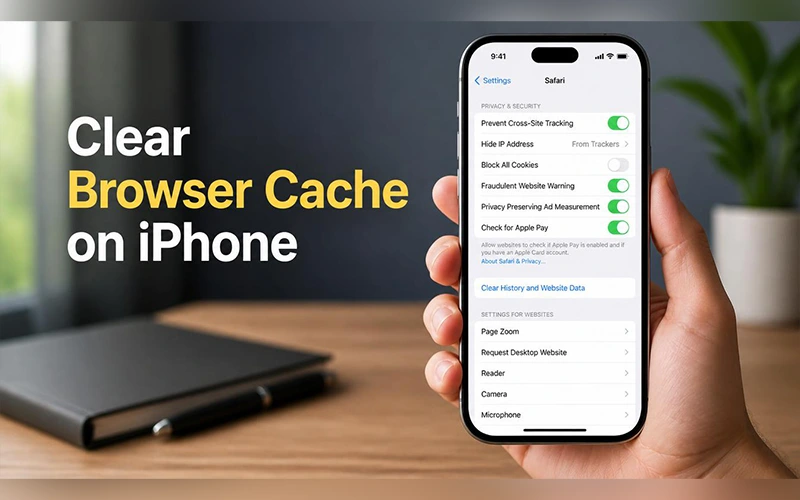
You updated a page, or a shop changed its prices, yet your phone keeps showing the old version. Usually a saved copy of the site is to blame, not the site itself. Knowing how to clear browser cache on iPhone takes under a minute and often cures slow loading, login errors, and broken layouts. Learn how to clear cache in Safari, Chrome, Firefox, and Edge with simple instructions for each browser and details on which data is removed.
Quick solution: Open Settings > Apps > Safari, then tap Clear History and Website Data. In Chrome, tap the three-dot menu, choose Delete Browsing Data, and tick Cached Images and Files.
What the Cache Does on Your iPhone
Each time you open a website, your browser tucks away pieces of it, such as logos, fonts, and scripts, so the next visit loads faster. That stored bundle is the cache. It works well until a site changes and your phone keeps serving the older files. Plenty of people end up searching how to clear web browser cache on iPhone for exactly this reason: the page on screen no longer matches the live one.
Each browser keeps its own copy, so clearing Safari’s cache does nothing for Chrome. Anyone working out how to clear cache on iPhone browser apps needs a separate routine for each.
Signs It’s Time to Clear Your Cache
Most people notice the symptoms long before they know the cause. A page shows last week’s content. A login screen sends you back to the start again and again. A checkout button does nothing, a form refuses to submit, or an embedded video won’t play. Heavy browsing can also leave a surprising amount of website data on the phone. If that sounds familiar, it’s worth learning how to clear your browser cache on iPhone before you consider anything drastic, like resetting the device.
Many people jump straight to searching how to clear my browser cache on iPhone, but a 20-second test can confirm the cause first. Load the problematic webpage in an incognito tab. If it loads correctly there, stored data is the likely culprit. If it fails the same way, the cache probably isn’t the cause.
Cache, Cookies, and History Compared
Before you choose how to clear browser cache on iPhone, it helps to know what each type of data does. People often confuse these three, but each addresses a different issue.
| Data type | What it holds | Clear it when |
| Cache | Saved images, fonts, and page files | Pages look outdated or broken |
| Cookies | Login sessions and site preferences | You’re stuck in a login loop |
| History | The list of pages you’ve visited | You want privacy on a shared phone |
Work up the ladder: cache first, cookies only if a login still fails, history only when privacy is the goal. When a login still fails, it’s time to learn how to clear cookies and browser cache on iPhone together. On a shared phone, you’ll want to know how to clear cache and browser history on iPhone as a pair.
How to Clear Browser Cache on iPhone in Safari
Wondering how to clear browser cache on iPhone Safari entirely, or only in part? Use the first route for a full reset, the second to keep your history, and the third when only one site is misbehaving. Apple keeps the controls inside Settings rather than the browser, which is why people searching how to clear browser cache in Safari on iPhone often struggle to find them. The menus below match iOS 18 and iOS 26, where Safari moved under a section called Apps. On older versions, it appears directly in the main Settings list. Not sure which version you have? Check under Settings > General > About.
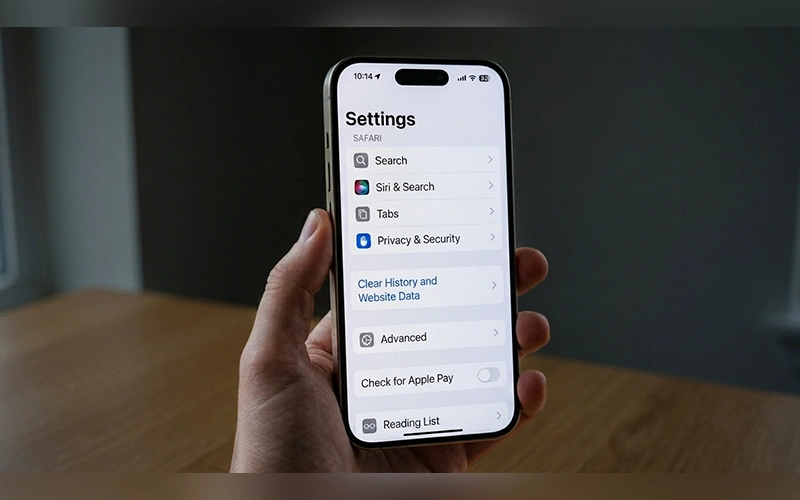
Clear History and Website Data
This route wipes history, cookies, and cached files in one pass, which makes it the simplest answer to how to clear browser cookies and cache on iPhone.
- Open Settings and tap Apps.
- Choose Safari.
- Scroll down and tap Clear History and Website Data.
- Pick a time frame, anywhere from the last hour to all history.
- Tap Clear History.
For additional instructions, see Apple’s guide on how to clear Safari history, cache, and cookies on iPhone.
The time frame matters most. A short window is the gentlest choice when only a recent visit caused trouble, and the safest first move. If you use Safari Profiles, the screen may also ask which one to clear. With iCloud syncing for Safari turned on, cleared history disappears from your other Apple devices too.
Remove Cache but Keep Your History
Website Data holds cached files and cookies but not your history, so this route clears the clutter and keeps your trail.
- Go to Settings > Apps > Safari.
- Scroll to the bottom and tap Advanced.
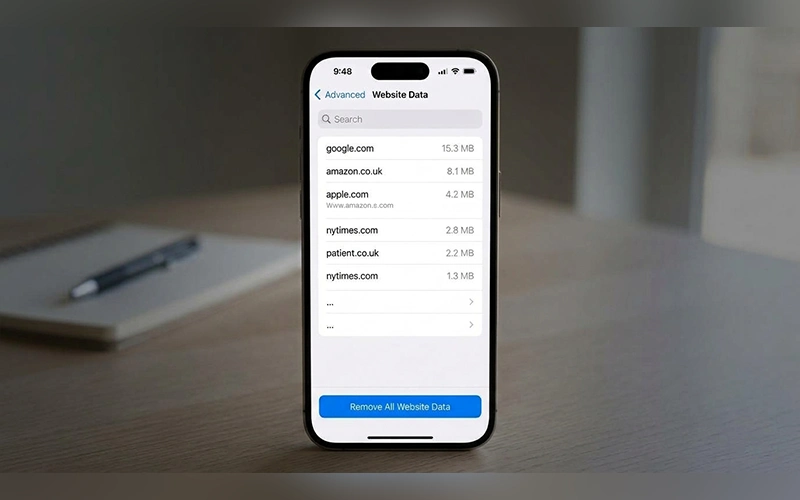
- Tap Website Data.
- Tap Remove All Website Data, then confirm with Remove Now.
That’s how to clear Safari browser cache on iPhone while leaving your history exactly as it was.
Delete Data for a Single Site
Return to Advanced, then Website Data, and find the site in the list. Swipe left on it and tap Delete, or use Edit to remove several at once. It’s also how to clear browser cache on Safari iPhone for one stubborn domain while every other login stays intact.
How to Clear Browser Cache on iPhone in Chrome
Chrome’s controls live inside the app rather than in Settings. Here’s how to clear Chrome browser cache on iPhone in a few taps.
Delete Browsing Data in Chrome
- Open Chrome and tap the three-dot menu at the bottom right.
- Tap Delete Browsing Data. On some versions, open History first and choose it from there.
- Set the Time Range.
- Tick Cached Images and Files. Add Cookies, Site Data only if you want those gone too.
- Tap Confirm, then Delete Browsing Data.
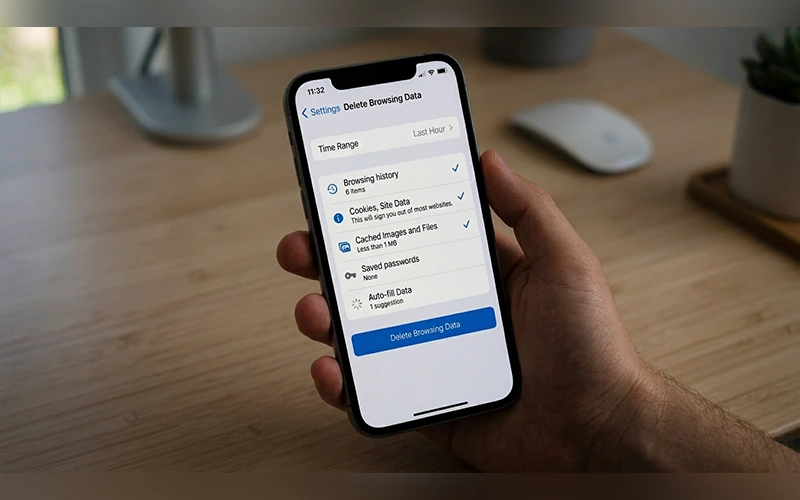
Chrome’s wording shifts between releases, so “Clear Browsing Data” and “Delete Browsing Data” lead to the same screen. Google’s browser is Chrome, so these steps are also how to clear Google browser cache on iPhone. There’s no separate Google setting to hunt for. On the same screen, leave Saved Passwords and Autofill Data unticked unless you truly want them wiped.
Pick the Right Time Range
Most guides rush past the time range, yet it decides how much you lose. Chrome offers the last hour, the last 24 hours, the last 7 days, the last 4 weeks, and all time. Start with the last hour or day if one recent page caused the problem. Switch to the all-time option only if the issue continues.
The same screen lists Browsing History, and ticking it is how to clear browser history and cache on iPhone in a single pass. Leave it unticked to keep your trail. If you’re signed in with sync on, deleted history can also disappear from your other devices.
Firefox and Edge Steps
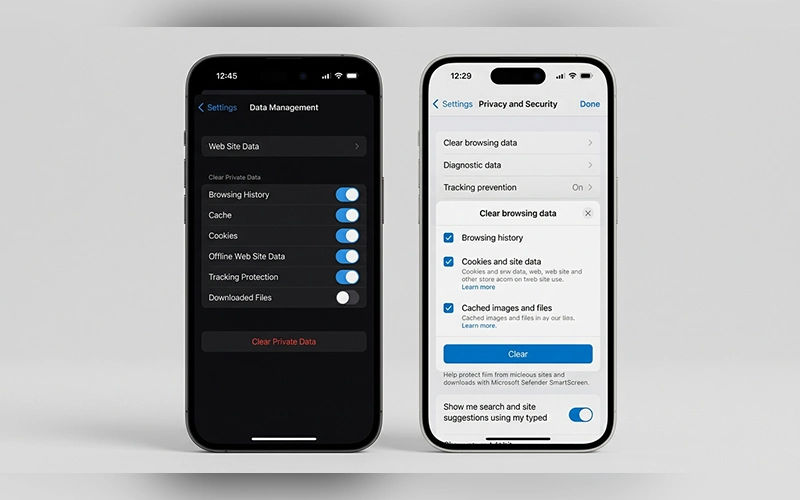
Firefox and Edge use their own menus, so here is how to clear browser cache on iPhone in each one. Both take only a few taps, though labels shift slightly between app versions.
Firefox: Tap the menu icon, open Settings, then Data Management. Switch on Cache, add Cookies if you want them gone, and tap Clear Private Data. Because Firefox puts both on one screen, one visit to that menu covers both.
Edge: Tap the three-dot menu, open Settings, then Privacy and security. Choose Delete browsing data (labelled Clear browsing data in some versions), select Cached images and files, set a time range, and confirm.
Smaller browsers such as Brave and DuckDuckGo follow the same logic. Open the app’s settings, find the privacy section, and look for a cached files option. That rule covers how to clear cache on iPhone web browser apps beyond the ones listed here.
What Happens After You Clear It
Even after you’ve learned how to clear the browser cache on an iPhone, the aftermath can surprise you. Websites treat you as a new visitor, so you’ll sign in again. Sites that remembered your language, region, or cart may forget them. The first visit to each page loads a little slower while your browser downloads everything fresh, and sites that trust your device for two-step verification may ask for a code again. None of this is permanent, because the cache rebuilds itself as you browse.
Cookies cause most of the inconvenience. A cache-only clear leaves your sessions alone. Anyone who learns how to clear browser cache and cookies on iPhone together should expect to be signed out almost everywhere. Before you clear cookies, make sure you can sign back in, either from memory or through your saved passwords.
Quick Fixes When the Problem Stays
Clearing the cache solves most display and login issues, but not all. Once you know how to clear a browser cache on iPhone, these are the next suspects, roughly in order of effort:
If your iPhone continues to experience other technical issues, explore our guide to troubleshooting common iPhone problems for more solutions.
- Force-close the browser and reopen it.
- Restart the iPhone.
- Update iOS under Settings > General > Software Update, and update the browser in the App Store.
- Turn off Safari extensions or content blockers one at a time under Settings > Apps > Safari > Extensions.
- Free up space under Settings > General > iPhone Storage, where you can also see how much room Safari is using.
- Switch between Wi-Fi and mobile data, or wait a few minutes. If the site’s own servers are serving an old copy, nothing on your phone will change that.
Final Thoughts
Clearing the cache costs you little besides a few logins, yet it fixes a surprising number of problems. Now that you know how to clear the browser cache on iPhone, the next stale page is something you can solve yourself in a minute or two.
Frequently Asked Questions
Is it safe to clear cache on iPhone, and will I lose passwords or photos?
Yes, it’s safe. The methods covered here clear site data, cookies, and browsing history when selected. Photos, contacts, saved passwords, and bookmarks live elsewhere, so following a guide on how to clear browser cache on an iPhone won’t touch them.
How frequently should I clear the browser cache on my iPhone?
Only when something misbehaves, or a few times a year for tidiness. If you find yourself searching how to clear my browser cache on my iPhone every week, a faulty extension or full storage is the likelier culprit.
Can clearing the cache help my iPhone run faster?
Rarely by much. If sluggishness is why you wanted to know how to clear browser cache on my iPhone, expect modest gains at best. The real payoff is fixing broken pages and reclaiming a little space.
Does Private Browsing replace clearing the cache?
No. Private tabs don’t keep history or cookies after you close them, so there’s less to clean up. Even so, knowing how to clear your web browser cache on iPhone still matters, because regular tabs are where most data builds up.
Why Can’t I Select Clear History and Website Data on My iPhone?
Usually there is nothing left to clear, or a Screen Time web content restriction is blocking the button. Check Settings > Screen Time > Content & Privacy Restrictions > Web Content and make sure it isn’t limiting Safari.
How do I clear the cache for apps like Instagram or TikTok?
iOS does not offer a single cache-clearing option for all third-party apps. Open the app and check its privacy or storage settings for a cache removal feature. If no such option exists, use Offload App under Settings > General > iPhone Storage to remove the app while retaining its documents and data. Then reinstall the app to start fresh.
Is it possible to clear browser cache on an iPad as well?
Yes. Learning how to clear browser cache on iPhone covers the iPad as well, because iPadOS uses the same Settings layout for Safari and the same in-app menus for Chrome, Firefox, and Edge.
Can I view the cached data saved on my iPhone?
No. iOS doesn’t expose cached files to users. The closest view is the Website Data list under Safari’s Advanced settings, which shows which sites have stored data on your phone.
For more articles like this, visit our site: https://factbreaker.com/