

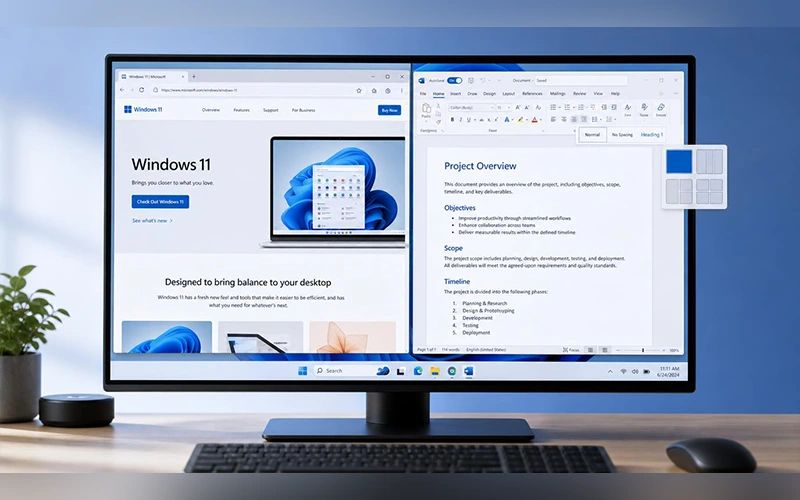
If you frequently switch between a browser and a document, you may be wasting time throughout the day. Learning how to split screen on Windows 11 fixes that: two, three, or even four apps sit side by side, and you don’t need to install anything. This guide covers the keyboard, mouse, and Snap Layouts methods, plus what to do when snapping stops working.
Why Splitting Your Screen Is Worth Learning
Picture a lecture video playing on one side while you type notes on the other. Or two spreadsheets next to each other, so you can compare figures without flipping tabs. Or a chat window that stays in view while you work. Once you get used to split-screen multitasking, working in a single full-screen window may feel restrictive.
Check This Setting Before You Start
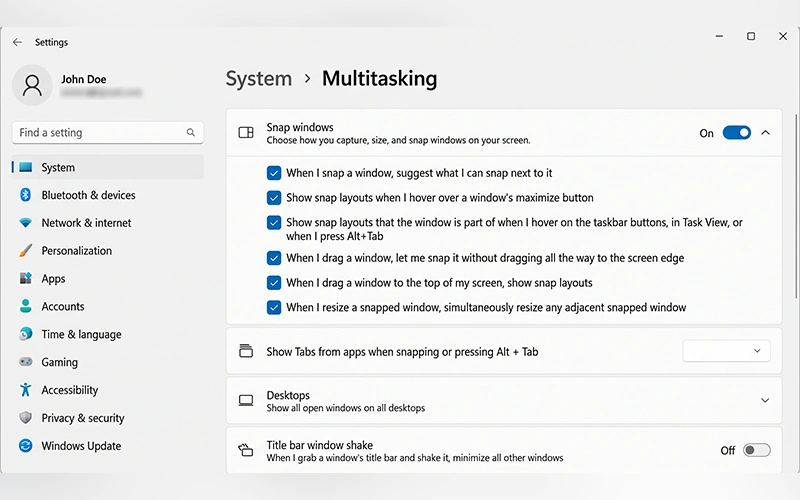
Press Win + I, open System > Multitasking, and make sure Snap windows is switched on. Click the arrow beside it and you’ll find extra options, such as showing layouts when you hover over the Maximize button or drag a window to the top of the screen. If any method below does nothing, this is the first place to look.
Keyboard Shortcuts Are the Quickest Route
Click the window you want to move, then press Win + Left Arrow or Win + Right Arrow. It jumps to that half of the screen straight away. If you like keeping your hands on the keys, this is how to split screen on Windows 11 with keyboard shortcuts alone, with no dragging needed.
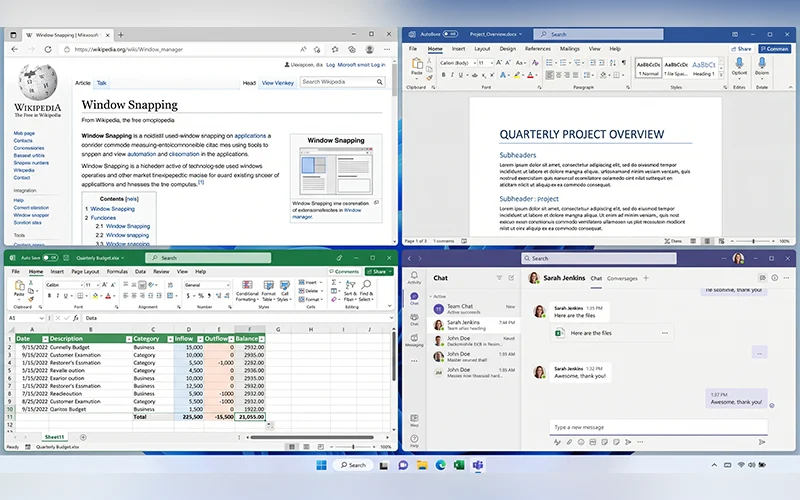
For a four-window grid, snap a window to one side first. Then press Win + Up Arrow or Win + Down Arrow to send it to a top or bottom corner, where it takes up a quarter of the screen.
Windows then shows thumbnails of your other open apps in the empty space. Use the arrow keys to highlight one and press Enter to lock it in. Repeat for the remaining corners.
For example, if you’re researching a topic online while writing a report, snap your browser to the left using Win + Left Arrow, then select your Word document for the right side. You can read information and take notes simultaneously without repeatedly switching between windows. The same setup works with Excel spreadsheets, PDFs, email, and other compatible apps.
Drag and Drop with Your Mouse
Not everyone enjoys memorising shortcuts, and that’s fine. Grab a window by its title bar and pull it to the far left or right edge until a faint outline appears, then let go. Drag the window to a screen corner and release it when the snapping outline appears. Windows then positions it in that quarter of the display.
There’s also a hidden trick at the top. On recent Windows 11 updates, dragging a window to the top-middle edge makes a drawer of layout templates slide down. Drop the window into any box and the screen arranges itself around it.
Using a laptop without an external mouse? You can still split the screen on Windows 11 with the built-in trackpad. rest the pointer on the title bar, press and hold the left touchpad button, slide your finger towards the edge, and release when the outline shows up. On a touchscreen, simply drag the title bar with your finger.
Snap Layouts for More Control
Hover over the Maximize button, the square icon next to the X in the top-right corner. A small menu shows layout options such as two equal halves, three columns, or a grid of four. Click the zone where the current window should sit, then pick a second app to fill the remaining space.
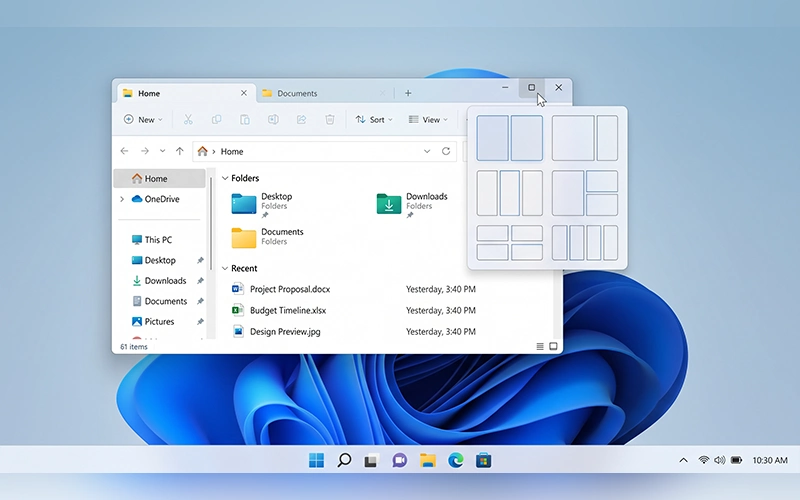
Press Win + Z and the same menu opens, with a number over each layout. Press the number of the layout you want, then the number of the zone. Anyone working out how to split screen on Windows 11 using keyboard only will find this handy for three-column setups, which the arrow-key shortcuts can’t create.
Windows also remembers the groups you build. Hover over one of the apps in the taskbar and the whole set appears as a Snap Group, so you can bring the entire arrangement back with one click. Alt + Tab and Task View show these groups as well, as long as the matching option under Snap windows is ticked.
For more details on arranging windows and customizing these features, see Microsoft’s guide to Snap Layouts.
Working on a Single or Small Display
You don’t need a second monitor for any of this. People often ask how to split screen on Windows 11 with one monitor, and Snap Layouts was built for exactly that setup. The menu adapts to your display: wide screens offer a large centre pane flanked by two smaller ones, while smaller screens show fewer, simpler layouts.
Once windows are snapped, you can rebalance them. Hover over the divider between two windows, then click and drag it to give one app more room. The neighbouring window resizes along with it.
What’s Different on Windows 10
If you’re still on the older system, the answer to how to split screen Windows 10 is short: it uses the same Snap idea with fewer extras. The familiar split screen Windows 10 shortcut key combos, Win plus an arrow key, work as before, and so does dragging a window to the screen edge. Windows 10 also reached end of support in October 2025, so upgrading is the only way to get Snap Layouts. The comparison highlights which features are missing.
| Feature | Windows 11 | Windows 10 |
| Win + Arrow shortcuts | Yes | Yes |
| Quarter-screen corner snapping | Yes | Yes |
| Layout menu on the Maximize button | Yes | No |
| Win + Z layout picker | Yes | No |
| Drag-to-top template drawer | Yes | No |
| Neighbouring window resizes together | On by default | Must be enabled in Settings |
When Screen Snapping Stops Working
If the settings above are all on and snapping still misbehaves, restart File Explorer. Press Ctrl + Shift + Esc, find Windows Explorer in the list, right-click it, and choose Restart. Installing any pending Windows updates is also worth a try, since some snapping features arrive through updates.
Some apps simply won’t resize. Older programs and certain installers use a fixed window size, so they can’t be snapped no matter what you try. A low screen resolution or high display scaling can also limit things, because Windows hides the larger grid layouts when there isn’t enough room for them. If larger Snap Layouts are unavailable, check your display resolution and scaling under Settings > System > Display. Changing these settings may make additional layouts available.
If Snap Layouts still doesn’t appear, press Win + I and navigate to System > Multitasking. Open the Snap windows settings and turn on the options that show layout choices when you point at the Maximize button or move a window to the upper edge of your display. These options control how layout suggestions appear. If the feature remains unavailable, install pending Windows updates and restart your PC before testing it again.
If you’re dealing with other PC issues, our guide can help you troubleshoot common Windows problems.
A Few Extras Worth Trying
Microsoft’s free PowerToys includes a tool called FancyZones, which lets you design your own zones instead of using the built-in ones. Hold Shift while dragging a window to see them. It’s a good fit if you work on an ultrawide display.
Another useful habit is pairing snapping with virtual desktops. Press Win + Ctrl + D to create a new desktop, then keep one for work and one for everything else.
Final Thoughts
Splitting your Windows 11 screen helps you handle daily activities more efficiently, from reviewing files and joining virtual lessons to jotting down notes and working across several applications simultaneously. For quick adjustments, use Win + Left Arrow or Win + Right Arrow. If you need three or four windows arranged neatly, Snap Layouts offers more flexibility without requiring additional software.
Try each method to find the one that fits your workflow and screen size. If snapping doesn’t work as expected, check your Snap windows settings before troubleshooting further. With a little practice, switching between apps becomes less frequent, and multitasking feels much more organized.
Frequently Asked Questions
How many windows can I snap at once?
Four is the usual limit on standard screens. Larger or higher-resolution displays may offer layouts with more zones.
Can I split screen on Windows 11 into three equal parts?
Yes, but not with the arrow keys, which only create halves and quarters. Use the three-column option in Snap Layouts.
Can you use split screen on Windows 11 Home?
Yes. Snap features are included in every edition.
How do I undo a snap?
Drag the title bar away from the screen edge and the window returns to its previous size.
How can I transfer a snapped app to a different monitor?
Use Win + Shift + Left Arrow or Win + Shift + Right Arrow to move the window, then arrange it again on the other screen.
How do I turn off Snap Layouts?
Turn off the Snap windows toggle to disable snapping entirely. To keep snapping but hide the hover menu, untick only the layout options listed beneath it.
Why is Win + Left Arrow not working on Windows 11?
Check for a Windows key lock first. Many gaming keyboards and some laptops have one, usually toggled with a Game Mode button or an Fn combination. Unlock it and try again.
How can I expand a snapped window to full screen again?
Double-click its title bar or click the Maximize button, and it fills the screen.
For more articles like this, visit our site: https://factbreaker.com/