
Your laptop screen may support 60Hz, 90Hz, 120Hz, 144Hz, or an even higher refresh rate. But how do you know which one your display is currently using? You do not need special software to find out. Windows provides a built-in setting that shows the refresh rate of your display.
Knowing your screen’s refresh rate can be useful when you are gaming, watching videos, scrolling through websites, or trying to get smoother animations. It can also help you check whether your laptop is actually using the refresh rate advertised for its display.
In this guide, you will learn how to check laptop screen refresh rate in Windows 11 and Windows 10. You will also learn how to check an external monitor, change the available refresh rate, troubleshoot missing options, and check similar settings on Android phones.
Understanding Refresh Rate and Hz
Refresh rate describes how many times your screen can update the image every second. It is measured in hertz (Hz). For example, a 60Hz display can refresh the image up to 60 times per second, while a 120Hz display can refresh it up to 120 times per second.
A higher refresh rate can make movement look smoother. You may notice the difference when scrolling through a long webpage, moving windows around, watching supported content, or playing games with a high frame rate. However, the benefit depends on the display, graphics hardware, software, and the type of content you are using.
It is also important not to confuse refresh rate with screen resolution. Resolution describes the number of pixels used to create the image, while refresh rate describes how frequently the display updates that image. A laptop can have a high-resolution screen with a standard refresh rate, or a lower-resolution screen with a high refresh rate.
Finding the Setting in Windows 11
If you want to know how to check laptop screen refresh rate Windows 11, the easiest method is through the Display settings. You do not need to install a third-party application or change any advanced system settings.
Follow these steps:
- Open Start and select Settings.
- Click System from the left side.
- Select Display.
- Scroll down and open Advanced display.
- If more than one screen is connected, select the display you want to check.
- Look for the refresh-rate information on the Advanced display page.
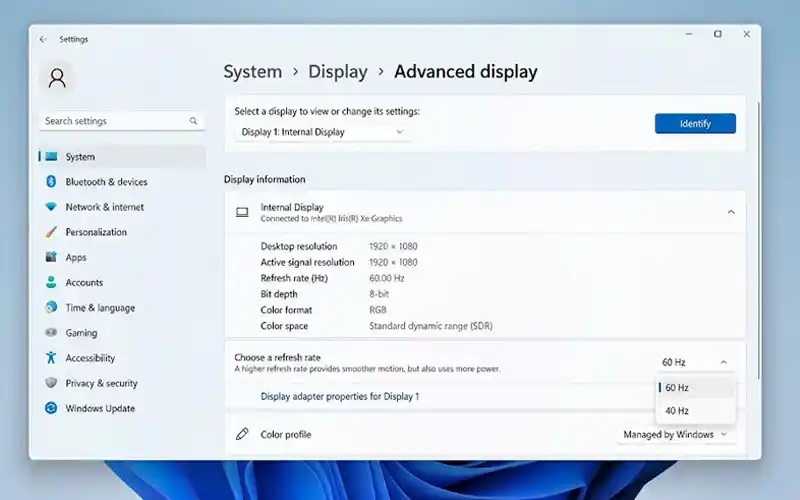
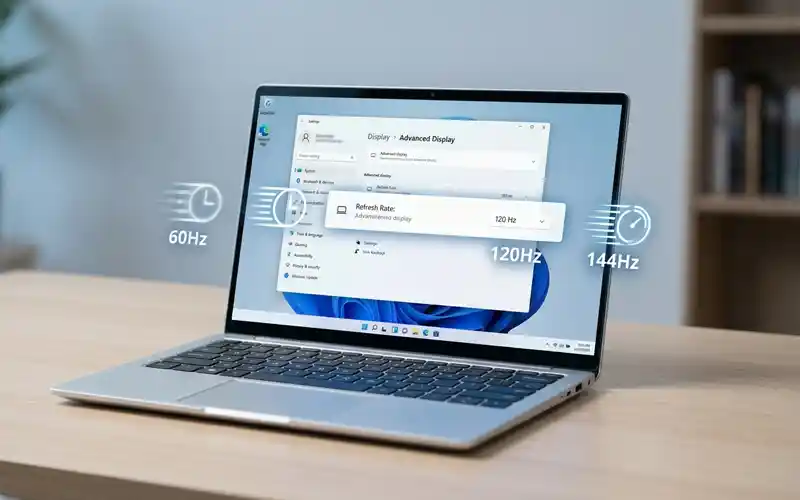
Windows will show information about the selected display, including its current refresh rate. Depending on your laptop and Windows configuration, you may see a value such as 60 Hz, 120 Hz, or 144 Hz.
If you are only using your laptop’s built-in screen, make sure that display is selected. If an external monitor is connected, Windows can show information for both displays, so selecting the correct screen is important.
This is the quickest answer for anyone searching for how to check laptop screen refresh rate because the information is already available in Windows.
Following the Windows 10 Method
The process for how to check laptop screen refresh rate Windows 10 is similar, although some menu names and layouts are different from Windows 11.
To check the setting, open Start → Settings → System → Display. From there, look for Advanced display settings. Select the display you want to inspect, and Windows should show information about its display mode and refresh rate.
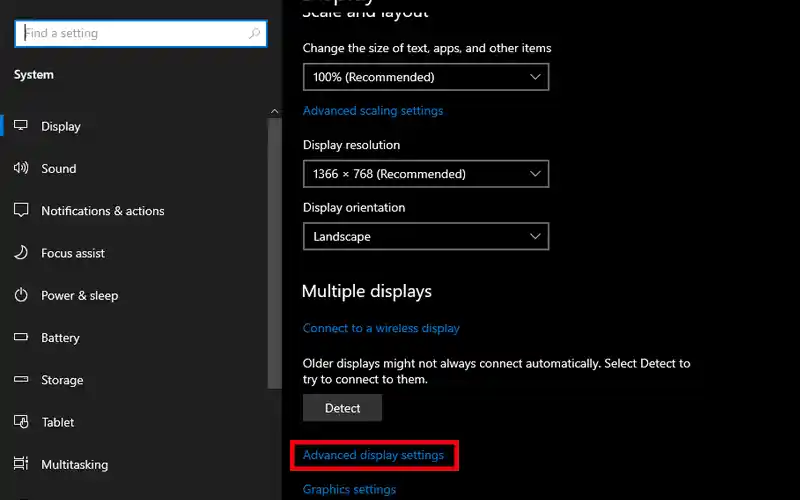
The available information can depend on your laptop hardware and graphics configuration. If you use an external monitor, make sure you select that display rather than the laptop’s built-in panel.
Windows 10 reached its official end of support on October 14, 2025, so users who still have it should consider moving to a supported version of Windows when their hardware allows it. The refresh-rate setting itself, however, remains accessible through the Display settings on supported Windows 10 systems.
Checking an External Display
A laptop is not always used with its built-in screen. Many people connect a second monitor for gaming, office work, video editing, or a larger workspace. In this situation, you may want to know how to check monitor refresh rate Windows 11 rather than the rate of the laptop’s own panel.
First, connect the monitor to your laptop and allow Windows to detect it. Then open Settings → System → Display. You should see the connected displays, allowing you to select the external monitor. Open Advanced display after selecting it.
The page will show information for the selected display. This makes it possible to check whether an external monitor is currently running at 60Hz, 120Hz, 144Hz, or another supported rate.
The same general idea applies if you are searching for how to check your monitor Hz Windows 10. Select the external display in the Windows Display settings and open its advanced display information.
Changing the Available Rate
After checking the current setting, you may decide that you want to change it. For example, your laptop may support 120Hz but currently be using 60Hz. Windows 11 lets you change the refresh rate from the same area where you check it.
Open Settings → System → Display → Advanced display. Select the display you want to adjust, then find the option for choosing a refresh rate. Windows will provide the rates that are available for your particular display and configuration.
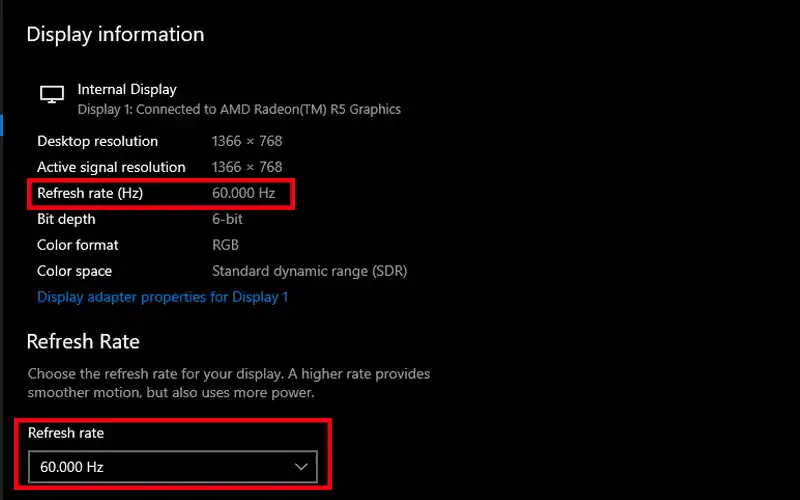
Choose the rate you want and follow any confirmation shown by Windows. Do not assume that every laptop can use 120Hz or 144Hz. The available choices are based on what the display and graphics hardware support.
If a particular refresh rate is marked as incompatible with the current resolution, changing it may also affect the display mode. For this reason, it is better to use a combination that your laptop or monitor officially supports.
Exploring Dynamic Refresh Options
Windows 11 also supports Dynamic Refresh Rate (DRR) on compatible hardware. Instead of keeping the display at one fixed refresh rate all the time, this feature can adjust the rate depending on what you are doing.
For example, the display may use a higher rate when smoother movement is useful and reduce it during less demanding activities. This can provide a smoother experience while helping reduce power consumption on supported laptops.
DRR is not available on every Windows 11 computer. Your display and hardware need to meet the required specifications. If you do not see a Dynamic option, it does not necessarily mean that something is wrong with Windows.
This feature can be especially useful on laptops because battery life matters more when you are away from a charger. Instead of manually switching between different rates, a compatible system can manage the refresh rate automatically.
Fixing Missing Refresh Rate Options
Sometimes users open the Advanced display page and cannot find the refresh rate they expected. One possible reason is simple: the display may not support that rate. A laptop advertised with a particular screen specification should be checked against its exact model and configuration.
Another possibility is that you are looking at the wrong display. This is common when a laptop is connected to an external monitor. Go back to the Display settings and make sure you have selected the screen you actually want to configure.
Resolution can also affect which refresh rates are available. Some displays support certain refresh rates only at specific resolutions. If you change the resolution, additional refresh-rate choices may appear, or some options may disappear.
For external monitors, the connection and hardware can also matter. The laptop’s graphics hardware, monitor, port, cable, and supported display modes all play a role. If the expected option is still missing after checking these factors, look at the laptop or monitor manufacturer’s specifications.
Comparing Common Refresh Rate Choices
A 60Hz display is still suitable for many everyday tasks. Web browsing, documents, email, streaming, and general office work can all be done comfortably at 60Hz. It can also be a sensible choice when battery life is more important than maximum smoothness.
A 90Hz or 120Hz screen can make scrolling and animations feel noticeably smoother. These rates are increasingly common on laptops and mobile devices because they offer a balance between smooth movement and power consumption.
A 144Hz or higher display is particularly useful for gaming when the computer can produce enough frames to take advantage of it. Fast-moving games can look smoother, and some users may find high refresh rates more comfortable for everyday movement as well.
However, a higher number is not automatically better for every person or situation. If your laptop struggles to produce high frame rates in a game, simply having a 144Hz panel does not guarantee that the game will run at 144 frames per second.
Higher refresh rates can also use more power in some situations. Laptop users who spend long periods away from a charger may prefer a lower or dynamic setting when maximum smoothness is not necessary.
Checking and Changing Refresh Rate on Android Phones
If you want to know how to check screen refresh rate on Android or how to change screen refresh rate Android, the process depends on your phone’s manufacturer and model. Unlike Windows, Android does not use one identical menu on every device. The option may have a different name or location depending on the phone.
On many Samsung Galaxy phones, open Settings → Display → Motion smoothness. Depending on the model, you may see options such as Standard, High, or Adaptive. These settings let you check the available refresh-rate options and choose the one you prefer. Some phones can automatically adjust the rate to balance smoothness and battery life.
On supported Google Pixel phones, the relevant feature is called Smooth Display. When available and enabled, it can use a higher refresh rate when appropriate to make scrolling and animations feel smoother. The exact options depend on the Pixel model.
If you cannot find a refresh-rate option, your phone may not support multiple refresh rates, or the manufacturer may use a different name for the setting. It is also worth remembering that higher refresh rates can use more battery, so an adaptive or lower setting may be useful when battery life is a priority.
Final Thoughts
Checking your laptop’s refresh rate is a simple process, and Windows already provides the tools you need. In Windows 11, Advanced display is the main place to see the current rate and available options. Windows 10 provides a similar setting through its Display configuration.
The important thing is to choose a refresh rate that your hardware actually supports. A higher rate can make scrolling, animations, and gaming feel smoother, but it may also affect power consumption. If you use an external monitor, remember to select that display before checking its settings.
Once you know your current refresh rate, you can decide whether the existing setting is suitable or whether changing it would provide a better experience.
FAQ’s
How do I check my laptop screen refresh rate in Windows 11?
Open Settings → System → Display → Advanced display. Select your laptop’s screen if multiple displays are connected, then check the refresh-rate information shown for that display.
Where can I check my laptop screen refresh rate in Windows 10?
Go to Settings → System → Display → Advanced display settings and select the display you want to check. Windows will show the available display information, including the refresh rate.
How do I check my monitor Hz in Windows 11?
Connect the external monitor, open Settings → System → Display, select the monitor, and open Advanced display. The page will show the refresh-rate information for that monitor.
Why can’t I select 120Hz or 144Hz on my laptop?
The display may not support that refresh rate, or it may not be available with the current resolution or hardware configuration. Check your laptop’s exact specifications and make sure you have selected the correct display.
How do I change the refresh rate in Windows 11?
Open Settings → System → Display → Advanced display, select the display, and choose a supported option under the refresh-rate setting. Only rates supported by the display and current setup will normally be available.
How can I check the refresh rate on a Dell laptop?
On a Dell laptop running Windows, use Settings → System → Display → Advanced display and select the built-in screen. Dell also directs users to Advanced display for adjusting the screen refresh rate.
How do I check the screen refresh rate on Android?
The exact method depends on the phone. On supported Samsung Galaxy phones, go to Settings → Display → Motion smoothness. On supported Google Pixel phones, the Smooth Display feature manages the refresh rate.
How do I change the screen refresh rate on Android?
On supported Samsung Galaxy phones, open Settings → Display → Motion smoothness and choose the available option, such as Standard or Adaptive. Other Android phones may use different settings or names depending on the model.
Want to learn more useful tech tips and easy how-to guides? Explore factbreaker site for more helpful technology articles, practical solutions, and simple guides to make your digital life easier.