

Drivers allow Windows 10 to communicate with the hardware installed in your computer. Graphics cards, Wi-Fi adapters, webcams, audio devices, printers, and other components all depend on compatible drivers to work correctly.
When a driver becomes outdated, corrupted, or incompatible, you may notice hardware errors, connection problems, application compatibility issues, or devices that are no longer recognized properly. Knowing how to update drivers in Windows 10 gives you several ways to fix these problems without immediately replacing hardware or relying on unnecessary third-party software.
Windows 10 offers several ways to update drivers, including Windows Update, Device Manager, and official manufacturer tools. The best method depends on the hardware and the reason you need to update it.
Before making major changes, creating a system restore point is also a sensible precaution. Once you know which device needs attention, you can choose the update method that matches the hardware and the problem you are trying to solve.
Why Driver Updates Matter on Windows 10
A driver acts as a communication layer between Windows and a physical component, allowing the operating system to work with that hardware properly.
New releases can address compatibility problems, fix known bugs, improve support for newer applications, or introduce hardware-specific improvements. Graphics drivers, for example, can contain optimizations for newly released games and creative programs.
That does not mean every available driver should be installed as soon as it appears. If a device is functioning normally and a new release does not address anything relevant to your system, changing the existing driver may provide little practical benefit.
Before updating, identify the affected hardware and check whether the available release addresses a problem, compatibility requirement, or other need on your system.
Check Your Current Driver Version
Before changing anything, check the version already installed on your computer. This gives you a useful reference and can help determine whether a newer package is actually needed.
Right-click the Start button and open Device Manager. Find the category associated with the hardware you want to inspect. Graphics hardware normally appears under Display adapters, while wireless components are generally listed under Network adapters.
Right-click the device, select Properties, and open the Driver tab. Windows will display information such as the driver provider, date, and version.
Note these details if you are troubleshooting a particular problem. Comparing the installed version with a manufacturer’s latest compatible release can help you determine whether an update addresses your situation.
Checking the current version first helps you decide whether an update is necessary and gives you a reference if you need to troubleshoot the device later.
Create a Restore Point Before Major Changes
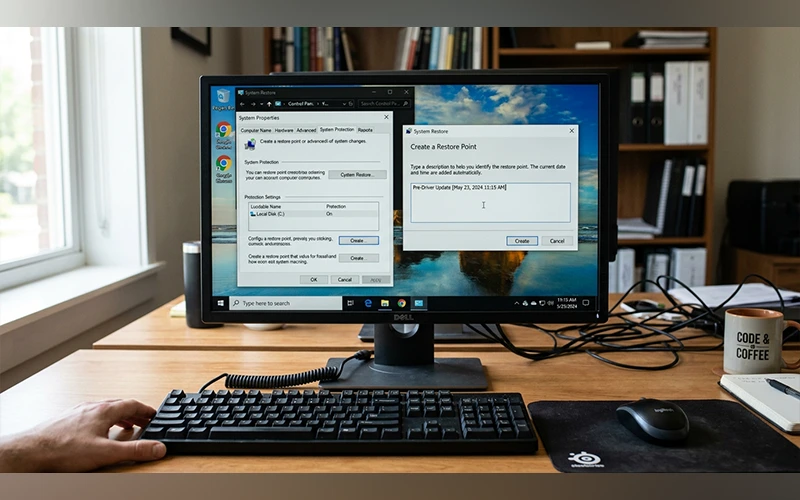
A system restore point gives you a recovery option before installing an important driver. If the change causes unexpected behavior, Windows can use the restore point to return certain system settings and files to an earlier state.
Search Windows for Create a restore point and open the corresponding Control Panel result. Select the system drive, normally the C: drive, and check that system protection is enabled.
Choose Create, enter a recognizable description, and allow Windows to complete the process.
A restore point is particularly useful before installing a major graphics package or changing several system-level components. It should not replace a backup of important personal files, since system restore is intended for system recovery rather than personal data protection.
Update Drivers Through Windows Update
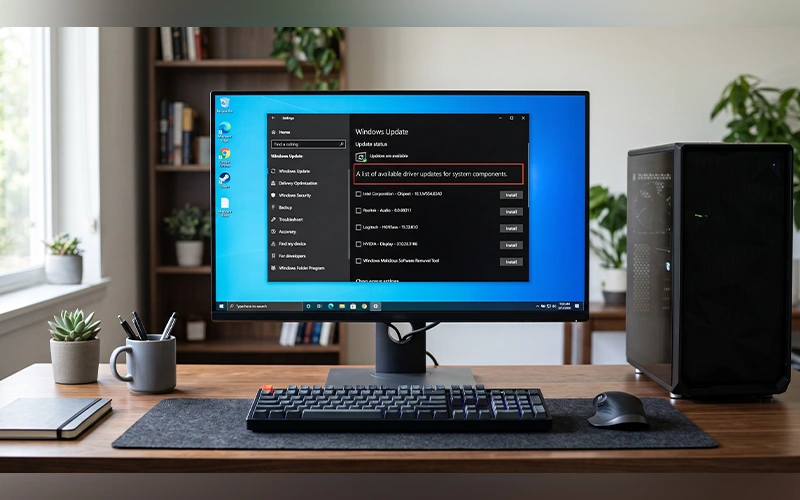
Windows Update is the easiest built-in method for many standard hardware components and is often the best place to start. It allows Windows to obtain compatible packages without requiring you to manually search for individual downloads.
Press Windows + I to open Settings. Open Update & Security and go to Windows Update.
From there, select Check for updates to let Windows scan for any available updates. Standard driver packages may appear alongside normal Windows updates.
For additional hardware packages, select View optional updates when that option is available. Expand Driver updates to see compatible packages offered for the computer.
Select the driver updates you want and click Download and install. Let Windows finish the process, then restart the computer if requested.
For many users, this is the most straightforward starting point for routine driver maintenance.
Update a Specific Device With Device Manager
Device Manager is useful when the problem is limited to one particular piece of hardware. Instead of reviewing general updates, you can select the component that needs attention.
Right-click Start and select Device Manager. Expand the category containing the relevant device. Depending on the hardware, this could be Display adapters, Network adapters, Bluetooth, Cameras, or Sound, video and game controllers.
Right-click the component and choose Update driver. Windows will provide options for locating a compatible driver.
Select Search automatically for drivers and allow Windows to check for an available match. If a suitable package is found, follow the instructions to complete the installation.
This method is particularly useful when one device is malfunctioning while the rest of the computer is operating normally. It lets you update the affected component directly without changing drivers for other hardware.
If Windows reports that the best driver is already installed, that does not necessarily mean the manufacturer’s website has no newer release. Device Manager may simply not have access to that particular package.
Install Drivers From the Manufacturer
Windows does not always provide the newest release for specialized hardware. In such cases, the manufacturer’s official support website can be a better source.
Start by identifying the exact model of the hardware. Then visit the manufacturer’s official support page and locate its driver or download section.
Select the correct product and operating system before downloading anything. Pay close attention to the model number because closely related devices can require different packages.
A manufacturer’s release can be particularly useful when its notes mention a specific bug fix, compatibility improvement, application requirement, or hardware change relevant to your computer.
Avoid unfamiliar websites that offer collections of downloadable drivers. The manufacturer’s own support site makes it easier to verify the hardware model, operating system, and correct package before installation.
Use Manufacturer Software for Graphics Hardware
Graphics drivers often receive updates specifically for new games, creative applications, display issues, and GPU compatibility. Manufacturer software can make these updates easier to find and install.
NVIDIA provides the NVIDIA App for supported graphics hardware. AMD users can manage supported graphics drivers through AMD Software: Adrenalin Edition, while Intel offers Intel Driver & Support Assistant for compatible systems.
Pre-built computers can also include manufacturer utilities. Dell, HP, Lenovo, and other PC brands may provide support applications that identify proprietary components and offer recommended packages.
Before installing one of these tools, verify that it supports your particular computer or component. Manufacturer software is most useful when it is designed for the hardware installed in your system.
These tools are particularly useful for gaming and graphics work when you need a release that is not yet available through Windows Update.
Update Graphics Drivers Carefully
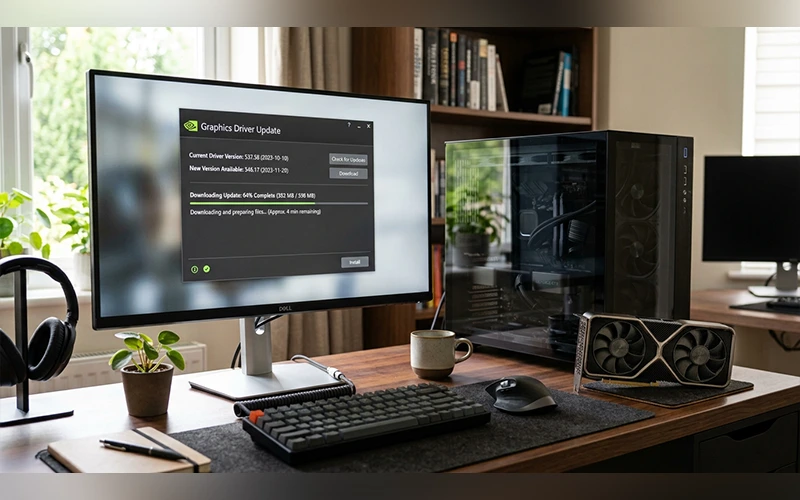
Graphics drivers deserve additional attention because they directly affect display output and demanding workloads such as games, video editing, and 3D applications.
Start by identifying the graphics hardware installed in the computer. You can find it through Device Manager under Display adapters.
If you are downloading a package manually, select the exact GPU model rather than choosing a file based only on the manufacturer’s name. A laptop may have both integrated and dedicated graphics, so selecting the correct hardware is particularly important.
Close games and graphics-intensive programs before beginning the installation. Follow the manufacturer’s instructions and restart Windows when requested.
If the update is intended to solve a problem with a particular game or application, check the release notes. A package that specifically addresses that software provides a clearer reason for installation than simply selecting the newest file available.
What to Do When a Driver Will Not Update
A driver installation does not always produce the expected result. Windows may report that the current driver is already the best match, fail to install a package, or leave the original hardware problem unchanged.
Start by checking the affected device in Device Manager. A yellow warning icon can indicate that Windows has detected a problem with the component or its driver.
If an installation fails, verify that the downloaded package supports the exact hardware model and Windows 10. Check the manufacturer’s instructions as well, particularly if the component requires a specific installation process.
When Windows reports that the best driver is already installed, compare the current version with the latest compatible release on the manufacturer’s official website. Windows Update and Device Manager do not necessarily deliver every manufacturer release at the same time.
If the hardware stopped working immediately after a new installation, consider rolling back the previous driver if that option is available.
Roll Back a Problematic Driver
A newly installed driver can sometimes cause new problems. If the hardware worked correctly before the update and the issue began afterward, Windows may allow you to return to the previous driver.
Open Device Manager, right-click the affected device, and select Properties. Open the Driver tab and look for Roll Back Driver.
If the option is available, follow the prompts and restart the computer afterward.
The rollback option may be unavailable if Windows does not have a previous version stored or if the device does not support that recovery method.
Returning to the previously working version can help determine whether the new driver caused the problem and may restore normal hardware behavior.
Reinstall a Driver When Updating Is Not Enough
Updating and reinstalling can solve different problems. If driver files are corrupted or the existing installation is damaged, simply installing a newer version may not always fix the issue.
Device Manager allows you to uninstall the device and its driver. Depending on the hardware and Windows configuration, the system may detect the device again after a restart and reinstall a compatible driver automatically.
For specialized components, the manufacturer’s installation package may offer its own reinstall or clean-install option.
Before removing a driver, identify the hardware involved and make sure you understand how it will be restored. This is particularly important for network hardware because removing its working driver can affect internet connectivity.
A reinstall is most appropriate when the installed software appears damaged or the device remains unstable despite having a suitable version.
Confirm That the Update Worked
After learning how to update drivers windows 10, the final step is checking whether the affected hardware actually works as expected.
Open Device Manager and confirm that the device appears normally without a warning symbol. Open its Properties window and check the Driver tab if you need to verify the installed version.
Then test the hardware itself. For a network adapter, check the connection. For an audio device, play sound. For a webcam, open an application that uses the camera. If the original issue involved a particular program, test that program as well.
Restart Windows if the installer requested it or if the hardware does not immediately behave as expected. Some system-level changes require a restart before the new software becomes fully active.
Driver Update Mistakes to Avoid
Several common mistakes can make driver maintenance more complicated than necessary.
Installing the wrong model: Similar hardware can require different drivers. Always verify the exact device before downloading a package.
Using unofficial download sites: Unknown sources make it harder to verify what you are installing. Prefer Windows Update or the manufacturer’s official support resources.
Updating everything unnecessarily: A newer version is not automatically required simply because it exists. Focus on relevant fixes, compatibility requirements, and hardware problems.
Ignoring Windows compatibility: Check that the package supports your Windows version before installation.
Changing several important drivers together: If something goes wrong afterward, identifying the cause becomes more difficult. Updating a relevant component individually makes troubleshooting easier.
Skipping manufacturer instructions: Specialized hardware can have installation requirements that do not apply to ordinary components.
When Should You Update a Driver?
There should usually be a practical reason for changing a stable driver.
An update can make sense when you understand how to update drivers windows 10 for a specific problem, such as a malfunctioning device, a driver-related warning from Windows, an application compatibility issue, or a manufacturer-releas ed fix relevant to your hardware.
New software can also create a reason to check for an updated driver. Graphics hardware is a common example because games and creative applications may require newer compatibility improvements.
On the other hand, there is no general requirement to replace every driver whenever a new version becomes available. If the hardware works correctly and the newer release does not address anything relevant to your computer, leaving the current version installed may be appropriate.
Driver maintenance should respond to a real hardware, compatibility, or software requirement rather than become a routine exercise in changing every installed component.
Final Thoughts
Windows 10 provides several practical ways to manage hardware drivers. Windows Update is suitable for many standard components, Device Manager gives you control over individual devices, and manufacturer tools are useful for specialized hardware such as graphics cards.
The safest approach is to identify the device first, check the existing driver, use a trustworthy source, and install an update when there is a relevant reason to do so. If a new release causes problems, rollback or reinstall options may provide a way to recover.
Ultimately, keeping Windows 10 drivers current is less about having the newest version of everything and more about keeping each component compatible, functional, and appropriate for the software and hardware you actually use.
Frequently Asked Questions
How do I update drivers in Windows 10?
If you are learning how to update drivers windows 10, open Settings > Update & Security > Windows Update, check for available updates, and review Optional updates when available. Device Manager can be used when you need to work with a particular component.
How do I update drivers on PC?
Use Windows Update for general hardware, Device Manager for an individual device, or the official manufacturer support page when specialized hardware requires a newer package.
How do I update drivers without downloading software?
Windows Update and Device Manager are built into Windows 10, so many driver updates can be completed without installing a separate driver-management program.
Where can I find driver updates in Windows 10?
Go to Settings > Update & Security > Windows Update and select View optional updates if that option is shown. For details about a specific device, open Device Manager.
Can Windows 10 automatically update drivers?
Yes. Windows can automatically provide compatible driver updates through Windows Update, although manufacturer releases may not always appear there immediately.
When should I consider updating my device drivers?
Look for hardware problems, driver errors, compatibility issues, or a manufacturer release that specifically addresses your situation. You can also compare the installed version with the latest compatible release.
How Can I Install the Latest Graphics Driver on Windows 10?
When learning how to update drivers windows 10 for graphics hardware, identify the exact graphics processor and use the appropriate official manufacturer application or support page. NVIDIA, AMD, and Intel provide dedicated tools for supported hardware.
What should I do if Windows cannot find a driver?
Identify the exact device and visit its manufacturer’s official support page. Download a package that specifically supports the hardware and Windows 10, then follow the installation instructions.
Can updating a driver cause problems?
Yes. A new release can occasionally introduce compatibility issues or unexpected behavior. A restore point and the Windows rollback option can provide recovery options when supported.
Should I update all drivers on my PC?
Not necessarily. Prioritize drivers connected to a hardware problem, compatibility requirement, or relevant manufacturer fix instead of changing every driver without a specific reason.
For more articles like this, visit our site: https://factbreaker.com/



One thought on “How to Update Drivers Windows 10 Safely and Easily”