



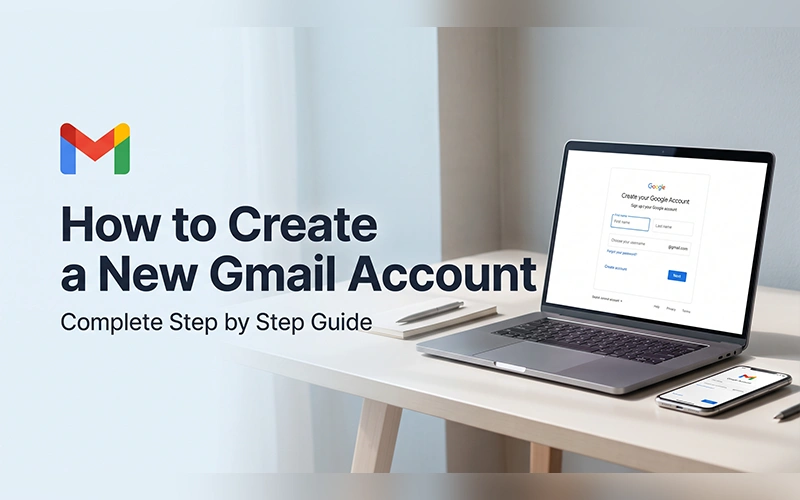
Learning how to create a new Gmail account takes only a few minutes, but the signup process includes several screens that are easy to overlook. You need to choose an available address, create a secure password, provide basic account information, and complete any verification Google requests.
Creating a Gmail address gives you a Google Account as well, allowing you to use the same credentials across services like Google Drive, Google Photos, YouTube, Google Calendar, and other Google platforms.
Whether you are setting up your first email address, creating a separate account for work, or adding another account to your iPhone, the basic registration process is similar. The main difference is how you access the signup page and how the finished account is added to your device.
This guide walks through the process from start to finish, including account creation, username selection, password security, phone verification, recovery options, iPhone setup, and common problems.
Gmail Account Quick Facts
| Quick Fact | Details |
|---|---|
| Account type | Google Account with Gmail |
| Cost | Free for personal use |
| Setup time | Usually a few minutes |
| Phone number | May be requested for verification |
| Recovery email | Recommended |
| Available on | Web, Android, iPhone and iPad |
| Other Google services | Drive, Photos, YouTube, Calendar and more |
What You Need Before Creating an Account
Before you start creating a new Gmail account, have an internet-connected device and a browser or the Gmail app available. It also helps to decide what type of Gmail address you want before reaching the username screen.
Think about the purpose of the account. An address used for professional communication should generally be simple and recognizable, while a personal account can be more flexible.
You should also have a strong password in mind. Avoid using a password that you already use on another important account.
A recovery email is useful as well. Google can use recovery information to help you regain access if you forget your password or have trouble signing in.
Having an existing Google Account does not prevent you from setting up another one. You can create another account and keep the accounts separate.
How to Create a New Gmail Account Step by Step
Creating a new Gmail account is done through Google’s account-creation page. The steps below walk you through the process from opening the signup page to completing your new account.
1. Open the Google Account Sign-Up Page
Open Google’s account sign-up page in your preferred browser.
Select Create account and choose For my personal use if the account is being created for yourself.
If another Google Account is already open in the browser, Google may show that account first. From there, you can switch to the option for creating a separate account or log out of the current one before starting the signup.
You can also start from Gmail by opening the Gmail sign-in page and selecting the option to create an account.
2. Enter Your Name
Google asks for basic personal information during registration.
Enter your first and last name in the appropriate fields and continue.
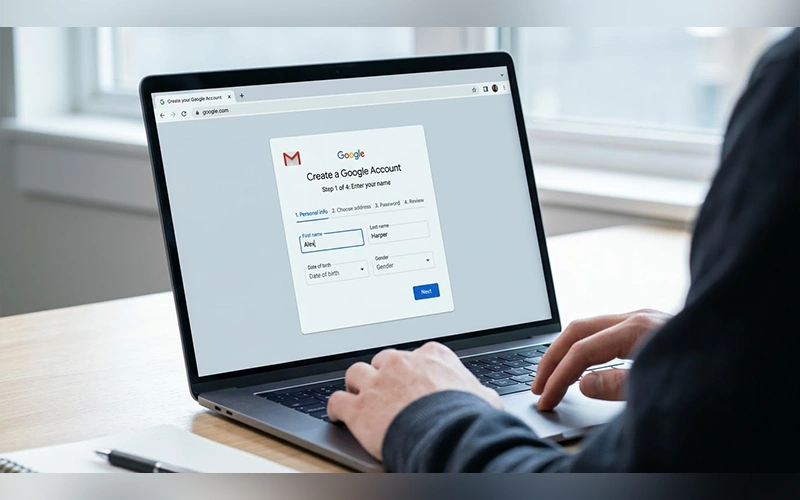
Use accurate information rather than deliberately entering random details. Your account information can be relevant to account security and Google’s handling of age-related requirements.
3. Add Your Birthday and Other Information
The next part of the registration process asks for information such as your date of birth and gender.
Enter your birthday carefully. Age information can affect access to certain Google services and features, depending on applicable requirements.
Check the information before continuing because correcting account details later can require additional steps.
4. Select Your Gmail Address
The next important decision is your Gmail username.
Google may provide several suggested addresses based on the information you entered. You can select one of those suggestions or choose the option to create your own Gmail address.
If you enter a custom username that is already unavailable, Google will ask you to choose another one.
A good Gmail address should be easy to remember and easy to communicate verbally. For professional use, a straightforward variation of your name is generally a better choice than an address containing random characters.
If your preferred username is already taken, choose a simple and memorable variation instead of adding a random string of numbers.
Google may reject a username because it is already in use, too similar to another username, previously used and deleted, or reserved to prevent misuse.
5. Create a Secure Password
After choosing an address, create a password for the account.
Use a password that is unique and difficult for someone else to guess. A longer password or passphrase is generally preferable to a short combination of predictable information.
Do not use your name, birthday, phone number, or another easily associated detail as the entire password.
Enter the password again when Google asks for confirmation. If the two entries do not match, correct the error before proceeding.
For an important account such as your primary email address, storing the password in a reputable password manager can also make future sign-ins easier without encouraging password reuse.
6. Complete Google’s Verification Process
Depending on the signup flow, Google may ask you to complete an additional security check.
A phone number may be requested during registration. Google’s general account-creation guidance describes adding a phone number as an optional part of account setup, but Google can still request verification in particular signup situations.
When Google provides the choice to bypass phone verification, select the option to move forward without entering a number.
If Google requires verification and does not provide a way to continue without it, follow the instructions displayed on the screen.
The available options can vary, so an older tutorial showing a particular verification screen may not match what you see.
7. Add Recovery Information
Recovery information is separate from the Gmail address itself and is worth configuring before you begin relying on the account.
A recovery email can help you regain access if you forget your password or become unable to sign in. Google also uses recovery information for account-security notifications and identity checks in some situations.
Use an email address that you can actually access. If you later lose access to the recovery address as well, it may not provide much protection.
If Google allows you to skip this step, you can return to your account settings later and add recovery information.
8. Review Your Account
Before completing registration, review the information Google displays.
Pay particular attention to your new Gmail address. If you accidentally choose the wrong username, it is better to catch the problem before completing setup.
Also check the other details you entered and make sure everything looks correct.
9. Accept the Terms and Finish Setup
Google will display its privacy and terms information before the account is finalized.
Review the information and select the confirmation option shown on the page.
Once registration has been completed, you can open Gmail and sign in using your new credentials.
Your new account is now ready for normal use.
Is It Possible to Sign Up for Gmail Without Using a Phone Number?
You may be able to create a Gmail account without adding a phone number, but Google can require verification during some signup attempts.
If the registration page displays a Skip option on the phone-number screen, you can continue without entering a number. If Google requires verification and does not offer that option, you will need to complete the verification method presented.
This is why instructions claiming that a phone number is either always required or never required can be misleading. Google’s account-creation process can include different verification requirements.
If you are specifically following how to create a new gmail account without phone number, use the standard registration process and check the options Google gives you instead of relying on unofficial workarounds.
If you successfully leave the phone-number field empty, consider adding a recovery email. It gives you another useful recovery route if you later forget your password.
Do not use temporary, fake, or someone else’s recovery information simply to get through registration. Recovery details should belong to you and remain accessible.
How to Create a New Gmail Account on iPhone
When learning how to create a new gmail account on an iPhone, you have two practical ways to set it up. You can use Google’s Gmail app or complete registration through Safari and then add the account to your preferred mail application.
Create the Account Through the Gmail App
Start by installing and opening the Gmail app on your iPhone.
If the app is already connected to another Google Account, tap your profile picture in the upper-right corner and select Add another account.
Choose Google from the available account types and continue to the Google sign-in screen. Google’s iPhone instructions use this process for adding another Google Account to Gmail.
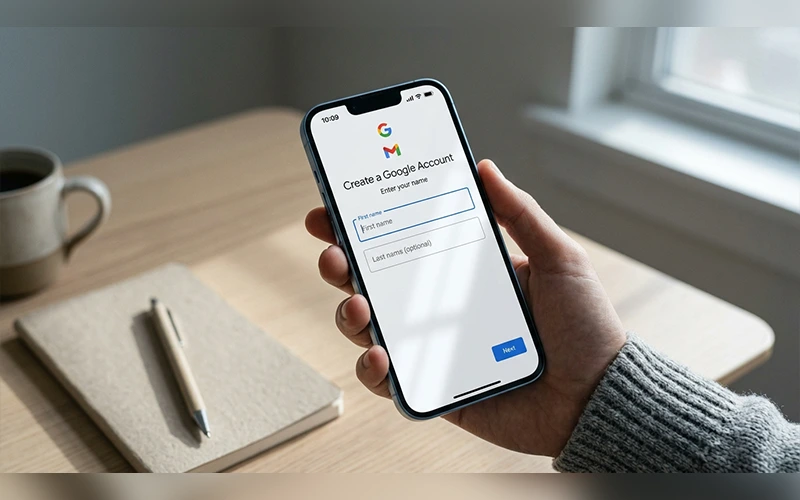
Select Create account and choose the personal-use option.
Follow the registration screens to enter your name, birthday, preferred Gmail address, and password. If Google asks you to verify your identity, follow the on-screen instructions and complete the remaining steps to set up your account.
Once the account has been created, it will be available in the Gmail app.
You can switch between accounts from the profile menu without signing out of each one.
Create the Account Through Safari
If you would rather use a browser, open Safari and visit Google’s account-creation page.
Complete the same registration stages described earlier. The browser-based process can be useful if you are not currently using the Gmail app or prefer Google’s web interface.
After registration, open Gmail and add the newly created Google Account.
Google’s instructions for iPhone and iPad users explain that another account can be added through the Gmail app by selecting the profile menu, choosing Add another account, and then selecting Google.
Add Gmail to Apple’s Mail App
After creating your Gmail account, you can also add it to Apple’s Mail app if you want to manage your messages there.
Open Settings on your iPhone, select Mail or the account settings available on your iOS version, then choose Add Account and select Google. Follow the on-screen instructions to sign in and allow the services you want to sync, such as Mail, Contacts, Calendars, or Notes.
The exact menu names may vary depending on your iOS version.
How to Choose a Good Gmail Address
Choosing an address deserves more thought than simply finding the first available username.
When setting up a professional email, using your real name or a simple, polished variation can make the address look more credible. Someone reading the address should be able to understand who owns it without having to decipher unusual characters.
For personal accounts, you have more freedom, but it is still useful to choose something you will not outgrow.
Avoid usernames based on temporary interests, jokes, or information you may not want to associate with yourself later.
If the username you want has already been taken, consider using a slightly modified version that is still easy to remember. You might use a middle initial, a relevant number, or another simple addition.
Do not create a username that looks almost identical to someone else’s address. Apart from being confusing, Gmail has restrictions on usernames that are too similar to existing ones.
How to Protect Your New Gmail Account
Once your account is active, take a few minutes to strengthen its security.
Make sure your password is unique and is not reused on other important accounts. If you have not already added recovery information, set up a recovery email that you can access if you ever lose access to your account.
For additional protection, enable 2-Step Verification. This adds another security check when Google determines that extra verification is needed during sign-in.
Pay attention to Google security alerts and review any notification about an unfamiliar sign-in or suspicious activity. If something looks unusual, investigate it promptly rather than dismissing the alert.
Never share your password or verification codes with anyone who contacts you claiming they can restore, unlock, or secure your account. Legitimate Google support will not require you to give these credentials to another person.
What You Can Do With a New Google Account
Creating a Gmail address also gives you a Google Account, which you can use to access other Google services such as Google Drive, Google Photos, YouTube, and Google Calendar.
The same Google Account credentials can be used across these services, although individual products may have their own settings, storage limits, age requirements, or regional restrictions.
Common Problems During Gmail Account Creation
Your Preferred Gmail Address Is Taken
If Google says the username is unavailable, you need to choose another one.
Try a clean variation rather than repeatedly submitting the same address. Google can also reject usernames that are too similar to existing ones or have been reserved for other reasons.
Google Requests Phone Verification
Seeing a verification prompt does not automatically indicate that there is an issue with the process.
Check whether the page provides a Skip option. When that option appears, you can proceed with the setup without providing a phone number. If Google requires verification and gives you no alternative, follow the instructions provided on that screen.
You Cannot Remember Your Password
Use Google’s account-recovery process instead of immediately creating another account.
Google may request information that helps establish account ownership before allowing access to be restored. Having recovery information configured beforehand can make this process easier.
Your Verification Code Does Not Arrive
If Google sends a verification code and it does not appear, check that the contact information was entered correctly and wait briefly before requesting another code.
Avoid repeatedly requesting codes in quick succession. If the problem continues, use the alternative verification or recovery option shown by Google.
The Signup Page Looks Different
Google can change the appearance of its account-creation pages and security checks.
An older screenshot may therefore look different from the current registration page. Focus on the actions Google is asking you to complete rather than expecting every button to be in exactly the same position.
A Quick Checklist Before You Finish
Before leaving the signup process, check the following:
- Your Gmail address is spelled correctly.
- Your password is unique and securely stored.
- Your recovery email is accessible.
- Any required verification has been completed.
- Your basic account information is accurate.
- You can successfully open Gmail with the new account.
- Recovery and security settings are configured.
Completing these checks now is easier than trying to correct account-access problems later.
Final Thoughts
Learning how to create a new Gmail account is straightforward once you know what to expect during registration. Google may ask for different verification information depending on the signup attempt, so follow the options shown on the current registration page rather than relying on outdated instructions.
After creating the account, make sure your password is unique and your recovery information is accessible. Taking these steps early can make your account easier to protect and recover if you ever lose access.
Frequently Asked Questions
Is it possible to set up a new Gmail account without paying anything?
Yes. You can create a personal Google Account through Google’s standard registration process and use the resulting Gmail address for email and other supported Google services.
Do I always need a phone number?
No. A phone number is described as optional in Google’s general account-creation guidance, but Google may request verification during a particular signup. If no skip option is provided, follow the requirement shown on the screen.
Is it possible to set up a second Gmail account if you already have an existing one?
Yes. Google allows you to set up an additional account that remains separate from your current one. Gmail also allows multiple Google Accounts to be added so you can switch between them.
What can I do when the Gmail address I want has already been taken?
Choose another variation. Google may reject names that are already being used, too similar to existing usernames, previously used and deleted, or reserved for abuse-prevention reasons.
Is Gmail compatible with an iPhone?
Yes. The Gmail app supports multiple Google Accounts on iPhone and iPad. Open your profile menu, choose the option to add a new account, and then select Google from the available providers.
Does having a Gmail address mean you also have a Google Account?
Yes. When you create a new Gmail address through Google’s signup process, you also create a Google Account. That account can be used to access Gmail and other Google services, including Google Drive, Google Photos, YouTube, and Google Calendar.
Should I add a recovery email?
It is strongly recommended for an account you intend to keep. Google says recovery information can help you regain access, confirm your username, and receive important security notifications.
What happens after I finish registration?
Once your new account is ready, log in to Gmail to access your inbox and use the other Google services linked to it. Afterward, check your account’s security and recovery options to make sure everything is set up for better protection.
For more articles like this, visit our site: https://factbreaker.com/