


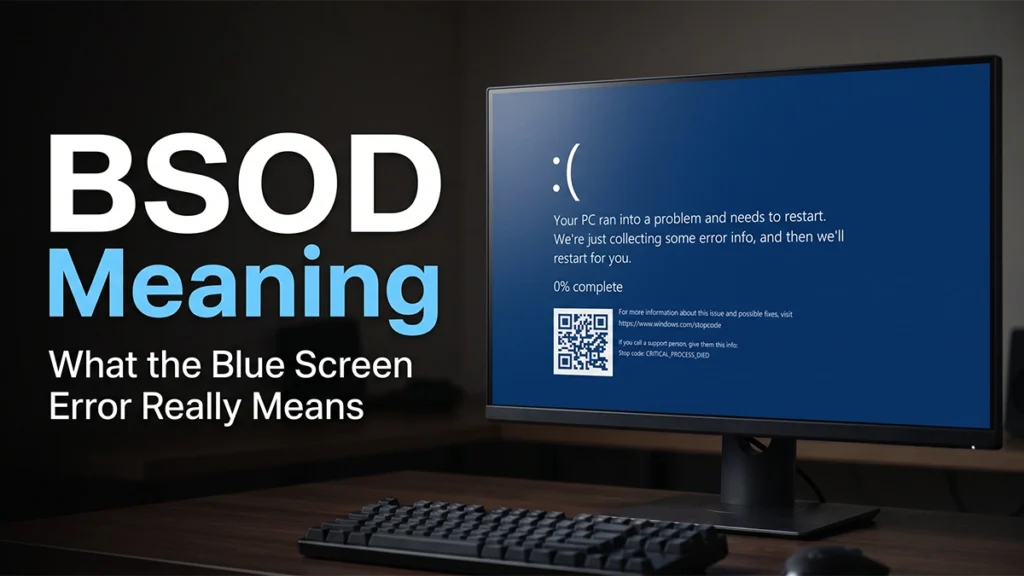
Seeing a blue screen appear unexpectedly can be concerning, particularly when the system freezes, shows an unfamiliar error code, and then restarts. Understanding the bsod meaning makes the situation easier to handle because the screen is not simply reporting that Windows has crashed. It can also provide clues about the underlying problem.
A Blue Screen of Death usually appears when Windows encounters a serious system problem that it cannot safely recover from. Possible causes include a faulty driver, damaged system files, unstable hardware, storage problems, or an update that creates a compatibility issue. The stop code shown on the screen can help narrow down the source.
A single BSOD does not necessarily mean that a computer is failing. Repeated crashes, however, should be investigated. Recording the stop code, considering what changed before the problem started, and troubleshooting the system in a logical order can make the cause much easier to identify.
What Does BSOD Mean?
When people search for bsod meaning in computer, they are usually trying to understand whether a blue screen indicates permanent damage. In most cases, it does not automatically mean that the computer is physically damaged.
The error tells you that Windows encountered a condition it could not safely handle. The underlying problem can be temporary, software-related, driver-related, or connected to a hardware component.
For example, an incompatible graphics driver may cause Windows to crash when a demanding application starts. Faulty memory can create seemingly random crashes, while damaged system files may cause problems during startup or normal operation.
The information shown on the screen is particularly useful. A stop code such as IRQL_NOT_LESS_OR_EQUAL, CRITICAL_PROCESS_DIED, or WHEA_UNCORRECTABLE_ERROR provides a starting point for troubleshooting.
If the computer restarts and works normally afterward, there may have been a temporary fault. If the same error repeatedly appears, however, identifying the pattern becomes much more important.
What Does BSOD Mean in a Computer?
In practical terms, a BSOD means that Windows has encountered a critical error that prevents it from continuing safely. Instead of allowing the system to keep running in an unstable state, Windows stops and displays diagnostic information on the screen.
The exact cause can vary depending on what was happening when the crash occurred. A BSOD during gaming may point toward graphics drivers, GPU instability, or overheating, while a crash during startup may indicate problems with storage, boot files, drivers, or essential Windows components.
The stop code is therefore an important clue, but it should not be treated as a complete diagnosis. For example, a memory-related error can sometimes be caused by a faulty driver rather than defective RAM.
Looking at the stop code together with recent updates, newly installed software or hardware, and the circumstances of the crash can make troubleshooting much more targeted.
Common BSOD Errors and What They Mean
If you are looking at common bsod errors, the stop code can help identify the part of Windows or hardware that deserves closer attention. Understanding the bsod meaning behind a particular code can narrow the troubleshooting process, although the code alone does not always identify the failed component.
| Stop Code | Typical Area Involved | Common Trigger |
| IRQL_NOT_LESS_OR_EQUAL | Memory and drivers | Incompatible or faulty drivers |
| PAGE_FAULT_IN_NONPAGED_AREA | Memory and system files | RAM or driver problems |
| CRITICAL_PROCESS_DIED | Windows core processes | Damaged system files or software problems |
| INACCESSIBLE_BOOT_DEVICE | Storage and startup | Drive or storage-driver problems |
| SYSTEM_SERVICE_EXCEPTION | Windows services | Driver or software conflicts |
| WHEA_UNCORRECTABLE_ERROR | Hardware | Hardware instability or overheating |
| VIDEO_TDR_FAILURE | Graphics | GPU driver or graphics hardware problems |
| DPC_WATCHDOG_VIOLATION | Drivers and storage | Driver or SSD firmware issues |
These codes should not be treated as absolute diagnoses. For example, a memory-related stop code does not always mean that the RAM itself is defective. A driver can produce a similar symptom. The code narrows the investigation rather than identifying the failed component by itself.
What Does 0xc000021a BSOD Mean?
The 0xc000021a bsod meaning is associated with a serious Windows system failure involving critical user-mode processes. When these processes terminate unexpectedly, Windows may stop the system because it can no longer operate normally.
This error can appear during startup, after a system change, or following an update. Damaged Windows components, incompatible drivers, failed updates, or software conflicts can contribute to the problem.
Common Causes of the 0xc000021a Error
Several situations can lead to this stop code:
- Corrupted or missing Windows system files
- An unsuccessful Windows update
- Incompatible drivers
- Recently installed software
- Damaged system components
- Problems following a restore or configuration change
If the error appears repeatedly during startup, normal desktop troubleshooting may not be possible. Windows Recovery Environment and Safe Mode can provide access to repair options.
If the problem began immediately after an update, driver installation, or configuration change, that recent event is a useful starting point for troubleshooting.
How to Fix a BSOD Error
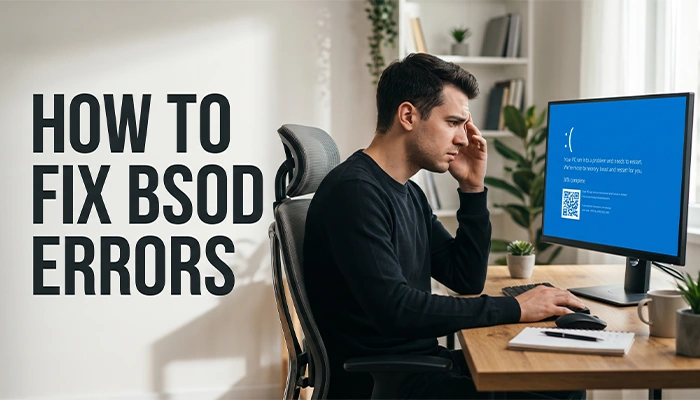
Knowing how to fix bsod error problems starts with identifying the likely cause instead of making several system changes at once. The stop code, recent changes, and circumstances surrounding the crash can help determine where to begin.
Start with the simplest checks and move toward more involved troubleshooting only when earlier steps do not resolve the problem. This approach reduces unnecessary changes and makes it easier to identify what actually fixed the issue.
1. Restart the Computer
When the system remains frozen on the error screen, you may need to restart the computer manually. Hold the physical power button until the computer shuts down, wait briefly, and then turn it back on.
A one-time crash may not return after restarting. If the same stop code appears again, do not assume that another restart will solve it. Record the code and continue troubleshooting.
2. Disconnect Recently Added Hardware
External hardware can sometimes cause conflicts with Windows.
Shut down the computer and disconnect unnecessary USB drives, external storage, printers, webcams, hubs, and recently added peripherals. Leave essential input devices connected where necessary and restart the system.
If the crashes stop, reconnect the devices one at a time. This can help identify whether a particular device or its driver is responsible.
3. Start Windows in Safe Mode
Safe Mode loads Windows with a limited set of drivers and services. This makes it useful when a normal startup repeatedly leads to a crash.
If Windows cannot reach the desktop, the recovery environment can provide access to Safe Mode through:
If Windows cannot start normally, enter Windows Recovery Environment and select Troubleshoot > Advanced options > Startup Settings > Restart.
After the computer restarts, select the Safe Mode option.
If the computer works normally in Safe Mode, the problem may involve a third-party driver, startup application, or other software that does not load in the same way during a standard Windows session.
4. Repair Damaged Windows Files
Windows includes built-in tools that can check and repair damaged system components.
Launch Command Prompt with administrator privileges, then enter the following command:
DISM.exe /Online /Cleanup-Image /RestoreHealthAfter DISM completes, run:
sfc /scannowDISM can repair the Windows component store, while System File Checker checks protected system files and replaces damaged versions when possible.
Restart the computer after the scans finish and check whether the problem returns.
5. Check the Storage Drive
Storage problems can cause crashes when Windows cannot reliably read essential files.
The built-in Check Disk utility can be used to examine the drive. Open Command Prompt with administrator privileges, then enter:
chkdsk C: /f /rWindows may prompt you to run the scan during your computer’s next reboot. Confirm the request and allow the scan to complete.
A lengthy scan does not necessarily mean the drive is failing, but repeated storage errors or other warning signs should be investigated further.
6. Update or Roll Back Drivers
Drivers are a major source of Windows instability because they allow hardware to communicate with the operating system.
Pay particular attention to graphics, network, storage, and chipset drivers. When the blue screens started following a recent driver update, reverting to the previous driver can be a better approach than trying a different release.
You can check available options through Device Manager. Open the relevant device, select Properties, and use the Driver tab to view update and rollback options.
Avoid installing random driver packages from unfamiliar websites. Whenever possible, obtain drivers from the computer manufacturer or the hardware manufacturer’s official support channel.
7. Check Windows Updates
Windows updates often contain security and stability improvements, so keeping the operating system current is important.
Open Windows Update and install available updates. Restart the computer afterward.
However, timing matters. If the BSOD began immediately after a particular update, investigate that update rather than assuming that installing more updates will automatically solve the problem.
8. Remove Recently Installed Software
Think about applications installed shortly before the crashes began. System utilities, security programs, hardware-control software, game-related tools, and other applications that interact closely with Windows can sometimes cause conflicts.
Uninstall the recently added program and restart the computer. If stability returns, the removed software becomes a strong suspect.
9. Test the Computer’s Memory
Faulty RAM can produce unpredictable system crashes, including different stop codes at different times.
Windows also provides its own memory-checking tool that can scan the system for potential RAM problems. Search for it from the Start menu, launch the tool, and choose the option to restart and check the memory.
If the test reports errors, the physical memory should be investigated further. On systems with multiple RAM modules, testing them individually can sometimes help identify the problematic component.
10. Check for Overheating
High temperatures can make a computer unstable, particularly during gaming, rendering, video processing, or other demanding tasks.
Check whether the system is unusually hot, whether fans are working properly, and whether dust has accumulated around cooling components. Poor airflow can cause a laptop to overheat, particularly when its vents are obstructed.
Temperature alone does not prove that overheating caused the BSOD, but a clear connection between heavy workloads, rising temperatures, and crashes is worth investigating.
11. Use System Restore
If the problem began after a driver installation, application change, or system configuration change, System Restore may allow Windows to return to an earlier working state.
This option is particularly useful when the computer was stable before a specific change and unstable immediately afterward.
System Restore does not normally function as a general backup solution, so important personal files should still be backed up separately.
12. Reset or Reinstall Windows
A Windows reset or clean installation should generally be considered after less destructive troubleshooting methods have failed.
Make sure your essential files, including documents, photos, saved browser information, and other personal data, are safely backed up before proceeding. Also make sure you understand whether the chosen reset option will preserve or remove personal data.
If the same crashes continue after a clean Windows installation, hardware becomes a much stronger possibility.
How to Resolve Blue Screen Errors on Windows 10
When looking for how to fix bsod error in windows 10, the basic troubleshooting process is similar to other Windows versions, although the settings and recovery paths can differ. The bsod meaning remains the same: Windows has encountered a critical problem that requires investigation.
Start by checking Settings → Update & Security → Windows Update for pending updates. If the computer cannot reach the desktop, use Windows Recovery Environment to access repair and startup options.
Windows 10 also provides several useful recovery tools, including:
- Safe Mode
- Startup Repair
- System Restore
- Command Prompt
- Uninstall Updates
- Startup Settings
- Reset this PC
When Windows 10 Keeps Restarting After a BSOD
Repeated restarts can make troubleshooting difficult because the system may never remain on the desktop long enough to make changes.
If Windows repeatedly fails during startup, enter the recovery environment and try Startup Repair first. If that does not resolve the problem, Safe Mode can help determine whether a driver or startup program is responsible.
If the issue began immediately after a Windows update, the recovery environment may also provide an option to remove the most recent update.
Try modifying a single setting or component at a time whenever practical. Making several system changes simultaneously makes it difficult to determine which action resolved the crash.
How to Troubleshoot a BSOD That Keeps Coming Back
A recurring BSOD deserves more attention than an isolated crash. Rather than repeatedly restarting the computer, record the stop code and look for a pattern in when the failure occurs. The bsod meaning becomes more useful when the code is considered alongside what the computer was doing immediately beforehand.
| When the Crash Happens | Area Worth Checking |
| During startup | Boot files, storage, and drivers |
| While gaming | Graphics drivers, GPU, and temperatures |
| After an update | Windows update or driver compatibility |
| After new hardware | Device, connection, and driver |
| During heavy workloads | Temperature, power, and hardware |
| Without any obvious warning | Memory, storage, drivers, and core files |
A repeated code is particularly useful, but different codes do not automatically mean that several components are failing. One underlying hardware or driver issue may occasionally lead to varying symptoms.
Windows Reliability Monitor and Event Viewer can also provide useful information around the time of a crash. These tools may help establish whether a particular driver, application, or system event consistently appears before the failure.
When a BSOD May Point to Hardware Failure
Not every blue screen indicates a defective component. Hardware becomes more worth investigating when crashes follow a consistent physical or workload-related pattern.
Be more cautious when:
- Crashes occur under heavy workloads
- Different stop codes appear without an obvious software change
- Memory tests report errors
- Storage diagnostics report repeated problems
- The computer freezes or restarts outside Windows as well
- Crashes continue after a clean Windows installation
- The system has recently been overclocked
- Temperatures are consistently excessive
A hardware diagnosis should be based on evidence rather than the BSOD alone. Replacing expensive components simply because a blue screen appeared once is rarely justified.
How to Find the BSOD Stop Code
The stop code is one of the most useful pieces of information on the error screen. It can provide an important clue about the bsod meaning and help determine which part of the system should be investigated first.
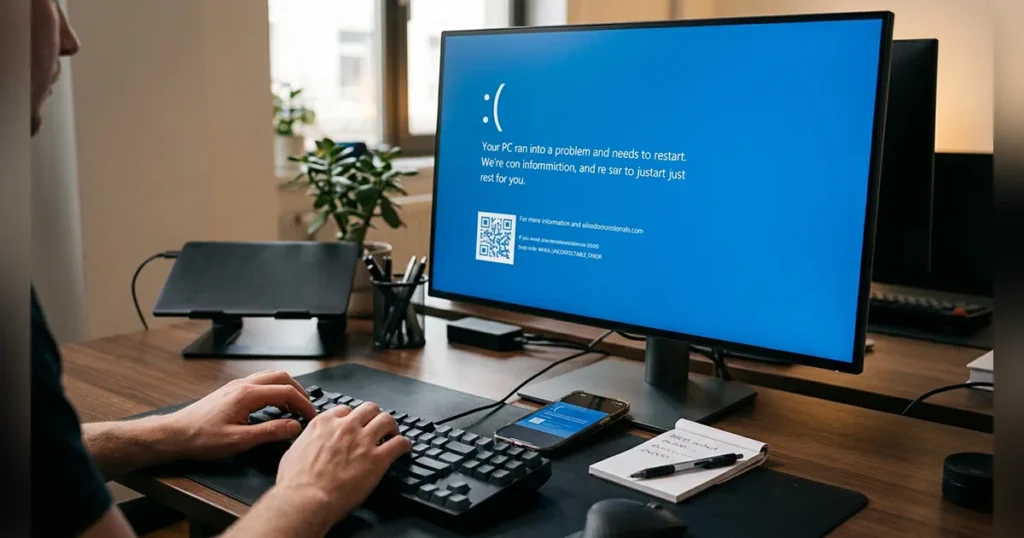
If the computer restarts too quickly to read it, use your phone to photograph the error screen when it appears. You can then search the exact code and compare it with Microsoft’s documentation or reliable hardware and software support resources.
For recurring problems, Windows may also retain crash information in diagnostic files. Reliability Monitor, Event Viewer, and minidump files can provide additional details for more advanced troubleshooting.
The exact wording matters. A code such as VIDEO_TDR_FAILURE points the investigation toward graphics-related problems, while INACCESSIBLE_BOOT_DEVICE shifts attention toward storage and startup access.
When Should You Be Concerned About a BSOD?
An isolated BSOD is not automatically a sign of a serious computer problem. A temporary driver failure, software glitch, or unusual system condition can cause a single crash.
Repeated BSODs are more concerning when the computer crashes frequently, fails during startup, displays multiple stop codes, or becomes increasingly unstable.
The timing of the error is also useful. A crash that starts immediately after installing a driver deserves a different investigation from one that appears randomly after months of stable operation.
If important files are involved, create a backup as soon as the system is stable enough to do so. Troubleshooting should not put valuable data at unnecessary risk.
How to Prevent Future BSOD Errors
Preventing every possible Windows crash is unrealistic, but several habits can reduce the likelihood of recurring problems.
Keep Windows and important hardware drivers reasonably current, but avoid downloading drivers from unreliable sources. Install software carefully, particularly programs that modify system settings or interact directly with hardware.
Maintain adequate free storage and pay attention to unusual drive warnings. Keep cooling vents clear and address excessive temperatures before they become recurring stability problems.
If you use overclocking, make sure the settings are stable. Excessive voltage or clock adjustments may trigger issues that look like typical software failures.
Regular backups are equally important. Even when a BSOD is caused entirely by software, repeated crashes can occur at inconvenient times. A current backup helps ensure that troubleshooting does not become a data-recovery problem.
Final Thoughts
The blue screen itself is not the diagnosis; the stop code and circumstances surrounding the crash provide the more useful clues.
For an isolated error, a restart may be all that is needed. Repeated crashes call for a more careful approach. Check recent drivers, updates, connected hardware, system files, storage, memory, and temperatures before moving toward more disruptive solutions.
Understanding the bsod meaning is only the first step. The goal is to identify the underlying cause and fix it rather than repeatedly treating the symptom.
Frequently Asked Questions About BSOD
What does BSOD stand for?
BSOD stands for Blue Screen of Death. It describes a critical Windows error screen that appears when the operating system encounters a serious problem and cannot safely continue.
Is a BSOD dangerous for a computer?
A single BSOD does not necessarily indicate physical damage. It is often a protective response to a serious software, driver, or hardware problem. Repeated crashes, however, should be investigated.
What causes a BSOD?
Common causes include faulty drivers, corrupted Windows files, unstable hardware, storage problems, overheating, problematic updates, and software conflicts.
Can a BSOD damage my files?
A BSOD itself is designed to stop Windows when it encounters a critical problem. However, an unexpected shutdown can potentially contribute to data corruption, particularly if files were being written at the time. Regular backups provide important protection.
What does the 0xc000021a error indicate?
It generally indicates that a critical Windows user-mode process has failed. Corrupted system files, updates, drivers, or software conflicts can contribute to the problem.
How do I fix a recurring blue screen?
Start by recording the stop code and identifying what changed before the crashes began. Then check drivers, Windows system files, updates, storage, memory, temperatures, and recently installed software.
Can faulty RAM cause a blue screen?
Yes. Defective or unstable memory can cause different types of system crashes. Windows Memory Diagnostic can provide an initial check for memory problems.
Can outdated drivers cause Windows crashes?
Yes. Drivers act as a link between Windows and hardware, so a damaged, incompatible, or unstable driver can cause a serious system failure.
How can I find the stop code if the computer restarts too quickly?
Take a photograph of the error screen when it appears. You can also use Windows diagnostic tools such as Reliability Monitor and Event Viewer to investigate the crash afterward.
For more articles like this, visit our site: https://factbreaker.com/