

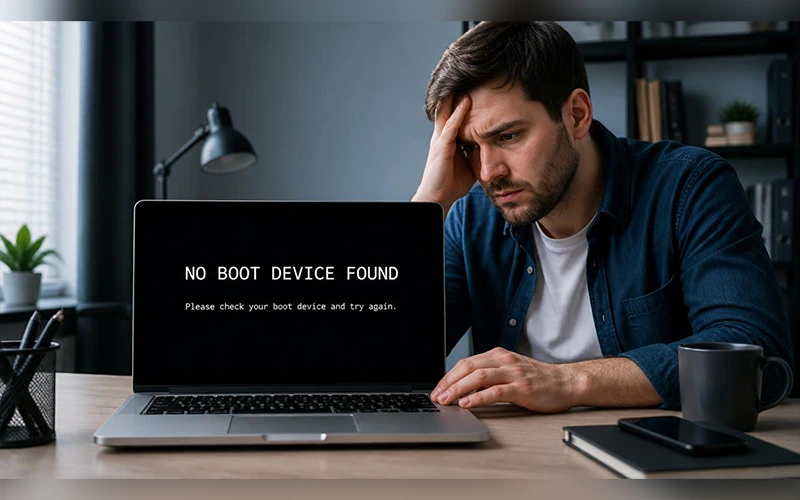
You press the power button, wait for Windows and get a black screen that says “No boot device found.” It usually shows up at the worst moment, right before a deadline or a meeting. Don’t panic. In many cases, the storage drive itself is not the problem; the error may result from an incorrect startup configuration, corrupted system boot data, or an improperly connected cable. The fixes below run from quickest to most involved, and nearly all of them leave your files untouched. Dell and HP owners will find a built-in drive test in their own sections, and if your BIOS settings already look right, you can skip straight to the boot file repair.
What “No Boot Device Found” Really Means
When your PC starts, the BIOS looks for a drive that holds a bootable operating system. If it finds none, it stops and prints this message. Picture a taxi driver who knows the city but has no street address: the car runs, the driver is ready, and nobody knows where to go. That message says nothing about your files, only that the BIOS can’t reach them. It appears on every brand, Dell, HP, Lenovo and Acer included.
Why It Happens
Six things usually cause it:
- A boot order that points to an empty USB port or disc drive
- The wrong boot mode, UEFI instead of Legacy or the other way round
- Corrupted boot files, often after an interrupted Windows update
- A loose or damaged drive connection
- A dead CMOS battery that keeps wiping your BIOS settings
- A drive that has genuinely failed
The first five are fixable at home. The sixth is why testing the drive matters.
Quick Checks Before You Start
Unplug every USB drive, SD card and disc. A forgotten flash drive is a common trigger for the “No boot device found” message. Then do a power reset: shut down, unplug the charger, remove the battery if it comes out, and hold the power button for 30 seconds. Reconnect everything and try again.
Four Fixes That Work on Any PC
These apply whatever brand you own. Tap the key the moment the screen lights up, and test the PC after each fix.
| Brand | BIOS key | Boot menu key |
| Dell | F2 | F12 |
| HP | F10 | F9 |
| ASUS | Delete or F2 | F8 |
Fix 1: Set the Right Boot Mode
After a recent system reset or update, the computer may be configured to use an incorrect boot mode. Open the BIOS, go to the Boot or Boot Sequence menu and find Boot Mode (some boards call it Boot List Option). If it says Legacy, switch it to UEFI, then save and exit with F10. Windows 11 only boots in UEFI, so on those PCs keep Legacy and CSM disabled and Secure Boot enabled. Older machines installed in Legacy mode may need the opposite, so if UEFI makes things worse, change it back.
Fix 2: Put the Right Drive First
Open the Boot Order or Priority section. Look for Windows Boot Manager or your drive’s brand name, such as Samsung, Kingston or Seagate, and move it to the top. Save and exit. This takes ten seconds and fixes this error more often than you’d expect.
Fix 3: Load the BIOS Defaults
Incorrect configuration settings may cause the BIOS to overlook a working drive. Look for Load Defaults (usually F9 or F5), or open the Exit tab and choose Load Optimized Defaults. Confirm, then save and exit. If your settings revert after a few days, the CMOS battery is dying, and a replacement coin cell costs very little.
Fix 4: Reseat the Drive
Shut the PC down, unplug it and remove the battery if possible. Open the side panel on a desktop or the back cover on a laptop. Find the storage drive (an M.2 NVMe stick or a 2.5-inch SATA drive), disconnect it, blow away the dust and push it firmly back in. A drive that has shifted in its slot is a classic cause of this screen, especially after a fall or on older machines.
How to Resolve the Dell No Boot Device Error on Laptops and PCs
Dell machines usually show this error when the BIOS drops the main drive from the top of the boot list or a Windows update flips the boot mode.
Test the Drive with Dell Diagnostics
Run this first, because a dead drive can’t be fixed from the BIOS and the error will keep returning until you replace it. Turn the PC off, power it on and tap F12 at the Dell logo to open the One-Time Boot Menu. Choose Diagnostics, press Enter and watch the Hard Drive test. A pass means the hardware is healthy and you’re dealing with settings. A fail comes with a code such as 2000-0142, which usually means the drive has died.
Check That Windows Boot Manager Is Listed
Open the BIOS with F2 and go to Boot Sequence. On older grey and blue screens, expand General, click Boot Sequence and set the boot list to UEFI.
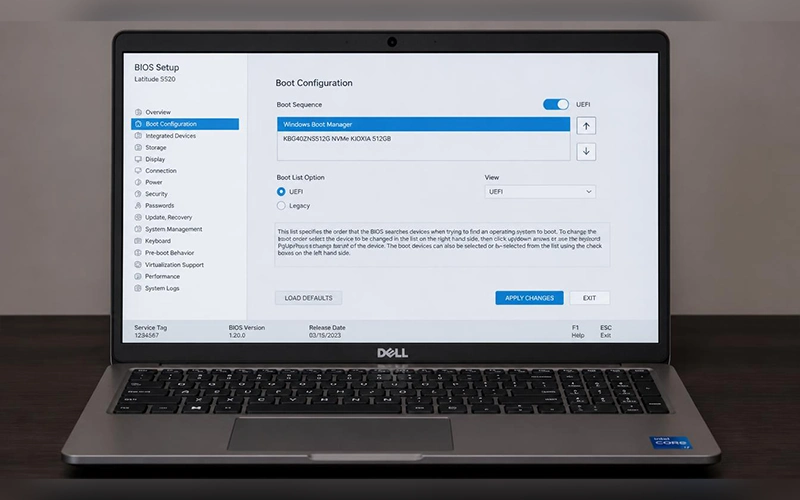
On the newer black interface, open Boot Configuration and confirm Secure Boot is enabled. Then make sure Windows Boot Manager sits at the top. If it’s missing, click Add Boot Option, name it Windows Boot, browse to EFI\Microsoft\Boot\bootmgfw.efi and save.
No Boot Device Found HP Error: Fixes for Laptops and Desktops
On HP machines the screen often reads Boot Device Not Found (3F0). Sometimes it adds a line telling you to press any key to reboot the machine. Pressing a key only restarts the loop and brings the same screen back, so use the steps below instead.
Run HP PC Hardware Diagnostics
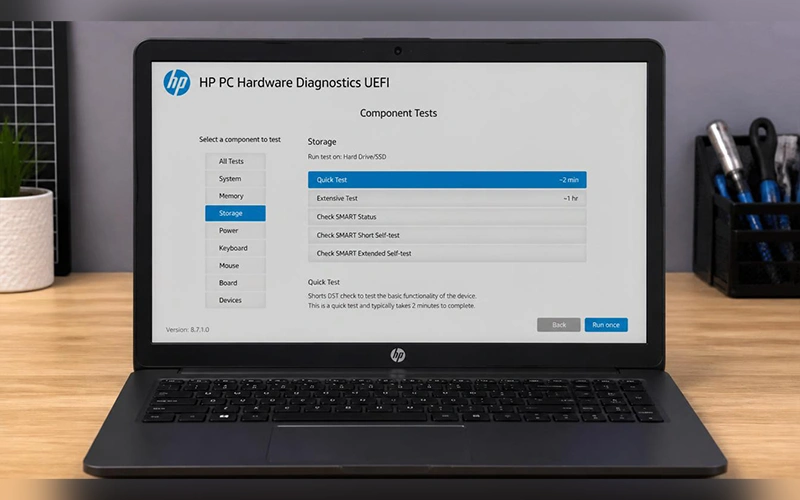
Power on and tap F2 about once a second until the HP PC Hardware Diagnostics UEFI screen appears. Choose Component Tests, then Storage, then Quick Test, and click Run once. A passing result means the problem comes from settings, not hardware. If you see Hard Drive Not Exist or Smart Check Failed, the drive is likely dead, though Hard Drive Not Exist can also mean a loose connection, so try Fix 4 before buying a replacement.
Review Legacy Support and Secure Boot
Tap F10 to open the BIOS, go to Advanced or System Configuration, then Boot Options. If Legacy Support is enabled, disable it. If Secure Boot is disabled, enable it. If Windows uses an older partition format, the opposite configuration may be required. If the initial method fails, switch both settings and try again. HP may show a four-digit code on screen when you save. Type it in and press Enter to confirm.
Rebuild the Boot Files with a Windows USB
If the BIOS settings are right and the problem keeps returning, the boot records are probably corrupted. The PC can’t load Windows on its own, so you need a recovery USB.
Create the USB and Open Command Prompt
On a working computer, download the Media Creation Tool for your Windows version (10 or 11) from Microsoft and use an empty USB drive of at least 8 GB. Plug it into the broken PC, tap the boot menu key from the table above and pick the USB drive. On the Windows Setup page, select your preferred language and keyboard layout, then click Next. Skip Install now and click Repair your computer at the bottom left. Go to Troubleshoot, choose Advanced options, and open Command Prompt.
Windows 10 No Boot Device Found: Repair the MBR
On older Windows 10 installs, the master boot record is often damaged or the system partition has lost its active flag. Type these one at a time, pressing Enter after each:
bootrec /fixmbrbootrec /fixbootbootrec /scanosbootrec /rebuildbcdThe first command repairs the master boot record, the second writes a new boot sector, the third scans for Windows installations, and the last rebuilds the boot configuration store. If /fixboot returns “Access is denied,” run bootsect /nt60 sys and try again. If asked whether to add the installation to the boot list, type Y and press Enter to proceed. Close the window, remove the USB and restart. If your PC uses a GPT/UEFI layout, these commands may not be enough, so use the method below.
No Boot Device Found on Windows 11: Repair the EFI Partition
Windows 11, and any Windows 10 PC that uses GPT/UEFI, keeps its boot files in a hidden FAT32 partition. When that partition is damaged, the fix is to give it a drive letter and copy fresh files in. In the same Command Prompt, type:
diskpartlist diskselect disk 0list volumeselect volume 2assign letter=V:exitUse list disk to find your main drive, usually Disk 0. Locate the FAT32 list volume, in the list that has a size ranging from about 100 to 500 MB. That’s your boot partition, so use its number in place of 2. Then run:
bcdboot C:\Windows /s V: /f UEFIWithin the recovery environment, Windows may be installed on a drive other than C:. Use list volume or dir C:\ to find the drive that holds the Windows folder, and swap the letter if needed. When you see “Boot files successfully created,” close the window, remove the USB and restart.
Can You Save Your Files?
Usually, yes. Even when the error won’t clear, your documents are often still on the drive, and the repair commands above don’t touch them. If the drive is damaged or you intend to reinstall the system, start your computer using a Linux live USB and transfer your files to an external drive. You can also pull the drive out, put it in a USB enclosure and connect it to a second PC. Recovery software is a last resort for when the drive shows up but files seem missing.
Last Resort: Reinstall Windows
If the drive passes its diagnostic test but the “No boot device found” screen survives every repair, reinstall Windows from the same USB. A clean install erases the drive, so copy your files first. If the test failed instead, replace the drive before installing anything.
How to Avoid This Error Next Time
Keep a regular backup, even if it’s just an external drive. Let Windows updates finish without holding the power button. Check your drive’s health now and then with CrystalDiskInfo, and shut the laptop down properly instead of closing the lid mid-update. A few minutes of care and you probably won’t see this screen again.
When to Call a Professional
If the BIOS doesn’t detect the drive even after reseating it, or you hear clicking or grinding, stop. These symptoms may indicate hardware damage, and repeatedly turning the device on could complicate data recovery. A repair shop can test the drive and pull your files off before replacing it. If the drive is silent but still missing from the BIOS, a technician can check whether the drive or the motherboard slot is at fault.
Final Thoughts
Try each solution step by step, starting with the boot mode and boot sequence, followed by BIOS defaults, hardware checks, and system repair commands. Most people clear the “No boot device found” error without ever reinstalling Windows. If a diagnostic test says the drive has failed, replacing it is the only real answer. Still stuck? Leave a comment with your PC model and what you’ve already tried, and we’ll help you narrow it down.
Frequently Asked Questions
1. Will fixing “No boot device found” delete my files?
No. BIOS changes and boot repairs leave your files alone. Only the reinstall step puts them at risk.
2. Can bad RAM or a faulty motherboard cause this error?
This is uncommon. A damaged motherboard connector or storage controller may prevent the system from recognizing the drive, whereas memory problems more often cause beeping, system hangs, or blue screen errors. If the drive functions in another computer or through a USB adapter, the motherboard may be responsible.
3. How do I know whether to use UEFI or Legacy?
Check the partition style. GPT disks use UEFI and MBR disks use Legacy. In the recovery Command Prompt, run diskpart, then list disk. An asterisk (*) under the Gpt column means the disk is GPT.
4. Is it possible to create a recovery USB without using another computer?
Usually, no. The Media Creation Tool needs a working Windows computer. Borrow a friend’s PC or use one at a library or repair shop. The tool is free, and you only need to buy the USB stick.
5. Why do I get this error after installing a new SSD?
A new drive is blank, so the BIOS has no operating system to find. Install Windows on it with a USB installer. If the drive still doesn’t appear in the BIOS, reseat it and check that the connector is fully seated.
6. How do I replace a dead CMOS battery?
Shut down, unplug the PC and open the case. Find the coin cell on the motherboard, usually a CR2032, release its clip and swap in the same type with the + side facing up. Reset your BIOS settings afterwards. Some laptops have the battery on a small cable or soldered in, and those are best left to a technician.
7. Will I lose my Windows licence if I replace the drive?
Usually not. Windows 10 and Windows 11 usually retain their activation status through your device’s hardware or linked Microsoft account, not the storage drive itself. After reinstalling Windows, activation normally occurs automatically when the device connects to the internet.
8. Can malware cause this error?
Rarely. Boot-sector malware can damage boot records, but wrong settings, bad updates and hardware faults are far more likely. If you suspect an infection, scan the PC with a trusted antivirus once it boots again.
For more articles like this, visit our site: https://factbreaker.com/