

You press the power button, walk off to make tea, and come back to a screen that’s still loading. If you’re wondering how to fix slow startup windows, start by identifying what’s delaying the boot process. Unnecessary startup apps, pending updates, driver problems, and limited disk space can all contribute to longer startup times.
Newer computers aren’t immune either. A PC with slow startup in Windows 11 can take several minutes to become usable, even on relatively new hardware. The good news is that many startup problems come down to unnecessary apps, limited storage, outdated drivers, or background processes.
This guide explains how to fix slow startup Windows problems, starting with simple changes you can try in a few minutes and moving on to more advanced troubleshooting and hardware upgrades.
Why Your Computer Takes So Long to Boot
Windows has a lot to do before you can click anything. It loads drivers, starts background services, and launches apps configured to open at sign-in. Each additional task can increase startup time, especially on older computers.
The usual causes include too many startup apps, a nearly full system drive, an aging mechanical hard disk, pending updates, corrupted system files, and malware.
Imagine a laptop where nine apps launch at sign-in: a chat client, two game launchers, a cloud sync tool, a printer utility, and several updaters. The desktop might appear quickly, but the computer can remain busy for another two minutes while everything loads. Reducing that background activity is often the first step toward a faster startup.
Find Out What’s Actually Slowing You Down
Before trying every fix, spend a couple of minutes identifying where the delay occurs. This helps you choose the right solution instead of changing settings that may have nothing to do with the problem.
Open Task Manager with the Ctrl + Shift + Esc shortcut, then navigate to Startup or Startup apps, based on which version of Windows you are using. Look at the Startup impact column and note which apps are marked High.
On supported systems, Task Manager may also show Last BIOS time. This indicates how long the firmware took to initialize hardware before Windows started. A high value can point to a firmware or hardware delay, although it doesn’t identify the exact cause by itself.
Once you’re logged in, go to the Performance section in Task Manager to see how much of your CPU, RAM, and disk resources are being used. If you’re learning how to fix slow startup windows, look for resources that remain heavily occupied rather than focusing on a single momentary spike. This can help you decide whether to disable startup apps, free up storage, or investigate a possible hardware issue.
| What you notice | Where to start |
| The desktop loads, but the PC remains slow after sign-in | Startup apps |
| Disk usage stays near 100% | Storage space, background tasks, and drive health |
| Memory remains almost full | Startup apps and RAM capacity |
| The problem began after an update | Update history and drivers |
| Unexpected pop-ups or unexplained slowdowns | Malware scan |
| The basic fixes make no difference | Clean boot and hardware checks |
| A dated computer still runs on a traditional hard disk, | Think about switching to an SSD |
12 Fixes for Slow Windows Startup
1. Restart Your Computer
Restarting your PC is a good initial fix, particularly if it has been on for several days or recently updated.
Save any open files, click Start, select Power, and then click Restart. Let Windows complete any pending updates before judging the result.
Restarting is also useful because Restart performs a full Windows boot cycle rather than using the hybrid shutdown behavior associated with Fast Startup. If the computer remains slow, continue with the next fix.
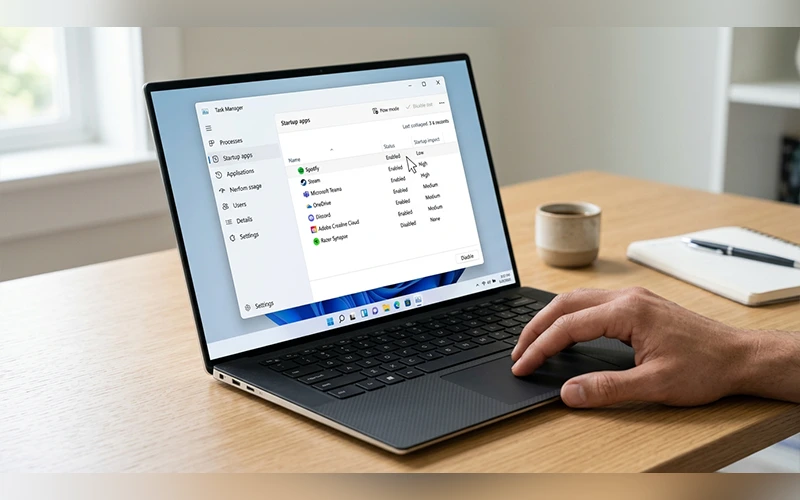
2. Disable Unnecessary Startup Apps
For many users, this is the biggest improvement they can make without spending money.
- Open Task Manager with Ctrl + Shift + Esc.
- Select Startup or Startup apps.
- Choose an app you don’t need immediately after signing in.
- Right-click it and select Disable.
- Restart your PC and compare the startup time.
Disabling an app doesn’t uninstall it. You can access it again whenever you need to.
One useful step in learning how to fix slow startup windows is to review which apps launch automatically. Programs that run as soon as you sign in can consume memory and processing power. Open Task Manager, select the Startup apps section, and disable applications you don’t need immediately. Avoid disabling security software or unfamiliar system components.
3. Turn Fast Startup On or Off
Fast Startup saves the Windows kernel session and certain drivers to a hibernation file during shutdown. Windows can then use that saved state to start more quickly the next time you turn on the computer.
To check the setting:
- Open Control Panel.
- Select Hardware and Sound > Power Options.
- Click Choose what the power buttons do.
- Select Change settings that are currently unavailable.
- Look for Turn on fast startup (recommended).
If the option is available, test startup with it enabled. If it’s already enabled and your computer behaves strangely after shutdown, try disabling it and compare the results over a few days.
Fast Startup doesn’t guarantee a noticeable improvement on every computer, particularly those with modern SSDs. A normal Restart also performs a full boot, so use it when troubleshooting problems that persist after shutdown.
4. Free Up Disk Space
If you’re looking for how to clean up computer to run faster Windows 10, start by checking your system drive. The same general steps apply to Windows 11.
When drive C: is nearly full, Windows has less room for temporary files, updates, and other operations. Freeing space won’t solve every startup problem, but it can help a system that’s running short on storage.
- Open Settings > System > Storage.
- Select Temporary files.
- Review the categories and select the files you no longer need.
- Click Remove files.
- Empty the Recycle Bin and review your Downloads folder if you need additional space.
When learning how to fix slow startup windows, check whether your system drive has enough free space. When drive C: is nearly full, Windows has less room for temporary files, updates, and other operations. Freeing up storage won’t solve every startup problem, but it can help if your computer is running low on space.
You can also open Disk Cleanup, select drive C:, and click Clean up system files. Uninstall unused applications from Settings > Apps, and consider enabling Storage Sense to help manage temporary files automatically.
5. Install Pending Windows Updates
Outdated components, incomplete updates, or a problem introduced by a recent update can sometimes affect startup performance.
To update your system, navigate to the Windows Update section in Settings. If you’re using Windows 11, select Windows Update directly. On Windows 10, choose Update & Security, then open Windows Update. Check whether new updates are available and complete the installation by following the on-screen prompts.
Restart the computer if prompted. If the slowdown began immediately after a particular update, review Update history to identify what changed before attempting to remove an update.
Keep in mind that updates can temporarily increase disk and CPU activity while Windows completes installation tasks. Give the system time to finish before deciding that an update has made startup permanently slower.
Standard support for Windows 10 officially came to an end on October 14, 2025, under Microsoft’s support policy. If you’re still using it, check whether your device is eligible for Windows 11 or an applicable extended security option.
6. Update or Reinstall Problematic Drivers
Drivers allow Windows to communicate with hardware such as storage controllers, graphics adapters, and network devices. A faulty or incompatible driver can sometimes contribute to startup delays.
Check Windows Update first to see whether any updates or compatible driver upgrades are available for your system. For device-specific drivers, visit the official support website for your computer’s manufacturer.
If the problem started after a driver update, open Device Manager, locate the relevant device, open its properties, and check whether Roll Back Driver is available.
Reinstalling a driver may help when a specific device is malfunctioning, but don’t update every driver without a reason. Avoid unfamiliar third-party driver tools, and make sure you have a suitable replacement available before removing a driver package.
7. Disconnect Unnecessary External Devices
USB drives, memory cards, printers, docks, and other connected devices can occasionally delay startup if Windows or the firmware struggles to initialize them.
Shut down the computer and disconnect nonessential external devices. Leave only the keyboard, mouse, display, and other equipment required to use the system. Turn the computer back on and compare the startup time.
If the delay disappears, reconnect the devices one at a time and restart as needed to identify the cause. Check the manufacturer’s support information if a particular peripheral repeatedly causes problems.
Don’t disconnect internal components or essential equipment as part of this test.
8. Check for Malware
Some malicious programs run background processes, consume system resources, or change Windows settings. If startup problems occur alongside unexpected pop-ups, browser changes, or unexplained activity, run a security scan.
- Open Windows Security.
- Select Virus & threat protection.
- Choose Quick scan.
- Follow the recommended actions if a threat is detected.
If the scan finds nothing but you still suspect malware, run a Full scan. Microsoft Defender Offline is another option because it restarts the PC and scans outside the normal Windows environment.
Keep your security software updated, and avoid downloading supposed PC optimizers from unfamiliar websites. They can introduce more problems rather than solve them.
9. Repair Corrupted Windows System Files
Damaged system files can cause Windows errors and may contribute to performance problems. Windows includes built-in tools to check and repair certain types of corruption.
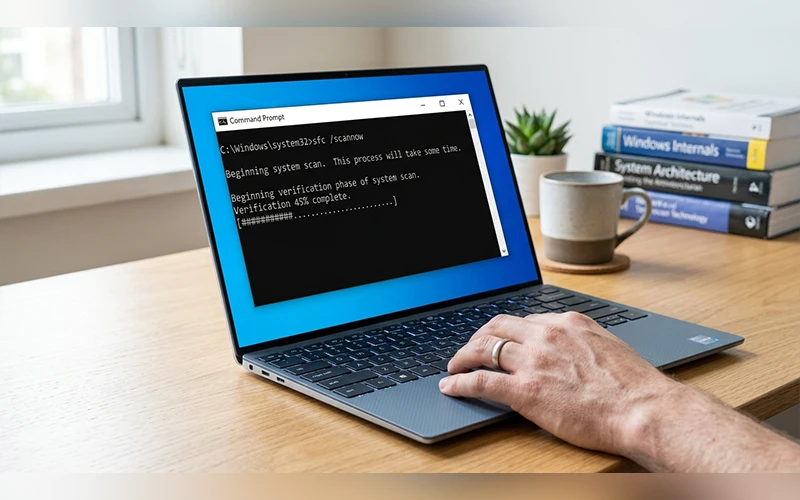
First, open Command Prompt as administrator or an administrator Windows Terminal. Enter this command, then let the process complete.
DISM.exe /Online /Cleanup-Image /RestoreHealth
Next, run:
sfc /scannow
Run the commands separately, in that order. DISM repairs the Windows image used by the system file checker, while SFC checks protected system files and replaces damaged versions when possible.
The process can take several minutes. When both commands finish, restart your computer and check whether startup has improved. These tools won’t repair a physically failing drive or fix every cause of slow booting.
10. Perform a Clean Boot
If you’re wondering how to perform a clean boot in Windows 11, the process is similar on Windows 10. A clean boot starts Windows with essential services and a reduced set of startup programs, helping you determine whether third-party software is responsible.
- Press Win + R, type
msconfig, and press Enter. - Open the Services tab.
- Check Hide all Microsoft services before selecting Disable all.
- Open the Startup tab and select Open Task Manager.
- Disable the enabled startup items, noting which ones you change.
- Close Task Manager, select OK in System Configuration, and restart.
If startup improves, a third-party service or app may be causing the delay. Re-enable disabled items in small groups and restart between tests until the problem returns. This can make it easier to identify the underlying issue.
To restore your usual startup configuration, open System Configuration and select Normal startup on the General tab, then review your services and startup apps. Re-enable any items you intentionally disabled for the test. If you use a work-managed computer, check with your IT administrator before changing these settings.
11. Check Your Drive Health and Consider an SSD
An older mechanical hard drive can be a major bottleneck. Unlike an SSD, it relies on moving parts to read data, which can make Windows startup and application loading noticeably slower.
Before upgrading, check for warning signs such as repeated freezes, unusual clicking noises from a mechanical drive, read errors, or unexpected boot failures. These symptoms don’t prove the drive is failing, but they warrant attention. Back up important files promptly if you suspect a hardware problem.
If the computer still uses a mechanical drive, replacing it with a compatible SSD can produce a substantial improvement. The exact result depends on the hardware and the condition of the existing system.
An SSD upgrade is not a substitute for a backup. Confirm the drive type, physical size, connection, and compatibility with your computer before buying a replacement.
12. Add More RAM if Memory Is Consistently Full
Low available memory can make Windows rely more heavily on the storage drive, especially when several applications open automatically at sign-in.
Open Task Manager > Performance > Memory and check how much memory is in use during normal startup. If usage remains high and the system becomes sluggish when apps open, reducing background applications may help. If that isn’t enough, adding RAM may be worth considering.
For everyday use, 8 GB can be a practical starting point, while demanding applications and heavy multitasking may benefit from 16 GB or more. The right amount depends on your workload and the computer’s supported memory capacity.
Check whether your laptop’s RAM is upgradeable before purchasing anything. Some models have memory soldered to the motherboard and cannot be upgraded.
How to Fix Slow Startup Windows 10 and Windows 11
Most fixes in this guide work on both operating systems, but some settings are in different locations.
On Windows 10, open Settings > Update & Security > Windows Update. On Windows 11, go to Settings > Windows Update. To manage startup apps, Windows 11 users can open Settings > Apps > Startup, while Task Manager is another option on both systems.
If you’re troubleshooting slow startup on Windows 10, also consider that standard support ended on October 14, 2025. Check whether your device qualifies for Windows 11 or an applicable extended security option.
Still Using Windows 7? Here’s What to Do
Windows 7 stopped receiving regular security updates in January 2020. Moving to a supported operating system is the safer long-term option, but a few basic checks may help if you’re still using an older machine.
Click Start, type msconfig, and open the Startup tab. Disable programs you don’t need at startup, then run Disk Cleanup on drive C: and uninstall software you no longer use. Run a scan with a trusted security product that still supports your system.
If the computer has a mechanical hard drive, Windows 7’s Disk Defragmenter may help optimize file placement. Select Analyze disk first and defragment only if appropriate. Never defragment an SSD.
If Windows freezes or cannot load, use compatible Windows installation or recovery media to access Startup Repair. This tool is intended for startup failures, not ordinary slow boot times.
Simple Habits That Keep Your PC Fast
A few small habits can reduce the chance of startup problems returning.
- Review your startup apps after installing new software.
- Restart your PC when troubleshooting performance issues or completing updates.
- Keep enough free space on the system drive for Windows and applications to operate comfortably.
- Install applicable Windows and manufacturer-provided driver updates.
- Back up important files regularly, particularly if the drive shows signs of failure.
These steps won’t prevent every slowdown, but they can make future problems easier to spot and resolve.
Conclusion
Start by identifying what’s delaying startup, then try the relevant fixes one at a time. If software troubleshooting doesn’t help and your PC still uses a mechanical hard drive, upgrading to an SSD may make the biggest difference. If the drive may be failing, save copies of essential files before proceeding.
Frequently Asked Questions
1. Why is my Windows computer taking so long to start?
Common causes include too many startup apps, limited disk space, problematic drivers, malware, or an aging hard drive. Check Task Manager to identify possible bottlenecks.
2. What should I do to make Windows 10 start up faster?
To understand how to fix slow startup windows, disable unnecessary startup apps, free up disk space, install pending updates, and check for driver issues. If startup remains slow, check your drive health.
3. How do I fix slow startup in Windows 11?
To learn how to fix slow startup windows, disable unwanted startup apps in Task Manager, check for Windows updates, scan for malware, and repair corrupted system files if necessary.
4. Why is my PC slow after I sign in?
Apps that launch automatically may be using too much CPU, memory, or disk activity. Disable nonessential startup apps and restart your PC to compare performance.
5. Does Fast Startup make Windows boot faster?
Fast Startup can reduce boot time after shutdown by restoring a saved Windows kernel session. Its benefit varies by computer, so test it both ways if necessary.
6. Can low RAM cause slow Windows startup?
Yes. Limited memory can make the system sluggish when multiple apps launch together. Check memory usage in Task Manager before considering a RAM upgrade.
7. Will an SSD make my computer start faster?
An SSD can significantly reduce startup and loading times compared with a mechanical hard drive, particularly on older computers.
8. Should I reset Windows if startup is still slow?
Reset Windows only after trying other troubleshooting steps. Back up your files first and review the reset options because installed applications may be removed.
For more articles like this, visit our site: https://factbreaker.com/