




When a computer repeatedly restarts instead of opening Windows, the most useful first step is to identify where startup fails. This guide explains how to check hardware, firmware settings, and Windows recovery options without replacing parts or reinstalling the operating system before there is a clear reason.
What Causes a Boot Loop?
Typical causes include RAM that is not seated or compatible, unstable power, an incorrect boot target, storage-drive problems, damaged Windows startup files, or a driver/update issue. A symptom alone does not prove which cause is responsible, so identify where startup fails before making changes.
Identify Where Startup Stops
If the symptom matches “PC stuck in boot loop before BIOS,” start with memory and power checks; Windows repair tools cannot help until the machine completes its initial hardware checks. Compare any motherboard diagnostic lights or beep patterns with the troubleshooting guide in your PC or motherboard manual.
For the symptom “PC stuck in boot loop no display,” confirm that the monitor is powered on, the correct input is selected, and the cable is secure. A black screen alone does not confirm a failed POST. When the PC displays the manufacturer’s logo but fails to boot, check whether it keeps restarting or gets stuck on the same screen before attempting any repairs.
When your PC gets stuck during startup, check whether it keeps restarting or freezes on the manufacturer’s logo. These are different symptoms and may require different checks.
10 Ways to Fix a PC Stuck in a Boot Loop
1. Disconnect Unnecessary Devices
Shut down the computer and remove USB drives, external storage, printers, hubs, and other nonessential devices. Leave only the monitor and input devices you need, then try starting it again. If Windows loads, reconnect accessories one at a time to identify the device causing the problem.
2. Perform a Power Reset
Turn the computer off, switch off the PSU if applicable, and unplug the power cable. Press and hold the PC’s power button for 15–30 seconds to discharge residual power. Wait a few seconds, reconnect the power cable, and try turning the computer on again. For laptops, follow the manufacturer’s reset instructions rather than forcing out a built-in battery. Do not continue testing if you notice smoke, a burning smell, or other signs of electrical damage.
3. Check Display and Power Connections
On a desktop, unplug the system before inspecting its internals. Check the motherboard’s 24-pin power cable, the CPU’s 4- or 8-pin power cable, and the graphics card’s seating and power connectors. If your processor supports integrated graphics, the motherboard video output may help test whether the dedicated GPU is involved. Never open the power supply unit; have it tested by a qualified technician if necessary.
4. Reseat RAM and Test Modules Individually
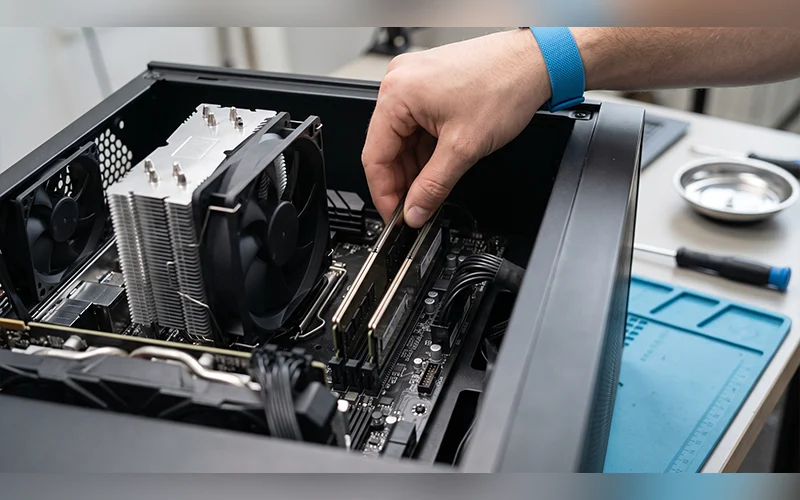
If the PC fails after a memory change, first check that the modules are fully seated and compatible with the motherboard. Shut down and unplug the system, use electrostatic-discharge precautions, and follow the manual to reinstall the RAM in the recommended slots. If startup still fails, test one module at a time in the recommended slot.
The search “PC stuck in boot loop after RAM upgrade” often points to poor seating, compatibility, a defective module, or unstable XMP/EXPO settings. Some systems also take longer to complete memory training after a change, so check the manufacturer’s guidance before interrupting the first startup. Modify just one RAM setting per test so you can identify which change affects the boot issue.
5. Restore BIOS Settings to Default
If the issue began after changing firmware or memory settings, enter BIOS/UEFI and load its default or optimized settings. If you cannot open the menu, use the motherboard’s documented CMOS-reset method, which may involve a reset button, jumper, or temporary removal of the coin-cell battery. Disconnect power first and follow the manual; never short unidentified pins.
A reset may disable memory profiles and change the boot configuration. Test with default settings before enabling XMP/EXPO again. Avoid randomly switching UEFI, CSM, or Secure Boot options because the wrong mode can make an existing Windows installation unavailable.
6. Check the Storage Drive and Boot Order
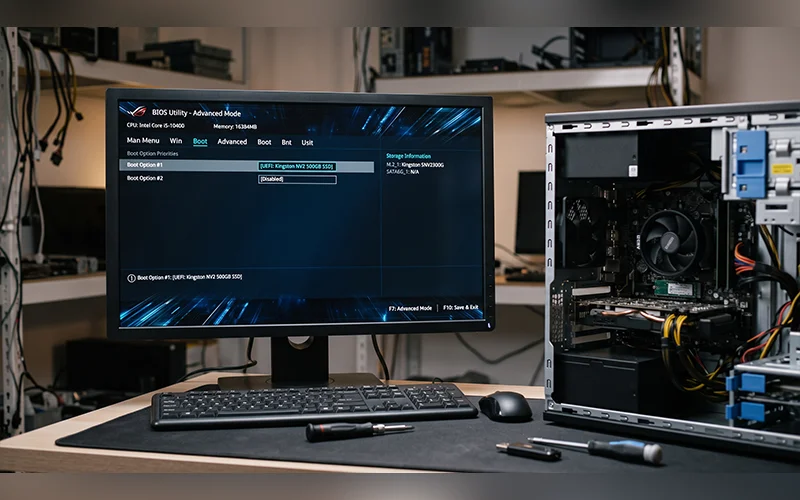
If the computer opens BIOS repeatedly, check whether the SSD or hard drive containing Windows appears in the firmware’s storage information. If it is missing, shut down and inspect the connections according to the service manual. For SATA drives, check both data and power cables; inspect an M.2 drive only if you are comfortable doing so.
When the drive is detected, set Windows Boot Manager or the correct operating-system drive as the first boot option. If the PC keeps returning to BIOS, the wrong boot target may be selected; do not assume the drive is faulty just because Windows does not start. If the drive remains undetected or reports errors, prioritize data protection and drive diagnosis.
7. Run Windows Startup Repair
If hardware checks pass but Windows will not load, Startup Repair can diagnose certain system-file and boot-configuration problems. If Windows Recovery Environment (WinRE) does not appear automatically, Microsoft documents a method that interrupts startup twice and allows a third start to open Automatic Repair. Use forced shutdowns only when normal recovery options are unavailable.
For step-by-step instructions, follow Microsoft’s official Startup Repair instructions.
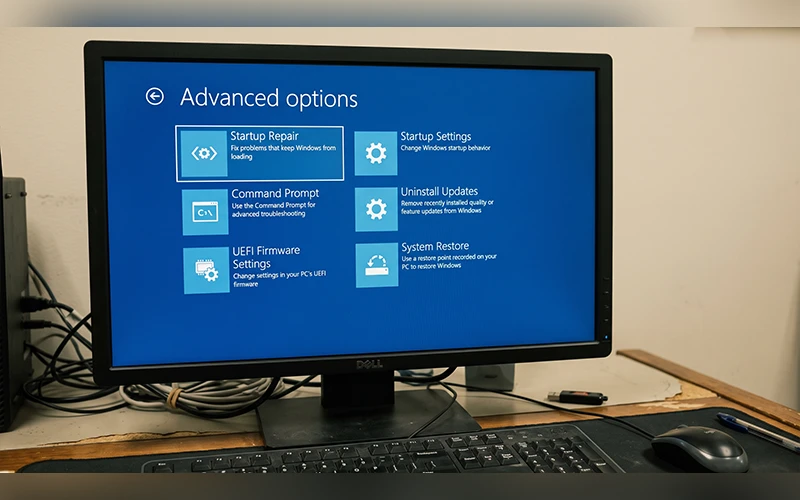
In WinRE, select Troubleshoot > Advanced options > Startup Repair and follow the prompts. You may need the BitLocker recovery key if device encryption is enabled. You can also start from Windows installation media and choose Repair your computer rather than starting an installation. See Microsoft’s Windows Recovery Environment guide: https://support.microsoft.com/en-us/windows/experience/backup-recovery/windows-recovery-environment.
8. Try Safe Mode and Repair System Files
From WinRE, open Troubleshoot > Advanced options > Startup Settings > Restart. Choose Safe Mode on the next screen; the key is commonly 4 or F4. If Windows starts in Safe Mode but not normally, remove or roll back a recently installed driver, utility, or application that coincides with the failure.
If you can sign in to Windows in Safe Mode, open an administrator Command Prompt or Terminal and run these commands in order:
DISM.exe /Online /Cleanup-Image /RestoreHealthsfc /scannowDISM repairs the Windows component store, while SFC checks protected system files. Run these commands in a working Windows environment such as Safe Mode; Command Prompt in recovery may assign different drive letters and needs an offline-repair method. Follow Microsoft’s System File Checker instructions: https://support.microsoft.com/en-us/windows/experience/backup-recovery/use-the-system-file-checker-tool-to-repair-missing-or-corrupted-system-files.
9. Uninstall a Recent Windows Update
If the restart began after an update, open WinRE and choose Troubleshoot > Advanced options > Uninstall Updates. Select the available option for the latest quality or feature update, then follow the prompts. Not every update can be removed from recovery.
If the issue matches “PC stuck in boot loop after Windows update,” removing the latest update may help, but timing alone does not prove it caused the failure. After Windows loads successfully, verify that your drivers are compatible with your system before applying any further updates. See Microsoft’s update removal guide: https://support.microsoft.com/en-us/windows/deployment/updates-lifecycle/how-to-uninstall-a-windows-update.
10. Diagnose Hardware or Repair Boot Files
If the earlier checks do not help, use motherboard indicators and component tests to narrow down a failing RAM module, storage drive, PSU, or motherboard. For “PC stuck in boot loop after power outage,” check power connections and drive detection first; the timing alone does not prove that the outage damaged Windows files, firmware, or hardware.
If the drive is detected but the Windows boot configuration appears damaged, boot from Windows installation media, select Repair your computer, and open Command Prompt. On compatible installations, this command may rebuild the Boot Configuration Data store:
bootrec /rebuildbcdThis command is not a universal fix; boot mode and partition layout matter. If important files are not backed up, protect them before modifying boot files. Consider a clean Windows installation only after hardware checks and less destructive recovery options have failed, and confirm which partitions will be erased.
Windows 10 and Windows 11 Notes
Windows 10 and Windows 11 include many of the same system recovery options, but some settings and menu names may differ between the two versions. For the search “PC stuck in boot loop Windows 11,” use hardware checks if POST fails and WinRE if Windows will not load. The same diagnostic order applies to the search “PC stuck in boot loop Windows 10.” Standard Windows 10 support ended on October 14, 2025, although eligible devices may have Extended Security Updates options. Details: https://learn.microsoft.com/en-us/lifecycle/announcements/windows-10-end-of-support. If your PC eventually starts but takes too long to load, read our guide on how to fix slow Windows startup for additional troubleshooting steps. Copy sentence
When to Get Professional Repair
If the PC continues to fail its startup checks after you inspect the RAM and power connections, displays a recurring hardware error, or shows signs of electrical damage, have a qualified technician examine it. Stop using the PC if you notice smoke, a burning smell, or liquid damage. A technician can test the PSU, motherboard, and drive instead of replacing parts by guesswork.
Conclusion
The correct fix depends on the point where the startup process stops. Check external devices and power first, investigate RAM or firmware when POST fails, and use Windows recovery when the hardware starts correctly. If these steps do not identify the cause, test the components before making major changes or reinstalling the operating system.
Frequently Asked Questions
What should I check first for a “PC stuck in boot loop” error?
Start by noting where startup fails: before BIOS/UEFI, at the manufacturer logo, or while Windows loads. This points you toward hardware checks or the relevant Windows recovery tool without guessing at the cause.
Can a “PC stuck in boot loop” error be fixed without reinstalling Windows?
Often, yes. Startup Repair, Safe Mode, update removal, or correcting a connection may resolve the fault. Check the hardware first if the system cannot complete POST.
What does “PC stuck in boot loop no POST” mean?
It means the computer is not completing its Power-On Self-Test. If the problem began after changing RAM, check the modules’ seating, compatibility, and recommended slots before trying Windows recovery.
How long should I wait after installing new RAM?
Some motherboards perform memory training after the first start and may take longer than usual. Check the board maker’s guidance; if diagnostic lights show a persistent failure beyond the expected training period, shut down and troubleshoot.
Can a power failure make a PC keep restarting?
It can expose a power or startup problem, but it does not automatically mean the computer is damaged. Check connections and drive detection, and use a suitable surge protector or UPS to reduce risk from future power events.
Is it possible to retrieve files when Windows fails to start?
Often, files can be copied by connecting the drive to another working computer or using suitable recovery media. If the drive is failing or the data is critical, avoid repeated repair attempts and seek data-recovery advice.
Can a failed SSD make the computer open BIOS repeatedly?
Yes. If the firmware cannot detect a drive or cannot find a bootable operating system, it may return to BIOS. Check whether the drive appears and back up data promptly if it shows signs of failure.
When should I reinstall Windows?
Reinstall only after checking hardware, backing up data, and trying appropriate recovery tools. A clean installation erases data from the targeted partitions and will not fix defective hardware.
For more articles like this, visit our site: https://factbreaker.com/




2 thoughts on “PC Stuck in Boot Loop? 10 Fixes for Windows Startup Problems”