


Google Maps is one of the most useful apps on your phone, but it can feel crowded very quickly. Cafes, shops, hotels, and tiny pins cover every street, and your own saved spots or past searches can pop up when you least expect them. If you are wondering how to stop showing places in Google Maps, the good news is that you have more control than most people think, as long as you know which setting does what.
This guide walks through Android, iPhone, desktop, Google My Maps, and Google Earth one by one. Every section has clear steps, and each fix appears only once, so you can jump straight to the part you need without reading the same advice twice.
Menu names change from time to time, so if a button looks a little different on your screen, look for the closest match and carry on. Also check that you are signed in to the right Google account, because lists and history belong to the account, not to the phone. Test one change at a time and look at the map after each step so you know exactly what worked.
Know What You Can and Cannot Hide
Before you change anything, it helps to see Google Maps as two layers. The first is the public map that everyone sees. The second is the personal layer that belongs only to your account. Each layer follows its own rules, and knowing the difference will save you a lot of trial and error.
Public Business Labels
Restaurants, shops, parks, and landmarks are part of Google’s base map. They come from business owners, public data, and regular map updates, so no personal setting can delete them for good. If you see a pin that you never saved, it almost always belongs to this layer.
What you can do is reduce how many labels appear on the screen. The label sections later in this guide show exactly how, and they also explain which views allow it and which do not.
Your Own Saved and Visited Spots
Starred places, custom lists, Home and Work labels, recent searches, and visited places all belong to your account. These are the items you can truly hide or remove, and most of this article is about them.
A simple rule helps here. Hide a list if you may want it again later, and remove it if you are sure you are done with it. Pick the steps for your device below and work through them in order.
Android Steps to Hide Places
On Android, a cleaner map usually comes from two moves. First, hide or remove the places you saved. Second, stop the app from reading your location if you do not need it. Both changes take only a few taps, and you can do them in any order.
Unsave Places from Lists and Labels
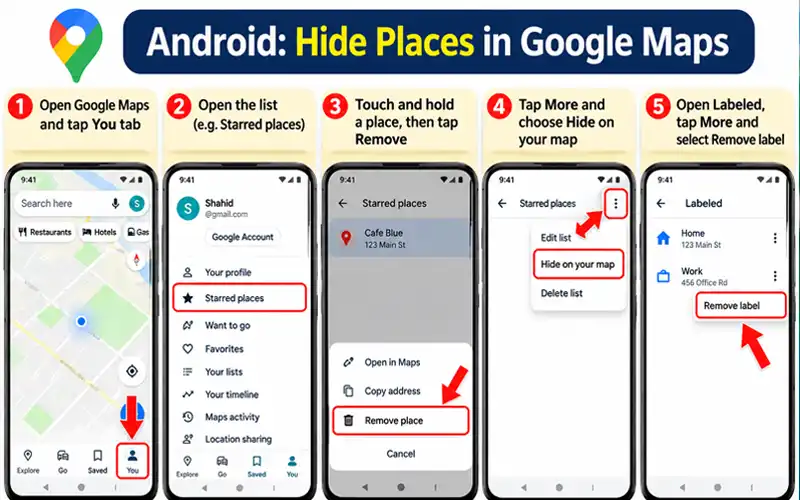
Saved places show up as small icons on the map, which is why a busy area can look even busier. Follow these steps in the Google Maps app to clear them.
- Open Google Maps and tap the You tab at the bottom of the screen. Some versions call this tab Saved.
- Open the list that holds the place, such as Starred places, Want to go, or Favorites. Each list has its own name and icon, so scan the names until you find the right one.
- Touch and hold the place, or tap its menu, and remove it from the list.
- To keep the list but clear the map, tap More next to the list name and choose Hide on your map. The icons from that whole list stop appearing.
- For Home and Work, open Labeled, tap More next to the label, and choose Remove label.
Block Location Access for the App
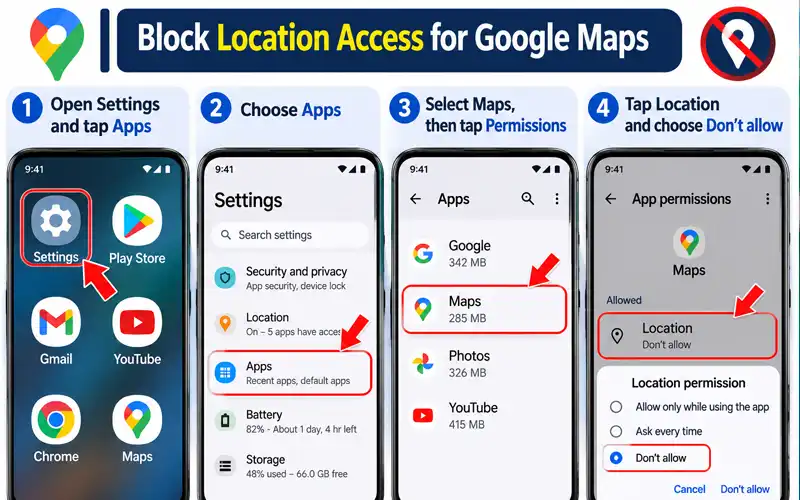
If you also want Maps to stop using your position, change the permission from your phone settings instead of the app.
- Open your phone Settings and tap Apps.
- Choose Maps, then tap Permissions.
- Tap Location and select Don’t allow. Maps can still open, but it will no longer read where you are. If you still need directions now and then, choose Allow only while using the app instead.
The exact path can differ between phone brands, but the words Apps, Permissions, and Location are usually there. If you cannot find them, use the search bar inside Settings and type Location.
iPhone Steps for iOS Users
The iPhone app follows the same logic as Android, but the taps are slightly different. Here is how to clean up saved places and control location access on iOS.
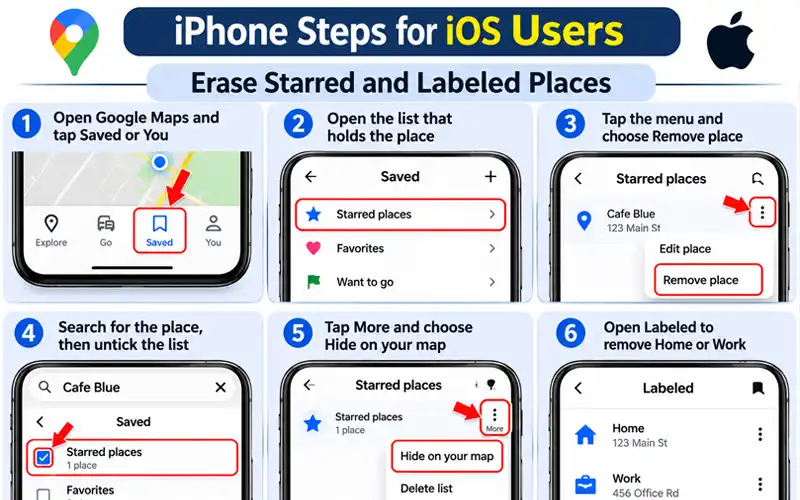
Erase Starred and Labeled Places
Your saved places can be cleared one by one, or you can hide a whole list at once.
- Open Google Maps and tap Saved or You at the bottom.
- Open the list that holds the place you want to remove.
- Tap the menu next to that place and choose Remove place. A short Undo message appears for a few seconds, so you can reverse a mistake.
- For a faster route, search for the place by name, tap Saved, and untick the list that shows a checkmark.
- To clear a whole list from the map, tap More beside the list and choose Hide on your map.
- Open Labeled to remove Home, Work, or other custom labels from their menus.
Switch Off Location in iPhone Settings
Apple has its own Maps app, so make sure you pick the Google one in the list. Otherwise you will change the wrong app.
- Open Settings, then Privacy & Security, then Location Services.
- Scroll down and tap Google Maps.
- Choose Never to block access completely. The other options let the app use your location only while it is open or after it asks.
Desktop Browser Steps on PC and Mac
The desktop website gives you the most control over what shows on the map. It also lets you manage location at three levels, which are Maps itself, your browser, and your computer. Start with the saved places and then move down the list.
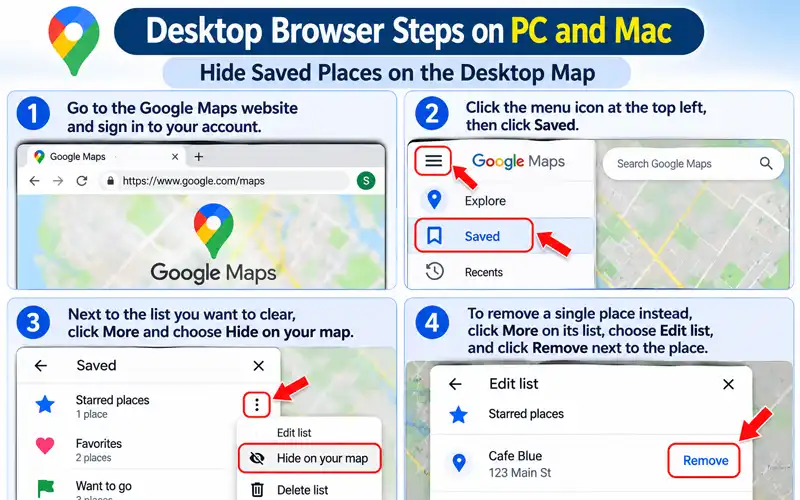
Hide Saved Places on the Desktop Map
Saved lists can cover the map with stars and pins, especially in cities where you have saved many spots.
- Go to the Google Maps website and sign in to your account.
- Click the menu icon at the top left, then click Saved.
- Next to the list you want to clear, click More and choose Hide on your map.
- To remove a single place instead, click More on its list, choose Edit list, and click Remove next to the place.
Turn Off Location on Google Maps PC
When Maps asks to know where you are, you can block that request, and you can change your answer later at any time.
- Click the small icon at the left side of the address bar.
- Open Site settings.
- Find Location and set it to Block.
- Reload the page so the change takes effect.
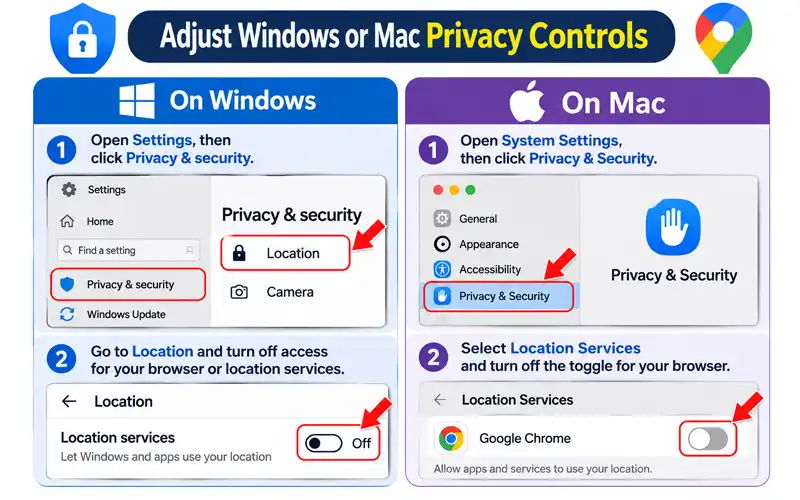
Adjust Windows or Mac Privacy Controls
Browser settings affect one site. System settings affect the whole browser, so they apply to every site that asks for your location. This is handy on a shared or work computer.
- On Windows, open Settings, then Privacy & security, then Location. Turn off access for your browser, or turn off location services completely.
- On a Mac, open System Settings, then Privacy & Security, then Location Services. Switch off the toggle for your browser.
Default View Labels Explained
Many people ask how to turn off labels in Google Maps default view. The honest answer is that the standard map always shows names, but there is a workaround that works well on computers and a lighter option for phones.
Why Default View Keeps Labels
Google treats shop names, street names, and landmarks as core navigation details, so the normal map view has no switch to hide them. This is also why the Labels option does not appear until you change the map type.
The tools that do exist work on satellite view and on extra map layers. The next two sections cover both, starting with the stronger one.
Satellite Trick for Label-Free Maps
This works only on the desktop website. The mobile apps do not show the Labels checkbox.
- Open Google Maps on a computer.
- Hover over Layers at the bottom left, then click More.
- Choose Satellite.
- Untick Labels.
You now see the aerial picture without place names or road names. Repeat the same steps to bring the names back. Switch to the default view whenever you need directions, because a map without names is hard to navigate with.
Extra Layers You Can Switch Off
On phones you cannot remove labels, but you can cut down the extra symbols that sit on top of the map.
- Tap the Layers icon at the top right of the map.
- Under Map details, tap any active option such as Transit, Traffic, Bicycling, or Street View to turn it off.
Ordinary place and street names will stay, yet the map looks lighter right away because the colored lines and icons are gone. Turn them on again from the same menu when you need live traffic or transit.
Google My Maps Cleanup Guide
Google My Maps is a separate tool where you build custom maps with your own pins, lines, and layers. If one of your custom maps feels messy, three small changes will tidy it up without starting over.
Untick Layers You Do Not Need
Layers are the fastest way to hide many items at once.
- Go to the My Maps website and open the map you want to clean.
- In the left panel, untick the box beside a layer. Everything inside that layer hides together, and you can tick it again later.
Pick a Simpler Base Map
The base map controls how much detail sits under your own pins.
- At the bottom of the left panel, click Base map.
- Choose a lighter style with fewer details, such as Simple Atlas or Light Landmass.
Delete Old Pins and Shapes
Pins and shapes you no longer need can be removed for good.
- Click the pin or shape you want to remove.
- Click the trash icon in the small box that opens.
Deleted items are gone from that map, so untick the layer first if you may want them again.
Earth Web Settings for Fewer Labels
Google Earth on the web has its own map style, separate from Maps. It is useful when you want a very clean picture of an area, for example for a presentation or a school project.
Labels and Borders Toggle
- Open Google Earth on the web and load a map.
- Click the basemap icon at the bottom left.
- Under Details, choose Clean.
The Clean option removes borders, labels, places, and roads in one go, so only the land and imagery remain. Choose another detail level whenever you want some names back.
Placemarks and Projects Cleanup
Your own placemarks are stored inside projects, not on the base map. Open the project you want to tidy from the side menu, then use its menu to hide or delete the placemark you no longer need. Hiding is the safer choice if you may use the project again.
Clear Past Activity in One Place
Old activity is often the reason a place keeps coming back in suggestions. These settings belong to your Google Account, so you handle them here instead of repeating the steps on every device. Work through the four parts in order, from quick clean-up to long-term protection.
Search History in Maps Activity
Search history feeds the recent places that show up when you open Maps.
- In the Maps app, tap your profile picture and choose Your data in Maps.
- Open your Maps activity. On some versions it is called Maps history.
- Delete single entries, or delete a whole date range or topic at once.
Timeline and Visited Places
Timeline is the feature that remembers where your phone has been. It is saved on your device, so it is not available on the computer website.
- To stop it completely, open the Timeline section of your Google Account and switch it off. You can also do this from My Google Activity.
- To delete only some visits, open the Maps app, tap your profile picture, open Your Timeline, and remove the day or visit.
- For places tied to a review or photo, tap your profile picture, open Your contributions, and delete that review or photo.
Incognito Mode for Private Trips
Incognito mode stops Maps from saving what you do during one session. It is a good choice for a surprise gift or a private errand.
- Tap your profile picture in the Maps app.
- Tap Turn on Incognito mode.
- When you are done, tap the Incognito icon and choose Turn off Incognito mode.
It does not erase anything saved earlier, so use it for new trips only.
Auto Delete for Long Term Privacy
Instead of cleaning by hand, you can set a schedule and let Google do the work for you. Set it once and you can forget about it.
- Go to your Google activity page and open the setting you want to manage, such as Web & App Activity.
- Choose Auto-delete.
- Pick 3, 18, or 36 months. Shorter periods remove more history but also reduce personal suggestions.
Fixes When Places Still Appear
Sometimes you follow every step and a place still shows. The cause is usually one of three simple things, and each one has a quick fix. Try them in this order.
Sync Delays and Old Cache
Changes can take a short time to reach all your devices, and old data can stay in the app’s cache.
- Update the Maps app and close it completely.
- Open it again and check the map.
- On Android, open Settings, then Apps, then Maps, then Storage, and tap Clear cache.
- If the pin is still there, sign out of your Google account and sign in again.
Shared Lists and Linked Devices
A list shared with you by a friend, or another device signed in to your account, can keep showing pins even after you cleaned your own lists.
- Open the shared list and use More to hide it on your map.
- On any other phone or computer that uses the same account, repeat the hide or remove step for that list.
Report Wrong Public Listings
If the pin is a public business that is closed, duplicated, or wrong, you can report it instead of hiding it.
- Tap the place on the map.
- Tap Suggest an edit.
- Choose the problem, such as closed or does not exist, and send the report.
Google reviews each report, and a real open business will not be removed.
Frequently asked questions
Does Earth Use My Maps History?
No. Google Earth has its own basemap settings, and your Maps activity is controlled from your Google Account. Changing the look of Earth does not clear anything in Maps, and clearing Maps activity does not change how Earth looks. Treat them as two separate tools.
Is Location Off the Same as History Off?
No. Turning off device location stops apps from reading where you are right now. Turning off Timeline or activity settings stops Google from saving where you have been. They are separate switches, so check both if privacy is your main goal.
Where Do Old Suggestions Come From?
Mostly from places you recently searched for, viewed, saved, or got directions to. Your recent places appear in the You tab. Clearing activity and unsaving places reduces these suggestions over time, though new searches will bring new ones.
Should I Switch Off Everything at Once?
Not usually. Start with the lightest change, such as hiding lists, and check the map. Add stronger steps like blocking location or auto-delete only if the problem stays. Switching everything off also removes helpful features, so keep what you actually use.
Can Someone Else See My Saved Places?
Only you can see your saved places unless you create and share a list. Anyone with the link to a shared list can view it, so remove sharing if you no longer want that list visible to other people.
Are Hidden Lists Still Saved in My Account?
Yes. Hide on your map only removes the icons from the map view. The places stay inside the list until you remove them or delete the list, so you can bring them back at any time by choosing Show on your map.
What Happens When Timeline Is Already Off?
Your device stops adding new visits to Timeline. Older Timeline data can stay until you delete it, and other settings such as Web & App Activity may still save some location data. Delete old data and review those settings if you want a full clean-up.
Final Thoughts
Stopping places from showing in Google Maps is mostly about knowing which layer you are changing. Public labels belong to Google and can only be reduced with satellite view or the Clean option in Earth. Your saved lists, labels, and history, on the other hand, are fully in your hands.
A good order is to hide your saved lists first, then adjust location access for your device, and finally set an auto-delete schedule. That small routine keeps the map tidy without extra work, and it takes only a few minutes to set up. Try the steps for your device today and enjoy a calmer, cleaner map.