



Knowing how to add audio to Google Slides can turn a quiet, flat deck into something people actually listen to, whether that’s a looping music bed or your own narration. Below you’ll find the steps for computers, Chromebooks and phones, plus fixes for audio that won’t play.
First, Check What Google Slides Will Actually Play
Google Slides accepts MP3 and WAV files. Other formats, such as M4A or WebM, may not appear in the file picker or may fail to play, which is why many people assume the feature is missing. MP3 is the safer pick for most jobs because the files are small, while WAV sounds cleaner but takes far more space.
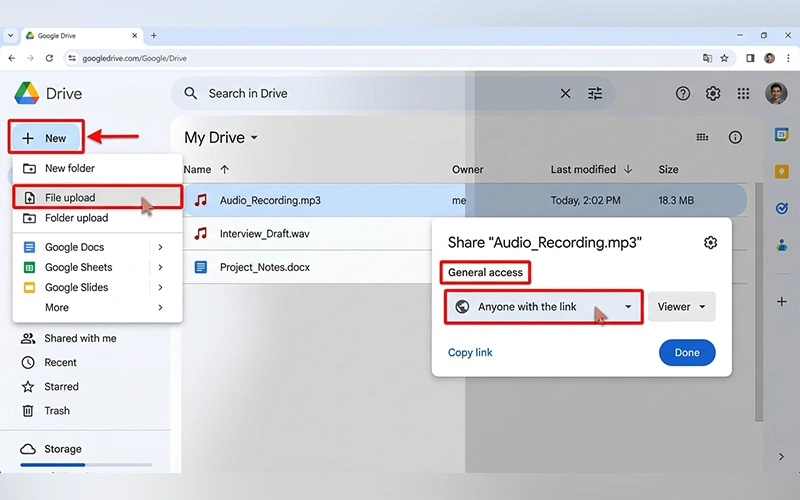
The file also has to live in Google Drive. Slides can’t read sound from your computer, and dragging an audio file onto a slide won’t work either. Use the + New menu and select File upload to add your file.
Then fix the sharing setting. Right-click the file in Drive, choose Share, and switch access to Anyone with the link. Skip this and the audio will work for you but throw an error for everyone else.
Adding Audio on Your Computer in a Few Clicks
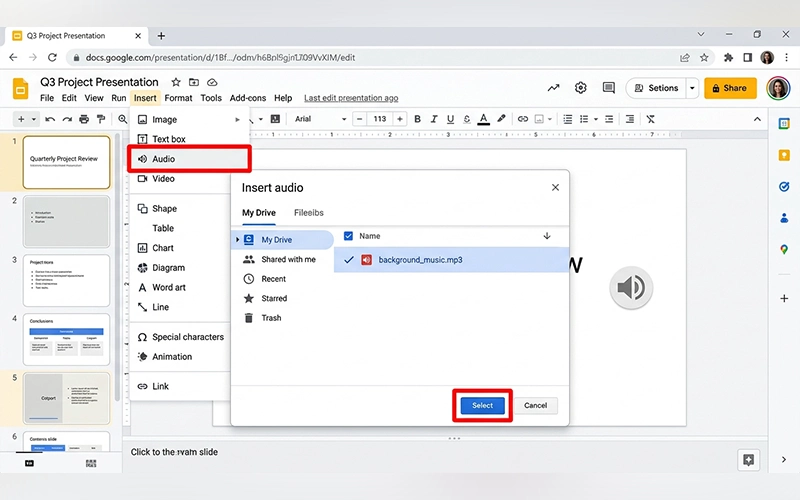
Open your presentation and click the slide that should carry the sound. Go to Insert > Audio, pick your file under My Drive, and hit Select. A small speaker icon lands on the slide. Drag it wherever you like, or resize and rotate it if it crowds your layout.
If you don’t have a recording yet, you’ll need to make one outside Slides, since there’s no built-in recorder. Windows Sound Recorder is fine for quick voiceovers, and Audacity gives you more control. Export the result as MP3 or WAV before uploading.
Make the Audio Play Automatically or Loop
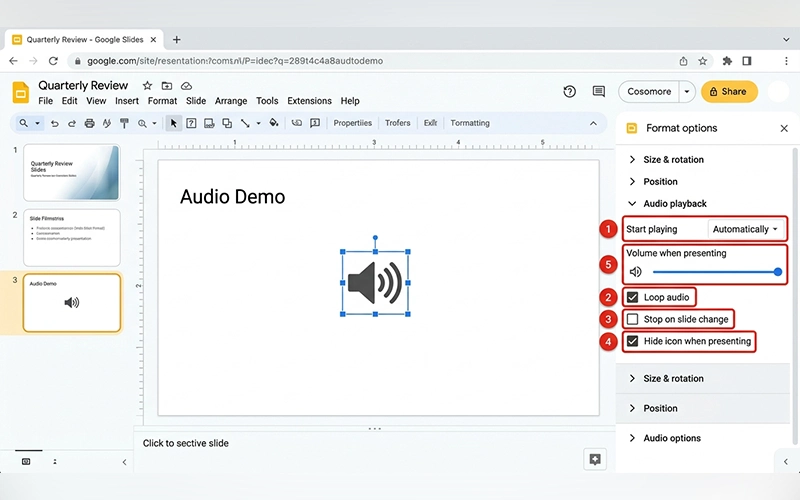
Click the speaker icon, then open Format options in the toolbar. Under Audio playback, you’ll find the controls that matter:
- Start playing: choose On click or Automatically.
- Loop audio: repeats the track until you move on.
- Stop on slide change: uncheck it if you want the sound to carry across several slides.
- Hide icon when presenting: removes the speaker symbol from view. It only appears once the audio is set to play automatically.
- Volume: a slider for setting the level before you present.
For background music, combine loop with the unchecked “stop” option. For narration tied to one slide, leave the defaults alone.
Doing the Same Thing on a Chromebook
A Chromebook runs the full desktop version of Chrome, so you can add audio to Google Slides on Chromebook using the same steps as the computer method above.
The only wrinkle is the recording. If you captured it with the Audio Recorder app or Screencast, check the file extension in the Files app. Some recordings save as WebM or M4A, and those need a quick trip through a free online converter to become MP3. Once you have the right file, drag it from Downloads into Google Drive in the left sidebar, then set sharing and insert it.
What to Do When You’re Working From Your Phone
If you need to add audio to Google Slides on phone, here’s the part that surprises people: neither the Android nor the iPhone Slides app can insert audio. The fix is to skip the app and open Slides in your phone’s browser as if it were a computer.
Start in the Drive app. Tap + New > Upload and choose your MP3 or WAV file, then tap the three dots beside it, open Manage access, and set it to Anyone with the link. Phone recorders often save as M4A or AAC, so convert those first.
Next, open slides.google.com in your browser and switch to desktop view:
| Step | Android (Chrome) | iPhone (Safari) |
| Open Slides | Go to slides.google.com. If Chrome tries to launch the app, long-press the link and choose Open in new tab. | Go to slides.google.com and sign in. Don’t let it redirect you to the app. |
| Switch to desktop view | Tap the three dots and check Desktop site. | Select the AA icon in the browser’s address bar, then switch to the Request Desktop Website option. |
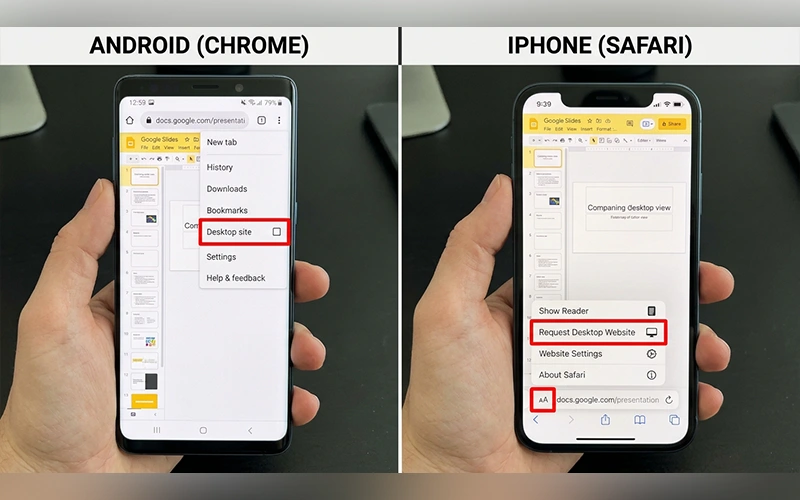
From there, the steps match the computer method. Open your deck, tap the slide, go to Insert > Audio, pick the file under My Drive, then tap the speaker icon and use Format options to set playback. That is the full route if you’re wondering how to add audio to a Google Slides presentation on iPhone, and Android works the same way once Chrome is in Desktop site mode. If the toolbar feels cramped, pinch to zoom.
Turning a Voice Memo Into Slide Audio
Voice Memos is a handy way to record narration, but it saves in M4A, which Slides can’t read. So if you want to add audio to Google Slides from Voice Memos, you’ll need one extra step.
Open the recording, tap the three dots, choose Share, and send the file to your computer by email, iCloud, Drive, or a USB cable. Then convert it to MP3. CloudConvert and FreeConvert both work in a browser, and VLC Media Player does the job offline. You can even convert in Safari on the iPhone itself with an online converter. Upload the new file to Drive and insert it with Insert > Audio.
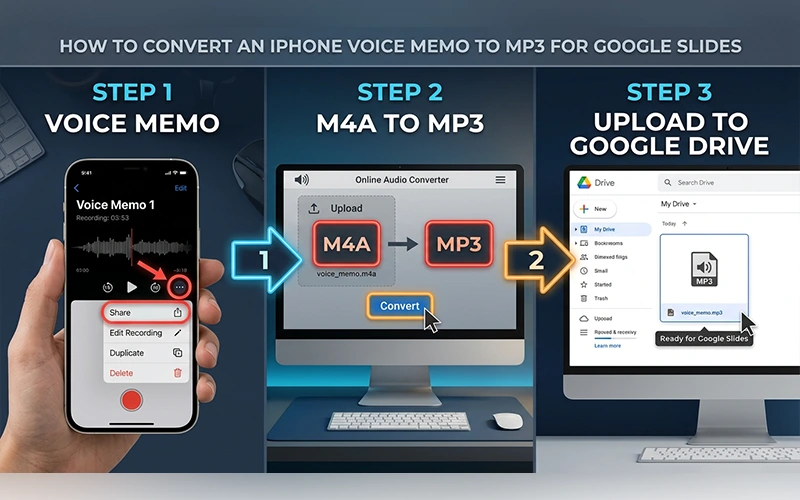
For narration, set playback to Automatically so the voice starts when the slide appears. Keep Stop on slide change checked so one recording doesn’t spill into the next. This works best when you record each slide as its own short memo rather than one long take.
Can You Use Music or Sound From YouTube?
If you’d like to add audio to Google Slides from YouTube, there’s no direct option, because Slides can’t pull sound out of a link. There are two workarounds, depending on what you need.
The quick way is to embed the video. Copy the link from YouTube, go to Insert > Video, paste it in, and insert it. In Format options, open Video playback, set Play to Automatically, and make sure Mute audio is unchecked. For a short clip or sound effect, use the Start at and End at boxes. Then shrink the player and cover it with a shape or image using Order > Bring to front. The catch is that the sound stops when you leave the slide, and you’ll need internet access while presenting.
The longer way suits music across several slides. Use an MP3 from a source that allows it, upload it to Drive, and insert it like any other file. Ripping audio from copyrighted videos can break YouTube’s terms and the artist’s rights, so the YouTube Audio Library is a safer place to find royalty-free tracks.
Why Your Audio Isn’t Playing (and How to Fix It)

Only a few underlying factors typically account for most of these issues:
- The file isn’t really an MP3. Renaming an M4A to “.mp3” doesn’t convert it. Use a proper converter.
- Your audience can’t open it. Access your presentation through a browser’s incognito mode instead. If the audio fails there, the file’s access setting needs another look.
- The file isn’t in your Drive. If you uploaded it while signed into a different Google account, it won’t appear under My Drive.
- The upload isn’t finished. Large files may not show up in the picker until Drive completes the upload.
- The sound is muted. Check the Volume slider in Audio playback, then your device’s own volume.
- Autoplay seems stuck. Test in Present mode rather than the editor, since playback behaves differently in each.
- The file is too heavy. Big files load slowly on weak connections. MP3 at around 128 kbps is plenty for narration.
Whatever the cause, run through the whole deck once before the real presentation, on the same device and network you’ll use on the day.
Final Thoughts
Phones need a browser workaround and Voice Memos need a quick conversion, but neither is hard. Once the file sits in Drive, the rest takes a few clicks. If you’re new to this, start with one short clip on a single slide and add more only after you like how it sounds. A light background track or a clear voiceover can make even a plain deck feel finished, as long as the sound supports your message instead of competing with it.
Frequently Asked Questions
Can I add audio on a Mac?
Yes. Slides runs in the browser, so the steps match the computer method on Mac, Windows or Linux.
Can I use an audio file someone else shared with me?
Yes, as long as you can open it in Drive. Check that your viewers have access to it too.
Can I put more than one audio file on a slide?
Yes. Each file gets its own speaker icon and its own playback settings, so you can mix a music track with a sound effect.
Will the audio play if I download the deck as a PDF?
No. A PDF is static, so the sound only works inside Google Slides itself.
Is adding audio to Google Slides free?
Yes. The feature costs nothing with a regular Google account. You only need enough Drive storage for the file.
How do I remove or replace audio in Google Slides?
Click the speaker icon and press Delete. To swap it, insert the new file and set its playback options again.
Can I play Spotify or other streaming music in Google Slides?
Not as inserted audio. Streaming tracks are protected and can’t be exported, but you can link text on a slide to a playlist, which opens in a new tab.
Can I trim or edit audio inside Google Slides?
No. Cut silence or unwanted parts in an editor like Audacity first, then upload the trimmed MP3.
For more articles like this, visit our site: https://factbreaker.com/