


Getting a new iPhone is exciting, right up until you remember that your Apple Watch is still tied to the old one. The good news is that you do not have to start from scratch. With a little preparation, your watch faces, apps, health history, and settings can follow you to the new phone. This guide covers every method, the problems that trip people up, and the small details that most tutorials leave out.
The Short Answer
The fastest route is to set up the new iPhone with your Apple Watch nearby and tap Continue when the pairing prompt appears. If the phone is already set up, the Watch app can finish the job manually. Only when the app insists on Start Pairing does the watch need to be released from the old iPhone first.
A recent backup is what protects your data, whichever route you take. A few minutes of preparation lets the rest of the process run mostly by itself.
What You Need Before You Start
Keep your old iPhone until the transfer is completely finished. Do not erase it, sell it, or trade it in yet, because it holds the latest watch backup and offers the cleanest way to release the watch. Update the old iPhone and the Apple Watch to their newest software as well, since matching versions cause far fewer errors.
Connect both iPhones to Wi-Fi, and make sure the new iPhone and the watch each have at least 50 percent battery. Keep your Apple Account password and your watch passcode within reach, because you will be asked for both. Sign in to the new iPhone with the same Apple Account as before, so that iCloud data and Activation Lock behave as expected.
Back Up Your Old iPhone First
Your Apple Watch backs itself up to the iPhone it is paired with, and that watch backup travels inside the regular iPhone backup. This is why a single fresh iPhone backup protects both devices. On the old iPhone, open Settings, tap your name, choose iCloud, then iCloud Backup, and tap Back Up Now. Stay on that screen and on Wi-Fi until it finishes, because an interrupted backup can leave an incomplete copy.
If you prefer a computer, back up with Finder on a Mac or iTunes on a Windows PC, and choose to encrypt the local backup. Only encrypted backups keep Health and Activity data. If you use iCloud instead, make sure Health is switched on in your iCloud settings, which gives that data a second route to the new phone even if the watch backup falls short.
Add a Safety Net for Your Health Data
Years of workouts, heart rate readings, and sleep records are the most personal information on your watch, so a second copy is worth two minutes. Open the Health app on the old iPhone, tap your profile picture, and choose Export All Health Data. The result is a file that you can store on a computer or in cloud storage.
This export is not part of the normal restore, and the Health app does not usually import it back. Think of it as insurance, a readable record that still exists if every other copy fails.
Choose the Right Method for Your Situation
Not every switch looks the same, and picking the correct method up front saves a lot of time. The table below matches the most common situations to the approach that works best.
| Your situation | Best method | Unpairing needed |
| New iPhone not set up yet | Pair during setup | Usually not |
| New iPhone already set up | Manual pairing in the Watch app | Sometimes |
| Watch app shows Start Pairing | Unpair, then pair again | Yes |
| Old iPhone lost, broken, or sold | Erase the watch, then pair | Not possible |
If you are unsure, begin with the first two methods. The Watch app will tell you clearly when it needs something more.
Pair Your Apple Watch During New iPhone Setup
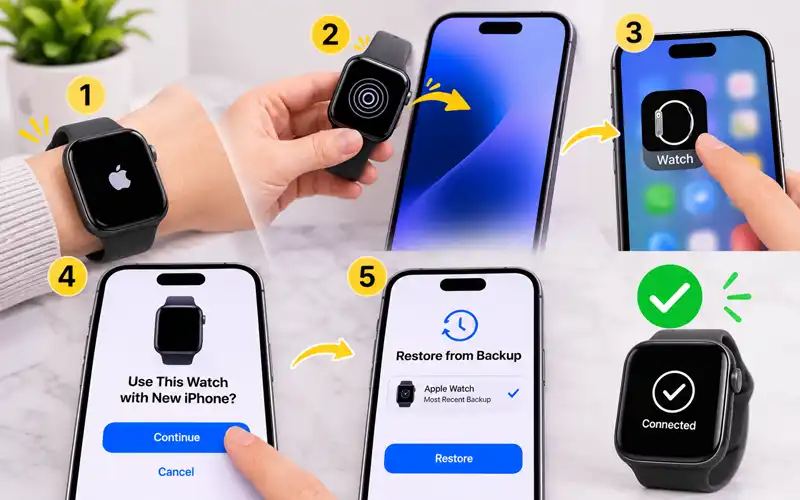
This is the smoothest option because the phone and the watch connect as part of the restore. Turn on the new iPhone and use Quick Start or restore from your latest backup. When the iPhone asks whether you want to use your Apple Watch with it, put the watch on your wrist, unlock it, and tap Continue.
Keep both devices close while the transfer runs, and give everything time to sync once setup ends. Apps, photos, and iCloud content do not always arrive at once, so a half-empty watch in the first few minutes is normal. If the pairing prompt never appears, finish setting up the iPhone and use the manual method below, which reaches the same result.
Connect Your Apple Watch Manually After Setup
If you already finished setting up the iPhone, you can still bring your existing watch across. The steps are short, and the Watch app guides you through each screen.
- Put on your Apple Watch and unlock it.
- Hold the watch next to the new iPhone.
- Open the Watch app on the iPhone.
- Confirm that you want to use this watch with the new phone.
- Choose the most recent Apple Watch backup when asked, then follow the remaining prompts.
If the app offers a choice between restoring and setting up as new, the FAQ at the end explains which one suits you.
What to Do When Your iPhone Says Start Pairing
When the Watch app offers Start Pairing instead of recognizing your watch, it means the watch still believes it belongs to another iPhone. An Apple Watch can be paired with only one iPhone at a time, so the old connection has to be removed before a new one can begin.
You have two ways to do that. If the old iPhone is still with you, unpair from it, which also keeps your backup fresh. If it is gone, erase the watch directly. Once either step is done, return to the Watch app on the new iPhone, tap Start Pairing, and choose your most recent backup when prompted.
How to Unpair Apple Watch From Your Old iPhone
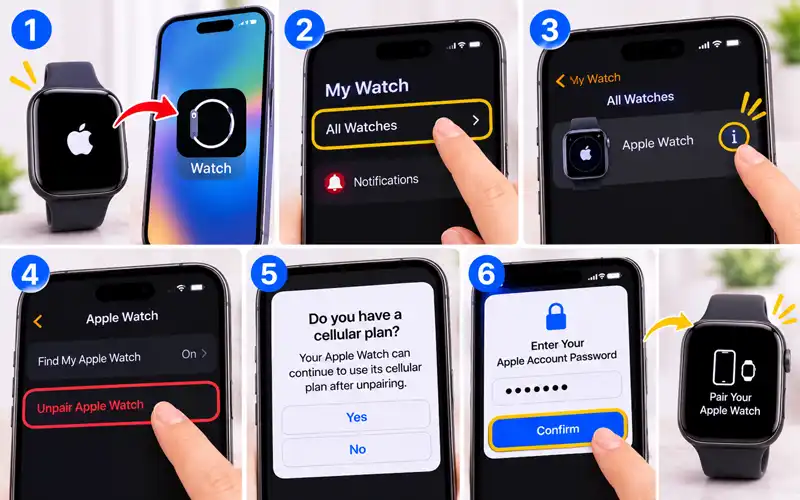
Unpairing on the old iPhone is the cleanest way to release the watch, and it only takes a minute. During the process the iPhone automatically makes a fresh watch backup that you can restore on the new phone.
- Keep the watch and the old iPhone close, then open the Watch app on the old iPhone.
- Tap My Watch, then All Watches.
- Tap the Info button next to the watch you want to move.
- Tap Unpair Apple Watch.
- If you own a cellular model, answer the plan question that appears, which is explained later in this guide.
- Enter your Apple Account password to turn off Activation Lock, then confirm.
When the watch restarts and shows the pairing screen, it is ready for the new iPhone.
How to Pair When You No Longer Have the Old iPhone
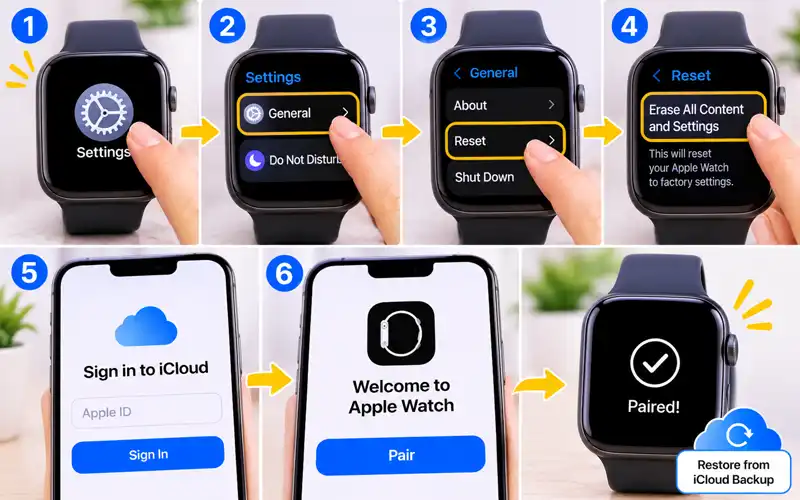
If the old iPhone is lost, broken, or already sold, the watch cannot be unpaired the normal way, so you erase it directly. On the watch, open Settings, tap General, then Reset, and choose Erase All Content and Settings. Enter your passcode or Apple Account password if it asks.
After the erase, sign in to iCloud on the new iPhone, open the Watch app, and pair the watch from the beginning. A watch erased this way can only be restored from a backup stored in iCloud or on your computer, so the backup you made earlier decides how much comes back.
Finish Pairing and Check Everything Works
Sometimes the Watch app shows Pairing Not Complete after a restore. Tap My Watch, then All Watches, then Finish Pairing, and wait while the remaining content syncs. This is normal when the watch was transferred during iPhone setup.
Once pairing completes, run a quick check. Confirm that your watch face and notifications look right, open the Health app to see whether your history appears, and browse the Watch app to verify your apps. Apple Pay cards may ask you to verify them again, so test your payment setup before you rely on it.
How to Make a Slow Transfer Faster
A slow transfer is usually a sign of a weak connection or a very full backup rather than a fault. Stay on a strong, stable Wi-Fi network, keep the watch on its charger if the battery is getting low, and leave the Watch app open on the iPhone. Avoid large downloads on the same network, and do not walk away or lock the watch partway through, because an interrupted transfer often has to start again.
If the watch carries a lot of music, podcasts, or photos, those items take the longest to sync. You can remove media you do not need from the watch before you switch, or add it again after pairing is finished.
Fix Apple Watch Pairing Problems
Start with the basics. Restart both the watch and the iPhone, confirm that Bluetooth and Wi-Fi are on, and turn off Airplane Mode. These simple steps clear most failed pairing attempts without any further work.
If the watch is stuck on a black screen with a white Apple logo, hold the Digital Crown and the side button together until it restarts. After it restarts, press and hold the Digital Crown, tap Reset, then bring the iPhone nearby and follow the pairing prompts again.
When the iPhone still cannot find the watch, reset the iPhone’s network settings as a last resort. Open Settings, tap General, then Transfer or Reset iPhone, choose Reset, and select Reset Network Settings. This clears saved Wi-Fi networks and passwords, so use it only when nothing else has worked.
When to Contact Apple Support
If the watch still refuses to pair after a restart, an erase, and a network reset, the cause may be a hardware or account issue that settings cannot fix. That is the moment to contact Apple Support or an authorized service provider instead of repeating the same steps.
Have the watch model, the watchOS version, and the exact wording of any error ready before you call. You can find these details in the Watch app under General, then About. A short, specific description saves time and gets you to the right fix faster.
Activation Lock and Secondhand Watches
Activation Lock links a watch to the Apple Account of its owner. If your watch asks for an Apple Account password you do not recognize, it is almost certainly locked to someone else, and you cannot get around that on your own.
If you bought the watch used, ask the seller to remove it from their Apple Account, for example through Find My. Never complete a purchase while the watch is still locked, because without the original owner’s help it will not be usable.
If you are the rightful owner and simply cannot remember the password, recover your Apple Account password first using Apple’s account recovery page, then try again. Having the right credentials ready prevents most Activation Lock delays.
Cellular Apple Watch and Your Mobile Plan
Cellular models ask what to do with your plan when you unpair. Keep the plan if you will keep using the same watch with the new iPhone, and remove it only if you are changing carriers or selling the watch.
Many carriers tie the watch plan to your iPhone number, so contact your carrier if you changed numbers or networks along with the phone. Doing this before pairing avoids a watch that connects to the iPhone but has no mobile service.
Family Setup Watches
Family Setup lets one iPhone manage a watch for a child or relative who does not have their own phone. The watch is tied to the organizer’s iPhone, so when that phone changes, the same backup, unpair, and pairing steps apply to the managed watch.
Requirements differ by model and region, so check Apple Support if the watch does not appear in the Watch app.
Can You Connect Apple Watch to an Android Phone
No. An Apple Watch needs an iPhone to be set up, updated, and managed, and it cannot be paired with an Android phone. Some features work without a nearby iPhone once the watch is running, but the initial setup always requires one.
If you are leaving the iPhone for Android, you will need a different smartwatch, such as one that runs Wear OS. Before selling your Apple Watch, unpair it and erase it so the buyer can set it up as their own.
What Happens to Your Data After the Switch
Your watch faces, settings, app layout, and Health and Activity history normally come across when the backup is restored, and most watch apps reinstall on their own from the iPhone.
A few things may not follow. Anything that changed after the last backup can be missing, and Activity Sharing data is not stored in iCloud, so you may need to set up sharing again with your friends. Checking these items during the first day saves surprises later.
Apps That Need Extra Attention After Pairing
Some apps keep their data on the watch or ask you to sign in again. Workout, music streaming, messaging, and banking apps are the usual suspects, because they often depend on an account session that does not always survive the move.
Open the apps you use most and sign in wherever the watch asks. Do it at home on a good connection rather than discovering a logged-out app in the middle of a run or at a checkout counter.
Set Up Your Watch for the Best Experience
After pairing is done, use the Watch app to fine-tune the experience. Choose which iPhone apps install automatically, rearrange your app layout, and review notification settings so you only see what matters on your wrist. A fresh look at these settings often reveals clutter that built up over the years.
It is also a good moment to confirm safety features such as Emergency SOS and fall detection. Check that your Medical ID and emergency contacts are current on the new iPhone, since these details are worth having on your wrist in a real emergency.
Wrap Up the Old iPhone Properly
Once the watch is syncing correctly on the new iPhone and the new phone has a backup of its own, the old iPhone has finished its job. Open Settings, tap General, then Transfer or Reset iPhone, and choose Erase All Content and Settings. The process asks you to sign out of your Apple Account and turn off Find My, which also releases the phone from Activation Lock so the next owner can use it.
If you already handed the phone over without erasing it, remove it from the device list in your Apple Account settings. This stops it from staying linked to your account and keeps your information from lingering on a device you no longer control.
Frequently Asked Questions
How long does it take to pair an Apple Watch with a new iPhone?
It depends on the size of your backup and the speed of your connection. Many people finish in a few minutes, while a large backup can take noticeably longer. Set aside time when you are not in a hurry, so you are never tempted to interrupt the process.
What should I do if the pairing animation will not scan?
Tap the option to pair the Apple Watch manually at the bottom of the iPhone screen. Then tap the small Info button on the watch and follow the prompts to enter its details by hand. This works well when the camera struggles with bright light or a scratched screen.
Can I pair more than one Apple Watch with the same iPhone?
Yes. One iPhone can manage several watches, and you can switch between them in the Watch app. This is handy if you keep a sports watch for workouts and a different one for everyday wear.
What if I forgot my Apple Watch passcode?
You will need to erase the watch to remove the passcode. Place it on its charger, hold the side button until the power slider appears, then press and hold the Digital Crown until Reset shows and confirm. Afterward, pair it again and restore from a backup if you have one.
Should I pair as a new watch or restore from backup?
Restore from backup if you want your settings, faces, and app layout exactly as they were. Choose set up as new if the watch has been glitchy or you want a clean start, and expect to rebuild your preferences by hand.
Can I pair my Apple Watch with an iPad instead?
No. The Watch app that handles pairing and management exists only on iPhone, so an iPad cannot set up or control a watch. If your iPhone is unavailable, repair or replace it first, since pairing always needs one.
Will my new iPhone work with my Apple Watch?
Each version of watchOS requires a minimum iPhone and iOS version, so very old phones may not be supported. Newer iPhones are generally fine, but your watch may need a software update first. Apple publishes a compatibility list on its support site if you want to confirm.
Conclusion
Moving your Apple Watch to a new iPhone is simple once you know which path fits your situation. Prepare with a backed-up old iPhone, then choose between pairing during setup, pairing manually, or unpairing first. If something goes wrong, the fixes are usually quick, and an erase and re-pair is a reliable fallback. Check your data, review the features that matter to you, and your watch will feel exactly like it did before the switch.