

To change your work address in Google Maps, open the app, find your saved Home and Work labels, tap Edit beside Work, and type the new office address. The whole job takes less than a minute, and the update follows your Google account to every phone, tablet, and computer where you are signed in.
The exact taps differ between an iPhone, an Android phone, a desktop browser, and your Google Account settings, so each path has its own section below. You will also find fixes for a label that refuses to save, advice on keeping your office address private, and short answers to the questions people ask most after switching jobs or moving offices.
Benefits You Notice Right Away
The first thing you notice after updating is a more honest commute estimate. Google Maps measures travel time from where you are to the saved Work label, so an outdated address leaves every morning estimate wrong by however far the old office sits from the new one.
Traffic alerts follow the same label. Once it points to your new building, warnings about accidents and slow roads relate to the route you actually drive. Google Assistant routines and Calendar departure reminders also read the label, so a prompt telling you it is time to leave arrives at the right moment.
Search results shift as well. Looking for parking, a petrol pump, or a quick lunch now surfaces places around your new workplace, which saves you from scrolling past suggestions near an office you no longer visit.
Things to Prepare First
Start with a trustworthy address. An offer letter, the company website, or the office’s own Google Maps listing usually spells the street, building, and area the way Maps expects. Copying that version avoids the mismatches that creep in when you type an address from memory.
Next, decide when the switch should happen. If your new job begins on a Monday, updating over the weekend means the first commute alert already points to the right place. If you still visit the old office a few days a week, wait until the move is permanent so your estimates stay useful in the meantime.
Finally, keep the address somewhere you can paste it from, such as a note or an email. Searching for it halfway through the steps is what turns a one-minute task into a ten-minute one.
iPhone Steps Through Your Profile
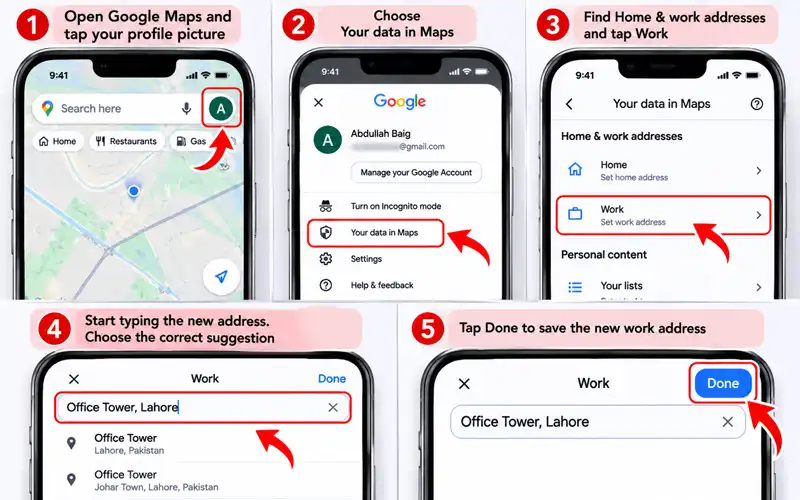
This is how to change work address in Google Maps on iPhone, and the same profile path works on current iPhone models and on iPads running the Google Maps app.
- Open the Google Maps app and tap your profile picture in the top right corner.
- Choose Your data in Maps, the page where Google gathers your saved places, labels, and address settings.
- Find the Home & work addresses area and tap Work.
- Start typing the new address. Read the suggestions carefully, then pick the one that matches your building.
- Tap Done to save the label.
Typing the building name followed by the area usually narrows the suggestion list faster than starting with a street number. Google stores the label in your account, so you will not see a confirmation banner. The new address simply replaces the old one the next time Maps needs to know where you work. This route is also the one to use if you came here looking for how to change work address in Google Maps on a mobile phone running iOS.
Android Steps Using the Labeled List
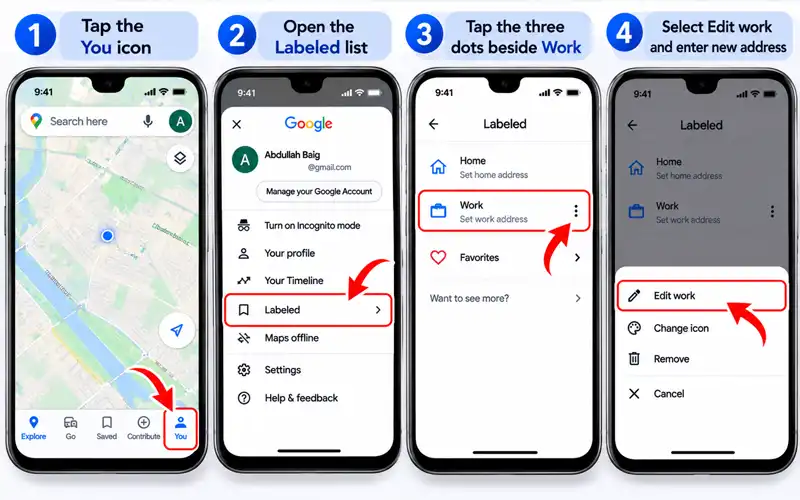
Android users usually reach the label through a saved list rather than the profile menu. This is how to change work address in Google Maps on Android:
- Tap the You icon on the bottom bar of the Maps app.
- Open the Labeled list. If you cannot see it, tap the More arrow to reveal all of your lists.
- Tap the three dots beside Work.
- Select Edit work, then type the new address in the bar at the top and choose the right suggestion.
The Labeled list is a clean view of your special places. Unlike regular saved lists, it shows only names, icons, and addresses, with no photos, ratings, or opening hours getting in the way. While you are on this screen, try Change icon. You can swap the default marker for something more distinctive, such as a barn or a submarine, so your office stands out the moment you glance at the map.
Computer Method From the Search Box
A desktop browser is the easiest place to make this change when you want to paste a long address from an email or a document.
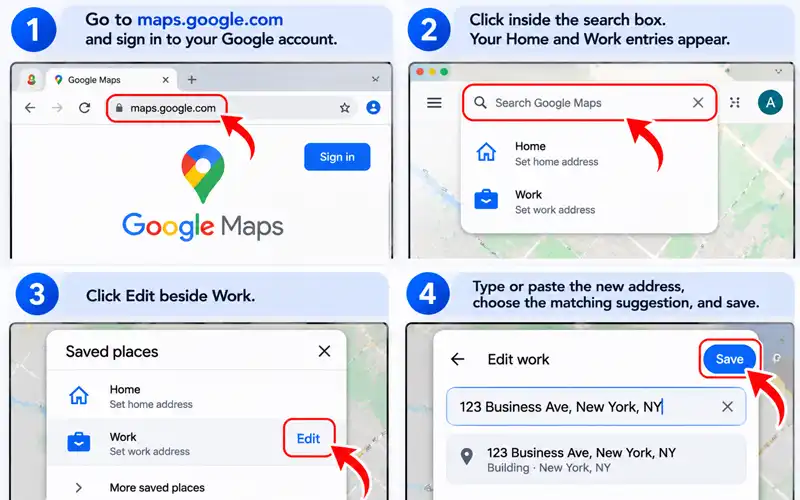
- Go to maps.google.com and sign in to your Google account.
- Click inside the search box. Your Home and Work entries appear at the top of the list.
- Click Edit beside Work.
- Type or paste the new address, choose the matching suggestion, and save.
The label syncs to your phone through your account, so there is nothing to repeat in the mobile app. A full keyboard also makes it simpler to compare the suggestion against the address you copied before you commit to it, which matters most when the office sits on a street with several similar buildings.
Google Account Route for Any Device
This route skips the Maps app entirely and edits the address at its source. It works from any browser on any device, which makes it the dependable choice when an app menu is missing or behaving strangely.
- Click your profile picture and choose Manage your Google Account.
- Select Personal info from the sidebar.
- Scroll down and open Work address.
- Enter the new address and save it.
Because the setting belongs to your account rather than to a single app, the new address becomes available to Maps and other Google services together. Many people also find this page easier to read than the app screens, since the address fields are laid out like an ordinary form with room for a second address line.

Pin Drop for Tricky Locations
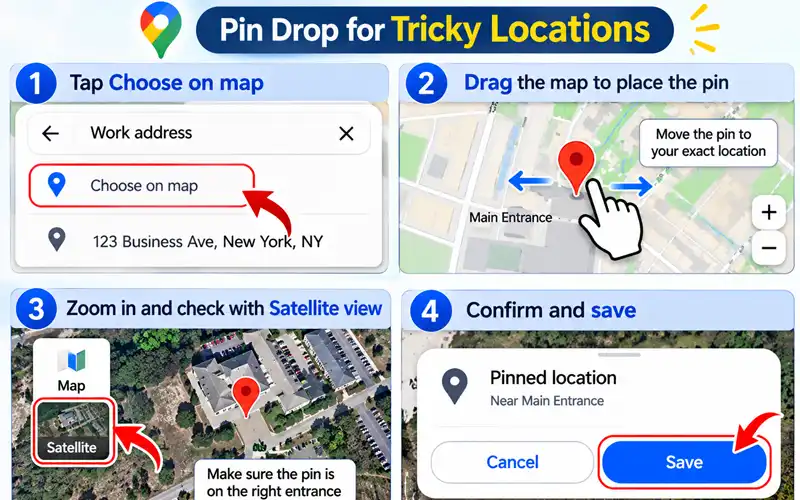
Some workplaces do not have a clean street address: industrial estates, university campuses, new buildings, and offices inside large compounds. For these, use the Choose on map option instead of typing. It appears beside the address field in both the Maps app and the Google Account page.
Drag the map until the pin sits on the spot where you actually want to arrive, then zoom in before confirming. A pin on the staff entrance or the parking gate gives better turn-by-turn directions than a loose area name, because navigation ends exactly where you need to be.
Check the pin once more after placing it. Satellite view helps you tell a main gate from a service road, which is a common mistake in large compounds.
Home Address Updates on Phones
Changing your home label follows the same paths you have already seen, with one difference: you pick Home where you would have picked Work. To change your home address on Google Maps on iPhone, open your profile picture, go to Your data in Maps, and tap Home under Home & work addresses.
On Android, open the You tab, enter the Labeled list, tap the three dots beside Home, and choose Edit home. In the Google Account route, the matching field is called Home address, so the browser method covers both labels from a single page.
If you moved house and changed jobs in the same month, update the home label first. Commute estimates depend on both ends of the trip, and fixing only one leaves the morning route wrong in a way that is hard to diagnose.
Apple Devices Beyond the iPhone
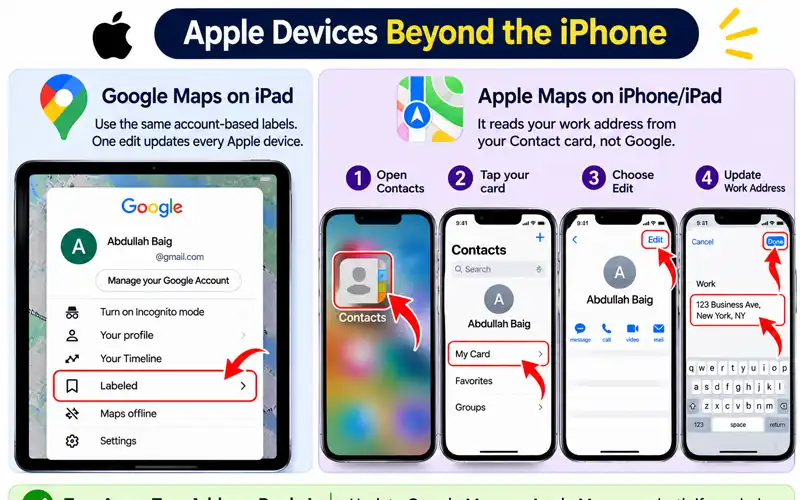
If you searched for how to change work address in Google Maps on Apple devices, the answer depends on which Maps app you mean. Google Maps on an iPad uses the same account-based labels, so one edit covers every Apple device where you are signed in.
Apple Maps works differently. It reads your work address from your own contact card in the Contacts app, not from your Google account. To change it, open Contacts, tap your card at the top, choose Edit, and update the work address. Apple Maps then picks up the new place on its own.
This split explains a common confusion: people update Google Maps, then wonder why Siri or Apple Maps still navigates to the old office. They are two separate address books, so update whichever app you actually use, or both if you switch between them.
Business Listing Versus Personal Label
Many people searching for a work address mean one of two different things. The Work label described in this guide is private and affects only your own maps. It does not change where your employer appears on Google Maps for anyone else.
If the office itself is listed in the wrong place, the fix is different. A business owner or manager can claim the listing through Google Business Profile and edit its address there, while other people can suggest a correction from the place’s page. Google reviews these requests before they go live, so they can take time.
Keep the two jobs separate. Update your personal label now so your own commute works, and handle any listing correction in parallel without waiting for it to be approved.
Latest Menu Changes in 2026
Google keeps rearranging the Maps menus, and 2026 is no exception. Names such as Your data in Maps and Labeled can appear in slightly different places depending on your app version, phone model, and region.
If you are working out how to change work location on Google Maps on iPhone in 2026 and the profile menu looks unfamiliar, search the menu for the words home and work, or open the Google Account route, which sits outside the app and changes far less often.
A good habit is to read the words on screen rather than counting taps. Terms like Work, Edit, and Done tend to stay recognisable across redesigns, even when the buttons around them move to a different corner.
Commute Settings Worth Tuning
Once the label is correct, Maps can do more with it. Depending on your app version, you will find commute or navigation settings that let you choose how you usually travel, whether by car, public transport, or on foot, and the estimates adapt to that choice.
Look for options that control departure reminders and traffic notifications. A message telling you roughly when to leave, based on current road conditions, is most useful when the work label and your usual travel mode are both set properly. Names vary between versions, so use the settings search if you cannot spot them.
If you pass the same bottleneck every day, these alerts also hint at when a different route is faster. That small saving repeats every working day, which is the real reward for keeping the label accurate.
Custom Labels for Other Regular Places
Home and Work are only two of the labels Maps supports. You can give any place your own name, then search for it or say it in a voice command. Gym, School Run, or Parents’ House are all easier to say than a full street address.
On a computer, click the place to open its panel, scroll down, and choose Add a label. On a phone or tablet, swipe left through the row of small icons under the place details, then tap More and Add label. Labeled places appear on the map with their chosen name and a blue icon.
Labels also suit spots with no formal address, such as a campsite or a pickup point on a long rural road, because you can attach one to a dropped pin. Use them for any destination that is easily confused with another or awkward to type.
Car and Watch Displays
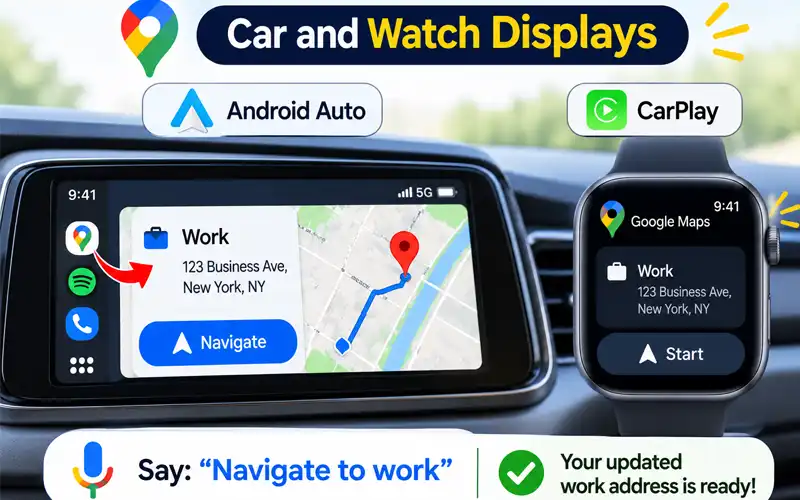
Your updated label does not stop at the phone screen. Android Auto and CarPlay both show your Google Maps destinations, so saying navigate to work in the car now routes you to the new office rather than the old one. The label travels with your account, so there is nothing to change inside the car system itself.
Watches that run Maps from your account behave the same way. Quick destination shortcuts and voice requests read the label your phone already holds. If a car screen still shows the old address after a few minutes, disconnect the phone, reconnect it, and let the display reload your destinations.
Starting navigation by voice also means you never type while driving, and the route is calculated before you pull away.
Mobile Sync Delays Explained
Sometimes the edit saves but another device still shows the old office. That is usually a timing issue rather than a failed save, since your phone, tablet, and browser each keep their own copy of your places for a while.
Give it a few minutes, then close Maps completely and reopen it so the app fetches fresh data. If that does not help, sign out of the app and sign back in, which forces a full refresh of your account details. On a computer, a simple reload of the browser tab does the same job.
Syncing can also look slower on weak mobile data. If you edited the label somewhere with a patchy signal, give the phone a chance to reconnect before concluding that anything went wrong.
When Nothing Updates
If the label refuses to change even after waiting, suspect the app before the account. Update Google Maps from your app store first, because outdated versions can fail silently when the settings screens change.
On Android, clearing the app cache from system settings often removes stale data that blocks edits. Restarting the phone is another quick step that clears temporary glitches. If neither works, uninstall and reinstall Maps, then sign in again.
Still stuck? Make the change from a different device or a browser. If it saves there and appears on your phone afterwards, the original device had the problem, and you have your answer without further troubleshooting.
Wrong Account Mix-Ups
Home and Work labels belong to a single Google account. If your phone is signed in to a personal account and your laptop to a second one, you are looking at two completely separate sets of labels, and changing one will never affect the other.
Tap your profile picture on each device and read the email address shown at the top. Switch to the account you meant to edit before touching anything. Many people also keep an old account signed in from a previous phone, which quietly becomes the active one after an update.
Once every device shows the same address, repeat the edit once and the other devices will catch up on their own.
Common Slip-Ups to Avoid
Most bad labels come from small choices made in a hurry. Accepting the first suggestion without reading it can attach your label to a similarly named building on the other side of town, especially in areas where several businesses share a name.
Other frequent mistakes include leaving out the city, skipping the floor or suite number in the second address line, and dropping the pin on the wrong block of a long street. Local place names that can be spelled several ways cause trouble too, so check the suggestion against the spelling on your office documents.
Spend ten seconds reading the full suggestion before you save. It costs far less than a week of directions that end at the wrong gate.
Proof the Change Worked
Type Work into the search bar. If the new address appears as the first result, the label is saved. This is the quickest check and needs no travel.
Next, look at the route Maps proposes to your workplace and confirm that it ends at the right gate rather than a nearby street. Switching to satellite view for a moment helps if the pin looks close but not exact.
For a real-world test, say navigate to work to your voice assistant. If the destination it announces matches your new office, the whole chain, from account to assistant, is working.
Safer Alternatives to Exact Address
Your work label lives in your account and on your phone, so anyone who briefly borrows an unlocked phone can read it. Ride-hailing and delivery apps often store addresses too. If that worries you, save a nearby public place, such as a market or a well-known junction, as your Work label. You still get fast navigation, and you only need to know the last few steps yourself.
A screen lock is the simplest layer of protection, and a short auto-lock delay helps if you often hand your phone to other people. Checking which apps hold your saved addresses every few months is a good habit as well.
If you no longer need a label at all, for example after switching to remote work, open the edit screen and choose Remove. The entry is cleared and the shortcut disappears from Maps.
Frequently asked questions
Can I keep two work places?
No. Each Google account supports one Work label and one Home label. For a second office, create a custom label such as Office 2 and use it in searches and voice commands.
Will coworkers see my work label?
No. The label is private to your account and is not shown to other people. Sharing a trip or your live location is a separate feature, and you control it from your location-sharing settings.
What happens to my old office address?
The new address replaces it. Maps does not keep the old one as a label, although the place may still appear in your search history until you clear it.
Do I have to set a work address at all?
No. Home and Work labels are optional. Maps navigates perfectly well without them, and you lose only the one-tap shortcuts and the commute features that rely on them.
How often can I edit it?
As often as you like. Each save replaces the previous address, so changing offices twice in a year needs nothing more than the same short edit.
Where is the label stored?
In your Google account, not on one device. That is why a new phone shows your Work label as soon as you sign in, and why a lost phone does not take the label with it, although anyone holding the unlocked phone can read it.
Who controls a Workspace account’s label?
If you use a company or school account, your administrator may restrict some personal settings. Check with your IT team if the option is missing or greyed out, or use a personal account for your own labels.
Wrapping Up Your Work Label Update
Updating your work address is a small task with a daily payoff: accurate arrival times, alerts that match your real route, and fewer wrong turns during your first weeks at a new office. Make the change once, confirm it, and keep Home in step if your life has shifted too.
Your commute will follow your new office from the very next trip.