


Most people who ask how to connect WhatsApp to email expect a single switch somewhere inside the app, and are surprised that none exists. Instead, the phrase covers three separate jobs: sending chats to your inbox, attaching an email address to your account, and receiving message alerts by email.
This guide handles each job on its own, with exact steps for iPhone, Android and Samsung phones, plus clear answers on login, account recovery and banned numbers. Every section covers a single task, so you can jump straight to what you need and skip everything else.
Reality Check on What WhatsApp Allows
WhatsApp is built around your phone number, not your email address. That design choice explains why there is no built-in inbox sync, no email-and-password login and no setting that forwards each new message to Gmail. What the app does offer is manual sharing. You can export a whole chat as a file, send selected messages through your phone’s share menu, and attach an email address to your account for security purposes.
Anything beyond that, such as automatic forwarding, needs an outside service, and most of those services only support business accounts. Knowing this up front saves you from hunting for settings that do not exist.
Method Picker at a Glance
Match your goal to a method in the table, then jump to the section that explains it.
| Your goal | Best method | Read this section |
| Save a whole chat | Export Chat | iPhone Guide or Android Steps |
| Send a few messages | Share menu or copy | iPhone Guide or Android Steps |
| Get alerts in your inbox | Business tools or notification apps | Automatic Forwarding |
| Protect your account | Email saved in Settings | Account Email Setup |
| Regain access after a lost PIN | Reset link by email | Recovery Steps |
| Appeal a ban | In-app review, then support email | Banned Number Support |
Before You Begin
Update WhatsApp from the App Store or Google Play first. Menu names change between versions, and an older build may hide the export option entirely. Make sure an email account is already signed in on your phone, whether that is the Mail app, Gmail or Samsung Email, because the share menu can only list apps that are ready to send.
It also helps to take a fresh chat backup before you start. Exporting never deletes anything, but a backup protects you if you later switch phones or change settings. Finally, use a stable internet connection, since exports that include photos and videos can take a while to attach.
iPhone Guide for WhatsApp and Mail
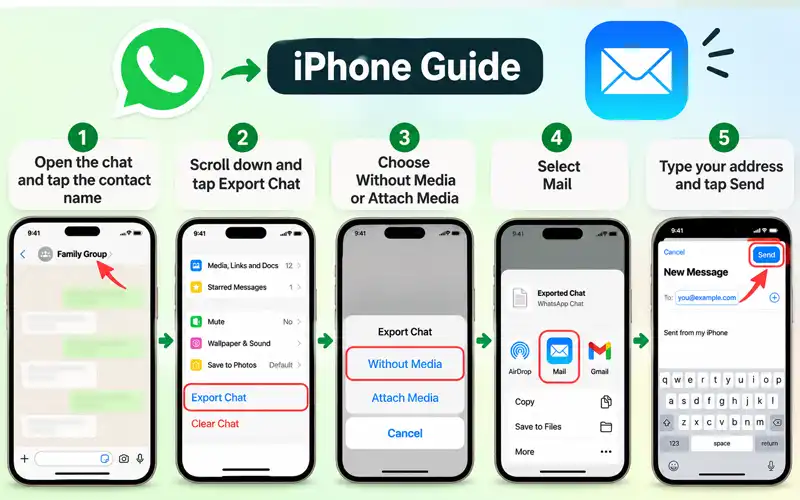
If you want to know how to connect WhatsApp to email on iPhone, the practical answer is the Export Chat tool. It hands a conversation to the Mail app, or to any other email app you have installed, so the whole thread lands in your inbox.
Exporting a Full Chat
The whole process takes about a minute once you know where to tap.
- Open the chat and tap the contact or group name at the top.
- Scroll down and tap Export Chat.
- Choose Without Media for a lightweight file, or Attach Media to include photos and videos.
- Select Mail (or Gmail, if installed) from the share sheet.
- Type your own address in the recipient field and tap Send.
Sending the export to yourself is the easiest way to archive a conversation.
Sharing Selected Messages
When you only need a few messages, press and hold one of them, tap Forward, and tick any others you want. Then press the share icon at the bottom right and choose Mail. The text drops into a new draft where you can edit it before sending. This works well for addresses, invoices or booking confirmations that you want in your inbox without the rest of the thread.
Fixing a Missing Mail Option
If Mail does not appear on the share sheet, scroll to the end of the app row, tap More, and switch Mail on. Restarting the phone also clears most share sheet glitches.
Android Steps to Forward Messages
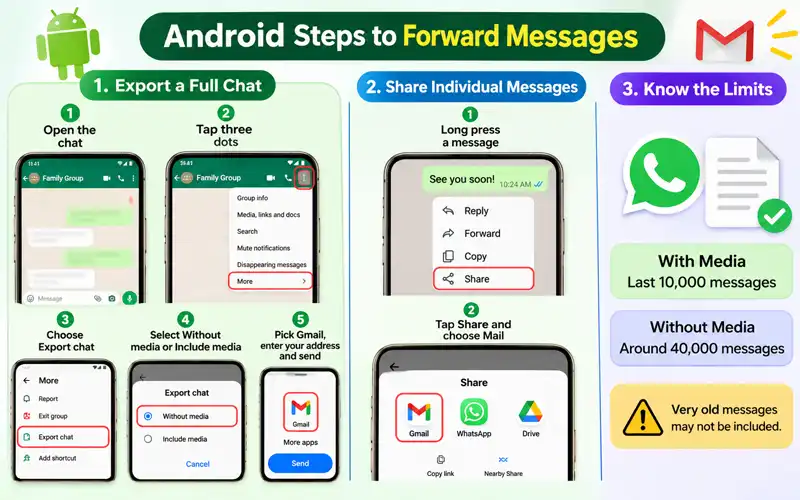
People often ask how to forward a WhatsApp message to email on Android, and how to connect WhatsApp to email from Android more broadly. Both questions come down to two tools: the Export Chat command and the share option inside the message menu.
Gmail Export Steps
The export route sends a complete conversation in one go.
- Open the chat you want to save.
- Tap the three dots at the top right.
- Choose More, then Export chat.
- Select Without media or Include media.
- Pick Gmail or another email app, enter your address and send.
Picking Individual Messages
To send only part of a conversation, long press one message and tap others to add them to the selection. Then open the three dots menu and look for Share. Not every WhatsApp version offers Share for several messages at once, but the Copy icon at the top works everywhere. Paste the copied text into a new email and tidy the wording before you send it.
Media and Size Limits
WhatsApp states that exports with media include the most recent 10,000 messages, while text-only exports can reach about 40,000 messages, because email has size limits. Anything older than that is left out, so a very long chat may arrive incomplete. These limits apply on iPhone as well.
Samsung Galaxy Forwarding Tips
Wondering how to forward a WhatsApp message to email on Samsung? The steps match the Android ones above, so this section covers only the details that are specific to Galaxy phones.
Panel Shortcuts on One UI
Samsung’s share panel puts suggested apps and recent contacts at the top, which can push Gmail or Samsung Email out of sight. Swipe across the app row or expand the list to see every installed app. After you choose an email app a few times, the panel usually starts suggesting it first.
Dual Messenger Chats
If you run a second WhatsApp through Dual Messenger, exports from that copy work the same way. The list of email apps in the share panel may look different, however, because the second copy runs separately from the first, so simply pick your email app from the panel as usual.
Searching Your Saved Chats
An export is only useful if you can find it again. In Gmail, create a label such as “WhatsApp archive” and apply it to each export, so every saved chat sits in one place. To pull up all of them at once, search for filename:txt together with the word WhatsApp.
Once a file is open, use your device’s find tool to jump to a name, a date or a keyword. Searching for the day of a payment or a meeting is usually the fastest way to reach the part of the conversation you need.
Automatic Forwarding With Outside Tools
WhatsApp cannot forward messages by itself, so automation needs a helper. The right helper depends on whether you use a business or a personal number.
Business API Workflow
Companies connected to the WhatsApp Business Platform can use an automation service such as Zapier to send an email whenever a customer writes in. The usual setup chooses a new incoming message as the trigger, picks Gmail or another mail app as the action, and maps the message text into the email body. The catch is that this works only with approved business accounts, not with a personal number or the standard Business app.
Notification Forwarding Apps
For a personal number on Android, the workaround is an app that reads notifications and relays them elsewhere. Automation tools such as Tasker can be set up to catch a WhatsApp notification and pass its text to your email. Keep in mind that only the text shown in the notification travels, so long messages may be cut short and media will not arrive.
Risks Worth Knowing
Notification access lets an app read everything that appears in your alerts, including bank codes and private chats. Install only well-reviewed tools, check the permissions they request, and remove them once you stop using them. Expect occasional gaps too, because Android may pause background apps to save battery.
Records and Compliance for Teams
Forwarding chats by hand does not make a business compliant. A pasted or exported thread is easy to edit, may leave out attachments, and depends on one employee remembering to send it. Teams in finance, law, healthcare or recruitment often have rules about keeping client messages, so a manual habit leaves gaps.
If your industry has record-keeping rules, ask your compliance officer which archiving tools are approved. Providers that work through the WhatsApp Business Platform can store messages centrally. Also check privacy rules such as GDPR before sending client chats to a shared mailbox, and tell clients how their messages are kept.
Account Email Setup in Settings
Many people searching for a WhatsApp email address want a mailbox that WhatsApp provides. No such mailbox exists for users. What you can do is attach your own address to your account, which is the subject of this section. The official support address is covered later, in the banned number part of this guide.
Adding Your Address
The path is the same on iPhone and Android.
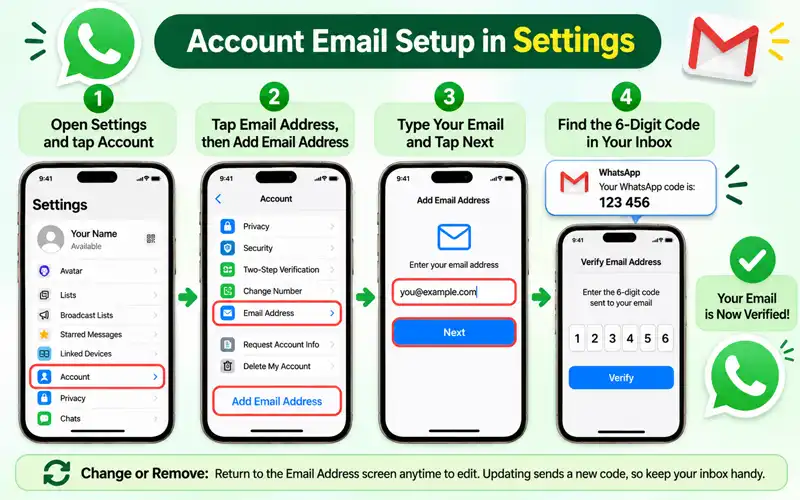
- Open Settings and tap Account.
- Tap Email Address, then Add Email Address.
- Type your address and tap Next.
- Open your inbox, find the six-digit code from WhatsApp and enter it in the app.
Once the code is accepted, WhatsApp shows the address as verified.
Changing or Removing
Return to the same screen whenever you want to edit the address. A change triggers a new verification code, so make sure you can still open the new inbox. Removing the address takes away a safety net, so update it rather than delete it when you move to a different provider.
Login Rules for WhatsApp Accounts
Searches for WhatsApp email login usually end in disappointment, because the service has no email-and-password sign-in. Your phone number is your identity. When you set up WhatsApp on a new phone, a verification code arrives by SMS or phone call to that number, and entering it completes the process.
Computers follow the same logic. WhatsApp Web and the desktop app are linked by scanning a QR code with your phone, or by entering a code through the phone number option, never by typing an email address. Email plays only a supporting role for security, so treat any site or message that offers a WhatsApp “email login page” as suspicious.
Recovery Steps Using Your Email
To recover a WhatsApp account with email, the address must have been saved with two-step verification before the trouble began. Your phone number is still required to register, and the email only helps when WhatsApp asks for a PIN you no longer remember.
Resetting a Forgotten PIN
Enter your number on the new device and complete the SMS verification. When WhatsApp requests the six-digit PIN, tap Forgot PIN and then Send Email. A reset link arrives at the saved address. Open it, confirm the request, then return to WhatsApp to finish the setup. If no email was ever added, you may have to wait up to seven days before registering without the PIN, and messages waiting on WhatsApp’s servers can be lost.
Codes That Never Arrive
Check your spam and promotions folders, search for “WhatsApp”, and confirm that the address has no typo. Wait a few minutes before requesting another message, since repeated attempts can pause the option for a while. If you can no longer open that mailbox, email reset is off the table and the waiting period is the only route left.
Banned Number Support by Email
Many users ask how to send email to WhatsApp for a banned number. The correct route is the official support channel, and the order of steps matters.
Requesting an In-App Review
When a number is banned, the app normally shows a screen with a Support or Request a Review button. Use it first, because it attaches your device and account details automatically and ties the case to your number. Add a short explanation of why you believe the ban was a mistake, then give the team time to respond.
Writing the Support Email
If the in-app option is missing, write to WhatsApp support at the address listed in the official help center, which is commonly support@whatsapp.com. Use a clear subject such as “Banned phone number, review request”. Put your number in full international format on the first line, then describe in two or three sentences what you were doing and that you follow the terms of service. Send one clear message only, because duplicates can slow the review.
Spotting Fake Recovery Offers
Nobody can unban a number for a fee. Websites, Telegram groups and self-described hackers promising instant recovery for payment are scams. Trust only addresses that end in whatsapp.com, and confirm them in the official help center before you write.
Security Habits for Exported Chats
Exported chats are ordinary files, so they lose WhatsApp’s end-to-end encryption once they leave the app. Anyone who can open your inbox or your downloads folder can read them. That makes the destination just as important as the export itself.
Send exports only to addresses you control, and protect that mailbox with a strong password and two-step login. After you save the file somewhere safe, delete extra copies from Downloads and from the Sent folder. Think twice before exporting chats that hold other people’s private details.
Quick Answers to Common Questions
Will Timestamps Survive Exports?
Yes. Each line in the exported file carries the date, time and sender name, which keeps the timeline of the conversation intact.
Does WhatsApp Web Export Chats?
WhatsApp Web and the desktop app do not currently include an Export Chat command, so exports must start from the phone. You can still copy selected messages on a computer and paste them into an email.
Can Two Emails Link Together?
No. One WhatsApp account holds a single email address at a time.
Is Deleted Content Recoverable?
Email cannot bring back deleted messages, because it only stores what you sent. Messages deleted for everyone before you exported will not appear in the file.
Why Does the Export Arrive as Text?
WhatsApp saves chats as plain text files, with media added as separate attachments when you include it. Open the file in any notes app, or import it into a spreadsheet if you want to sort and filter messages.
Do Email Providers Block Large Exports?
Most providers cap attachment size, with Gmail set at 25 MB. If an export with media goes over the limit, send it without media, or upload the file to cloud storage and share a link instead.
Which Email Address Should I Choose?
Pick a personal address you will keep for years. Avoid work or school accounts, since they can be closed when you leave, and avoid shared inboxes that other people can read.
Conclusion
Connecting WhatsApp to email comes down to choosing the right tool for the job. Export Chat and the share menu cover most personal needs, while real automation is realistic mainly for business accounts.
Add a verified email in Settings today so a forgotten PIN never costs you your account, and test one export on your own phone before you rely on it. Menus change between versions, so if a step looks different, check WhatsApp’s official help center.