




Knowing how to transfer digital camera video to phone spares you the old routine of hunting for a laptop every time you want to share a clip. Video files are large, cameras use different ports and menus, and phones can be picky about formats, so it is easy to get stuck halfway through.
This guide covers six reliable methods with numbered steps for both iPhone and Android. You will see how to use a USB cable, camera Wi-Fi, the Canon Camera Connect app, an SD card reader, a workaround for cameras with no card, and a computer-and-cloud route. Pick the one that fits your gear and follow along.
Quick Answer Before You Start
The fastest way is a USB cable, which copies large clips in minutes and needs no internet. The easiest way is your camera’s wireless connection with its companion app, since there is nothing to plug in. If your camera has neither, an SD card reader works with almost every model.
| Method | Speed | Cable needed | Internet needed | Best for |
| USB cable | Fast | Yes | No | Long or 4K clips |
| Camera Wi-Fi | Slow to medium | No | No | A few quick clips |
| Canon Camera Connect | Medium | No | No | Canon owners with MP4 clips |
| SD card reader | Fast | Reader | No | Cameras with no wireless |
| Internal memory over USB | Fast | Yes | No | Compacts and camcorders with no card |
| Computer and cloud | Slowest | Yes | Yes | Old cameras and backups |
Each method below is complete on its own, so jump straight to the one that matches your setup.
Check Your Gear First
Camera Features to Look For
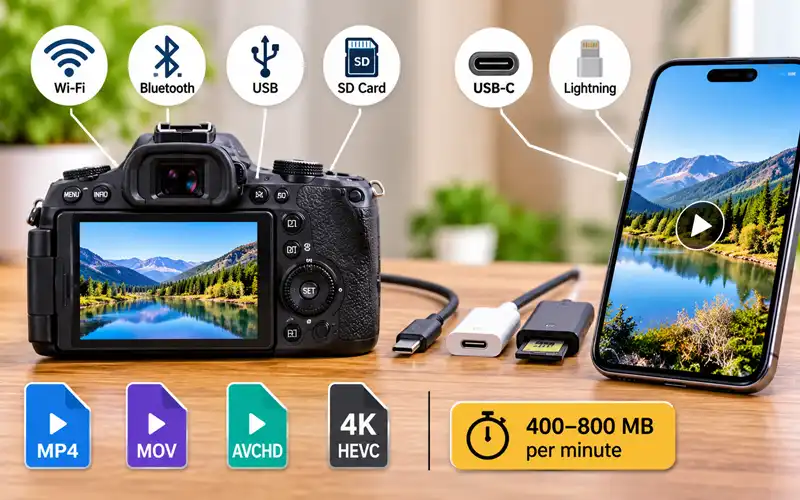
Open your camera’s menu or manual and look for four things: Wi-Fi, Bluetooth, a USB port, and a memory card slot. Wi-Fi or Bluetooth means you can go wireless. A USB port means you can use a cable, and it is worth noting whether it is mini USB, micro USB, or USB-C, because that decides which cable you need.
Almost every camera sold in recent years has at least one of these options, so you rarely need to buy more than a small adapter.
Phone Ports and Adapters You May Need
iPhone 15 and newer, along with most current Android phones, use USB-C. Older iPhones use Lightning and need a Lightning to USB camera adapter or a Lightning card reader. Android phones with USB-C can usually connect through a USB-C to USB-C cable or a small OTG adapter, while older Micro-USB models need an OTG cable.
Most Android phones from the past several years support OTG, which lets the phone act as the host for another device. Your phone’s spec sheet will confirm it.
Video File Types Worth Knowing
Most cameras record MP4 or MOV, and both play on every phone without extra help. Some models record AVCHD files with an .MTS extension, or high-bitrate 4K in HEVC, which can be harder for phone players to handle.
Size matters too. A minute of 4K footage often takes 400 to 800 MB, so a handful of clips can fill a phone quickly. Knowing your format and file size now saves surprises later.
Plug and Play with a USB Cable
A cable connection is the fastest route because data travels straight from the camera to your phone with no wireless slowdowns. It works without internet and keeps the original quality, which makes it the best choice for long or 4K clips.
Android Steps with an OTG Adapter
- Switch the camera off, then plug its USB cable into the camera.
- Connect the other end of the cable to your OTG adapter. If both devices use USB-C, a single USB-C to USB-C cable is enough.
- Plug the adapter into your phone and turn the camera on.
- If the camera shows a USB mode menu, choose Mass Storage or PTP, which is sometimes labelled Media Transfer.
- Swipe down from the top of the screen, tap the USB notification, and select File Transfer if asked.
- Open the Files app, tap the camera under storage devices, and open the DCIM folder.
- Long-press the videos you want, tap Copy to, and pick a folder on your phone such as Movies.
- Wait for the copy to finish before unplugging anything.
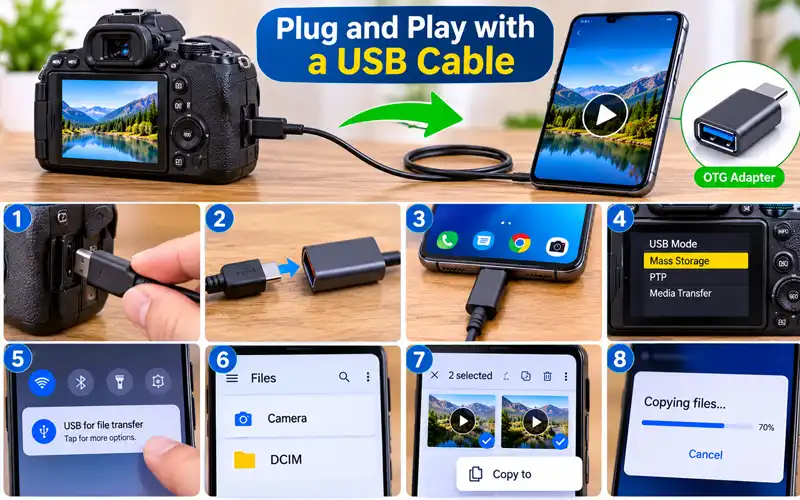
If a prompt offers to open a gallery or photo app instead, that works too. Tap the videos there and choose Import.
iPhone and iPad Steps
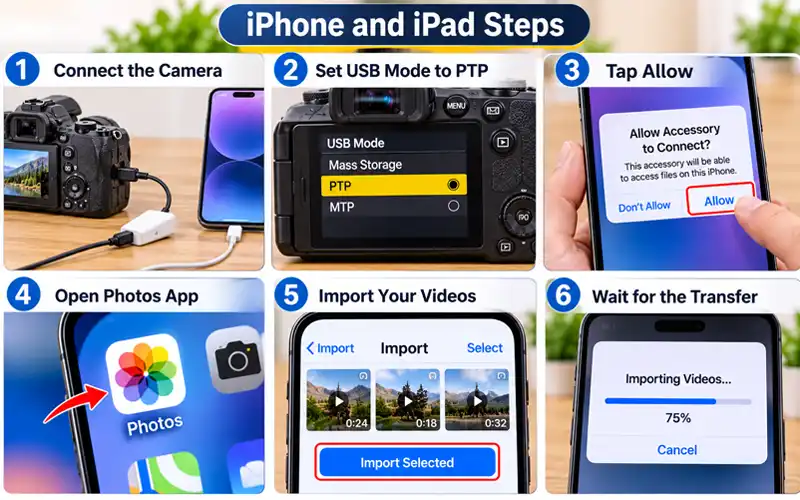
- Connect the camera to your iPhone. iPhone 15 and newer use a USB-C cable, while older models need the Lightning to USB camera adapter plus the camera’s own cable.
- Turn the camera on and set its USB mode to PTP if the option exists.
- If your iPhone asks whether to allow the accessory, tap Allow.
- Open the Photos app and tap the Import tab that appears.
- Tap Select, choose your videos, then tap Import and Import Selected.
- Watch the progress indicator and leave everything plugged in until it finishes.
Imported videos appear in your Photos library under Recents, ready to edit or share.
Wireless Copying Through Wi-Fi
Turning On the Camera Wi-Fi
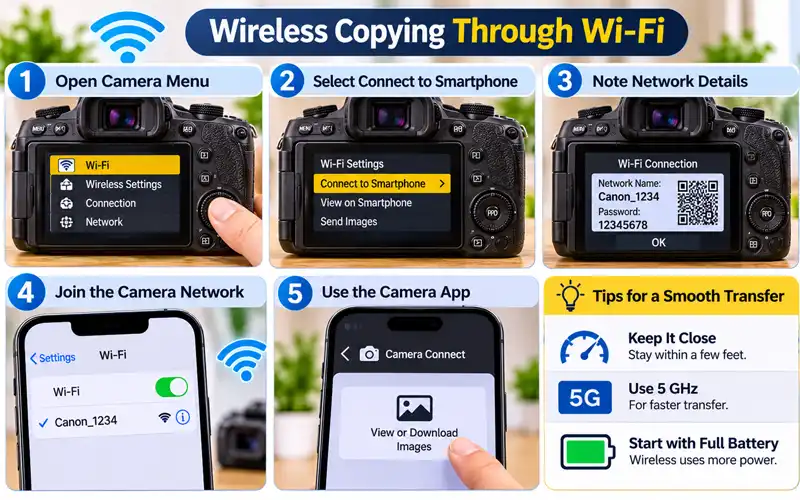
Camera menus differ by brand, but the Wi-Fi option usually sits under Wireless, Network, or Connection settings.
- Press Menu on the camera and open the Wi-Fi or wireless settings.
- Select Connect to Smartphone or a similar entry.
- Note the network name and password on the screen, or the QR code if one appears.
Many cameras show these details only while they wait for a connection, so keep the screen open.
Linking Your Phone to the Signal
- Open your phone’s Wi-Fi settings and select the network named on the camera.
- Enter the password, or scan the QR code if your camera displays one.
- Open the camera’s companion app and choose the option to view or download images.
Your phone loses internet while it is joined to the camera, so reconnect to your normal Wi-Fi afterward. The Canon walkthrough below shows how this looks inside a real app.
Pace, Range and Battery Drain
Wireless transfer is convenient but slower than a cable, so send a few clips at a time rather than a whole card. Stay within a few feet of the camera, and choose the 5 GHz band if your camera offers it, since it handles larger files better.
Wireless also uses more power. Start with a fully charged battery.
Canon Camera Connect App Walkthrough
Canon Camera Connect is Canon’s free app for linking EOS and PowerShot cameras with a phone. It uses Bluetooth for simple pairing and Wi-Fi for the actual file transfer, which makes it the most common wireless route for Canon owners.
Getting the App Installed
- Open the App Store on iPhone or Google Play on Android.
- Search for Canon Camera Connect and install the app published by Canon Inc.
- Open it and allow the permissions it requests, such as Bluetooth, nearby devices, local network, and photo access.
Canon’s iOS listing currently asks for iOS 18 or later, and Bluetooth pairing needs a phone with Bluetooth 4.0 Low Energy. Check Canon’s compatibility page for your model first, because not every camera supports every feature.
Pairing via Bluetooth and Wi-Fi
- On the camera, open the menu, go to Wireless communication settings, and choose Bluetooth function, then Pairing. Exact wording varies by model.
- In the app, tap Bluetooth pairing and select your camera from the list.
- Confirm the pairing prompt on both the phone and the camera.
- When the app asks to join the camera’s Wi-Fi, accept, and the connection completes on its own.
Once paired, reconnecting later takes only a few seconds.
Browsing and Saving Videos
- Tap Images on camera in the app’s main screen.
- Scroll through the thumbnails. Videos show a play icon and a duration.
- Tap Select and tick the videos you want.
- Tap the Save icon and wait for the progress bar to complete.
- Open your Photos or Gallery app to find the saved clips.
When the App Refuses a Clip
Canon’s app listing states that MOV files and 8K movies shot with EOS cameras cannot be saved, and the same applies to RAW movies and AVCHD clips from camcorders. If a video will not appear or will not save, the file format is the usual reason rather than a faulty connection.
For clips you have already shot, switch to a USB cable or card reader. For future shoots, look in your camera’s movie recording menu for an MP4 option, since MP4 is the safer choice with this app.
Other Brands’ Apps Worth Trying
The same install, pair, browse, and save pattern applies to other makers, but each brand has its own quirks.
| Brand | App | Good to know |
| Nikon | SnapBridge | Pairs by Bluetooth, then switches to Wi-Fi for movies. Movie download needs a Wi-Fi-equipped camera, and clips over 4 GB are not offered. |
| Panasonic | LUMIX Lab or LUMIX Sync | LUMIX Lab suits recent models such as the S9, S5 II, G9 II and GH7, and can send MP4 Lite clips automatically. Older models rely on LUMIX Sync. |
| Sony | Imaging Edge Mobile | On most models, open the camera’s Send to Smartphone option, then pick clips in the app. |
| Fujifilm | FUJIFILM XApp | Pairs over Bluetooth, then lets you browse and save the camera’s files. |
Card Reader Route for SD Cards
This method suits cameras with no wireless features, and it is also a dependable backup when a cable or app misbehaves. Reading the card directly avoids any camera settings.
Readers That Plug Into Lightning or USB-C
Pick a reader that matches your phone’s port and your card size, whether full-size SD or microSD. Dual-connector readers with both USB-C and USB-A ends are handy if you also use a laptop. For smoother 4K transfers, choose a UHS-I or UHS-II reader rather than the cheapest option.
Make sure the reader says it supports your phone, since a few models are built only for computers.
Moving Files from the Card
- Switch the camera off and remove the SD card.
- Insert the card into the reader and plug the reader into your phone.
- Open the Files app on iPhone or Files by Google on Android, then select the card from the list of locations or storage devices.
- Open the DCIM folder and then the subfolder holding your clips, which is often named something like 100CANON.
- On iPhone, tap the three-dot menu, choose Select, tick your videos, tap Share, then Save Video. On Android, long-press the videos, tap Copy to, and choose a folder on your phone.
- Eject the card from the Files app before pulling out the reader.
Formatting Pitfalls with exFAT and FAT32
Cards up to 32 GB usually use FAT32, while larger cards use exFAT. Current versions of iOS and Android read both, but older phones and some cheap adapters struggle with exFAT.
If your phone shows no files at all, an outdated system or an unsupported adapter is the likely cause. Updating the phone or trying a different reader usually clears it up.
Going Without an SD Card
Internal Memory Over USB
Some compact cameras and camcorders store clips in built-in memory instead of a card. Connect them exactly as shown in the USB section, with these differences.
- Choose PTP or Media Transfer in the camera’s USB settings, since many internal-memory models offer no mass storage mode.
- On iPhone, use the Photos app Import tab, and on Android, open the camera’s internal storage in the Files app.
- Copy or import the clips as usual and keep the camera on until the process ends.
Cloud or Computer as a Middleman
When no direct link works, a computer can carry the files across.
- Copy the videos from the camera to a computer with a USB cable or card reader.
- Upload them to Google Drive, iCloud Drive, Dropbox, or Google Photos.
- Open the same app on your phone and download or save the videos to the device.
If you use Google Photos, set the upload quality to Original so the videos are not compressed.
Pulling Pictures Off Your Camera Too
Every method above works for photos as well as videos, so you can use the same cable, app, or reader to get pictures off a digital camera to your phone and download videos from a digital camera to your phone in one go. In Canon Camera Connect, for example, you can tick photos and clips together before tapping Save.
The main difference is format. JPEG files open anywhere, but RAW files such as CR3, NEF, or ARW often do not appear in a standard gallery app. For those, use an editor like Lightroom mobile or Snapseed.
Fixing Common Hiccups by Symptom
Nothing Appears on the Screen
Start with the cable, because many cheap cables only charge and carry no data. Then reseat the adapter, switch the camera’s USB mode between Mass Storage and PTP, and restart both devices. On Android, check that OTG is enabled in settings, and on iPhone, tap Allow when the accessory prompt appears.
Stalled Copies and Slow Speeds
Use a short, good-quality cable and plug straight into the phone rather than through a hub. Copy clips in smaller batches, close background apps, and keep the screen awake until the transfer finishes.
Files Won’t Play on the Phone
A clip that copies but will not play usually uses a format or codec your phone’s player does not support. Install VLC or MX Player to open it, or convert the file to MP4 with a free tool such as HandBrake on a computer. Updating your phone’s system can also add codec support.
Storage Full Warnings
Check your free space in Settings before you start, and move or delete old clips to make room. If the phone still runs short, copy videos in batches and shift finished ones to cloud storage or an external drive.
Smart Habits for Safer Backups
- Play each copied video for a few seconds before you clear the camera.
- Name folders by date and event so clips are easy to find later.
- Keep a second copy in the cloud or on a drive.
- Format the card inside the camera, never on a phone or computer.
- Label your cables and adapters so the right one is always at hand.
Frequently Asked Questions
Can iPhone Read Videos From Any Camera?
Most cameras that offer PTP or mass storage work with iPhone through Photos or Files, as long as you have the right adapter. Very old cameras with proprietary connectors may not be recognised and need the computer route.
Is Wi-Fi Transfer Lower Quality?
No. Wireless sends the original file, only more slowly. If an app offers a resized option for photos, pick Original to keep full quality.
Why Are 4K Clips So Slow to Copy?
Two things limit speed: huge file size and the camera’s port. Many cameras use USB 2.0, which tops out at roughly 30 MB per second in real use, so a card reader is often faster than the camera itself.
Does Canon Camera Connect Work on Android?
Yes. The app is available for both Android and iOS. Bluetooth handles the first pairing and Wi-Fi carries the files, though cameras without Bluetooth can still connect over Wi-Fi alone.
What If My Camera Has No Wi-Fi?
You do not need wireless features. A USB cable with an adapter or an SD card reader works with nearly every camera.
Will Raw Footage Open on a Phone?
Professional raw video formats, such as Canon Cinema RAW Light or ProRes RAW, will not play in a standard gallery app. They are meant for editing software on a computer.
Should I Worry About Camera Wi-Fi Privacy?
A camera creates its own password-protected network, so the risk is low. Keep the password private, switch Wi-Fi off when you finish, and avoid using the feature in crowded public places.
Final Takeaway
Choosing the right method comes down to two things: the ports on your camera and the ports on your phone. Confirm both, and your footage can be ready to edit or share within minutes.