

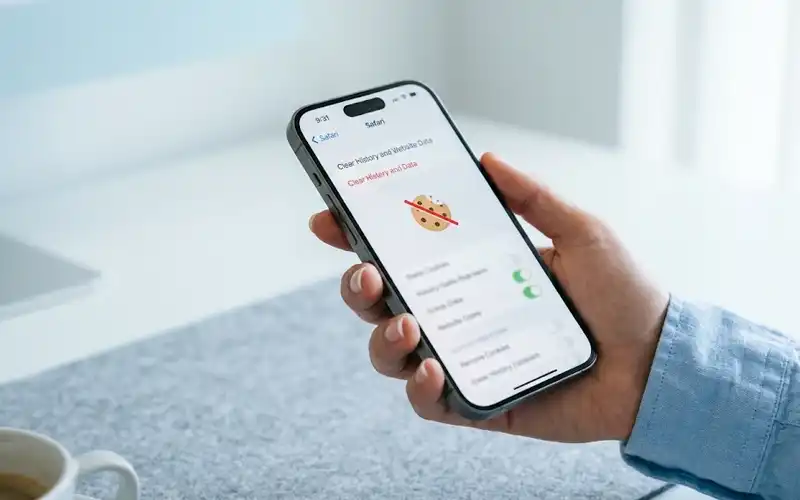


Deleting cookies sounds like a one-tap job, until you open Settings and cannot find the button. That is normal. An iPhone has no master switch for cookies. You clear them browser by browser, and apps that open web pages inside themselves add one more place to check.
This guide shows you exactly where to look. You will learn how to delete cookies on iPhone in Safari, Chrome and other browsers, what to do about cookies inside apps, and how cache fits into the picture. Steps for Android, Samsung Galaxy and Chrome on a computer are here too. Every step is short and written in plain words, so you can follow along with your phone in your hand.
Quick Ways to Delete iPhone Cookies
Find your browser or device below, note where to start, then jump to its section for the full steps.
| Browser or device | Where to start |
| Safari | Settings > Apps > Safari |
| Chrome | Chrome app > three-dot menu |
| Firefox, Edge, Brave, DuckDuckGo | Each browser’s own menu |
| Apps with built-in browsers | Settings inside the app itself |
| Chrome on Android | Three-dot menu > Delete browsing data |
| Samsung Internet | Browser menu > Settings |
| Chrome on a computer | Ctrl+Shift+Delete or Cmd+Shift+Delete |
Understanding Cookies in Plain Words
Good Ones Versus Bad Ones
A cookie is a tiny text file that a website saves on your phone. Its job is to help the site recognize you the next time you visit. Cookies from the site you are on, called first-party cookies, keep you signed in, remember your language and hold items in your shopping cart. Cookies from other companies hidden inside that page, called third-party cookies, follow you from site to site so advertisers can learn what you like.
The first kind is usually worth keeping. The second kind is what most people really want gone.
Signs It Is Time to Clear
You do not need a calendar to notice when something is off. Ads that repeat what you searched for days ago are a clear sign. So are sites that show the wrong language, ask you to sign in again and again, or keep showing old content. If Safari website data is taking up a lot of space on your phone, that is another good reason to clean up.
Safari Cookies on iPhone Made Easy
Safari is the default browser, so this section covers how to clear cookies on Safari iPhone for most people. The same steps work on an iPad. Pick the level of cleanup that suits you.
Wipe Everything at Once
- Open Settings, tap Apps, then tap Safari.
- Scroll down and tap Clear History and Website Data.
- Choose a time range. All History gives a full reset.
- Tap Clear History.
This removes cookies, history and cache together. It also clears them on other Apple devices that use the same iCloud account, so think twice if you want to keep history on your Mac.
Keep History, Remove Cookies
Go to Settings > Apps > Safari > Advanced and tap Website Data. Tap Remove All Website Data and confirm. Your browsing history stays in place, and only the data saved by websites goes.
Target a Single Website
The same Website Data screen lists every site that has stored something, often with the space it uses. Type a site name into the search bar, swipe left on it and tap Delete. Every other site keeps its sign-in, which makes this the best choice when only one page is giving you trouble.

Google Chrome Cookies on iPhone
Chrome handles cookies inside the app rather than in iOS Settings. These steps cover how to clear cookies on iPhone Google Chrome users search for most often.
Menu Path and Time Range
Open Chrome and tap the three-dot menu, then tap Clear Browsing Data. If you do not see it, open Settings > Privacy and Security first. Pick a time range, from Last Hour up to All Time. Tick Cookies, Site Data, then tap Clear Browsing Data and confirm.
Protect Saved Passwords
Chrome lists several types of data on that screen. Leave Saved Passwords and Autofill Data unticked, and only cookies and cached files will be removed. Your saved logins stay exactly where they are.

Firefox, Edge, Brave and DuckDuckGo
Smaller browsers each hide the option in a different place, and menu names can shift a little after an update. Here is where to look in each one.
| Browser | Steps |
| Firefox | Menu > Settings > Data Management, switch on Cookies, then tap Clear Private Data |
| Edge | Menu > Settings > Privacy and security > Clear browsing data, then select Cookies and site data |
| Brave | Settings > Shields & Privacy > Clear Private Data, tick Cookies and Site Data, then tap Clear |
| DuckDuckGo | Tap the flame Fire button, then Clear Tabs and Data. This also closes your open tabs |
Cookies Inside Apps on iPhone
This section covers how to clear cookies on apps iPhone owners use every day. iOS does not give you one shared cookie store for apps that you can empty from Settings, so what you can do depends on how each app shows web pages.
In-App Browsers Explained
When you tap a link inside apps like Instagram, Facebook or X, the page often opens in a built-in browser that keeps its own cookies. Clearing Safari never touches those. If the page’s menu offers Open in Browser, use it, and the cookies stay under your control.
Reset Through App Settings
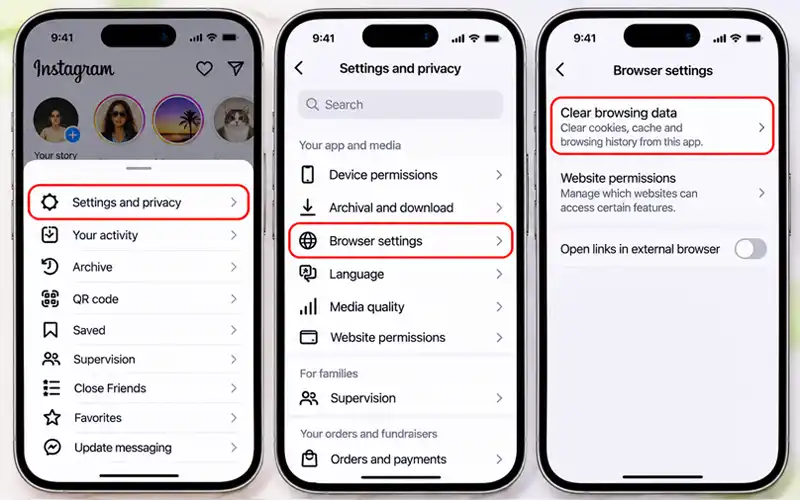
Look in the app’s own settings for a button called Clear browsing data or Clear cache, often found under Browser or Website permissions. Several social apps include one. If your app has none, the storage method in the cache section below is the fallback.
Tracking Permission Check
Go to Settings > Privacy & Security > Tracking. Turn off Allow Apps to Request to Track, or go through the list and switch off apps you do not trust. This does not delete cookies, but it limits how apps share your activity with advertisers.
Cache and Cookies Together on iPhone
Many guides use the two words as if they mean the same thing, but they do different jobs. Cache stores page files such as images and scripts so sites load faster. Cookies store facts about you. If you want how to clear cookies and cache on iPhone in one move, the Safari full wipe from earlier already does both.
Which One Fixes What
| Symptom | Clear this |
| Old content or a broken layout | Cache |
| Login loops or forgotten settings | Cookies |
| Wrong language or region stuck on a site | Cookies |
| A site still misbehaves after one clear | Both |
One-Pass Cleanup Checklist
Clearing cookies signs you out of most sites, so make sure you can sign in again before you start, either with saved passwords or with recovery options ready. Then clear cookies and cache in each browser you use, force-close it and open it again. Finally, reload the troublesome site and sign in. If it still acts up, restart the iPhone and try once more.
Clearing App Cache on iPhone
Unlike Android, iOS has no button that clears the cache of a single app. If you searched for iPhone clear cache app, here are the real options.
Storage Screen Tour
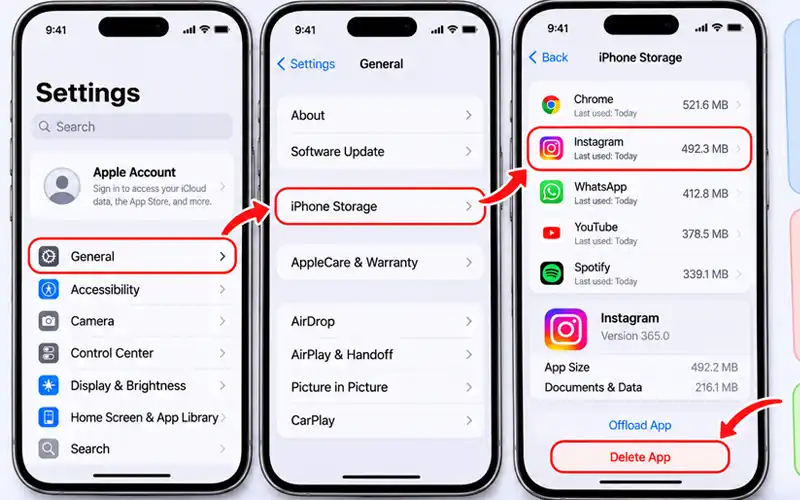
Open Settings > General > iPhone Storage and wait for the list to load. Tap any app to see its App Size and its Documents & Data. The second number is where cache and downloaded content live, and the list is sorted by size, so the biggest ones appear first.
Offload Compared With Delete
Offload App removes the app but keeps its documents and data, so the cache stays. Delete App removes both. For a true cache reset, delete the app, restart your iPhone and install it again from the App Store. Your account stays safe on the company’s servers, but offline downloads and unsent drafts can be lost.
Do Cleaner Apps Work?
Not for cache. iOS keeps each app in its own sandbox, so a third-party cleaner cannot reach another app’s cache. Most of them only find duplicate photos or large videos, which can free space but is a different job. Be careful with apps that ask for broad permissions or push a paid plan.
When Cookies Refuse to Clear
Sometimes you tap the button and nothing seems to happen. These fixes cover the usual causes.
Gray Button Rescue
If Clear History and Website Data is gray, either there is nothing left to clear or Screen Time is blocking it. Open Settings > Screen Time > Content & Privacy Restrictions > App Store, Media, Web & Games > Web Content and choose Unrestricted. Then go back to the Safari settings.
Restart and Update Tricks
If the data comes back or the clear seems to do nothing, close Safari fully by swiping it away in the app switcher, then restart the iPhone and try again. An iOS update can also fix stubborn settings bugs, and nearly full storage can stop the clean-up from finishing, so free some space first.
Managed Phone Limits
Work and school phones can lock browser settings through a profile. If an option is missing or locked, the device is managed, and your IT admin is the person to ask. Your own settings cannot override it.

Delete Cookies on Android Phones
If you also own an Android phone, here is how to delete cookies on Android. Most of these phones use Chrome, and the steps look much like the iPhone version. The main difference is that the menu icon sits at the top right.
Open Chrome, tap the three-dot menu and choose Delete browsing data. If you do not see it, open Settings > Privacy and security first. Pick a time range, tick Cookies and site data and tap Delete data. Using Firefox on Android instead? Open the menu, go to Settings, tap Delete browsing data, tick Cookies and confirm.
Samsung Galaxy Cookie Cleanup
Galaxy phones come with Samsung Internet as the default browser. To delete cookies on Samsung there, open the browser and tap the three-line menu at the bottom right. Go to Settings > Personal browsing data > Delete browsing data, tick Cookies and site data and tap Delete. If you use Chrome on your Galaxy instead, follow the Android steps above.

Chrome on Desktop and Laptop
This part answers how to clear cookies on Google Chrome when you are on a computer. On Windows press Ctrl+Shift+Delete, and on a Mac press Cmd+Shift+Delete. The Delete browsing data window opens. Pick a time range, tick Cookies and other site data and click Delete data.
To remove one site only, go to Settings > Privacy and security > Third-party cookies > See all site data and permissions, then search for the site and delete it. Chrome usually keeps your Google Account signed in so sync keeps working, but most other sites will sign you out.
Stopping Cookies Before They Land
Clearing is cleanup. The settings below reduce how much piles up in the first place.
Cross-Site Tracking Switch
Open Settings > Apps > Safari and make sure Prevent Cross-Site Tracking is on. It is usually on by default. It limits third-party trackers and leaves normal site cookies alone, so your logins keep working.
Private Tabs and Profiles
In Safari, tap the tabs button, choose Private and browse. Cookies from that session are thrown away when you close the tab. Safari Profiles, found in Settings > Apps > Safari, go one step further and keep Work and Personal browsing in separate cookie stores.
Blockers and Privacy Browsers
Content blockers from the App Store can be switched on under Settings > Apps > Safari > Extensions. Browsers such as Brave and DuckDuckGo block many trackers by default, so there is less to clear later.
Privacy Report Peek
Safari can show you who was trying to follow you. Tap the page menu icon in the address bar and choose Privacy Report to see the trackers it blocked on that site. It is a quick way to learn which sites are the worst offenders.
Habits and Mistakes to Know
Smart Schedule
For most people, clearing once a month is enough. Clear every week if you share your phone or care a lot about privacy, and clear any time one site misbehaves. A calendar reminder works better than trying to remember.
Errors That Undo Progress
Two slip-ups cause most of the frustration. The first is clearing cookies in the middle of a checkout or while waiting for a verification code, which resets the session and can empty your cart. The second is switching on Block All Cookies in Safari’s Advanced settings as a shortcut. Carts and logins stop working on many sites, so most people are better off leaving it off.
Frequently Asked Questions
Are cookies dangerous or just annoying?
Cookies are plain text files, so they cannot run programs or carry viruses. The real risk is privacy, because tracking cookies help build ad profiles about you. A stolen session cookie could also let someone reach a signed-in account, but that is rare on a phone you control.
Do websites still track me after clearing?
Partly. Sites can also use your IP address, device details and browser fingerprinting, so clearing cookies reduces tracking without ending it. Think of it as a good habit, not a full shield.
Will clearing cookies speed up my iPhone?
Rarely. Cookies are tiny files, so they hardly change speed. Slowness usually comes from low storage, too many background apps or an outdated iOS version. Clearing may help one slow website, but it will not make the whole phone faster.
Is the Settings path different on older iOS?
Yes. On iOS 17 and earlier, Safari has its own entry in Settings, so the path starts at Settings > Safari instead of Settings > Apps > Safari. The options after that, such as Clear History and Website Data and Advanced > Website Data, are the same.
How long does a cookie stay on my phone?
It depends on the site. Session cookies disappear when you close the browser, while persistent ones can last days, months or even years until they expire or you delete them.
Why do cookie banners keep coming back?
Your choice on a banner is itself saved in a cookie. When you clear your cookies, the site forgets that you answered, so the banner returns on your next visit.
Does clearing cookies sign me out of my Apple Account?
No. Clearing Safari data signs you out of websites, not out of iCloud or your Apple Account. Passwords saved in the Passwords app and your AutoFill details also stay in place.
Conclusion
Deleting cookies on an iPhone is simple once you know where each one lives. Safari uses Settings, Chrome and other browsers use their own menus, and apps rely on their own settings or a delete and reinstall. Clear what causes trouble, keep what helps, and use the prevention settings so the pile stays small.
Your next step is easy. Open Settings > Apps > Safari right now, clear your website data, and set a monthly reminder so it never becomes a chore.