



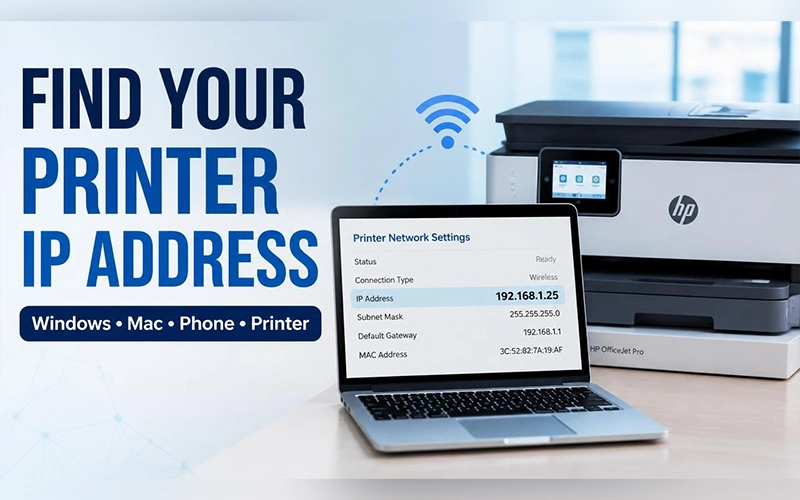
You’re adding a printer to a new laptop, and the setup screen suddenly asks for an IP address you’ve never seen. It happens to almost everyone. This guide shows how to find printer IP address in about a minute, no technical background needed. You’ll need the number for manual setup, network printing, and opening the printer’s built-in settings page. Below are the quickest routes, starting with the printer itself and moving on to Windows, Mac, and your phone. Pick whichever device is closest to you.
If you’re also troubleshooting browser-related issues, learn how to clear browser cache on iPhone.
Check the Printer Itself
Your printer knows its own address, so its control panel is the most direct source. Menu names change from one model to another, so if a label below doesn’t match exactly, look for the closest wording.
HP Printers
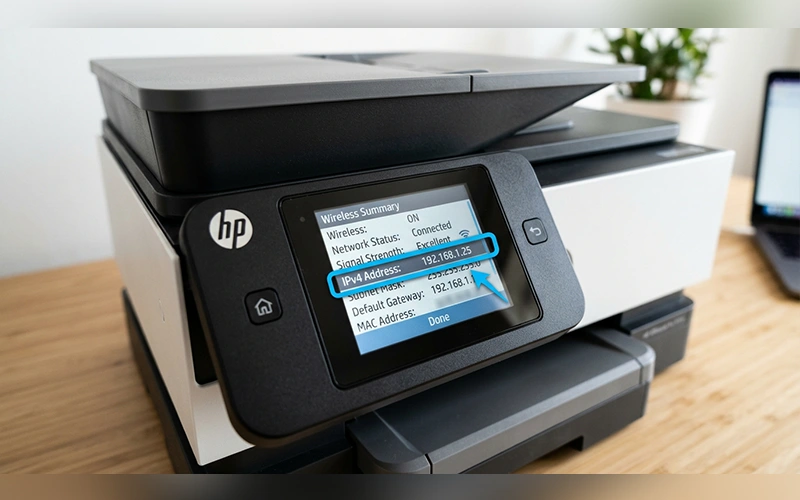
Where is the IP address on printer HP owners should check first? The display. On a color touchscreen, look for the wireless icon (signal bars) or the Ethernet icon on the home screen and tap it. If the icon isn’t there, swipe down from the top edge to open the Dashboard and tap the wireless status. Most touchscreen models also offer a Print Network Configuration Page or Wireless Test Report option in the network menu, in case you’d rather have the address on paper.
If your printer has a small text screen with physical buttons, Here’s how to locate the IP address on HP printer models equipped with this type of display panel:
- Press Setup, Settings, or Menu.
- Navigate to Network Setup or Wireless Settings using the arrow buttons, and confirm your selection by pressing OK.
- Choose View Wireless Details or Display IP Address.
Printers with only lights and buttons need a different approach. Where is the IP address on a printer HP DeskJet or LaserJet M110w users can read? On paper. Press the Information (“i”) button once and the printer prints a network page. If nothing comes out, hold the Wireless and Information buttons together for about three seconds. Some older units use the Cancel (red X) and Wireless buttons held together until the power light blinks.
Once the page is in your hands, scan for a line labeled IPv4. How Can You Locate the IP Address on HP Wireless Printers? Usually under the 802.11 Wireless or General Information section, and it looks like 192.168.1.25 or 10.0.0.25.
Epson Printers
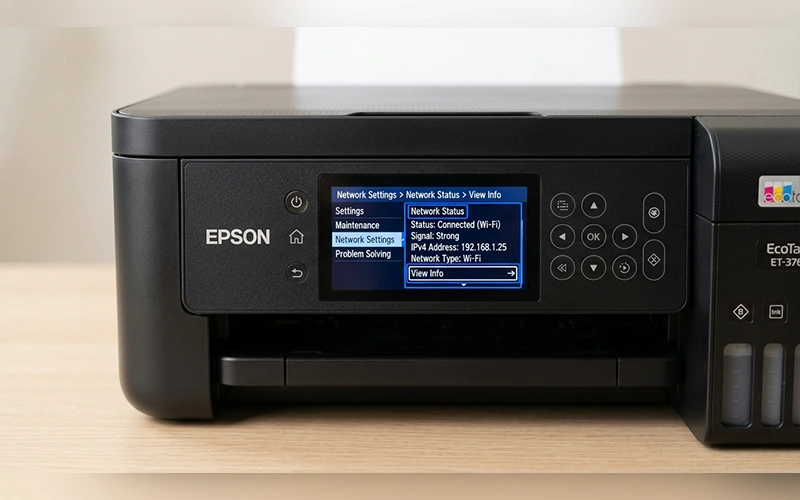
If you’re wondering how to find printer IP address Epson models show on their panels, start from the Home button. Open Settings (the gear icon), go to Network Settings or Wi-Fi Setup, then pick Network Status or Wi-Fi Status. Select View Info, and the IPv4 address appears on screen. Choosing Print Status Sheet instead gives you a paper copy. Smaller XP and WorkForce displays follow the same idea through Setup, Network Settings, and Confirm Network Settings.
Many screenless EcoTank models, such as the ET-2800 or L3150, work differently. Load some paper, then press and hold the “i” network status button for roughly five to seven seconds, until the power light starts flashing. One to three pages will print, and the address sits near the top of the first one.
Find It on a Windows PC
Windows can pull the address from the printer’s properties, and the route is nearly identical on both current versions. Ensure the printer is powered on and connected to the same network as your computer.
Windows 10
The traditional Control Panel offers a reliable way to locate it. Use the following instructions to locate your printer’s IP address on a Windows 10 computer:
- Type Control Panel into the Start menu and open it.
- Click Hardware and Sound, then Devices and Printers.
- Right-click your printer and choose Properties. Don’t pick “Printer properties” here, because it opens a different window.
- Open the Web Services tab and read the IP address near the bottom. If that tab is missing, switch to the Ports tab, find the checked row, and widen the Port column.
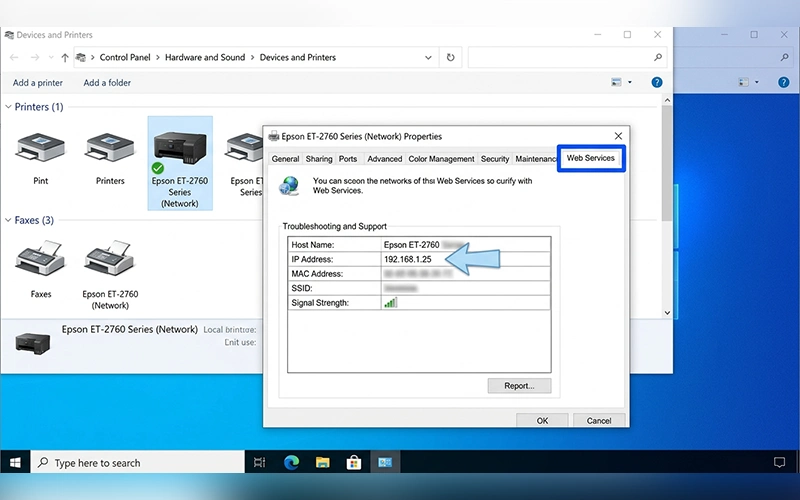
Seeing something like WSD-xxxx instead of numbers? That’s a Web Services port, and the Web Services tab is where the real address lives.
Prefer the Settings app? Open Devices, then Printers & scanners, click your printer, choose Manage and Printer properties, and use the Ports tab as above.
Windows 11
Windows 11 organizes most printer options under Settings. Follow these steps to locate your printer’s IP address using the updated interface:
- Open Settings and select Bluetooth & devices.
- Click Printers & scanners and choose your printer.
- Select Printer properties, which opens a classic pop-up.
- Go to the Ports tab and look at the checked row.
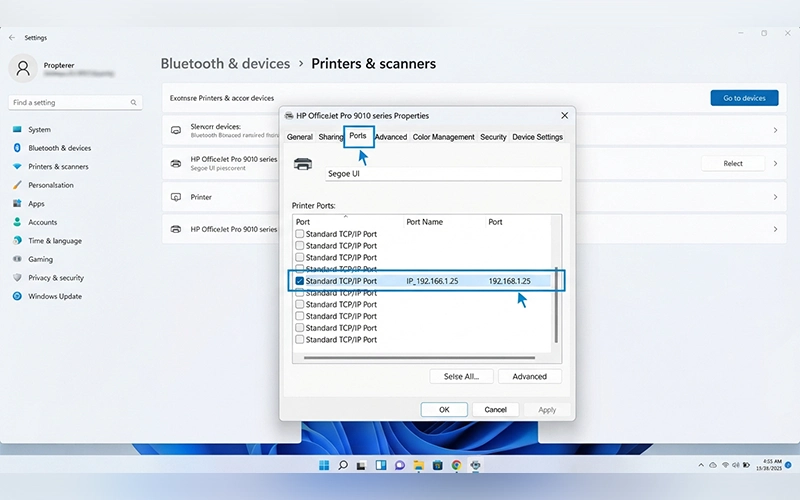
The Control Panel route from Windows 10 still works here too. If View devices and printers drops you back into Settings, scroll to the bottom and click More devices and printer settings.
You can also open Command Prompt and type arp -a. It lists every device on your network with its address, and you can match the printer by its MAC address.
Find It on a Mac
On a Mac, the answer is a few clicks away. Open the Apple menu, go to System Settings (or System Preferences on older macOS), and click Printers & Scanners. Select your printer, and the address often appears beside Location. If it doesn’t, click Options & Supplies and check the General tab. That’s the simplest route for how to find printer IP address Mac owners can follow without Terminal.
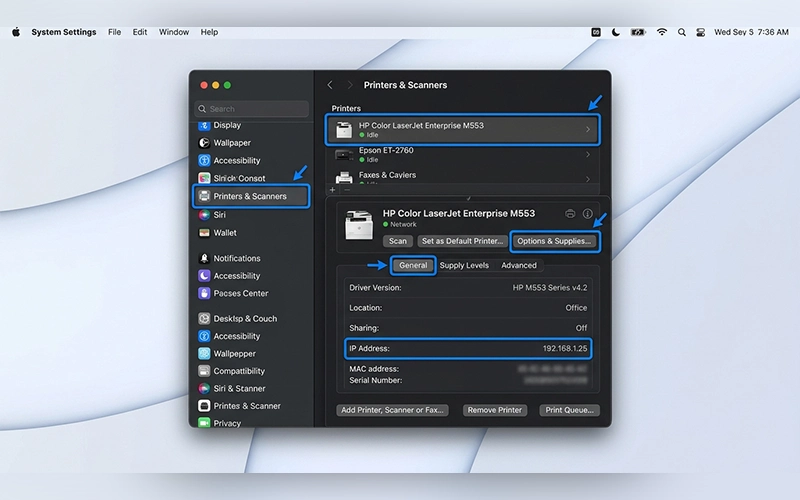
When the Location field shows a network name instead of numbers, use the hidden CUPS page. Open Terminal (found in Applications, then Utilities), run cupsctl WebInterface=yes, then visit localhost:631 in your browser. Click Printers, select yours, and the Connection line shows the numeric address.
Use Your Phone Instead
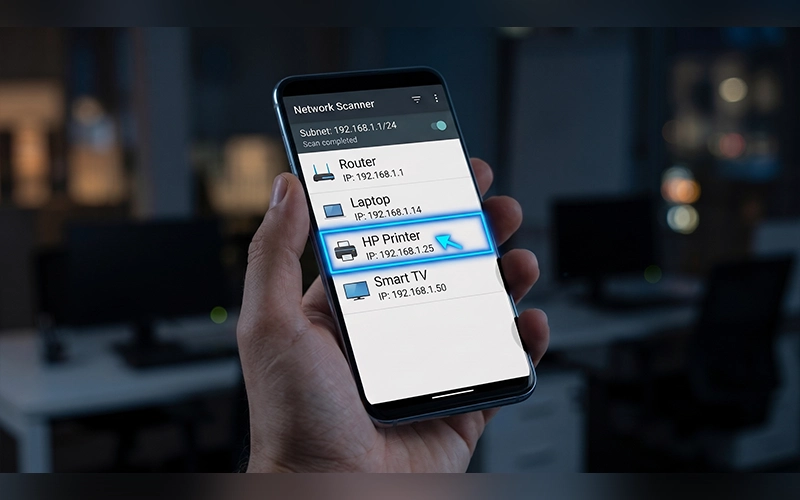
Don’t have access to a computer? You can use your phone instead, provided it’s connected to the same Wi-Fi network as the printer. Several apps already installed on your phone can help you locate the printer’s IP address.
If you print with HP Smart, open it, tap your printer’s image, go to Printer Settings or Advanced Settings, and choose Network Information. Epson users can open Epson iPrint, tap the printer banner at the top, and head into Advanced Settings, then Network Status. Canon PRINT offers similar details under Printer Information.
A network scanner app works with any brand, too. Install a free tool such as Fing, tap Scan, and look through the results for your printer’s brand name or a device tagged as a printer. The address sits right next to it.
Check Your Router’s Device List
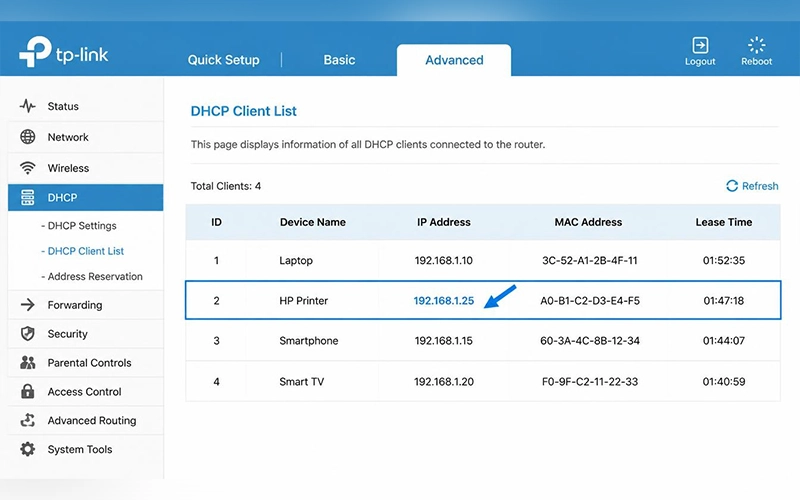
When the printer, computer, and apps all let you down, your router still has the answer. Type the router’s address, commonly 192.168.1.1 or 192.168.0.1, into any browser and sign in with the credentials on the router’s label. Open the Device List, Client List, or DHCP Client List and look for your printer’s brand or its MAC address.
Some routers also keep a list of offline devices, which is handy if the printer is switched off and you only need its last known address.
If the IP Address Doesn’t Show Up
A printer that isn’t connected to your network, or one that’s switched off, has no active address. Instead you’ll see 0.0.0.0 or a number starting with 169.254, which means the printer failed to get an address from your router.
Start by reconnecting the printer to Wi-Fi through its wireless setup menu. If that fails, restart the printer and the router, wait a couple of minutes, then check again. Once the connection is back, print a fresh network page to confirm the new address.
If the printer was connected to your Windows PC in the past, the PC may still remember its last address. Press Windows key + R, type regedit, and press Enter. Browse to HKEY_LOCAL_MACHINE\SYSTEM\CurrentControlSet\Control\Print\Monitors\Standard TCP/IP Port\Ports and open the keys listed there; the IPAddress value inside each one shows the number. Treat it as a last-known address, and don’t change anything in the registry.
Frequently Asked Questions
What is a printer IP address?
It’s a number such as 192.168.1.25 that identifies your printer on your network, so computers and phones know where to send print jobs.
Can I find a printer’s IP without printing a page?
Yes. A screen menu, your computer’s settings, a mobile app, or the router’s device list will all show it. Printing is only necessary on screenless models.
Does a printer use the same IP address as the router?
No. The router usually holds an address like 192.168.1.1, while the printer gets its own, such as 192.168.1.25. They typically share the first three number groups and differ at the end.
Why does my printer’s IP keep changing?
Most routers hand out addresses temporarily through DHCP, so a printer can receive a new one after a restart. To stop it, create a DHCP reservation in your router using the printer’s MAC address, or assign a static IP in the printer’s network settings.
How do I add a printer using its IP address?
On Windows, open Printers & scanners in Settings, click Add device, choose The printer that I want isn’t listed, then select Add a printer using an IP address or hostname and type the number. For additional guidance, see Microsoft’s instructions to add a printer or scanner in Windows.
Is it safe to share my printer’s IP address?
Addresses starting with 192.168 or 10. are private and work only inside your own network, so sharing one with a support agent is harmless. Your router’s public address is a different thing and worth keeping private.
Does a printer have separate IP addresses for Wi-Fi and Ethernet?
Usually, yes. Printers that offer both connections hold a separate address for each, so check the one you actually print through.
Is there a default IP address for printers?
No single one exists. Most printers receive their address from your router, so it differs from network to network. Checking the network configuration page or your router’s connected-device list is more reliable than making assumptions.
Before relying on the number, type it into the address bar of a browser tab. A correct address opens the printer’s settings page right away, and you can finish setup or clear a stubborn print queue from there. Jot the number down somewhere safe, and the next setup will go much faster.
For more articles like this, visit our site: https://factbreaker.com/