


Wondering how to add two accounts to WhatsApp Business without carrying a second phone? The short answer is yes: one phone can now hold two numbers, but the route depends on your device and on which app you use. Some methods are built into the app, some rely on clever workarounds, and a few popular tricks can get your number banned.
This guide covers every method that works on Android and iPhone, with exact steps, honest limits and fixes for the errors people hit most often. Skim the quick verdict first, then jump to the section that matches your phone.
Quick Verdict
Here is where things stand right now:
- Regular WhatsApp: two accounts on one device work on Android (since 2023) and on iPhone (rolled out in stages through an App Store update).
- WhatsApp Business on Android: the second-account feature is arriving in beta, so it may not be on your phone yet.
- WhatsApp Business on iPhone: there is no built-in switcher, so you pair it with the regular app.
Whichever route you choose, each account needs its own phone number, because WhatsApp ties one account to one number. Everything else in this guide is about picking the setup that fits your device. If you only want to know how to add two accounts in WhatsApp in general, for example a personal number plus a second personal number, the regular app’s built-in switcher is the simplest answer on both platforms. The rest of the guide covers business-specific needs.
Requirements Checklist
Most failed setups come down to a missing item rather than a wrong tap, so prepare these before you start:
- A second number that can receive a verification code. A dual-SIM phone works, and so does an eSIM. Most iPhones from the XS onward support one physical SIM plus one eSIM, and many mid-range Android phones do too.
- The newest version of the app from the Play Store or App Store, because the second-account option arrives through updates.
- A stable internet connection, plus signal on the SIM that will receive the code.
- A fresh chat backup of your current account, taken from Settings, then Chats, then Chat backup.
Keep the second SIM active and within reach for the first few days. WhatsApp can ask you to verify the number again after an update or a reinstall, and a switched-off SIM turns that small request into a lockout. If the number sits on a prepaid plan, top it up before you begin so it does not expire halfway through the month.
Steps for Android Business
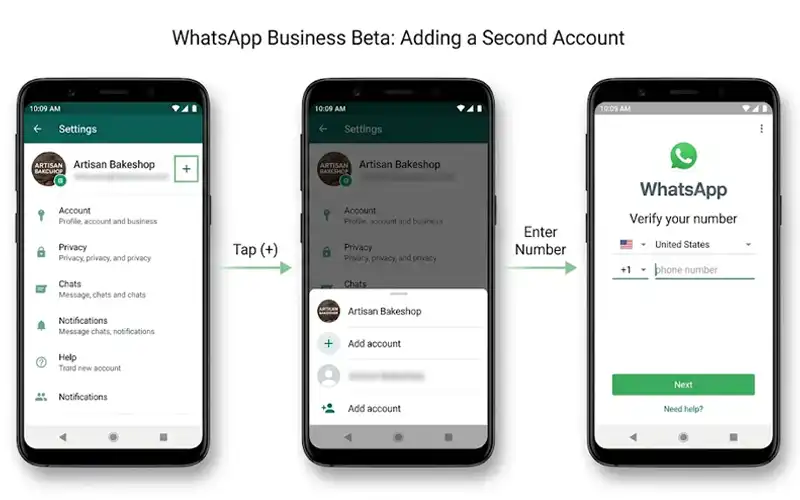
This is the route for how to add two accounts to WhatsApp Business on Android, and also for how to add another account on WhatsApp Business Android when you already run one business number. The feature is still in beta and reaches phones in stages, so you may need to update the app, or join the beta from its Play Store page, before the option appears.
- Update WhatsApp Business from the Play Store.
- Open the app and tap the plus icon, or the arrow, next to your account name.
- Choose the option to add a second WhatsApp Business account.
- Enter the second number and tap Next.
- Type the verification code you receive by SMS, or request a call if the text does not arrive.
- Build the business profile: name, category, address, opening hours and catalog.
- Return to the same menu whenever you want to switch between the two accounts.
Set up the second profile as carefully as the first, because customers judge a business by its profile before they read a single message. A clear logo, correct hours and a short description make the account look trustworthy from the first chat. If the plus icon is missing, your account has not received the feature yet. The Troubleshooting Guide below explains what to try, and the cloning trick works as a stopgap until the switcher arrives.
iPhone Setup Routes
The question of how to add two accounts to WhatsApp Business on an iPhone has two honest answers. One uses the regular app’s built-in switcher, and the other pairs WhatsApp with WhatsApp Business. If you are searching for two WhatsApp accounts on one iPhone in general, the first is enough. If you specifically need two WhatsApp Business accounts on one iPhone, the Business app has no switcher of its own as of this writing, so the pairing route is your practical answer.
Regular App Switching
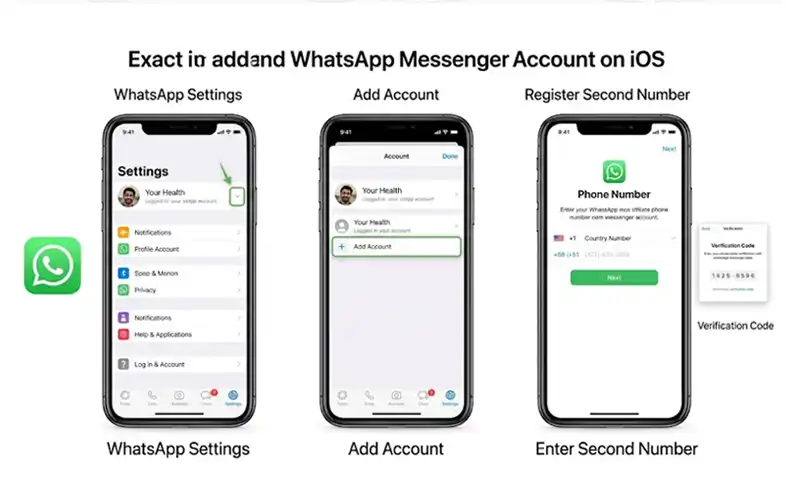
This is the cleanest way to run two WhatsApp accounts on one iPhone without WhatsApp Business. WhatsApp announced it in the spring and pushed it to most iPhones through an App Store update a few months later, so a current version is all you need.
- Update WhatsApp from the App Store.
- Open Settings inside the app.
- Tap the plus icon next to your name.
- Choose Add Account.
- Enter the second number and confirm the code.
- Add a name and photo, then switch profiles from the same place.
Each profile keeps its own chats, notifications and privacy settings, so nothing leaks from one world into the other. The trade-off is that this switcher lives in the regular app, which means the second account gets no catalog, labels or business hours.
Dual App Pairing
Here you install both apps: the regular WhatsApp holds your first number and WhatsApp Business holds the second. This is the only way to give the second number proper business tools on an iPhone, including a catalog, labels, quick replies and away messages. One warning first: never try to register the same number in both apps, because WhatsApp lets only one app hold a number at a time.
- Keep your first number in the regular WhatsApp.
- Install WhatsApp Business from the App Store.
- Open it, enter the second number and verify it.
- Fill in the business profile.
- In iPhone Settings, then Notifications, give each app a different alert sound.
The only cost is that switching means opening a different app, which is a second slower than a built-in switcher. In return, the business number lives in an app designed for it, with the full set of business settings.
Cloning Trick
When your phone does not show the second-account option, the built-in app cloner on many Android phones is the fallback for how to add another WhatsApp account in the same phone. It creates a second, independent copy of the app, so you end up with two installs rather than one app with two profiles. Samsung calls the feature Dual Messenger and Xiaomi calls it Dual Apps, while other brands use names like Twin Apps or Parallel Apps.
- Open your phone’s Settings and search for Dual Messenger or Dual Apps.
- Switch the toggle on for WhatsApp Business.
- Open the new copy, which usually carries a small badge, and register the second number.
- Move the copy into its own home-screen folder so you can tell the two apps apart.
A cloned copy behaves like a completely separate app, so it needs its own permissions: allow contacts access inside the copy, or names will show up as bare numbers. Storage, backups and notification settings are also handled twice. The option depends on your phone brand, and iPhones do not offer it at all.
Linked Devices Option
Linked devices solve a different problem: the same number on more than one screen. This is not a second account. It lets you or your staff answer one business number from a tablet, laptop or spare phone while the main phone keeps the account. Up to four devices can be linked at the same time.
- On the main phone, open Settings, then Linked devices.
- Tap Link a device and unlock with your fingerprint, face or PIN.
- On the other device, open WhatsApp Web or the desktop app and scan the QR code.
Everyone who is linked sees the same chats, so this suits very small teams. The main phone must connect to the internet at least once every couple of weeks, or the linked screens are logged out. Larger teams usually outgrow this setup and move to a shared inbox tool.
Limits to Remember
Two accounts is the ceiling inside any single app, and there is no way to add a third. Only one account is active at a time, so you switch accounts to read the other inbox instead of seeing both merged into one list.
The Business feature on Android is still a gradual rollout, so what you see can differ from a friend’s phone even on the same version. Chats also cannot be moved between the two accounts, so decide which number belongs to which role before customers start messaging. Plan for the long run too: a number you hand to customers today is hard to change tomorrow, so choose the one you are willing to keep.
Method Comparison
If you are still deciding how to add two accounts to WhatsApp Business, this table shows which method fits which situation.
| Method | Platform | Best for |
| Business app switcher (beta) | Android | Two business numbers in one app |
| Regular app switcher | Android and iPhone | Two ordinary numbers, or personal plus work |
| WhatsApp plus WhatsApp Business | Android and iPhone | A personal number plus a business number with tools |
| App cloning | Android (brand dependent) | When the switcher has not reached your phone |
| Linked devices | Android and iPhone | One number answered by several people |
A simple rule of thumb: take the switcher your app offers first, use pairing for business tools on an iPhone, and keep cloning for the moments when nothing else is available.
Troubleshooting Guide
These four problems cover almost every support question about running two accounts.
Missing Option
If you cannot find Add Account or the plus icon, the feature has not reached your account yet. Restart the phone, force-close the app and reopen it, then check the store page for a pending update. For the Business app on Android, joining the beta from its Play Store listing can speed things up. Otherwise wait a few days, because rollouts are staged and arrive at different times for different people.
Silent Codes
When the six-digit code does not arrive, confirm the SIM has signal and the right country code is entered, then choose the call option instead of waiting for the SMS. Avoid requesting codes again and again, because WhatsApp locks you out for a while after too many attempts, and the wait grows longer each time.
Muted Alerts
Notifications are controlled both inside each account and by the phone itself. Open Notifications within each account, then check the phone’s own app and battery settings so the system does not put the second account to sleep. A different tone for each account also tells you at once which one is calling for your attention.
Ban Fears
A second number is not a ban risk by itself. Restrictions come from behavior: bulk messages to people who never opted in, frequent blocks and reports, or near-identical texts sent to many strangers from a brand-new number. Start slowly, grow your contact list through real conversations, and message only people who expect to hear from you.
Real-Life Setups
Two accounts only help when each has a clear job, and these two setups show how that looks in practice.
Shop Owners
Use one number purely for selling and the other for support. On the sales number, add a greeting message, an away message and quick replies for price and delivery questions. On the support number, use labels such as New order, Paid and Shipped, so a customer’s status is visible at a glance and nobody has to scroll to find it.
Freelancers
Keep a personal number for family and friends, and give your work its own number in the Business app. Set business hours on the work number so late-night messages get an automatic reply, which protects your evenings without losing the lead. Add a short services list to the profile, so new contacts understand what you offer before they type a word.
Safety Rules
Install apps only from the Play Store or App Store. Search results are full of apps like GB WhatsApp or “dual WhatsApp” tools that promise extra accounts. These modified clients break WhatsApp’s terms, can expose your messages to third parties and can get your number banned. If an app asks you to log in with your WhatsApp credentials somewhere other than WhatsApp itself, close it.
Turn on two-step verification for both accounts, under Settings, then Account, then Two-step verification, and use a different PIN for each. Never share a six-digit code with anyone, even someone who claims to be WhatsApp support, because that is how accounts get stolen.
Frequently Asked Questions
Can One Number Run Two Accounts?
No. A number holds one WhatsApp account at a time. If you want the same account on more screens, use linked devices instead of trying to create a duplicate.
Is a Third Account Possible?
Not inside a single app. Cloned copies can stretch beyond two, but each copy is a separate install to manage, which raises the chance of mix-ups. For three or more numbers, the official WhatsApp Business Platform with a shared inbox is the scalable route, though it needs an approved provider and costs money.
Do I Need a Second Phone?
No. You need a second number, not a second device. A dual-SIM or eSIM setup on your current phone is enough.
Will Chats Get Mixed?
No. Chats, media and settings stay separate for each account. The real risk is human, such as replying from the wrong account, so use a different profile photo and name for each.
Are Mod Apps Safe?
No. They can cost you the number and expose your data, so stay with the official routes described above.
What Happens Without Updates?
Old builds cannot see newer features, so Add Account stays hidden, and WhatsApp eventually stops supporting very old versions altogether. Turn on automatic updates and the problem goes away.
Final Thoughts
Now you know how to add two accounts to WhatsApp Business and which route fits your phone. Use the Business app switcher on Android if the beta has reached you, the regular app’s switcher or the two-app pairing on iPhone, and cloning when a feature is missing. Give each number a clear role, keep both SIMs active, and your single phone will do the work of two.