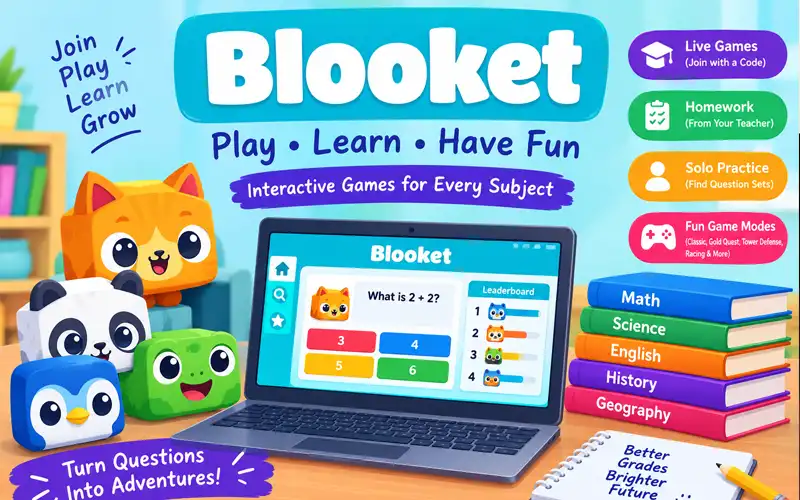

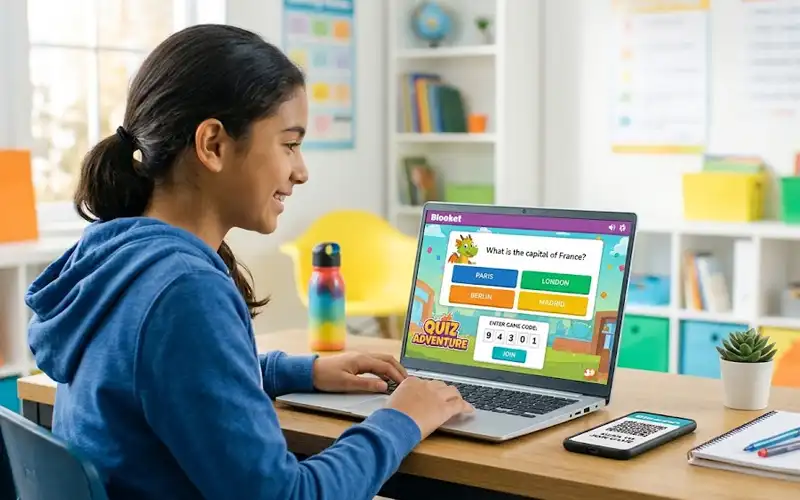
Blooket makes learning more interactive by turning questions into games. Teachers can use it for classroom activities, revision, and friendly competitions, while students answer questions and take part in different game modes. To join a live activity, students usually need a Game ID, a QR code, or a joining link shared by the host.
If you want to Play Blooket Games, knowing how to access the right session is the first step. A game code connects you to a particular live activity, so finding a random code online does not guarantee that you can join. This guide explains how to get a working code, enter a game, understand different play options, and solve common joining problems.
How Blooket Game Codes Work
A Blooket Game Code, also called a Game ID, helps players enter a live session hosted by a teacher or another host. When the host prepares a game, Blooket provides the information needed for invited players to join.
Think of the code as a temporary entry key. It connects players to the session for which it was created rather than giving access to every game on the platform.
Each new live session can have a different Game ID, even when the host uses the same question set. If the previous session has ended, its code may no longer work. Players then need the current joining details from the host.
Game codes make classroom activities easier to organize because students can join the same session without searching for the question set themselves. Once connected, they follow the selected game’s instructions and answer questions as the activity progresses.
Where to Find a Valid Blooket Game Code
The most reliable place to get a live Game ID is from the person hosting the activity. Teachers usually share joining information when they are ready for students to participate.
You might receive the code through:
- A classroom screen: The teacher displays the Game ID on a projector or board.
- An online classroom: The host shares the code in a virtual lesson or meeting chat.
- A learning platform: Your teacher posts the joining details alongside class instructions.
- A direct message: The host sends the code or joining link to the intended players.
You can visit the official Blooket website to explore the platform, but opening the homepage does not automatically connect you to a private live session.
Be cautious when websites advertise lists of supposedly active codes. Live Game IDs are tied to individual sessions, so a code found on an unrelated page may be outdated or unusable. A code shared directly by your host is a much better starting point.
If you do not have a code, ask your teacher whether the activity is live, assigned as homework, or available for independent practice. The correct access method depends on the type of activity you want to play.
How to Join a Blooket Game Step by Step
Joining a live game is straightforward once you have the correct information. You can usually participate through a compatible web browser without installing a separate application or creating an account.
Follow these steps:
- Open the official Blooket joining page.
- Enter the Game ID provided by your teacher or host.
- Submit the code and follow the on-screen instructions.
- Enter a nickname or use an automatically generated name if that option is available.
- Choose a Blook if the game asks you to select one.
- Wait in the lobby until the activity begins, if necessary.
Make sure the code matches the one displayed by the host. If the page rejects it, avoid guessing different numbers. Ask the teacher to confirm the current Game ID instead.
You do not normally need a Blooket account simply to join a live game. However, signing in may be useful if you want to use account features and keep track of your progress.
What to Expect During a Live Game
After joining successfully, you may enter a lobby where players wait for the host to begin the activity. Your nickname helps identify you during the session, and the host may be able to see the players who have joined.
Once the game starts, questions and instructions appear according to the selected mode. Players answer questions, and their answers influence what happens next in the game.
The experience can vary considerably between modes. Some activities focus on competition and scoring, while others involve collecting items, building, racing, or completing different challenges. The purpose of the question set remains educational, but the way players interact with it depends on the mode.
For the best experience, read the instructions shown on your screen and follow the teacher’s directions. If you have joined but the game has not started, check whether the host is still preparing the session before assuming something is wrong.
Three Ways to Access a Blooket Game
Typing a Game ID is common, but it is not the only way to enter a live session. Teachers can also provide a QR code or a direct joining link.
Entering the Game ID
This option is useful when the teacher displays a code on a classroom screen or shares it in a message. Open the official joining page, enter the supplied ID, and follow the instructions.
It is important to copy the code accurately. Even a small typing mistake can prevent you from reaching the correct session.
Scanning a QR Code
A QR code lets you open the joining page using a compatible phone or tablet camera. When your teacher displays one, scan it and follow the link that appears.
If scanning fails, check the camera focus and make sure the QR image is clear enough to read. You can also ask the host to share another joining method.
Opening a Direct Join Link
A direct link takes you to the joining process without requiring you to type the Game ID manually. Teachers may share these links through a classroom platform, message, or virtual lesson.
All three options can help you access the same live activity. However, none of them guarantees entry if the session has ended or the host’s settings prevent you from joining.
Why a Blooket Game Code May Not Work
When a Game ID fails, the cause is not always an incorrect number. Checking the situation around the code can help you identify the problem more quickly.
The Session Is No Longer Active
A Game ID is associated with a particular live session. If the host ends that session, the code may stop working. An old code cannot be relied on for a new game, even if the question set is unchanged.
The Code Was Entered Incorrectly
Missing digits or mistyped numbers can lead to a failed join attempt. Compare the code with the host’s current display and ask for clarification if any digit is difficult to read.
Joining Is Restricted
Some game settings affect whether students can enter after an activity begins. If late joining is disabled, a student may be unable to enter even with the correct code.
The host may also need to check the session status or player limit if someone cannot enter the lobby.
The Browser Cannot Complete the Connection
Sometimes the joining page opens, but the game does not load properly. This may happen because of an unstable internet connection, an outdated browser, or an extension that interferes with the website.
A School Network Blocks Part of the Service
School networks sometimes restrict certain website features. Blooket’s official troubleshooting guidance notes that browser extensions and restrictions involving firebaseio.com can interfere with joining or hosting games.
If the problem occurs only on the school network, ask the school’s IT staff to investigate. Avoid changing network security settings yourself.
Practical Fixes for Blooket Joining Problems
Try these checks in order rather than changing several settings at once.
1. Confirm the current Game ID. Ask the host to verify that the game is still available and that you have the correct joining details.
2. Open the correct page. Use play.blooket.com/play to enter a live Game ID instead of repeatedly searching the main website.
3. Refresh the page. Reload the joining page and try again if it appears stuck. If the session has ended, refreshing will not restore it, so you will need updated details.
4. Test your connection. Open another website to see whether the internet is working. If other sites also struggle to load, reconnect to your network before trying Blooket again.
5. Update or change your browser. A current browser can help avoid compatibility problems. If the issue continues, try another supported browser.
6. Check browser extensions. Content blockers and privacy extensions can sometimes interfere with website functions. If you suspect one is responsible, test the page with the extension temporarily disabled, where permitted.
7. Ask about school network restrictions. If the game works on another permitted network but fails at school, contact the network administrator. Blooket’s official troubleshooting article explains some connection issues that can affect joining or hosting.
These checks cover the most useful first steps. If the problem remains, tell the host the exact error message rather than simply saying that the code does not work.
Live Blooket Games and Homework Activities
Blooket offers different ways to practice questions, and understanding the difference can prevent confusion when a teacher shares joining instructions.
Live Classroom Games
A live game takes place in a hosted session. Students join using the Game ID, QR code, or direct link provided by the host. The host controls the activity, including relevant game settings and when the session begins.
This format works well for classroom revision, group participation, and friendly competition.
Homework Assignments
A homework activity is assigned for students to complete according to the teacher’s instructions. Instead of entering a live Game ID, students generally open the homework link or scan the homework QR code.
The assignment may have a deadline, and the teacher may review students’ progress or results. Students can complete the activity according to its settings rather than waiting for a live classroom session to begin.
Independent Practice
Students may also be able to play compatible question sets in Solo mode. This is different from joining a teacher-hosted live session because it does not require the same live Game ID.
If you want to practice on your own, explore the available question sets and check which play options are offered. Account features and available modes may vary according to the activity.
The key difference is the access method: use the Game ID for a live session, the supplied link or QR code for an assignment, and the available Solo option for independent practice.
Playing Blooket on Different Devices
You can access Blooket through a compatible browser on a computer, tablet, or smartphone. You do not necessarily need the same device your teacher uses, provided your device can open the joining page and connect to the game.
Using a Phone or Tablet
Open the joining link in your mobile browser or scan the teacher’s QR code if one is available. If you enter the Game ID manually, check the digits before submitting them.
A smaller screen may make some questions harder to read, so keep your device orientation and screen brightness comfortable for the activity.
Using a Laptop or Desktop
A computer provides a larger display that may make questions and game instructions easier to follow. Open the joining page, enter the supplied ID, and keep the browser available while participating.
If the page stops responding, check the connection before restarting the joining process.
Simple Tips for Smoother Play
- Use an updated browser.
- Connect to a reliable network.
- Close unnecessary tabs if your device is running slowly.
- Follow the host’s instructions about nicknames and participation.
- Avoid installing unofficial software that claims to unlock special joining features.
These basic steps can help reduce common technical problems without requiring complicated changes to your device.
How to Stay Safe When Looking for Blooket Game Codes
Not every website advertising Blooket codes is trustworthy. Some pages may contain expired codes, misleading claims, suspicious downloads, or requests for information that is not needed to join a game.
Use the code or link shared by your teacher and enter it through the official Blooket joining page. You should not need to give an unrelated website your account password to access a classroom session.
Be cautious of websites that promise unlimited tokens, automatic answers, guaranteed access to private games, or tools that generate working codes on demand. These claims do not guarantee legitimate access and may put your account or device at risk.
It is also sensible to choose an appropriate nickname and follow your teacher’s classroom rules. The host may see the names of players in the session and may control participation.
You can enjoy educational games without unofficial shortcuts. Getting access through a trusted host is the simplest way to avoid misleading code websites.
Frequently Asked Questions About Blooket Game Codes
Can two students use the same Blooket Game Code?
Yes. Multiple students can use the same Game ID to join the same active session, subject to the host’s settings and player limit. Each player follows the joining instructions individually.
Do I need an account to play a live Blooket game?
No. Blooket allows students to join live games without creating an account. Signing in can provide access to additional account features, but it is not generally required just to enter a hosted session.
Can I join a game after it has started?
That depends on the host’s settings. If late joining is allowed, you may be able to enter an active game. If it is disabled, ask the host whether another joining opportunity is available.
What should I do if I cannot find a game code?
Ask the teacher or host to share the current Game ID, QR code, or direct joining link. A private live session’s code is not something you can reliably obtain by searching random websites.
Can I play Blooket without joining a live game?
Yes. Some question sets offer Solo play, allowing you to practice independently. The available options depend on the question set and game mode.
Why does my Blooket game keep loading?
The problem may involve your connection, browser, browser extensions, or school network restrictions. Refresh the page, test your connection, and check whether the host’s session is still active. If the issue continues, consult the official troubleshooting guidance or ask your school’s IT staff for help.
Is a Blooket homework link the same as a Game ID?
No. A Game ID is used to join a live session, while a homework link or QR code provides access to an assigned activity. Use the method specified by your teacher.
Conclusion
Blooket Game Codes provide a simple way to enter live educational activities, but the correct code must match an available session. Getting joining details from the host, using the official joining page, and checking common connection problems can make the process much easier.
If you want to Play Blooket Games, choose the correct access method for your activity and follow the on-screen instructions. When something goes wrong, confirm the Game ID first, then check your browser and connection before asking the host for further help.