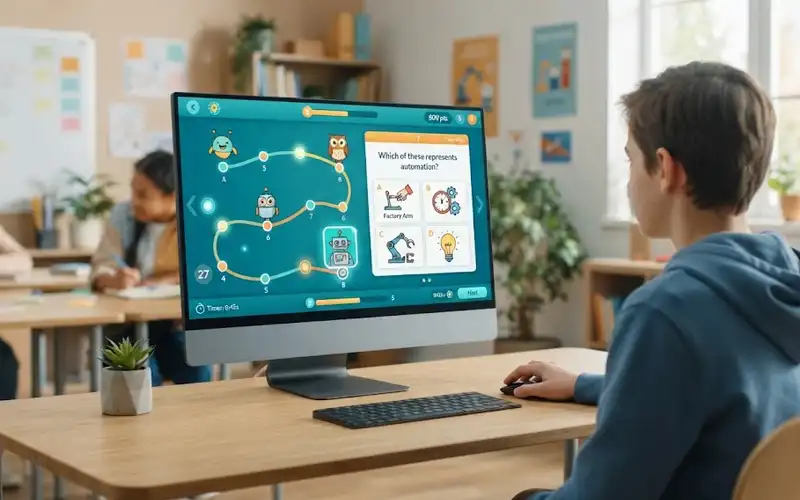

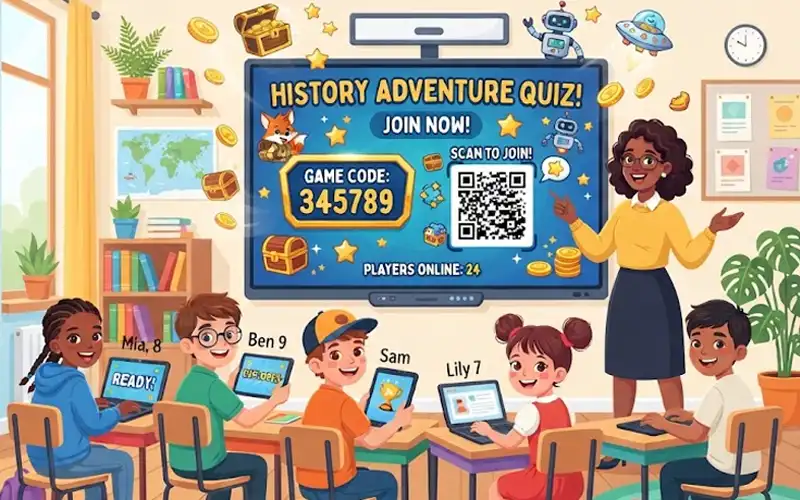
It is the last ten minutes of class. Your students are tired, and you still want them to remember today’s lesson. This is the perfect moment to host a Blooket game. In one short session, a plain set of questions turns into a lively game that students actually want to play.
This guide shows you how to host a Blooket game from start to finish. You will learn how to get ready, launch the game, choose the right play style, handle problems, and use the results to plan your next lesson.
Why Teachers Love Live Blooket Games
Blooket turns normal quiz questions into games. Students answer questions to earn points, coins, or progress, so they stay focused without feeling like they are taking a test.
Here is why many teachers use it again and again:
- Students stay interested. The game style keeps even quiet students involved.
- It starts free. You can begin with a free teacher account.
- It fits any subject. Math, science, history, English, and more all work well.
- It saves time. You can use a ready-made set or build your own in a few minutes.
Get Everything Ready in Five Minutes
A good game starts before you press any button. Spend a few minutes on these three things.
Create Your Free Teacher Account
Go to Blooket and open the sign up page. If you already have an account, you can log in through the Blooket login page. Use your school email if you can, so your account is easy to find later.
Choose or Build Your Questions
You have two easy options. You can search for a ready-made set made by other teachers, or you can create your own set. Ready-made sets are great for your first game. Your own set is better when you want to match the exact lesson you taught today.
Check Your Set on a Big Screen
Open your set on the same computer and screen you will use in class. Read a few questions and answers. Fixing one wrong answer now is much easier than fixing it while 30 students are playing.
Your Pre-Game Checklist
Run through this list before you press Host:
- Your set has no spelling mistakes or wrong answers.
- Your screen or projector is working.
- The internet is stable.
- You know how much time you have.
- You have picked a play style that fits your class.
- Students know they need their own device.
- You have a plan for students without a device, such as sharing in pairs.
Host a Blooket Game and Launch It Now
Now comes the fun part. Follow these five steps.
Press the Host Button on Your Set
Open the question set you want to use. You will see a Host button. Click it to start setting up a live game.
Pick How the Game Will Be Played
Blooket will show you a list of game modes. Each mode plays differently. Do not worry if you are not sure which one to pick. The next section helps you choose.
Turn On the Options You Want
Before the game opens, you can change a few settings, such as question order, time per question, and late joining. We explain the best choices later in this guide.
Show the Join Code to Your Class
Blooket gives you a Game ID, a link, and a QR code. All of them lead to the same game. Students can enter the Game ID on the Blooket play page, scan the QR code with a phone, or click the link you share.
Here is a simple script you can say out loud:
“Open your device and go to the Blooket play page. Type the code on the screen. Use your first name only. When you see your name on the board, put your hands down and wait.”
This short script saves a lot of confusion and keeps the room calm.
Hit Start When the Room Is Full
Watch the lobby fill up. When most of your students have joined, press Start. If you leave late joining on, students who arrive a little later can still get in.
Match the Play Style to Your Class Mood
The same set of questions can feel very different depending on the mode you pick. Use this table as a quick guide.
| Class mood | Good play style | Why it works |
| Sleepy and slow | Gold Quest | Surprise chests and steals wake everyone up |
| Noisy and excited | Racing | Simple rules and a clear finish line keep energy under control |
| Shy or nervous | Café | The slower pace feels less stressful |
| Young learners | Racing or Classic | Easy to understand in seconds |
| Strategy fans | Tower Defense | Students plan and build as they answer |
Which Mode Fits Your Time?
Time matters as much as mood. Here is a simple way to choose:
- 5 to 8 minutes: Pick a quick mode like Classic or Racing.
- 10 to 15 minutes: Gold Quest works well for a fun review.
- 20 minutes or more: Try Tower Defense or Café, which reward longer play.
A Ready-Made 15 Minute Lesson Plan
If you are not sure how to fit a game into your lesson, try this:
- Minutes 1 and 2: Open the set, show the join code, and read your rules.
- Minutes 3 to 12: Play the game.
- Minutes 13 to 15: Look at the results and talk about the hardest questions.
Set the Right Pace for Your Lesson
Good settings make a game feel smooth. Bad settings make it feel boring or stressful.
How Many Questions Fit Your Time
A short set of 10 to 15 questions is perfect for a quick review. If you use too many questions, students rush or lose interest. If you use too few, the game ends before the lesson sinks in.
How Long Each Question Should Stay on Screen
Simple fact questions need less time. Questions that need thinking or a few steps need more. If most of the room finishes early and waits, shorten the time. If students look stressed, give them a little more.
Should the Questions Come in Random Order?
Yes, in most cases. Random order makes it harder for students to copy answers from a neighbor, because everyone sees the questions at different times.
Stay in Charge While Students Play
Once the game starts, you do not have to sit still. A few simple habits keep the session healthy.
Watch the List of Players
Glance at the player list every few minutes. You will notice if someone left, froze, or never joined properly. Do not only watch the top of the leaderboard. The students at the bottom are the ones who need your attention most.
Handle Late Arrivals
If a student walks in late, show them the code and let them join. You do not need to stop the game for them.
Stop the Game When Time Runs Out
You can end a game early if the bell is about to ring. Ending it closes the session for all players and takes you to the results.
Read the Scoreboard After the Last Question
Many teachers stop when the game ends. The best teachers keep going, because the results show what students really understand. You can find your past games and reports on the Blooket dashboard.
Spot the Questions Students Got Wrong
Look for questions that many students missed. These show you what you may need to teach again.
Notice Who Needs Extra Help
If one student misses many questions, they may need a short chat or a bit of extra practice. A quick word after class often helps more than a long lecture.
Plan Your Next Lesson From the Results
Use the data to decide what to review tomorrow. This turns a fun game into real teaching work.
When Something Goes Wrong
Small problems happen in every classroom. Here are quick fixes.
- A student cannot get in. Check that they typed the Game ID correctly, as digits are easy to misread. Make sure they are on the right play page and have working internet.
- The screen freezes or the internet drops. Check your own connection first. If the problem stays, ask your school’s IT team whether Blooket is allowed on the school network.
- A student uses a silly name. Set a naming rule before the game, such as “first name only.” Next time, you can also use random names.
- Too many students for one game. Free accounts have a player limit. If your class is bigger, split it into two groups or look at a paid plan.
A Common Mistake and an Easy Fix
Many new teachers press Start the moment the first few students join. Then half the class is stuck outside, waiting. The fix is simple. Wait until most students are in the lobby, and leave late joining on for anyone who is a little slow.
Do You Need to Pay to Host?
No. You can host a Blooket game with a free account, and the free plan is enough for most classrooms. A paid plan can make sense for teachers with very large groups, longer homework windows, or a need for deeper reports on each student. Start free, and upgrade only if you really hit a limit.
Small Habits of Teachers Who Host Often
- Play your set yourself once before class.
- Keep rounds short and fun.
- Change the play style every week so students do not get bored.
- Say your rules out loud before the game starts.
- Always check the results after the game.
- Save your best sets and reuse them next term.
Quick Answers to Popular Questions
Is it free to host a Blooket game?
Yes. You can host live games with a free account. Paid plans add extra features.
Can I host from my phone?
You can try it in a mobile browser, but a laptop or computer is easier because you can see the lobby, settings, and controls more clearly.
How many students can play together?
It depends on your plan. Free accounts have a smaller limit than paid ones, so check your plan before a very large session.
Can I end a game before it finishes?
Yes. Use the end button on the host screen. The game closes for everyone and you can see the results.
Can students create their own games?
Yes. Anyone with an account can make a game, though some features depend on the plan and the mode.
Does the join code work after the game ends?
No. Once you end the game, the code stops working, so it cannot be used by anyone outside your class later.
Ready to Host Your First Game?
Now you know how to host a Blooket game with confidence. Get your set ready, pick a play style that matches your class, and keep an eye on the results afterward. Try it in your next lesson. Your students may ask to play again before the bell even rings.