
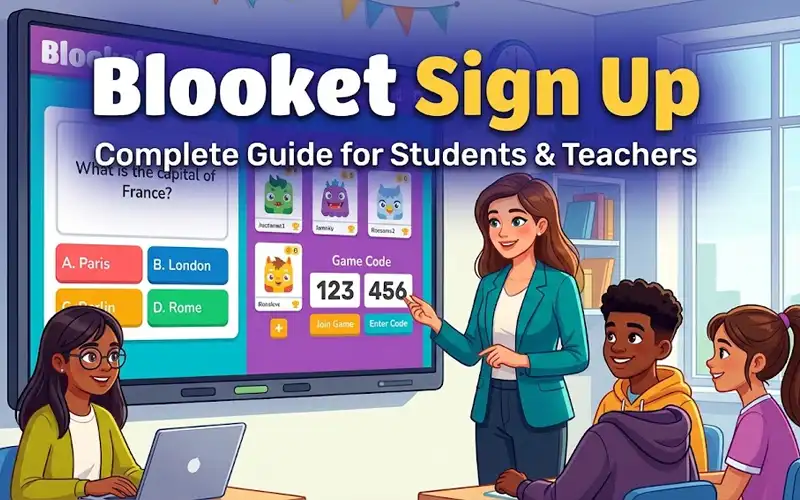
Blooket sign up helps students and teachers create an account to access educational games, track progress, and make learning more interactive. Students can collect Blooks, earn tokens, and participate in classroom games, while teachers can create question sets, host games, and review student performance. Setting up an account is simple when you know which page to open and which steps to follow.
This guide explains how to sign up for Blooket, choose a suitable login method, set up a student or teacher profile, and start using the platform. It also covers account requirements, common sign-up problems, and ways to keep your account secure.
What Is Blooket Sign Up?
Blooket sign up is the process of creating a personal account on Blooket. The platform combines educational questions with game-based activities, allowing teachers to make classroom learning more engaging and giving students a fun way to practise different subjects.
You can start by visiting the official Blooket website. If you already have an account, use the Blooket login page instead of creating another profile.
Having an account can help you access features associated with your profile, including saved progress, collected Blooks, and question sets. The features available to you depend on your account type and the platform’s current rules.
Blooket Sign Up Links for Students and Teachers
Blooket has different pages for account access, game participation, and classroom management. Knowing which address to use can save time when you are trying to join a lesson or prepare a game.
| Blooket page | What it is used for |
| www.blooket.com | Visit the official website to explore Blooket and access account options. |
| id.blooket.com | Open the account sign-in page when logging in or accessing account-related options. |
| dashboard.blooket.com | Access the dashboard for available account, question-set, and hosting tools. |
| play.blooket.com | Join a live game using the code or joining options provided by the host. |
Students generally use the game page when a teacher shares a live game code. Teachers can use their account and dashboard to prepare activities and manage available hosting features.
Always check that the address belongs to the official Blooket website before entering your login details.
What Can You Do With a Blooket Account?
Creating an account gives you access to features that may not be available in the same way during guest play. The exact experience depends on whether you are a student, teacher, or guest user.
| Feature | Guest player | Student account | Teacher account |
| Join available live games | Yes | Yes | Yes, where supported |
| Maintain a personal profile | Limited | Yes | Yes |
| Collect and manage Blooks | Limited | Yes, subject to account features | Yes, subject to account features |
| Create question sets | Not generally available | Available features may vary | Yes |
| Host classroom games | No personal hosting setup | Depends on available permissions | Yes |
| Review game-related results | Limited | Available results may vary | Access to available class reports and results |
An account is especially useful if you plan to return to Blooket regularly. Students can use their profiles for continued play, while teachers can organise activities and make use of classroom tools.
What You Need Before Signing Up
Before opening the registration page, prepare a few basic things to make the process easier.
- A valid sign-in method: You may be able to register using an email address or an available Google or Microsoft sign-in option.
- A stable internet connection: A reliable connection helps prevent registration forms from freezing or failing to load.
- A suitable username: Choose something easy to remember that does not reveal private information.
- Age-related information: Complete the required age or birth-date step accurately and follow any applicable consent requirements.
- A parent or school arrangement, if needed: Younger users may need parental consent or access through a school-managed setup.
You do not normally need to install a separate application to use the website. A supported browser on a computer, Chromebook, tablet, or phone is generally sufficient.
How to Sign Up for Blooket as a Student
Students can follow these steps to create an account and prepare for their first game.
Step 1: Open the Official Blooket Website
Visit www.blooket.com in your browser. Find the account registration option on the website.
If you already have a Blooket profile, open the login page instead. Creating another account unnecessarily can separate your progress between profiles.
Step 2: Choose an Available Registration Method
Select the sign-up option and review the methods currently offered. Depending on the available options, you may be able to register with an email address or continue using Google or Microsoft.
If you choose email, enter an address you can access. Check every character before continuing because a typing mistake can prevent you from receiving important account messages.
If you use a Google or Microsoft option, select the correct account and follow the on-screen instructions.
Step 3: Complete the Required Information
Follow the registration prompts and provide the information requested by Blooket. If the form asks for your age or birth date, enter it accurately.
Some account requirements may differ according to age, location, or school arrangements. Do not enter a false birth date to bypass a restriction.
Step 4: Choose Your Username
Select a username that is easy to recognise during classroom games. Avoid using your full name, home address, phone number, school identification details, or birth year.
For example, names such as PixelFalcon or BrightComet can be easier to share safely than usernames containing personal details.
Step 5: Finish Registration and Sign In
Complete any verification step shown on the screen. If Blooket sends a confirmation email, open it and follow the instructions.
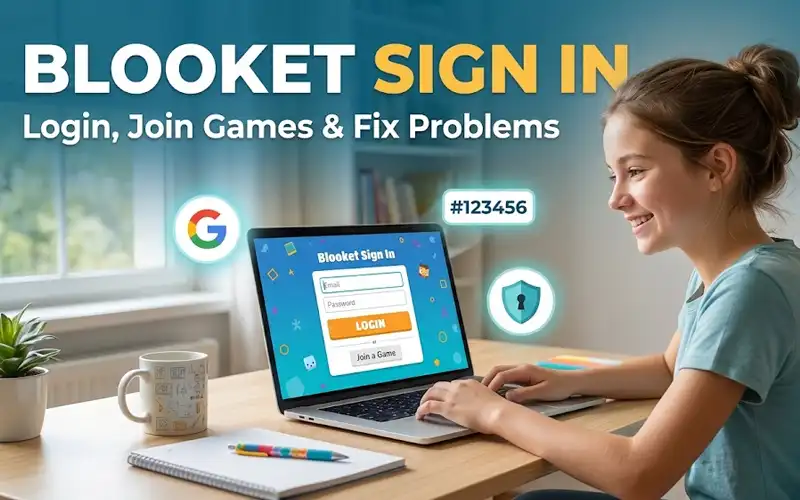
Once registration is complete, visit id.blooket.com if you need to sign in. Your available account features should appear after successful login.
How Teachers Can Sign Up for Blooket
Teachers can create a Blooket account to prepare educational activities, organise question sets, and host games for their classes. The registration process is similar to student registration, but the main purpose of the account is different.
Step 1: Open Blooket
Go to the official Blooket website and locate the sign-up option. Make sure you are using the genuine website before entering your details.
Step 2: Register With an Available Sign-In Method
Choose an available registration method, such as email or a supported third-party sign-in option. Teachers who use a school Google or Microsoft account should check whether their school’s account policies allow access to Blooket.
If the school manages teacher accounts centrally, follow the school’s instructions before creating a separate personal profile.
Step 3: Complete the Account Setup
Enter the required details and finish any verification steps. Choose a professional username that is easy to recognise when hosting games or sharing activities with students.
Avoid including confidential school information or unnecessary personal details in your public-facing username.
Step 4: Open the Teacher Dashboard
After signing in, visit the Blooket dashboard to explore the tools available to your account.
Depending on the current interface and account permissions, teachers may be able to create question sets, discover existing activities, organise educational content, and prepare live games.
Step 5: Prepare Your First Classroom Game
Choose a question set that matches the subject and learning level of your students. You can explore available sets or create your own questions where those tools are available.
Before starting the lesson, review the questions and answers to ensure they are correct. Consider the time available, the difficulty level, and whether the activity supports the learning objective.
Step 6: Host the Game and Share the Code
Select a suitable hosting option and follow the instructions shown by Blooket. When the game generates a joining code, share it with your students.
Students can visit play.blooket.com and follow the on-screen instructions to enter the code. Check that everyone has joined before starting the activity.
Teachers should explain the rules before the game begins and use the available results to identify topics that may need further explanation.
How to Join Your First Blooket Game
After creating your account, you can practise joining a live game.
- Sign in to your Blooket account if you want your activity associated with your profile.
- Ask your teacher or game host for the current joining code.
- Open play.blooket.com.
- Enter the code and follow the instructions on the screen.
- Choose an appropriate display name if prompted.
- Wait for the host to begin the game.
- Read each question carefully and select your answer.
A joining code is associated with a particular game session, so an old code may no longer work. If you cannot enter the game, ask the host to confirm that the session is still available and that you have the correct code.
Choosing a Username and Your First Blook
Your username helps identify you during games, while your Blook represents your character within the platform.
Choose a username that is appropriate for a classroom environment. If you are a student, avoid sharing personal details that other players do not need to know.
Blooks can make the experience more enjoyable because they provide characters to collect and use. Your initial options may be limited, but you can explore the collection features available to your account as you continue playing.
Teachers should also remind students to use respectful display names. A simple rule about appropriate usernames can prevent distractions during classroom activities.
How Students Earn Tokens and Collect Blooks
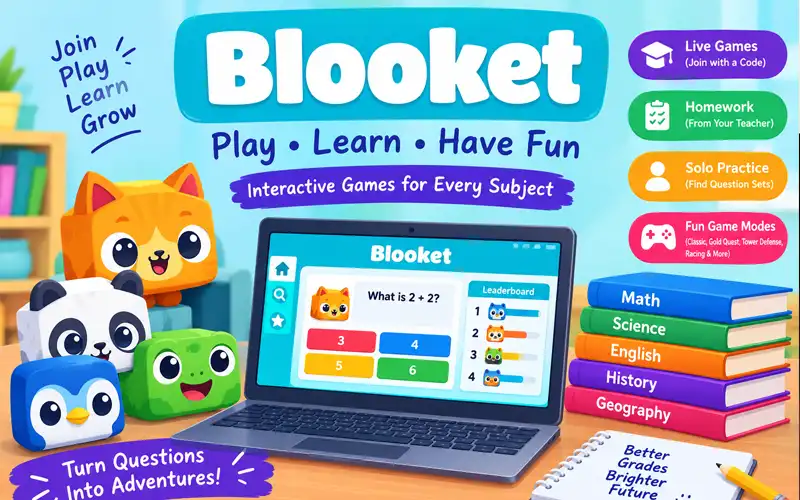
Tokens are used within Blooket’s collection system, allowing players to access certain packs and try to collect different Blooks. Available rewards and limits may depend on the current game, account features, and platform rules.
To get started, sign in before playing, participate in an available game, and review the rewards shown when the session ends. If tokens are awarded, check your profile or the relevant account area to see your updated balance.
When you have enough tokens for a pack, review the available options before spending them. Pack contents and the chances of receiving particular Blooks can differ, so do not assume that opening a pack guarantees a rare character.
Teachers can use this collecting system as an additional source of motivation, but classroom activities should remain focused on learning rather than rewards alone.
A Simple First-Week Plan for Students and Teachers
A short, organised introduction can help new users become familiar with the platform without trying every feature immediately.
| Day | Students | Teachers |
| Day 1 | Create an account and explore the profile | Create an account and explore the dashboard |
| Day 2 | Join a practice game | Find or prepare a suitable question set |
| Day 3 | Try another game mode | Review available hosting options |
| Day 4 | Check your progress and available rewards | Host a short classroom activity |
| Day 5 | Practise questions in a difficult subject | Review results and identify learning gaps |
| Day 6 | Explore additional activities with permission | Prepare another activity based on class needs |
| Day 7 | Review what you learned and enjoyed | Reflect on the activity and plan the next lesson |
This schedule is flexible. Students can follow the steps at their own pace, while teachers can adapt the activities to their subject, class size, and lesson objectives.
Free Blooket Accounts and Blooket Plus
Many users can begin with Blooket’s free account option. Students can participate in available games, while teachers can explore the free tools offered for creating and hosting educational activities.
Blooket Plus is a paid option that may offer additional features or higher limits for eligible activities. Whether an upgrade is worthwhile depends on how often you use the platform and which features you need.
Teachers who regularly host large classes or need additional classroom tools should compare the current plans before paying. Students and families who only want to participate in ordinary classroom games may find that the free option meets their needs.
For current pricing, feature limits, and plan details, visit the official Blooket website and review the available subscription information. Features and prices can change, so check the current terms rather than relying on an older comparison.
Common Blooket Sign-Up Problems and How to Fix Them
Registration does not always work perfectly on the first attempt. These steps can help you identify the problem without repeatedly submitting the same form.
The Sign-Up Page Will Not Load
Refresh the page and wait for it to finish loading. If the problem continues, try another supported browser or open a private browsing window.
A browser extension, outdated browser version, or restricted school network may prevent some features from working correctly.
Your Email Address Is Already Registered
If the website reports that your email address is already in use, you may have an existing account. Open the Blooket login page and look for the available password recovery option.
Avoid creating another profile until you have checked whether you can recover the original one.
You Have Not Received a Verification Email
Check your spam or junk folder and confirm that the address you entered is correct. Wait a few minutes before requesting another message, if that option is available.
If the message still does not arrive, follow the current account support instructions on Blooket’s official website.
The Google or Microsoft Sign-In Option Fails
Make sure you have selected the correct account and that your browser allows the sign-in process to complete. If you are using a school-managed account, your organisation may restrict access to third-party services.
Try another available sign-in method only if it is permitted and appropriate for your account.
You Cannot Join a Classroom Game
Check that you have entered the correct code and are using the game page rather than the account login page. If the code is correct but the game remains unavailable, ask your teacher whether the session is still open.
If you are using school Wi-Fi, network restrictions may also affect access. Ask your teacher or school IT team for help instead of trying to bypass school security settings.
How Teachers Can Use Blooket Effectively in Class
Creating an account is only the first step. Teachers can get more value from Blooket by connecting game activities to clear learning goals.
Choose Questions That Match the Lesson
Use question sets that reinforce what students are learning in class. For example, a science lesson might use short questions about vocabulary, while a language lesson could focus on grammar or word meanings.
Review the content before hosting to make sure that the answers are accurate and the questions are suitable for the class.
Explain the Rules Before Starting
Students should understand how to join, answer questions, and follow the selected game mode. A short demonstration can reduce confusion and help the lesson start on time.
For younger students, explain the importance of respectful usernames and appropriate behaviour during competitive activities.
Use Results to Support Learning
After the game, review the available results and identify questions that many students answered incorrectly. These responses can show which topics may need additional explanation or practice.
A game score should not be treated as the only measure of understanding. Teachers can combine the results with classroom discussion, written work, and other assessments.
Keep Student Privacy in Mind
Share only the joining information students need. Follow your school’s policies for student accounts, parental consent, data protection, and approved educational services.
Do not ask students to post passwords or other private account information in a classroom chat.
Keeping Your Blooket Account Safe
Whether you are a student, parent, or teacher, a few basic security practices can help protect your account.
Use a unique password. If your account uses a password, choose one that is difficult to guess and is not reused on other websites.
Keep login details private. Do not share your password with classmates or other people. Teachers should also protect access to their accounts because they may contain classroom materials and activity results.
Avoid unofficial reward websites. Pages promising unlimited tokens, rare Blooks, or account upgrades in exchange for your password may be attempting to steal your login information. Use the official website and never enter your credentials into suspicious pages.
Log out of shared devices. If you use a school computer or another person’s device, sign out when you finish and avoid saving your password in a shared browser.
Follow school account policies. Teachers and students should use approved sign-in methods and follow any applicable rules for educational accounts.
Frequently Asked Questions
Is Blooket sign up free?
Blooket offers a free account option, allowing users to get started without purchasing a subscription. Some additional features may require a paid plan, so review the current plan details before upgrading.
How do students sign up for Blooket?
Students should visit www.blooket.com, select the available registration option, complete the required information, and follow any verification instructions. Younger users should follow applicable age and consent requirements.
How can teachers create a Blooket account?
Teachers can register through the official website using an available sign-in method. After completing registration, they can visit the Blooket dashboard to explore the question-set and hosting tools available to their accounts.
What is the difference between id.blooket.com and play.blooket.com?
id.blooket.com is used for account sign-in, while play.blooket.com is used to access the live-game joining experience. The dashboard is intended for account and activity management.
Can I use Blooket without creating an account?
Some games can be joined as a guest when the host and platform settings allow it. However, guest access may not provide the same profile and progress features as signing in.
Can teachers use Blooket on a Chromebook?
Yes, Blooket can generally be accessed through a supported web browser on a Chromebook. If the website does not load, check the browser, internet connection, and any restrictions set by the school.
How do I recover my Blooket account?
Visit the Blooket login page and use the available account recovery options. If you cannot recover access, consult the official support resources.
Do teachers need Blooket Plus to host games?
Not necessarily. Teachers can explore the hosting features available on the free plan. A paid plan may be useful when additional features or higher limits are required, but the current plan details should be checked before subscribing.
Start Using Blooket Today
Getting started with Blooket is straightforward when you use the correct page and follow the registration instructions carefully. Students can create profiles, join classroom games, and explore educational activities, while teachers can prepare question sets and host interactive lessons.
Start at www.blooket.com, complete the account setup that applies to you, and sign in before exploring the available features. If you are a student, ask your teacher for a game code. If you are a teacher, open your dashboard and prepare a short activity that supports your next lesson.

One thought on “Blooket Sign Up for Students and Teachers From a New Account to Your First Win”