



Knowing how to leave a Google Classroom saves you from a homepage crowded with classes you finished months ago or joined by accident. In 2026 the process still takes about ten seconds, though the button carries a different label depending on who you are and what device you’re holding.
Quick answer: click the three vertical dots on the class card, then choose Unenroll if you’re a student or Leave class if you’re a co-teacher.
What Changes When You Unenroll
Before you tap anything, it helps to know what you’re giving up, especially as a student who might still need old material. The class vanishes from your dashboard, its posts and materials are no longer available to you, and its email and app notifications stop. If you want to keep anything the teacher shared, save a copy before you confirm.
Steps for Desktop Browsers
If you’re wondering how to leave a Google Classroom on PC, it comes down to a few clicks. Go to classroom.google.com in Chrome, Edge or whichever browser you prefer, then look at the profile icon in the top-right corner. Make sure it shows the right Google account. People often sign in with a personal address and then wonder why the class isn’t there.
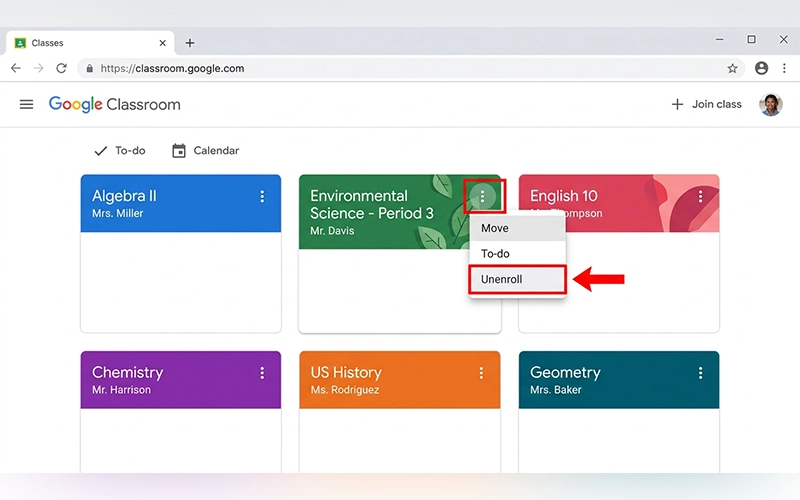
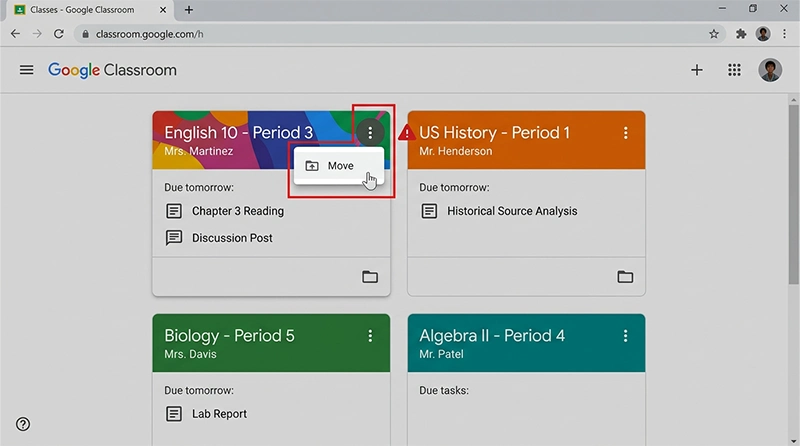
- Find the class card you want to remove.
- Select the three-dot menu located in the upper-right section.
- Select Unenroll.
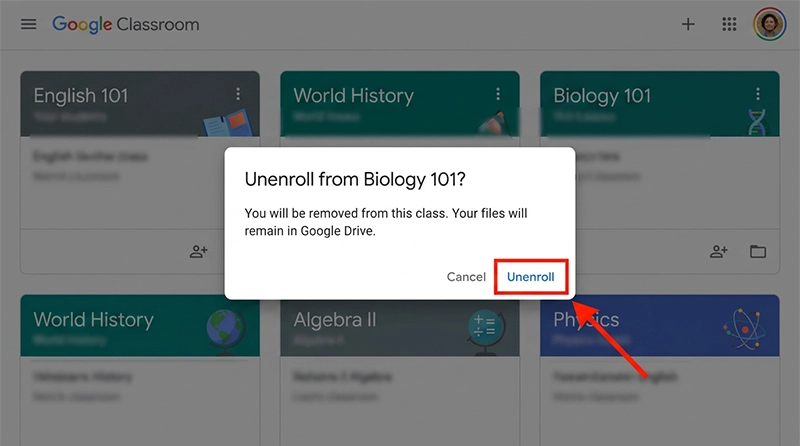
- Click Unenroll again in the pop-up to confirm.
Since Classroom is a website, the same steps work on laptop browsers too.
Steps for Phones and Tablets
The Android and iOS apps follow almost the same path. Open the app, tap the three dots on the class card, choose Unenroll, and confirm. If you’re already inside the class, the Stream tab has the same three-dot menu at the top right.
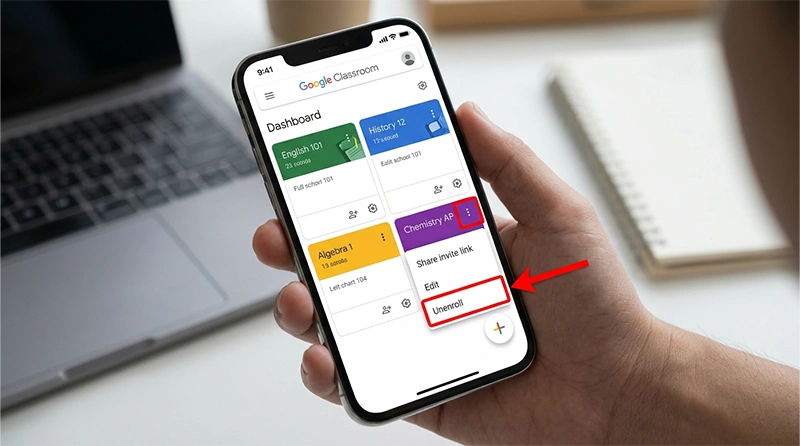
Doing it on mobile is usually quicker than finding a computer. On iPhone the whole thing takes two taps and a confirmation, while on iPad the layout is wider but the menu sits in the same spot. If you open Classroom in Safari instead of the app and the menu gets cut off, tap the aA icon in the address bar and choose Request Desktop Website.
When the Unenroll Option Is Missing
If there is no Unenroll button, the cause is usually on your school’s or teacher’s side, though one fix is yours to try. These are the common reasons:
| Reason | What to do |
| Your school admin turned off self-unenrollment. This is the most common cause on school accounts. | Ask your teacher to open the People tab, tick the box next to your name, and choose Actions, then Remove. |
| The class has been archived, which hides the option. | Ask your teacher to restore the class, remove you, and archive it again. |
| A display glitch in the browser or app. | Try an Incognito or InPrivate window (Ctrl + Shift + N on Windows, Cmd + Shift + N on Mac) or clear your cached data. Close your account session within the app and log in again. |
| You are the primary teacher, so the option never appears for you. | Hand the class to a co-teacher or archive it, as explained in the teacher section below. |
If you need to ask your teacher, a short message does the job:
Hi [Teacher’s Name], could you please remove me from the [Class Name] Google Classroom? My school account doesn’t allow me to unenroll on my own. Thanks!
Leaving a Class When You Teach
What you can do as a teacher depends on your role in the class.
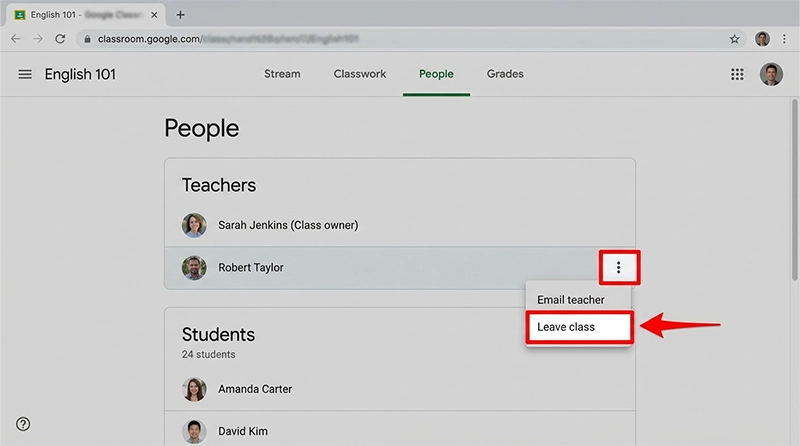
Co-teachers can step out without affecting anyone else. Click the three dots on the class card, or open the People tab and use the dots beside your own name, then choose Leave class and confirm. One catch: if you own the class’s Google Drive folder, transfer that ownership to another teacher in Drive first.
Primary teachers can’t simply leave. You have two routes, depending on whether the class still needs to run.
To keep the class running:
- Open the People tab and use the Invite teachers icon to add a co-teacher.
- Once they accept, click the three dots next to their name and select Make class owner, then click Invite.
- When the new owner accepts the email invitation, you become a co-teacher and can use the Leave class steps above.
To close the class for good: archive it from the three-dot menu on the dashboard card, which you can undo later by restoring the class. If you want it gone completely, open the main menu, scroll to Archived classes, click the three dots on the card, and choose Delete.
Ownership transfer isn’t available in the iPad app. Open Classroom in a web browser using desktop mode to hand it over.
Frequently Asked Questions
Does my teacher find out when I leave?
Your name disappears from the class People list, so the teacher can see you’re gone.
Is unenrolling the same as archiving?
No. Archiving is something a teacher does to the whole class, which moves it out of the active list. Unenrolling only removes you.
Does leaving affect the other students?
Not at all. The class carries on as normal for everyone who is still enrolled.
Can I rejoin a class after I unenroll?
Yes, but you need a fresh class code or invite link from the teacher, because unenrolling removes you from the roster. That also fixes a mistaken exit. If your earlier work doesn’t show up afterward, let the teacher know so they can look into it.
Will my files be deleted when I unenroll?
No. Everything you created or submitted stays in your Classroom folder on Google Drive.
Can a teacher remove a student from a class?
Yes. The People tab lets a teacher remove any student, which is also the route to take when your own Unenroll option is missing.
Can I make any teacher the new class owner?
No. Ownership can only pass to someone in the same school domain, or between two personal Gmail accounts.
Do the steps change on Windows, Mac or Chromebook?
No. Classroom runs in the browser, so the menu works the same way on Windows, macOS and ChromeOS.
For more articles like this, visit our site: https://factbreaker.com/