
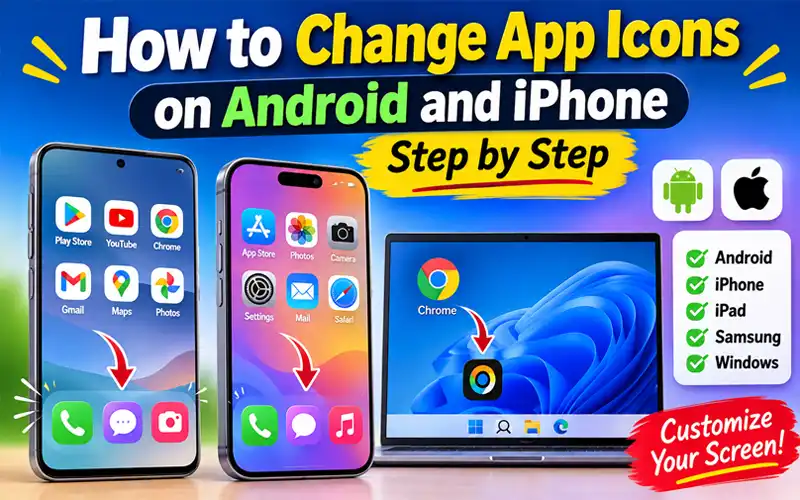

Knowing how to change app icons turns a default-looking screen into something that feels personal, and every major platform now offers at least one dependable way to do it. The steps differ between Android, Samsung, iPhone, iPad and Windows, so this guide keeps each method separate, states what it can and cannot do, and ends with fixes, restore steps and answers to common questions. Check the table below to pick your route, then jump straight to that section.
Choosing the Right Method at a Glance
| Device | Best method | Effort | Time needed |
| Android phones | Launcher with icon packs | Medium | About 10 minutes |
| Pixel and recent Android | Themed icons | Easy | Under 1 minute |
| Samsung Galaxy | Theme Store | Easy | About 3 minutes |
| Samsung Galaxy, advanced | Theme Park module | Medium | About 15 minutes |
| Xiaomi, Oppo, Vivo | Built-in Themes page | Easy | About 3 minutes |
| iPhone and iPad | Shortcuts | High | About 3 minutes per icon |
| iPhone and iPad | iOS icon styling | Easy | Under 1 minute |
| Windows PC | Shortcut Properties | Easy | About 2 minutes per shortcut |
Why Custom Icons Are Worth the Effort
Icons are the part of a screen you see most, so a consistent style reduces visual noise and makes favourite apps easy to find at a glance. A single accent colour, for example, can guide your eye to the apps you open every day.
The effort is modest. Most routes here are free and use tools already inside your device, so a basic restyle takes minutes rather than hours.
Before You Begin
Phone Software and Launcher Check
Check your Android or iOS version in Settings first, since options appear and disappear between releases. Android owners should also identify their home screen app, because some accept only theme packs while others accept individual images.
Saving Your Current Layout
Take a screenshot of every home screen page before you start. It gives you a visual reference if you want to rebuild the original arrangement later.
Sourcing Beautiful Icon Images
Finding Ready-Made Icon Sets
Look for sets in a clear style such as thin outlines, soft pastels or one-colour minimal designs. Paid bundles usually contain more matching icons than free ones. Save the files to your gallery or files folder so they are ready to pick.
Designing Your Own Icons
Any basic image editor can produce a good icon. Create a square canvas, fill it with a solid colour or gradient, place a simple symbol in the middle and export it as an image. Keep the symbol away from the edges, because devices round the corners.
Correct Size and File Format
A square PNG of around 512 by 512 pixels stays sharp on phones and tablets. Avoid stretching a small image, because enlarging it blurs the edges.
Design Rules for a Polished Look
A few habits separate a tidy theme from a messy one.
- Stick to two or three colours across the whole set.
- Use one line weight and one corner style for every icon.
- Choose symbols that stay readable at a small size.
- Check contrast against your wallpaper before you commit.
Android Launcher and Icon Pack Method
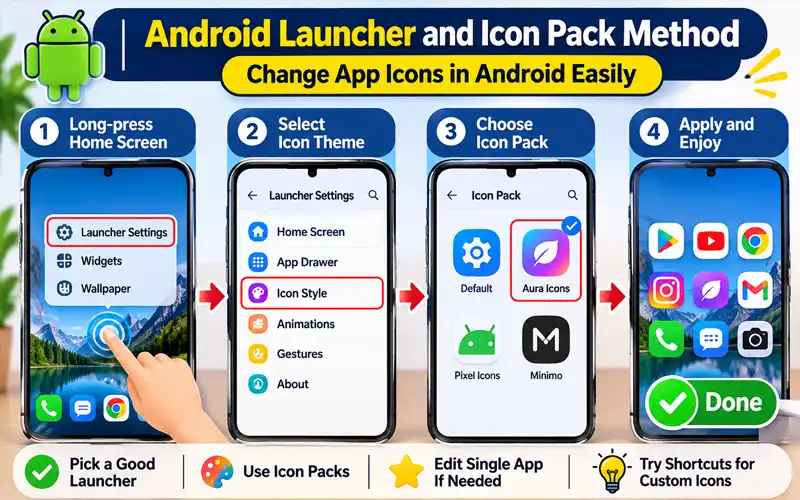
Stock Android hides icon swapping from system settings, so changing app icons in Android usually starts with a launcher, meaning a replacement home screen that supports icon packs.
Picking a Launcher That Supports Icons
Choose a launcher whose description mentions icon packs or custom icons, and check that recent reviews show it is still maintained. Install it from the official store and set it as the default home app when prompted.
Installing and Applying an Icon Pack
Install an icon pack from the official store first, then follow these steps.
- Long-press an empty area of the home screen and open the launcher settings.
- Find the section for icon style or appearance.
- Select the option named icon theme or icon pack.
- Choose your installed pack and return to the home screen.
Editing One App at a Time
Many launchers let you restyle a single app instead of the whole screen.
- Long-press the app icon and tap Edit.
- Tap the small icon image.
- Pick an icon from a pack, or from your gallery if the launcher allows it.
- Rename the label if you wish, then confirm with Done or Save.
Not every launcher accepts gallery pictures, so test one app before restyling many.
Stock Launcher Shortcuts
If you keep your phone’s default home screen, you can create a shortcut with a custom image and name and place it on the home screen. Some phones add a small badge to these icons.
Pixel and Material You Themed Icons
Android 13 and later offer themed icons, which tint supported icons to match your wallpaper colours.
- Long-press an empty area of the home screen.
- Tap Wallpaper and style.
- Switch on Themed icons.
Only apps that supply a single-colour icon are tinted, so expect a mix on first use. On some phones the switch sits inside the colour palette page instead.
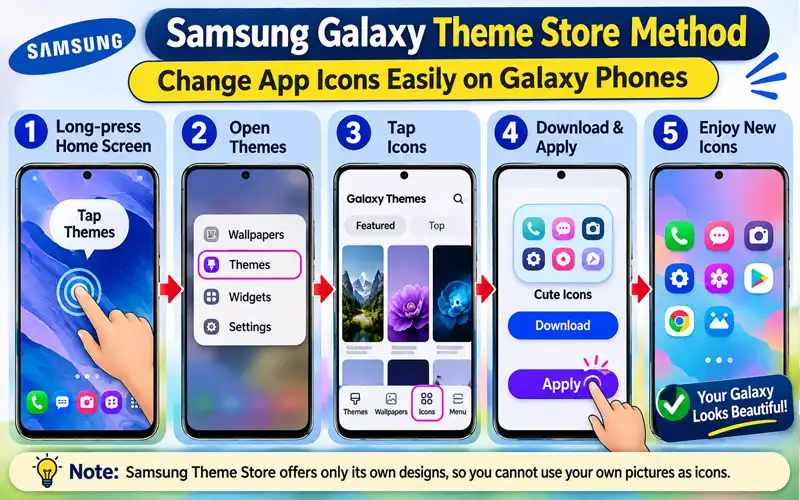
Samsung Galaxy Theme Store Method
Samsung includes its own theme system, so changing app icons on a Galaxy phone needs no extra home screen app.
Opening the Themes Menu
Long-press an empty area of the home screen and tap Themes. The Galaxy Themes store opens with tabs along the bottom.
Downloading and Applying an Icon Set
- Tap Icons at the bottom of the store.
- Pick a set and tap Download.
- Tap Menu, then My stuff.
- Select Icons and choose the downloaded set.
- Tap Apply.
The store only offers its own designs, so your own pictures cannot be used here.
Going Further With Good Lock
Good Lock is Samsung’s own customisation suite, available through the Galaxy Store in many regions. Its Theme Park module builds a custom icon set in a few steps.
- Open Theme Park and go to the Icon tab.
- Tap Create New.
- Choose the icon shape, colour and tray style.
- Open the three-dot menu and select Change icons to swap individual apps.
- Save the set under a name and apply it.
Tuning Menu Colors With Palette Settings
Open Settings, tap Wallpaper and style, then Color palette, switch it on and pick a palette. This tints menus and compatible icons without applying a full theme.
Xiaomi, Oppo and Vivo Theme Menus
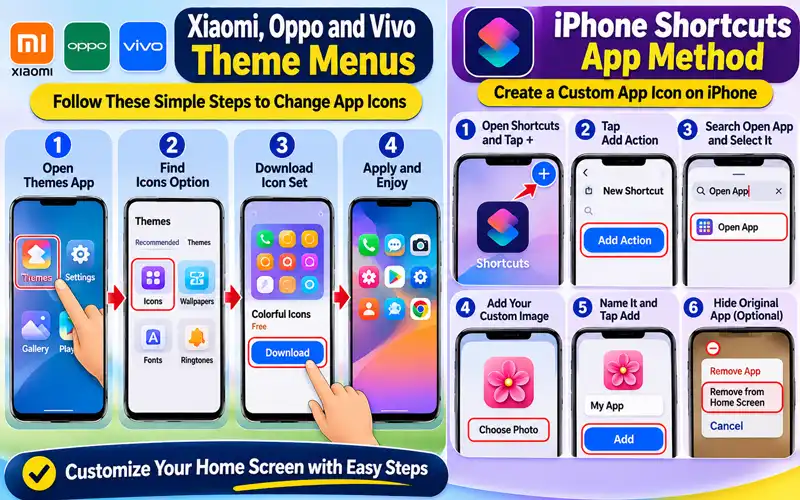
Many other brands ship their own theme store, usually an app or settings page named Themes. Look for an Icons or Icon style category, download a set and apply it, much like the Samsung flow.
Menu names change between software versions, so browse the categories rather than searching for exact labels. Brand themes often bundle wallpapers and fonts with icons, so preview the full look before you apply it.
Shortcuts App Method for iPhone
Apple’s Shortcuts app can create a home screen button that opens any app and displays an image you choose. It is the most flexible way to change your app icons with shortcut buttons on iPhone, at the cost of more setup.
Creating an Open App Action
- Open the Shortcuts app and tap the plus button.
- Tap Add Action.
- Search for Open App and select it.
- Tap the App placeholder and choose the app you want to restyle.
Adding Your Custom Image
- Open the shortcut’s share or details menu and choose Add to Home Screen.
- Tap the small icon beside the name.
- Select Choose Photo, Choose File or Take Photo.
- Type the name you want under the icon, and keep it short.
- Tap Add.
Placing It on the Home Screen
The new icon appears on your home screen. Drag it to any position or into a folder, just like a normal app.
Hiding the Original App
Long-press the original app, tap Remove App, then choose Remove from Home Screen. The app stays installed and remains in the App Library, whereas Delete App would uninstall it.
Limits to Expect
Opening an app this way shows a brief Shortcuts banner or screen flash before the app loads. Each icon is also created one at a time, so a full set takes a while.
Changing iPhone Icons Without Shortcuts
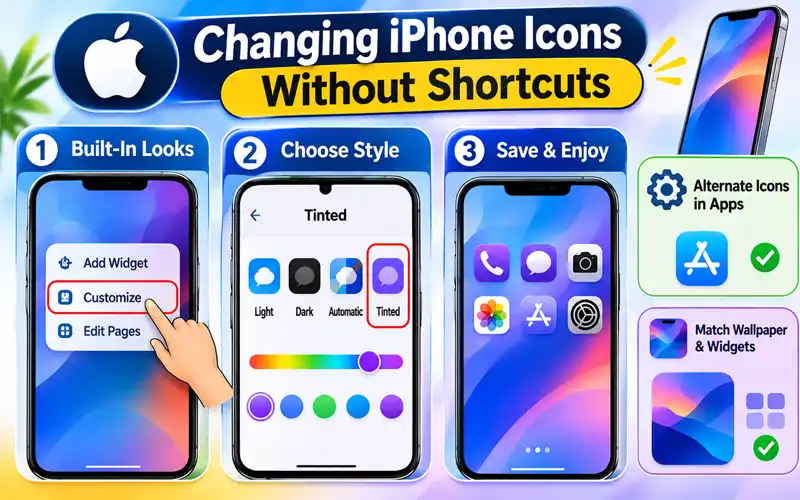
Apple’s own styling tools cover changing app icons on iPhone without shortcuts, although they recolour existing icons rather than replacing their artwork.
Built-In Light, Dark and Tinted Looks
iOS 18 and later include native icon styling.
- Long-press an empty area of the home screen.
- Tap Edit, then Customize.
- Choose Light, Dark, Automatic or Tinted.
- For Tinted, drag the colour slider to select a shade.
- Tap an empty area to save.
Newer iOS releases add further looks to this menu.
Alternate Icons Inside Apps
A number of apps let you choose a different icon in their own settings, usually under Appearance or App Icon. It changes only that one app, and it is the cleanest option because it creates no shortcut.
Matching Wallpaper and Widgets
Choose a wallpaper whose colours echo your tint, then add widgets from the Edit Home Screen menu so the whole page feels like one design.
iPhone 15 Models and iOS Versions
Checking Your Current iOS
Open Settings, General, then About, and read the iOS Version line. The iPhone 15 launched with iOS 17, which does not include the native Customize menu.
Updating to Unlock More
Open Settings, General, then Software Update and install the newest release. iPhone 15 models support current iOS versions, so the styling menu appears after updating.
Large Icon Option
On iOS 18 and later, the Customize menu also offers a Large icon size. It enlarges the icons and removes their text labels, which suits a minimal layout built around custom images.
iPad Home Screen Differences
iPadOS supports the same Shortcuts method and the same Customize menu, so every iPhone step above applies to an iPad. The differences come down to layout.
Dock Placement Tips
Custom icons can sit in the Dock beside regular apps. Keep their style consistent with the rest of the Dock so it does not look mismatched.
Using Extra Screen Space
The wider grid lets you group icons by task, such as study, work or media. Reserve the first page for the apps you open daily.
Windows PC Shortcut Icons
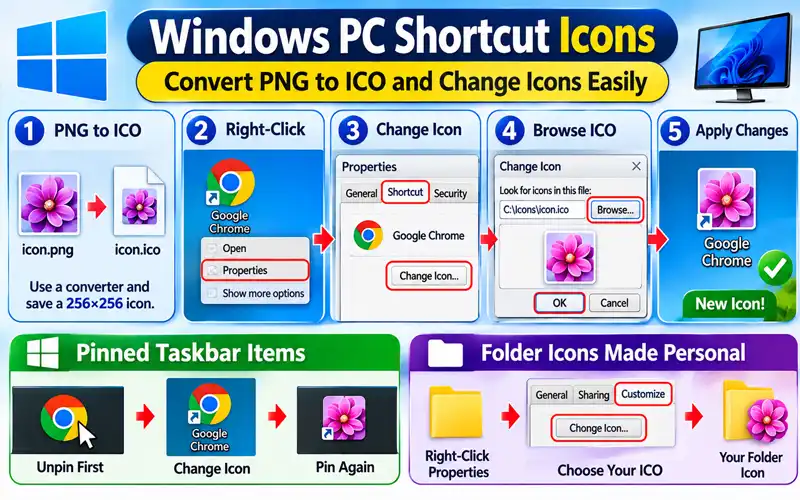
Windows can restyle shortcuts and folders, but it cannot change the artwork inside a program itself. This is the method for app icons on a PC desktop.
Converting PNG to ICO
Windows requires the ICO format for custom icons. Convert your PNG with an image editor’s export options or a converter, and include a 256 by 256 pixel size for sharp results.
Properties and Change Icon Steps
- Right-click the desktop shortcut.
- Select Properties.
- Open the Shortcut tab and click Change Icon.
- Click Browse and select your ICO file.
- Press OK, then Apply.
Pinned Taskbar Items
Unpin the item first, change the icon on its desktop shortcut, then pin that shortcut to the taskbar again so the new icon appears.
Folder Icons Made Personal
Right-click a folder, open Properties, switch to the Customize tab and click Change Icon. Browse to your ICO file and confirm.
Fixing Common Problems
Icons Not Updating
Confirm that you edited the active home app and the correct app entry, then restart the device if the old icon remains. The home screen and app drawer can have separate settings.
Missing Notification Badges
Shortcut-based icons are only buttons that open an app, so they cannot show unread counts. If badges matter, use a theme or built-in styling for those apps and keep their original icons.
Packs With Gaps
No pack covers every installed app. Look for a per-app edit option to set missing icons manually, or leave the original icon in place.
Restoring Original Icons on Any Device
On Android, choose the default icon theme in your launcher settings, or switch back to your original home app in default app settings. On Samsung, open Themes, tap Menu, My stuff and Icons, then select the default set.
On iPhone and iPad, remove the shortcut icon and bring the original back by long-pressing it in the App Library and choosing Add to Home Screen. For built-in styling, set the look back to Automatic. On Windows, open the shortcut Properties, click Change Icon and use Restore Defaults.
Safety Tips Before Downloading Anything
Use official stores only, and read recent reviews before installing anything that styles your screen. Be wary of any tool that asks for permissions unrelated to its purpose, treat file converters and downloads from unknown websites with the same caution, and never enter account details to unlock icon sets.
Common Questions Answered
Will custom icons drain my battery?
Static icons are small images and have no noticeable effect on battery life. Only heavy animated themes or constantly running helper software might.
Do app updates reset custom icons?
Shortcut icons keep working after an update because they point to the app itself. A theme or launcher override usually keeps showing your choice even when the app changes its own icon.
Can I use a different name under an icon?
Yes. Shortcuts and most launcher editors accept any label, and a short name you will recognise works best.
Is one photo enough for every icon?
You can reuse one image for several shortcuts, but identical icons are hard to tell apart, so vary the colour or shape.
Final Thoughts
Pick the one method that matches your device, test it on a single app, and expand once you like the result. A consistent style matters more than the number of icons you change.