
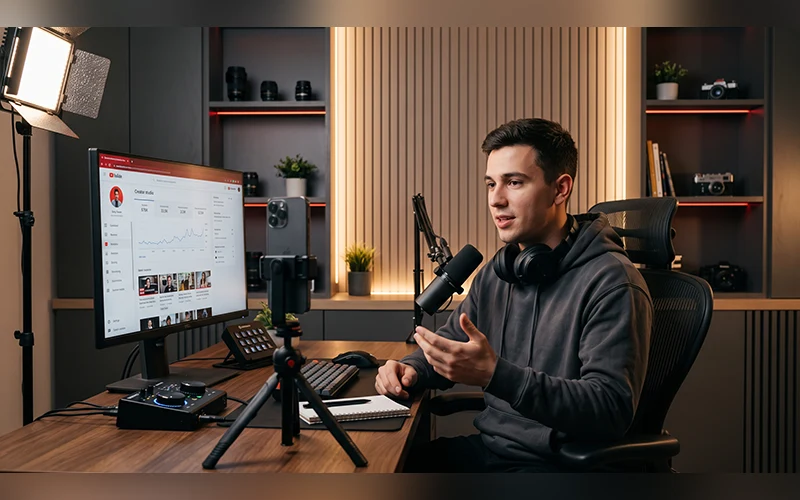
Plenty of people want to start on YouTube, but they stall at the very first screen. They wonder whether they need a fancy camera, a big idea, or some technical skill they don’t have. Fortunately, you can get started without needing any of those things. If you’re wondering how to create a YouTube channel and make money from it, the setup is free and takes about ten minutes. What comes after takes more patience, and this guide covers both, from the first click to your first payout.
Before You Start: What You Need
You need a Google Account, a phone or computer with an internet connection, and a rough idea of what you’d like to talk about. That’s all. If you’re figuring out how to create a YouTube channel for beginners, don’t wait until you have a perfect plan. A clear topic and five video ideas are enough to begin.
One small tip: when you create the Google Account, choose the “For work or my business” option. It keeps your personal email hidden and makes it easier to add helpers later.
Setting Up Your Channel on a Computer
Here is how to create a YouTube channel step by step in 2026. The process is short and the menus are easy to find.
- Open YouTube and click Sign in at the top right.
- Click your profile icon and select Create a channel.
- Enter a display name and pick a unique handle starting with @. The handle becomes your channel link, such as youtube.com/@yourhandle.
- Upload a profile picture and click Create channel.
Next, open YouTube Studio, go to Settings, then Channel, then Feature eligibility, and verify your phone number under Intermediate features. Without this step you can’t upload videos longer than 15 minutes, go live, or add custom thumbnails. It takes about a minute.
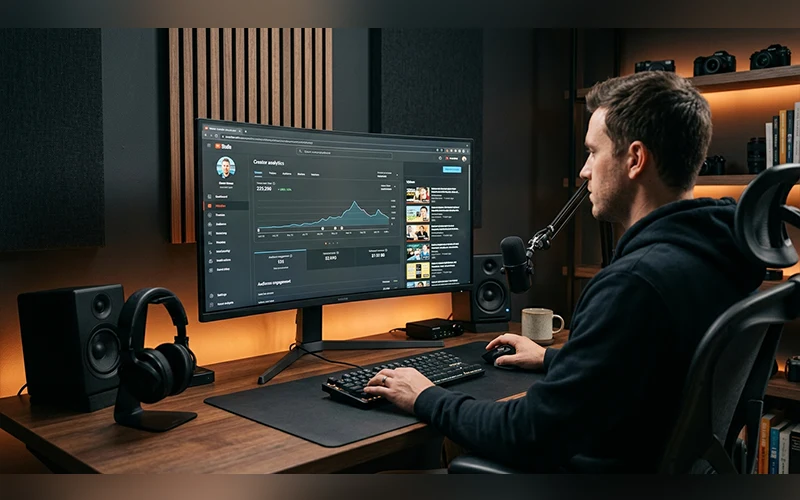
While you’re in your account settings, turn on 2-Step Verification. YouTube requires it for the Partner Program, and it also protects your channel from takeover attempts.
Starting a Channel Straight From Your Phone
If you’re wondering how to create a YouTube channel in mobile, open the YouTube app, tap the You tab, and choose Create a channel. A panel slides up where you add a photo, a name, and your @handle. Tap Create channel and you’re done.
To add a banner or description later, go to View channel, tap the pencil icon, and edit from there. One catch: phone verification can’t be done inside the app. Open youtube.com in Chrome or Safari, tap Continue to Studio, and follow the same Settings, Channel, Feature eligibility path described above.
Choosing a Name and Niche That Feels Like You
Choose a simple, memorable channel name that viewers can pronounce and spell without difficulty. A name that’s easy to remember and search for helps people find your channel again. Skip long strings of numbers and avoid anything that locks you into one narrow topic you might outgrow. Before finalizing your channel name, look it up on YouTube to check whether another creator is already using it or has a very similar name.
For your niche, look for the overlap between what you enjoy and what people actually search for. A few examples:
- A student who films budget study routines
- A home cook who explains one cheap meal per week
- A mechanic who fixes common bike problems on camera
If you could talk about the topic for a year without getting bored, it’s probably a good fit.
Making Your Channel Look Trustworthy
Viewers decide in seconds whether a channel looks serious. Here’s a quick checklist:
- Profile picture: a clear face or logo, uploaded at 800 x 800 pixels
- Banner: 2560 x 1440 pixels, with important text kept near the center so mobile screens don’t crop it
- Description: two or three plain sentences about what viewers will get and when you post, using words your audience would actually search for
- Links: your website or social profiles, if you have them
- Contact email: a public address for collaborations, ideally different from your login email
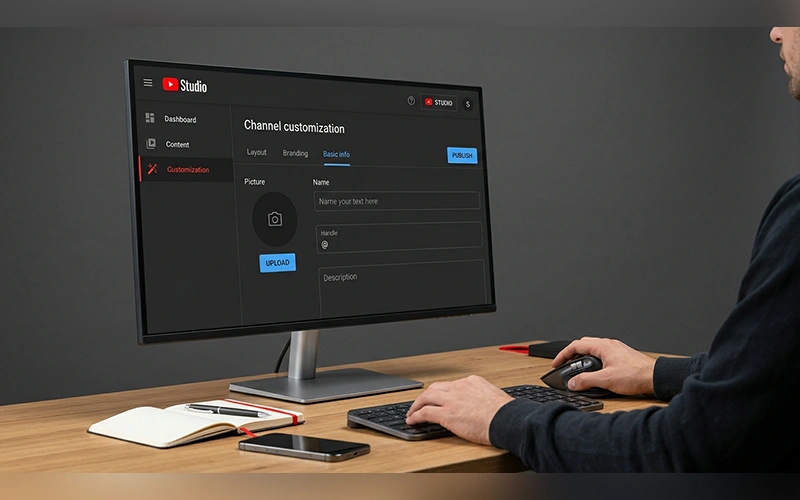
All of this lives under Customization in YouTube Studio.
Creating a Safe Space for Your Child on YouTube
Parents often ask how to create a YouTube channel for a kid, and the answer depends on what the child wants to do. Watching and uploading are two separate paths with different rules.
For watching: children under 13 can’t have a standard Google Account. Use the Family Link app to create a supervised account, then sign in to YouTube Kids and pick an age band: Preschool, Younger, or Older. For preteens, the regular app can run in a supervised experience from the Parent Tools in your settings.
For uploading: children under 13 can’t run a channel alone, and YouTube may delete one it finds. Instead, create the channel under your own adult account and handle the uploads, descriptions, and passwords yourself, as a shared family project. Choose a fun, child-friendly channel name, such as “Little Creative Corner,” and avoid including your child’s real name or any details that could reveal where they live. Mark every video as Made for Kids, which switches off public comments. If they want to go live, you need to be on screen the whole time.
Setting Up a Brand Channel for Your Company
A company channel shouldn’t sit on someone’s personal profile. If you’re working out how to create a YouTube channel for business, start with a Google Account made for the business, then go to Settings, choose Create a new channel, and tick the Brand Account box. Enter your business name and set a clean handle.
Use your logo as the profile picture and add your website (it shows as a clickable link on your banner) and a support email so leads can reach you. The real advantage of a Brand Account is shared access. Under Settings, then Permissions, you can invite colleagues or an agency and assign roles. A Manager can add and edit videos, while an Editor can change details but can’t delete anything.
Uploading Your First Video Without Stress
Click the Create button (the camera icon) in Studio, or tap the + at the bottom of the mobile app, then choose your file.
Before you publish, run through these quick checks:
- Title: put the main idea first, in plain words someone would actually search
- Thumbnail: one clear image with very little text
- Description: the first two lines matter most, so say what the video covers
- Tags and audience setting: add a few relevant tags and answer the Made for Kids question honestly. You can also schedule the video instead of publishing right away
Mistakes New YouTubers Should Avoid and How to Prevent Them
Most early channels stumble in the same few places:
- Mixing too many topics. A channel about cooking, gaming, and cricket confuses both viewers and the recommendation system. Pick one lane for your first twenty videos.
- Ignoring audio. A cheap wired mic in a quiet room beats an expensive camera in an echoey one.
- Posting in bursts. Five videos in one week followed by a month of silence teaches nobody to come back.
- Treating thumbnails as an afterthought. A great video with a dull thumbnail rarely gets clicked.
- Using other people’s music or clips. Copyright claims can mute, block, or demonetize a video, so stick to your own material or the free tracks in YouTube’s Audio Library.
How YouTube Actually Pays You
Before you make money, you need to join the YouTube Partner Program (YPP). It has two levels.
Fan funding level (Super Chats, memberships, shopping):
- 500 subscribers
- 3 public uploads in the last 90 days
- 3,000 watch hours in 12 months, or 3 million Shorts views in 90 days
Full monetization (ad revenue and Premium share):
- 1,000 subscribers
- 4,000 watch hours in 12 months, or 10 million Shorts views in 90 days
Watch hours and Shorts views are counted separately and never combine, so pick the route that fits your content. Before applying, check that your videos are original, your channel has no active Community Guidelines strikes, and the program is available in your country. AdSense will also ask for your address and tax details, and it pays out once your balance reaches a minimum amount.
When you qualify, open Studio, click Earn, and apply. You’ll connect a Google AdSense account, which is how earnings reach your bank, and reviews often take around a month. One change to plan around: from February 1, 2027, YouTube is updating the program, and creator-tool sites report that full monetization will need 8,000 watch hours or 20 million Shorts views. Requirements shift from time to time, so check YouTube’s official Help page before you set your goals.
Ad income depends on your RPM, the amount you earn per 1,000 views, and it varies by niche and audience. Ads aren’t the only option. Many creators also earn through affiliate links in descriptions, brand sponsorships, viewer support during live streams, and merchandise sold through YouTube Shopping. Affiliate links are especially handy for small channels because they don’t depend on subscriber counts.
Your First 30 Days: A Simple Plan
- Week 1: Finish the setup, pick your niche, and write down ten video ideas.
- Week 2: Record and publish your first two videos. There’s no need to make them flawless before getting started.
- Week 3: Read your Studio analytics. See where viewers stop watching and fix that in the next video.
- Week 4: Publish two more, try one Short, and reply to every comment you get.
By day thirty you’ll have around four videos and, more importantly, a habit.
Final Thoughts
Learning the steps to launch a YouTube channel is the simplest part. The real work is showing up with video number five, when the first four didn’t take off. Set up your channel today and improve with every upload.
Frequently Asked Questions
1. Do I need to pay anything to start a YouTube channel?
No. You can open a channel and upload videos without paying a fee. A smartphone and free editing tools are enough to get started, while extra equipment is optional.
2. Is it possible to run multiple YouTube channels using one Google account?
Yes. A single Google Account can be used to manage multiple YouTube channels. You can give each channel a separate identity, including its own name, handle, and content focus.
3. Can I sign up for YouTube without creating a Gmail address?
Yes. You need a Google Account to create a channel, but you can register one using an existing non-Gmail email address instead of opening a new Gmail inbox.
4. What is the minimum age for starting a YouTube channel?
The age requirement depends on your country or region. In many places, users must be at least 13, although local rules may differ. Younger children generally need a parent or guardian to manage their YouTube experience.
5. What is a good idea for a first YouTube video?
Start with a topic that matches your channel’s purpose and answers a question your intended viewers are likely to have. You could also explain what viewers can expect from future uploads. Prioritize useful, informative content instead of trying to make every video look professionally produced.
6. Can I update my channel name and handle after creating it?
Yes. YouTube allows creators to change their channel name and handle through the channel customization settings. Your preferred handle must be available, and restrictions apply to how frequently these details can be changed.
7. How much time does it take to earn money from YouTube?
There is no guaranteed timeframe for earning revenue. Your progress depends on audience growth, viewer engagement, content quality, and eligibility for the YouTube Partner Program. You must meet the applicable monetization requirements before earning through eligible YouTube features.
8. Is showing my face necessary when making YouTube videos?
No. You can build a channel with tutorials, gameplay recordings, animations, narrated presentations, product demonstrations, or screen recordings. Choose a format that suits your subject and helps viewers understand the content.
For more articles like this, visit our site: https://factbreaker.com/