



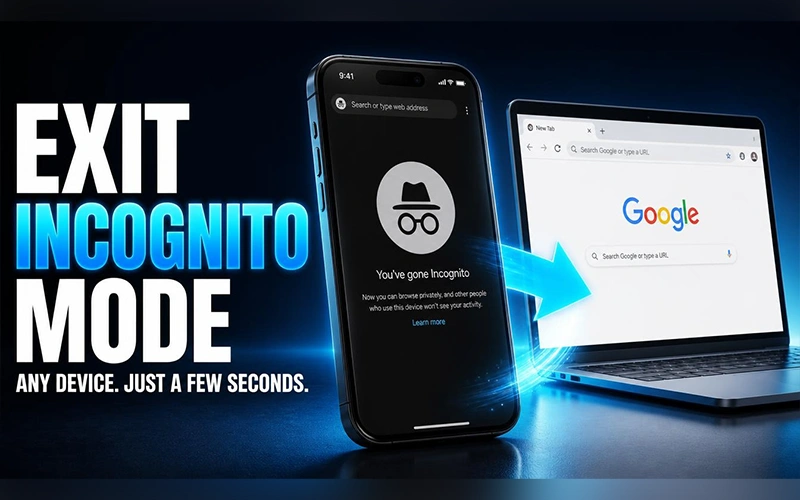
You opened a private tab for one quick search, and now the screen is dark and your usual tabs are nowhere to be seen. Here is how to get out of incognito in about five seconds, whatever device you’re using. This guide covers iPhone, iPad, Android, and desktop browsers, with the exact buttons and shortcuts for Safari, Chrome, and Edge. It also explains why there is no off switch, how to block private browsing if you need to, and how to open a private tab again.
What Incognito Mode Does (and How to Spot It)
Incognito mode is a temporary browsing session that keeps your activity off the device you’re using. So what does incognito mode do in practice? When the session ends, the browser deletes your browsing history, search history, cookies, and anything you typed into forms. It’s built to hide your habits from other people who share the same phone or computer.
The incognito meaning is simply “identity hidden,” and that’s the idea here: your device forgets you, but the wider internet doesn’t. Your internet provider, your school or employer, and the websites you visit can still see your activity and location.
If a website works in Incognito mode but not in regular browsing, clearing stored browser data may help. Learn how to clear browser cache on iPhone to troubleshoot common loading and display issues.
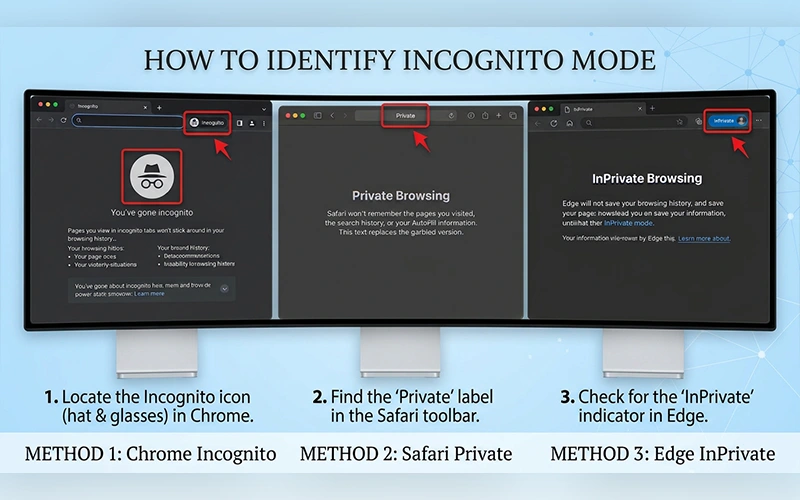
You can usually tell you’re in a private session at a glance. Chrome shows a dark theme with a hat-and-glasses icon and a “You’ve gone incognito” message. Safari switches to a dark address bar labeled Private, and Edge uses an InPrivate badge.
There’s No Off Switch, Just Close It
You won’t find a toggle for leaving it in any browser’s settings. Private browsing exists only inside its own tabs or windows, so the only way to turn off incognito is to close every one of them. When the last private tab or window disappears, your browser goes back to normal on its own.
Cookies and site data are wiped only at that point, so a single forgotten tab keeps the session alive.
For additional details about private sessions and closing every Incognito window, see Google’s official guide to Incognito mode.
Leaving Incognito on iPhone
The exit sits inside the tab switcher, and the taps differ slightly between browsers. Here is how to get out of incognito on iPhone in both Safari and Chrome. If your search was “turn off incognito mode iphone,” one of these two methods will cover it.
In Safari
- Tap the Tabs icon (two overlapping squares) in the bottom-right corner.
- Tap Private at the bottom center, or swipe along the bottom bar, to move away from your private tabs.
- Select your regular Tab Group or the “[Number] Tabs” option.
If you want the private tabs gone too, tap the X on each one before switching back.
In Chrome
- Tap the Tab Grid icon at the bottom of the screen.
- Swipe to the normal tabs icon at the top center to return to regular browsing.
- To clear the private tabs at the same time, tap Edit and choose Close All Incognito Tabs.
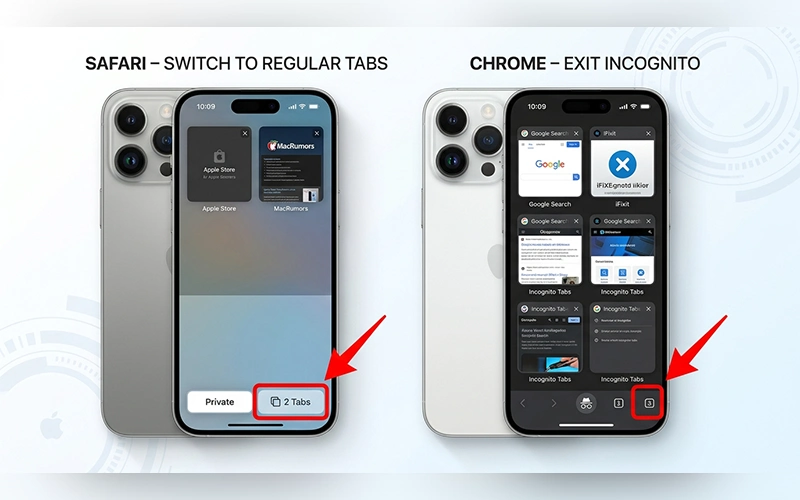
Layouts shift a little between iOS releases. If a button looks different on your phone, look for the Private or Incognito label inside the tab switcher.
Leaving Incognito on Android
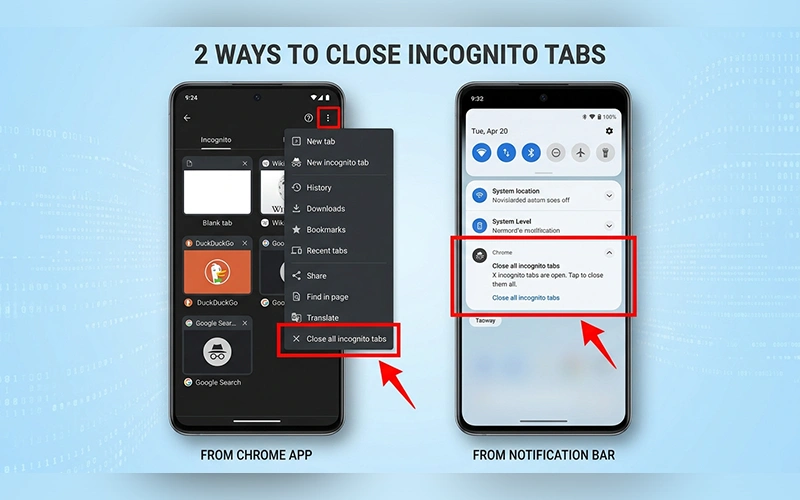
Chrome gives you two routes: one inside the app and one from anywhere else on your phone. You can exit incognito mode on Android using either of the following methods.
From the App
- Tap the tab switcher icon (the square with a number) next to the address bar.
- Select the hat-and-glasses symbol displayed along the top of the screen.
- Tap the X on each private tab, or open the three-dot menu and select Close all Incognito tabs.
From the Notification Bar
Swipe down from the top of the screen and tap the Chrome notification that says “Close all incognito tabs.” This works without opening the app, which is handy if you’ve already moved on to something else. The notification only appears while private tabs are open.
Exiting Private Browsing on iPad
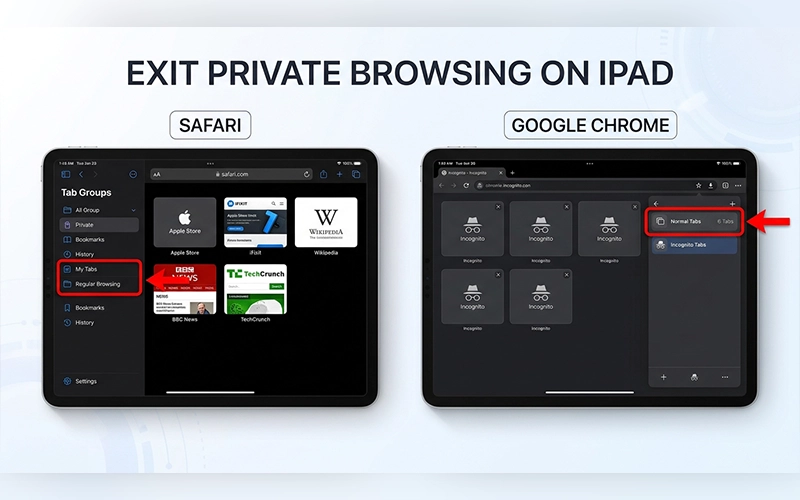
Tablets trip people up more than phones, so here’s how to get out of incognito mode on iPad. In Safari, the steps match the iPhone: open the Tabs overview, move away from Private, and pick a regular Tab Group. The difference is the layout. Tabs run along the top of the screen, and the sidebar lets you jump straight to a tab group.
In Chrome, tap the Tab Grid icon, then swipe to the normal tab grid. You can also switch to the Incognito tab and select the close icon to exit it.
Closing Incognito on a Mac or Windows PC
On a computer the process is quicker, and how to get out of incognito mode on Mac comes down to closing a single window.
- Click the close button. Use the red button on a Mac or the X on Windows, in the top corner of the private window.
- Use the shortcut. Press Cmd + Shift + W on a Mac or Ctrl + Shift + W on Windows to close the whole private window at once.
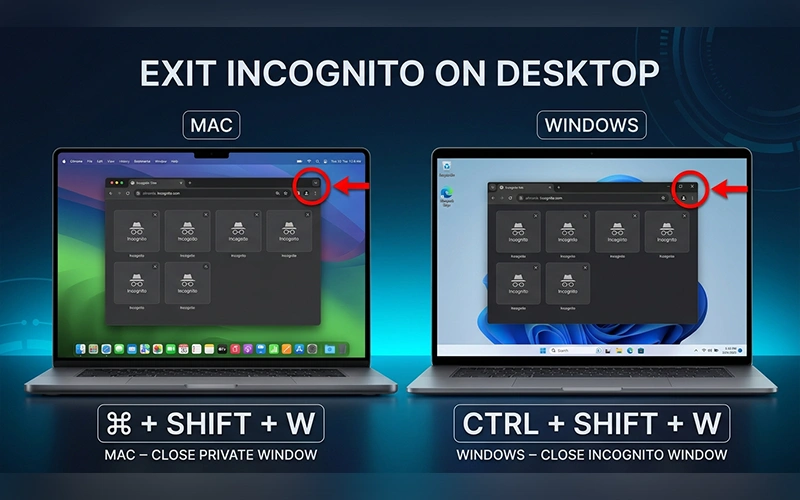
The same applies to Safari’s private windows, Chrome’s Incognito windows, Edge’s InPrivate windows, and Firefox’s Private Windows. Chromebook users can use Ctrl + Shift + W too.
Can You Disable Incognito Completely?
Some people searching this topic want to block private browsing rather than leave it, usually to supervise a child’s device. On iPhone and iPad, open Settings, then Screen Time, Content & Privacy Restrictions, Content Restrictions, and Web Content, and choose Limit Adult Websites. Safari then removes its Private option.
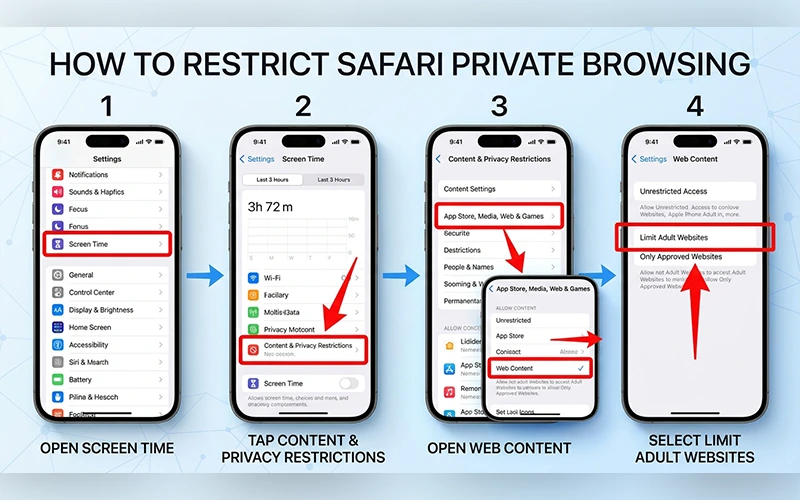
Other browsers keep their own incognito mode, so Chrome stays available unless that app is restricted too. Chrome and Edge on managed work or school devices can have incognito blocked by an administrator, but personal phones and computers have no simple switch in the browser itself.
Want to Go Private Again?
Learning how to go on incognito mode takes even less time than leaving it. On a desktop browser, press Ctrl + Shift + N (Windows) or Cmd + Shift + N (Mac). You can also open the three-dot menu in Chrome and choose New Incognito Window, or pick New InPrivate Window in Edge. Firefox uses Ctrl + Shift + P (Cmd + Shift + P on a Mac) for a new Private Window.
Phones are just as simple. For how to go incognito on phone in Chrome for Android, open the app, tap the three dots in the top-right corner, and select New Incognito Tab.
iPhone users have two options. Here’s how to go incognito on iPhone: in Safari, press and hold the Tabs icon and tap New Private Tab. In Chrome, tap the three dots at the bottom right and choose New Incognito Tab.
Final Thoughts
Once you get out of incognito on a shared phone or computer, glance at the tab switcher before handing it over, because a forgotten private tab is easy to miss.
Frequently Asked Questions
Does closing the app exit incognito?
Not reliably. On iPhone and iPad, private tabs usually stay open until you close them yourself, and Android can keep them alive in the background too. Closing the tabs from the tab switcher is the safe way.
Is my history saved after I close a private tab?
Not on your device. Downloaded files and any bookmarks you add during the session do stay, though.
Will closing private tabs affect my regular tabs?
No. Your normal tabs sit in a separate session and stay exactly as you left them.
How to turn off incognito if my private tabs are locked?
Safari and Chrome on iPhone, and Chrome on Android, can lock private tabs behind Face ID, a fingerprint, or your passcode. Unlock them first, then close the tabs using the steps above.
Why can’t I exit incognito mode?
Another private tab or window is usually still open. Check the tab switcher first, then look for extra windows: Mission Control on a Mac, Split View or Slide Over on an iPad, or the recent apps view on Android. Once every private tab and window is closed, the session ends.
Can I recover incognito tabs after closing them?
Usually not. Browsers don’t keep a record of private tabs once they close, so copy any link you need before you close the session.
Do I stay signed in to my accounts in incognito mode?
No. A private session starts signed out of every site, and closing it signs you out again.
Do extensions work in incognito mode?
Chrome turns them off by default. To allow one, open chrome://extensions, select Details for that extension, and switch on Allow in Incognito. Only do this for extensions you trust, since they can then see your private browsing.
For more articles like this, visit our site: https://factbreaker.com/