

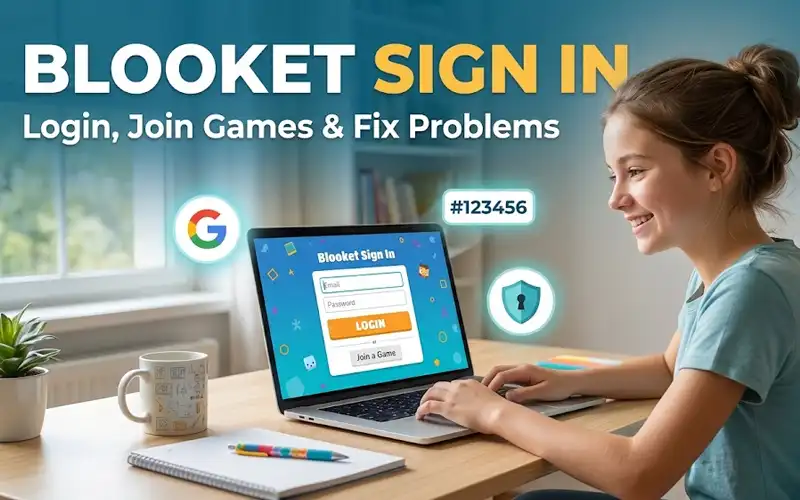
Your teacher has just announced a Blooket review game, but you are stuck on the login page. Perhaps your password is not working, the Google button does nothing, or you are unsure which account to use. Meanwhile, the rest of the class is ready to play.
These problems can be frustrating, but many of them have simple solutions.
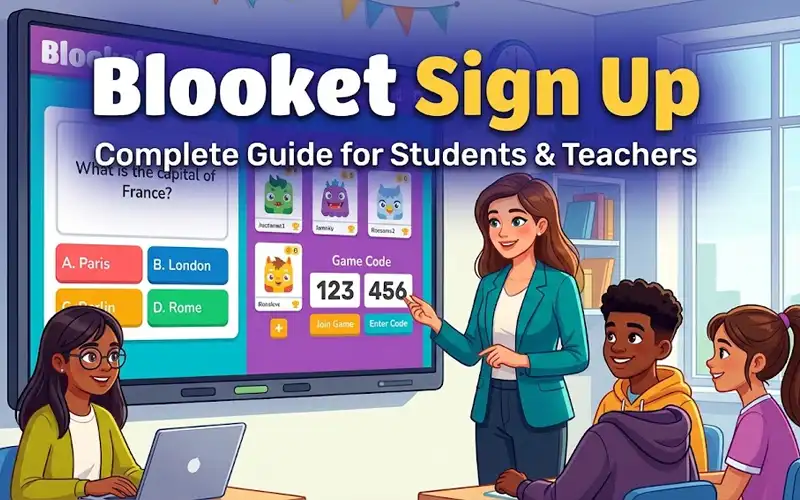
This guide explains Blooket Sign In step by step. You will learn which login page to use, how to sign in with your email or Google account, how students and teachers use Blooket, and how to fix common login errors. You will also learn how to join a live game without creating an account and how to protect your account from fake websites.
Blooket Sign In in Three Quick Steps
If you already have a Blooket account, follow these three steps to get started.
- Open the official website. Visit www.blooket.com and select Log In.
- Choose your sign-in method. Use your username or email and password, or choose Google if that is how you created your account.
- Enter your details. Follow the on-screen instructions to access your Blooket account.
You can also visit the Blooket login page directly.
The most important rule is to use the same sign-in method associated with your account. If you originally registered through Google, start with Google. If you created a password, use your username or email and that password.
If your only goal is to join a live classroom game, you may not need an account at all. You can usually enter through the game code, a teacher’s link, or a QR code.
Official Blooket Login and Game Links
Using the correct website can save time and help you avoid fake login pages. These are useful official Blooket addresses.
| Website | What it is used for |
| www.blooket.com | Main website, account access, and getting started |
| id.blooket.com | Account login and sign-in options |
| dashboard.blooket.com | Accessing the Blooket dashboard |
| play.blooket.com | Joining a live game with a game ID |
If you are unsure where to begin, open the main website and select Log In. This is an easy way to reach the appropriate account page.
Always check the spelling of the web address before entering your password. A website that looks similar to Blooket is not necessarily an official website.
What You Need Before Signing In
Before trying to log in, check a few basic things. These small steps can prevent repeated errors.
A Working Internet Connection
Blooket runs in a web browser, so you generally do not need to download a separate application to use the website. You can open it in a supported browser on a computer, Chromebook, phone, or tablet.
If the page takes too long to load, open another website to check your connection. You can also refresh the page or try a more reliable network.
Your Account Details
Keep your username or registered email address ready, along with your password if you use one. Check for spelling mistakes before submitting the form.
If you have several Google accounts, identify the one you used when registering. Selecting another account may stop you from opening the Blooket profile you normally use.
The Correct Sign-In Method
Think about how you first created your account. Did you enter an email address and password, or did you select Google?
If your school has given you instructions for accessing Blooket through its learning platform, follow those instructions. A school-managed login option may depend on the school’s setup.
Three Ways to Sign In to Blooket
The correct method depends on how your account was created and which options appear on the official login page.
Log In Using Your Blooket Username or Email and Password
Blooket’s login page provides fields for a username or email address and a password.
Follow these steps:
- Open the Blooket login page.
- Type the username or email linked to your Blooket account.
- Type your password carefully.
- Select the login button to continue.
If the login fails, check your username or email for typing errors. Passwords are case-sensitive, so capital and lowercase letters must match. Make sure the Caps Lock key is turned off before entering your password again.
If you cannot remember your password, use the Forgot Password option instead of repeatedly trying different passwords.
Sign In With Google
Google sign-in can be convenient because you may not need to enter a separate Blooket password each time.
- Open the official Blooket login page.
- Select the Google sign-in option.
- Choose the Google account connected to your Blooket profile.
- Follow any additional prompts and wait for Blooket to open.
Using the wrong Google account is a common reason for login confusion. For example, your browser may be signed in to a personal Gmail account while your Blooket profile is associated with your school account.
If you have more than one Google account, check the account details carefully before continuing.
Sign In Through a School Portal
Some schools provide students with a central portal for accessing educational websites. If your school directs you to use Clever or another school-managed service, follow the school’s instructions and use the login option available to you.
The exact process can vary by school. If you do not see the expected option, ask your teacher or school IT team whether your school supports that method. Do not enter your school password into an unfamiliar website.
How to Choose the Right Blooket Sign-In Option
Use this table if you cannot remember which method you used.
| What you remember | What to try |
| You created a password for Blooket | Username or email and password |
| You registered using Google | Google sign-in with the same account |
| Your school gave you special login instructions | Follow the school’s instructions |
| You are unsure how you registered | Try your usual Google account, then your username or email |
| You remember your account but forgot the password | Use Forgot Password |
Try the method most likely to match your original registration. If you are unsure, work through the options carefully instead of creating several new accounts.
Blooket Sign In on Different Devices
Blooket can be accessed through a browser on different devices. The main sign-in process remains similar, although school restrictions and browser settings may affect access.
On a School Chromebook
Many students use Chromebooks with school-managed Google accounts. Open Chrome, visit the Blooket website, and choose the appropriate sign-in option.
If the page is blocked or will not load, the problem may be related to school network settings. Ask your teacher or school IT team for help rather than trying to bypass the restriction.
On a Phone or Tablet
Open Safari on an iPhone or iPad, or use a supported browser on an Android device. Visit the official Blooket website and follow the usual login steps.
For a smoother experience, keep your browser updated and use a stable internet connection. If a page freezes, refresh it or try another supported browser.
Be cautious with unofficial apps or websites that ask for your Blooket password. Check the official website before installing anything that claims to be a Blooket application.
On a Laptop or Desktop Computer
A laptop or desktop can be useful for teachers who need to prepare question sets, host games, or review student results. Students can also use a computer to access their accounts and join games.
Start at Blooket.com or open the Blooket dashboard. If you are not signed in, follow the login prompts before opening your account tools.
How Students Can Join a Blooket Game Without an Account
Students do not need a Blooket account to join a live game hosted by a teacher. The official student guide explains that a game ID, QR code, or teacher-provided link can be used to join. Read Blooket’s student guide.
Join With a Game Code
- Open play.blooket.com.
- Enter the game ID provided by your teacher.
- Follow the instructions to enter a nickname.
- Choose a Blook if the game asks you to select one.
- Wait for the host to begin the game.
Make sure you enter the correct code. If it does not work, ask your teacher to confirm that the game is active and that the code is correct.
Join With a QR Code or Link
Your teacher may also display a QR code or share a direct joining link. Scan the QR code with your device camera, or open the link provided by your teacher.
Follow the prompts on the screen to enter the game. You generally do not need to create an account just to participate in a live classroom game.
What Is the Difference Between Signing In and Joining?
| Feature | Sign In | Join a Live Game |
| Account required | Yes | No, not for a typical live game |
| Information needed | Your account credentials or supported sign-in method | Game ID, QR code, or joining link |
| Main purpose | Access your account and its features | Participate in a hosted game |
| Personal account features | Available after signing in | Not available through guest participation alone |
| Best for | Regular players and teachers | Students who want to enter a live game quickly |
Signing in identifies your account. Joining a game connects you to a particular activity. These are different actions, so choose the one that matches what you want to do.
How to Create a Blooket Account
If you want to use account features, such as tracking your progress or creating question sets, you can start by visiting the official website and selecting Sign Up.
The general process is:
- Open Blooket.com.
- Select Sign Up.
- Follow the registration instructions and choose an available account option.
- Provide the required details.
- Complete any verification steps shown on the screen.
Review Blooket’s current age requirements and terms before registering. If you are a student, follow your school’s instructions and ask a parent or teacher for guidance when needed.
Student and Teacher Accounts
Students and teachers use Blooket for different purposes, although both can take part in educational games.
| User | Common uses |
| Students | Join games, practise topics, and access available account features |
| Teachers | Create or select question sets, host games, assign activities, and review reports |
| Parents | Help children understand how to access games and use the platform safely |
The tools available to an account depend on its type and the platform’s current features. If you select the wrong account type, do not assume that you must permanently abandon the account. Check the official Blooket Account Settings help section for current guidance on changing account settings and account types.
Parents who are helping a child should use the official website and follow applicable age requirements rather than creating an account on the child’s behalf without checking the rules.
Why Can’t I Sign In to Blooket?
If your login fails, first identify the problem. The following fixes cover several common situations.
Wrong Username, Email, or Password
Check that your username or email address is correct. If you are using a password, make sure it matches the one associated with your account.
Try these steps:
- Check for spelling mistakes.
- Confirm that Caps Lock is off.
- Make sure you are using the correct sign-in method.
- Use the password recovery option if you cannot remember the password.
Blooket also notes that usernames are case-sensitive, so the exact spelling matters. See Blooket’s login troubleshooting guidance.
Account Not Found
If Blooket does not recognize your details, check whether you used another email address or registered through Google.
Try the account you usually use for school activities, then check any personal account you may have used when registering. If you have never created a Blooket account, you may need to sign up before using account-only features.
Google Sign-In Is Not Working
If the Google button does not respond or you cannot access the correct profile, try the following:
- Check which Google account is active in your browser.
- Try the account you originally used for Blooket.
- Refresh the login page and try again.
- Open Blooket in another supported browser.
- If the problem occurs on a school account, ask the school IT team whether access is restricted.
Browser extensions or school network settings can sometimes interfere with website features. Blooket’s official troubleshooting guidance also recommends checking whether extensions or network restrictions are affecting access.
Blank Page or Website Not Loading
A blank page may be caused by a weak connection, outdated browser, extension, or network restriction.
First, check your internet connection and refresh the page. If the problem continues, try another browser or temporarily disable an extension that may be interfering with the website, if you are permitted to do so.
For school devices, do not change managed settings yourself. Ask the school IT team to investigate if Blooket remains blocked or unavailable.
Too Many Failed Login Attempts
If you have tried several passwords without success, stop guessing. Use the password recovery option if you cannot remember the correct details.
If the page shows a temporary restriction or error, follow the message displayed and wait before trying again. Avoid repeatedly submitting different passwords, as this may make troubleshooting more difficult.
Forgot Your Blooket Password? How to Reset It
Blooket provides an official password recovery process. If you cannot sign in with your password, follow these steps.
Reset Your Password With Email
- Open the Blooket login page.
- Select Forgot Password.
- Enter the email address associated with your account.
- Submit the request and check your inbox.
- Follow the instructions in the recovery message and copy the reset code.
- Return to the Blooket page, enter the code, and choose a new password.
Keep the recovery page open while checking your email if the instructions ask you to do so. If the message does not arrive, check your spam folder and confirm that you entered the correct address.
For the latest instructions, use Blooket’s official guide: How to Recover and Change Your Blooket Account Password.
What If You No Longer Have Access to Your Email?
If your account uses Google, try recovering access to that Google account through Google’s official recovery process. If you use a school-managed account, contact your school administrator.
If you cannot recover the email account or still cannot access Blooket, contact Blooket support at contact-us@blooket.com. Provide relevant account details, but never send your password to anyone.
How to Keep Your Blooket Account Safe
Account safety matters even when you mainly use Blooket for classroom games. These habits can help protect your login details.
Check the Website Address
Before entering your credentials, make sure you are using the official Blooket website. Watch for misspellings, extra words, or unfamiliar domain endings.
Avoid login links sent by unknown people. When in doubt, type the official website address into your browser yourself.
Avoid Fake Free Rewards and Hacks
Be cautious of websites or tools promising unlimited tokens, rare Blooks, automatic answers, or other rewards in exchange for your login details. These offers may be scams or violate platform rules.
Never share your password with a tool or person who claims they need it to unlock rewards. Use Blooket’s official features instead.
Sign Out on Shared Devices
If you use a school computer, library computer, or another shared device, sign out when you finish. Do not save your password on a device used by other people.
At home, use a strong, unique password and keep it private. If you think someone has accessed your account without permission, change your password and seek help through official support.
Frequently Asked Questions
Is Blooket Sign In free?
You can create a Blooket account and access the platform’s available free features without buying a subscription. Some additional features may be offered through paid plans. Check the official website for current plan details.
Can I sign in without a school email?
You may be able to use a personal email address or a supported Google account. The available options depend on how you register and any school-managed restrictions that apply to your account.
Can I join a Blooket game without signing in?
Yes. Students can generally join a live game hosted by a teacher using a game ID, QR code, or joining link. An account is not required just to participate in a typical live game.
Why does Blooket keep asking me to log in?
You may not be signed in, your session may have expired, or you may have opened a page that requires account access. Return to the official login page and use the method associated with your account.
How long does a Blooket password reset take?
The recovery message may arrive within a few minutes, but delivery can vary. Check your spam folder and verify the email address you entered. Follow the official recovery instructions, including using the code provided in the message.
Can I change my Blooket account type?
Blooket provides account settings guidance for account types. Check the current official Account Settings help section for the steps that apply to your account.
What should I do if Blooket will not load at school?
Check your connection and refresh the page. If the website remains blocked or certain features fail, ask your teacher or school IT team to investigate the school’s browser or network settings.
Final Thoughts on Blooket Sign In
Blooket Sign In becomes easier when you know which login method to use and where to find the official website. Start at Blooket.com, choose the method associated with your account, and check your details carefully if the login fails.
If you have forgotten your password, use the official recovery process rather than repeatedly guessing. If you only need to join a live classroom game, a game ID, QR code, or teacher-provided link may be enough.
Keep your login details private, use official Blooket pages, and ask your teacher or school IT team for help if a school restriction prevents access. These steps can help you spend less time troubleshooting and more time learning and playing.

2 thoughts on “Blooket Sign In Made Easy for Every Student, Teacher, and Parent”