
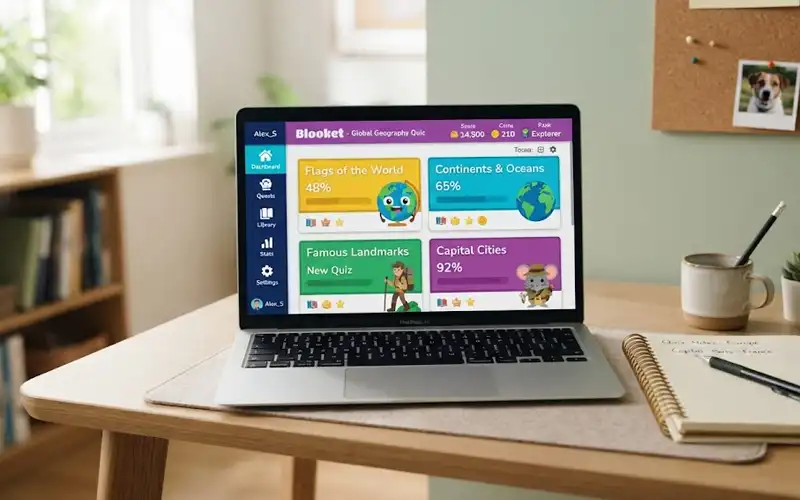
The Blooket user dashboard is your home base once you sign in. Teachers use it to find quiz sets, run live games, hand out homework, and see how a class is doing. Students use it to join games, finish assignments, and build a collection of Blooks.
The first visit can feel crowded, with tabs, buttons, and game modes all asking for attention. This guide cuts through that. You will see what each area does, which ones matter most on day one, and how to turn a fun game tool into something that really helps students learn.
Your Blooket Control Room in Simple Words
Picture a control room with one door for teachers and another for students. It is the same building, but the panels are different. A teacher’s panel is full of tools for building and running lessons. A student’s panel is smaller and built around playing and collecting.
Blooket updates its screens now and then, and what you see can depend on your account type and plan. If a button has moved or a label looks new, look for the same idea under a similar name. The core tools described here tend to stay the same.
Get Into Your Dashboard in Three Quick Steps
- Open Blooket in your browser.
- Sign in with the method you used to create your account. You can also go straight to the Blooket sign-in page.
- After you sign in, you land on your dashboard. Bookmark dashboard.blooket.com so you can get back to it in one click.
No account yet? You can make one on the same sign-in page. It takes about a minute.
One Dashboard, Two Different Views
Teachers and students use the same website, but they see different tools. Here is a quick map of who does what.
| Task | Teacher | Student |
| Build question sets | Yes | No |
| Host a live game | Yes | No |
| Assign homework | Yes | No |
| Review class reports | Yes | No |
| Join a game | Not needed, you host | Yes |
| Earn tokens | No | Yes |
| Collect Blooks | No | Yes |
If you teach, read the teacher section next. If you are a student, you can jump straight to the student section.
Teacher Side, One Tool at a Time
Search the Public Library for Ready Sets
Discover is a public library of question sets written by other teachers. You can search by keyword, subject, or grade level and preview a set before you use it. Be specific. A search for “7th grade photosynthesis” gives you far better matches than “biology.”
Before you copy a set, read a few of its questions. Public sets are not checked by anyone, so look for wrong answers, unclear wording, or content that is too easy or too hard for your grade. A set that passes that quick check can save you an hour of prep.
Make Your Own Questions
When nothing fits, use Create to build a set yourself. You can type questions in one at a time. If your questions already live in a spreadsheet or on Quizlet, a CSV upload or Quizlet import can move them over. The exact options may change, so check what your screen offers.
A few habits make a set play better:
- Keep each question short and focused on one idea.
- Write wrong answers that look believable, so students must think.
- Mix easy, medium, and hard questions.
- Aim for 20 or more questions, because short sets repeat quickly in games with many rounds.
Keep Your Sets Organized
Every set you create or copy is saved in My Sets. From there you can edit it, share it, play it solo, assign it, or host it. This is the one place worth keeping tidy.
Use one naming pattern for every set: topic, unit, number of questions, and grade. For example, “Cell Division, Unit 4, 25 Q, Grade 7.” Names like “Quiz 3” or “Review Game” are impossible to sort once your library grows.
Start a Live Game
Open a set and click Host. Blooket gives you a Game ID, a QR code, and a direct join link. Share whichever one suits your room. A QR code on the projector is the fastest option for younger students.
Then choose a game mode. This choice changes the feel of the lesson more than the questions do. Some modes, such as Gold Quest or Tower Defense, are fast and competitive. Others are calmer and let students plan as they go. Available modes change over time, so look at the list before every game, and match the mode to your class mood and the time you have.
Give Homework
Homework lets students practice on their own schedule. Pick a set, choose a mode that works for solo play, set a due date, and share the link or QR code.
Set the due date to land before your next quiz, not after it. A short, focused set also gets better completion than a very long one. Plan limits on deadlines are covered in the plan comparison below.
Read the Results After Class
History is the section that turns a game into teaching. It lists your past sessions with their reports. Use a simple three-step check after each game:
- Find the questions most students missed.
- Ask whether those misses share one topic or are random.
- Decide what to do next: re-teach, regroup, or move on.
How much detail you get depends on your plan and the mode you ran. Even a basic report is enough to show where the class got stuck.
Update Your Account Details
The account settings are where you change your email and password, manage your subscription, and adjust accessibility options.
Student Side, What Players Can Do
Join a Game
Go to play.blooket.com, type the Game ID your teacher shows, and pick a name. That is all it takes. Students can join live games as guests, so no account is needed just to play.
Finish Homework
Your teacher may share a homework link or a QR code. Open it, play at your own pace, and finish before the due date. This also works without an account.
Why Sign In at All?
Guests can play, but they cannot keep anything. A signed-in student can save tokens and XP, track progress, and build a Blook collection. If your teacher has already given you an account, use it. If not, ask your teacher or follow your school’s rules before you make one.
Earn Tokens and XP
Tokens are Blooket’s in-game coins. Signed-in players earn tokens and XP from live games and from homework. There is also a daily wheel on the account for an extra chance at rewards, so it is worth a quick look each day.
Open Packs and Collect Blooks
Blooks are the characters you pick as your avatar. They are for style only and never change your score, so no Blook gives you an unfair edge. You spend tokens in the Market on packs, and each pack opens a Blook with its own rarity. Chasing the rare ones is the main reason many students keep coming back.
A Simple Five-Day Plan for New Teachers
Not sure where to start? Try this in your first week.
- Day 1: Sign in and click through every section once, just to see what is there.
- Day 2: Search Discover for a topic you teach, copy one good set, and rename it with your pattern.
- Day 3: Host a short live game and try a mode you have not used.
- Day 4: Open History and write down the three hardest questions.
- Day 5: Assign the same set as homework in a different mode.
By Friday you will have used nearly every main tool, and you will have real data about your class.
Easy Ways to Fit Blooket Into Your Lessons
A dashboard is only useful if it fits the way you already teach. These formats work well with the tools above.
- Warm-up: Run five questions from last lesson at the start of class. It wakes students up and shows what they remember.
- Review before a test: Host a full set a few days early, then use History to choose what to revisit.
- Exit ticket: End with a short set. The results tell you who left confused.
- Revision homework: Assign a set built from this term’s weakest questions, so students practice exactly what they missed.
- Reward day: Let students pick the mode. The same questions feel new, and choice raises effort.
Free Plan or Plus? What Changes
Most classrooms run well on the free Starter plan. Here is how the two plans compare at the time of writing.
| Feature | Starter (free) | Plus (paid) |
| Live players per game | Up to 60 | Up to 300 |
| Homework deadline | Up to 14 days ahead | Up to 365 days ahead |
| Reports | Standard reports | More detailed question and student data |
Plus makes sense if you teach large groups, plan homework weeks ahead, or want deeper data on each student. Plans can change, so check the Blooket site for current details before you pay.
Mistakes That Quietly Waste Your Time
- Skipping the results. A game with no follow-up is just a break. The real value sits in the questions students missed.
- Using one mode forever. Students stop paying attention once they know exactly what will happen.
- Building everything from scratch. Many good sets already exist. Copy and edit them first.
- Leaving sets unnamed. You will not find “Quiz 3” again in a library of fifty sets.
- Never telling students about Blooks. A little collecting goal lifts motivation more than most teachers expect.
When the Dashboard Acts Strange
The page will not load. Check your internet and refresh. If it fails on other devices too, the school network may be blocking Blooket. Ask your IT team, or contact Blooket Support.
A set has gone missing. Look in My Sets first, since copied sets are saved there too. If it is still not there, sign out, sign back in, and make sure you are using the right account.
Students cannot join. Check the Game ID first, because digits are easy to misread. Then check that students are on the correct join page and have a working connection.
Keep Your Account and Tokens Safe
You may come across sites, scripts, or browser extensions that promise free tokens or instant rewards. Skip them all. They can put your account, your privacy, and your device at risk. Tokens are meant to be earned by playing.
Teachers should also watch students during games, follow school policy, and read Blooket’s latest privacy information. Students are best off using a simple, appropriate nickname instead of a full name.
Frequently asked questions
Is the Blooket user dashboard free to use?
Yes. The free Starter plan covers building sets, browsing Discover, hosting live games, and assigning homework. Plus adds higher limits and richer reports.
What is the difference between a live game and homework?
In a live game, the whole class plays together at the same time while you host. Homework is solo play that students finish on their own before the due date.
Can I change a set I copied from Discover?
Yes. Once you save a copy, it sits in My Sets, and you can edit the questions to fit your class.
Can I use the dashboard on a phone or tablet?
Blooket runs in a web browser, so most devices with an internet connection can open it. A laptop or larger screen is easier when you are building sets.
Does a rare Blook help a student win?
No. Blooks are cosmetic, so they never change points or results.
Wrap-Up and Your Next Step
The Blooket user dashboard looks like a game launcher at first, but it holds much more. For teachers, it is a library of ready sets, a way to run live and homework games, and a source of data about what to teach next. For students, it is a simple place to play, earn, and collect.
Your next step is small. Sign in today, copy one set from Discover, run a short game, and open History when it ends. That single loop will show you how much the dashboard can do for your class.