




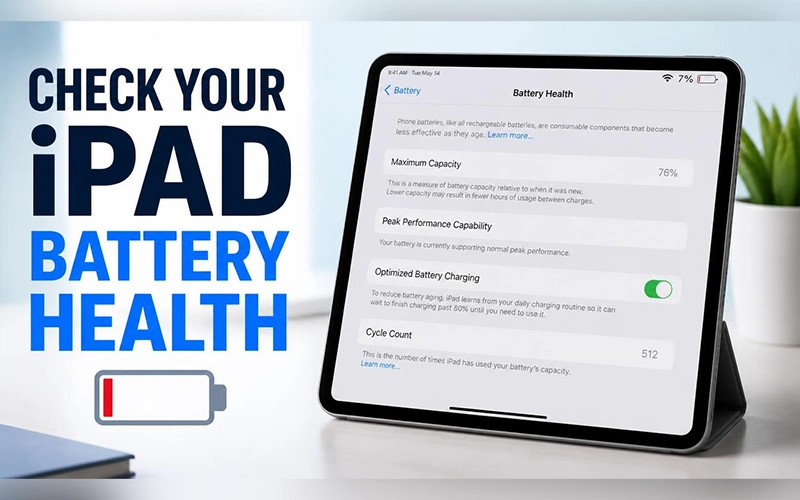
Your iPad used to last all day. Now it’s hunting for a charger by mid-afternoon, and you can’t tell whether the battery is worn out or an app is quietly draining it. Learning how to check battery health on iPad takes only a few minutes, but the route depends on the tablet you own. Some models show the figures right in Settings, while others keep them buried in system logs or need a computer to read them. Here’s each method, what the numbers mean, and how to judge when a new battery is worth paying for.
Which iPads Have a Built-In Battery Health Menu?
Apple built a Battery Health screen into recent models only. To check whether yours is one of them, open Settings, tap General, then About, and read the model name. These iPads have the built-in menu on iPadOS 17.4 or later:
- iPad Pro with the M4 or M5 chip
- iPad Air models powered by Apple’s M2, M3, or M4 processors.
- iPad mini with the A17 Pro chip
- Standard iPad with the A16 chip
Not every iPad Pro makes the cut. When checking battery health on an iPad Pro, keep in mind that the built-in option is available on M4 and M5 models, while earlier versions require alternative methods explained below. If your model is on the list but the menu is missing, update to iPadOS 17.4 or later under Settings > General > Software Update.
The Quick Way: Settings, Battery, Battery Health
If your model made the list, the check takes three taps:
- Open Settings.
- Tap Battery in the left-hand menu.
- Tap Battery Health.
The screen shows a status label, your Maximum Capacity as a percentage, and the Cycle Count. Many models also list the date the battery was manufactured and the date it was first used, which helps you tell whether the wear comes from age or from heavy daily use.
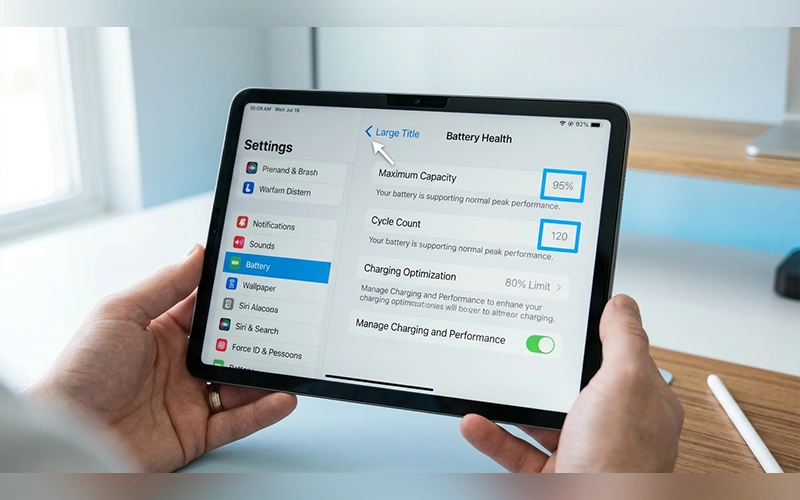
On supported models, this same screen also holds an 80% Limit option for charging. When it’s on, the iPad stops charging at about 80%, though it still charges to 100% now and then so its battery estimate stays accurate.
What Maximum Capacity and Cycle Count Actually Tell You
Maximum Capacity compares what your battery can hold today with what it could hold when new. A reading above 80% is generally considered healthy, and Apple designs iPad batteries to keep 80% of their original capacity after 1,000 complete charge cycles. Cycle Count is the number of full charges the battery has delivered. It doesn’t require draining from 100% to 0% in one go: two days of using half the battery each day add up to a single cycle.
Neither number is alarming on its own. A battery is a consumable part, and its capacity slips gradually with every cycle. What matters is the direction of travel, so a quick look every few months tells you more than a one-off snapshot.
No Battery Health Option? Here’s What’s Going On
Why is there no battery health on iPad models that are otherwise fully up to date? Apple limited the screen to recent hardware, and installing the latest iPadOS doesn’t add it to older tablets. Those iPads still list battery usage by app under Settings > Battery, but that shows consumption, not wear. A common case is the iPad 10th generation, a different tablet from the A16 model. If you own one, how to check battery health on iPad 10th generation comes down to two options: reading the analytics log on the tablet itself, or connecting it to a computer.
Read an Older iPad’s Battery Data From the Analytics Log

Your iPad automatically collects battery performance data and saves it within its system diagnostics. If you want to inspect the battery condition of an iPad Pro 2nd generation, you can access this information directly from the device without using any additional tools.
- Go to Settings > Privacy & Security > Analytics & Improvements.
- Make sure Share iPad Analytics is switched on. If you’ve just enabled it, wait about 24 hours for the first log to appear.
- Tap Analytics Data and scroll to the newest file whose name starts with “Analytics” followed by a date, such as Analytics-2026-11-02.
- Open it, select all the text and copy it.
- Paste it into a new note in the Notes app, tap the three dots in the top corner and choose Find in Note.
- Search for MaximumCapacityPercent to see your battery health percentage, and for cycle_count to see how many cycles the battery has completed.

If copying text feels tedious, some people run a Siri Shortcut from the Share button that reads the same file automatically. Results can vary between iPadOS versions, and if no “Analytics” file shows up at all, the computer method below is the better fallback.
Use a Computer for an Instant Reading
Plugging the tablet into a computer skips the log hunting entirely, and it suits older models best. That includes any iPad Air from before the M2 generation, so if you’re looking up how to check battery health on iPad Air, a USB cable is the quickest answer.
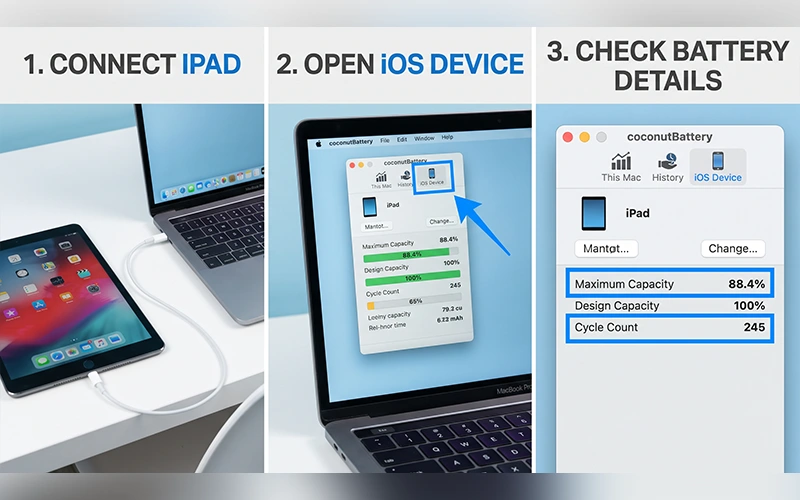
On a Mac, download the free coconutBattery app, connect the iPad with a USB cable, open the app and click the iOS Device tab. Maximum capacity and cycle count appear straight away.
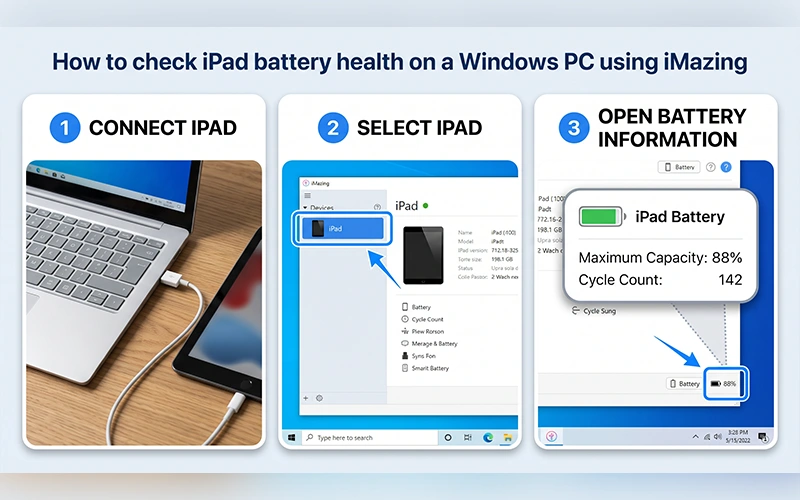
On a Windows PC, install iMazing, connect the iPad and select it from the sidebar, then click the Battery icon in the bottom-right corner for a detailed health report.
When It’s Time to Replace the Battery
The numbers matter less than how the tablet behaves. Real warning signs include a percentage that plunges to zero within minutes, unexpected shutdowns, and needing the charger several times a day despite light use. If those symptoms appear alongside a capacity below roughly 80%, a replacement is reasonable.

For a replacement, go through Apple or an authorised service provider so the part and the repair meet the right standard. Apple’s one-year warranty covers a defective battery, and AppleCare+ covers one that has dropped below 80% of its original capacity.
Checking Battery Health on Your Other Apple Devices
If the iPad isn’t the only Apple device that feels tired, the rest of your gear is just as easy to check.
MacBook. Here’s how to check battery health on MacBook: click the Apple logo in the top-left corner, open System Settings (System Preferences on macOS Big Sur and Monterey) and choose Battery. Battery Health shows a condition such as Normal, and the information icon beside it reveals the exact maximum capacity.
iPhone. Apple added battery health tracking to the iPhone in iOS 11.3. The steps for how to check battery health on iPhone are short: open Settings, tap Battery, then Battery Health & Charging. Maximum Capacity sits at the top, and iPhone 15 models and newer add the cycle count and manufacture date.
Apple Watch. Anyone asking how to check battery health on Apple Watch only needs the wrist. On watchOS 7 or later, press the Digital Crown, open Settings (the gear icon), tap Battery, scroll past the charge graph and tap Battery Health. Your Maximum Capacity appears on that screen.
The Takeaway
Newer iPads give you the answer in Settings, while older ones can pull the same numbers from the analytics log or a computer. If those numbers and your daily experience both say the battery is tired, a battery service is worth pricing before you buy a new tablet.
Frequently Asked Questions
Can Using Low Power Mode Help Preserve Your iPad’s Battery Condition?
No. It trims background activity so a single charge lasts longer, but it doesn’t change how much capacity the battery has left.
Can lost iPad battery capacity be restored?
No. The loss comes from chemical ageing inside the cell, and no setting or reset reverses it. Only a new battery changes the number.
Are coconutBattery and iMazing safe to use?
Both are established tools that read battery details over a USB connection. Download them only from the developers’ official sites, and tap Trust on the iPad only for a computer you own.
Why does my iPad battery drain fast when battery health looks fine?
Open the app usage list under Settings > Battery first: one misbehaving app is a far cheaper fix than a new battery. High screen brightness and Background App Refresh are the next usual culprits.
Can Leaving Your iPad Plugged In Overnights Affect Battery Health?
Not in a way most people will notice. Sitting at 100% for long stretches does add a little wear, so it helps to turn on Optimised Battery Charging, which learns your routine to reduce the time the battery spends fully charged.
Does heat damage an iPad battery?
Yes. Apple says iPads work best between 0° and 35°C (32° and 95°F). A hot car or direct sunlight speeds up wear, and removing a case that traps heat while charging helps.
How much does an iPad battery replacement cost?
There is no single price. It depends on your model, your region and whether the iPad is covered by warranty or AppleCare+, so check Apple’s battery service page for your exact model before booking.
Does updating iPadOS hurt battery health?
No. An update doesn’t reduce the battery’s capacity. For a day or two afterwards the iPad may run background tasks that drain it faster, which usually settles on its own.
For more articles like this, visit our site: https://factbreaker.com/