



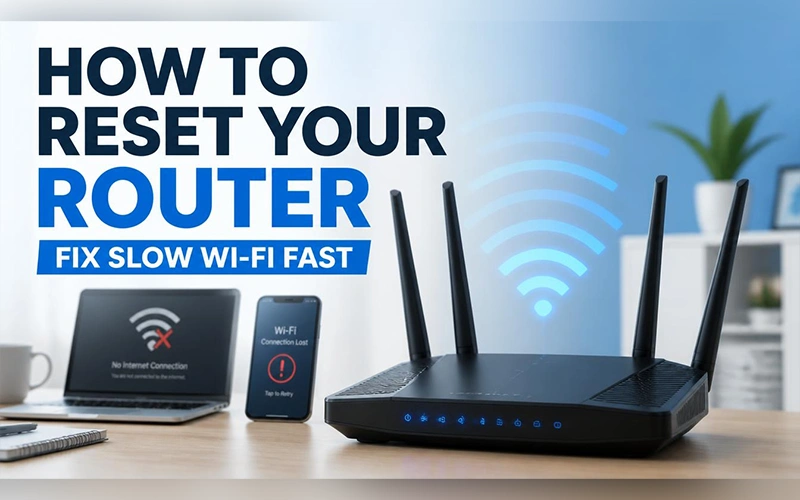
Your Wi-Fi was fine this morning. Now a video buffers every few seconds and three people in the house are complaining at once. Knowing how to reset your router is the fastest way out of that mess, and it takes less time than calling your provider. The trick is choosing the right type of reset. A simple restart fixes most problems, while a full wipe is only for a few specific situations.
Restart vs. Reset: They’re Not the Same Thing
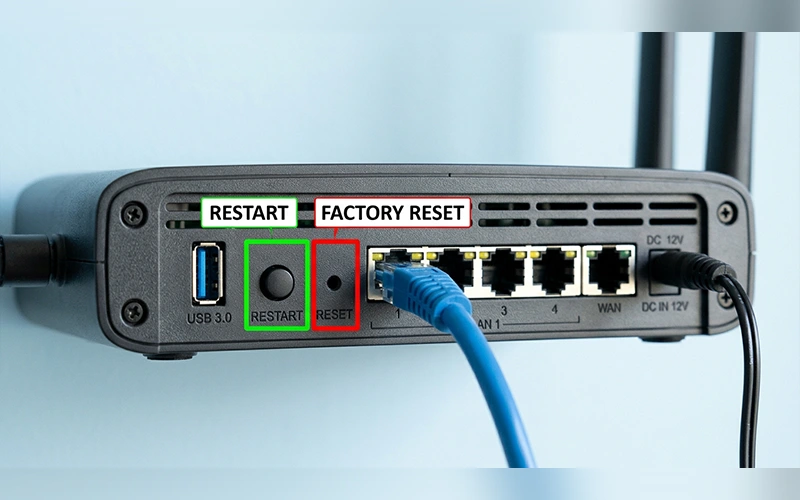
A restart cuts power to the router and brings it back, which clears its temporary memory. Your Wi-Fi name, password and settings stay exactly as they were. A factory reset erases everything and returns the device to the state it left the factory in. People often ask how to soft reset a router, and the answer is simply a restart, which is safe to try on almost any everyday problem.
| Action | What it does | Settings kept? | Time needed |
| Restart (soft reset) | Clears temporary memory | Yes | 2 to 3 minutes |
| Modem and router power cycle | Re-syncs both devices with your provider | Yes | 5 to 6 minutes |
| Factory reset (hard reset) | Erases all custom settings | No | 3 to 5 minutes |
When Is It Time to Reset Your Router?
Watch for slow speeds on every device, random disconnects, gadgets that refuse to join the network, or a login you can no longer remember.
Routers are small computers. Over weeks, their memory fills with traffic from phones, TVs and game consoles, and everything starts to drag. A simple restart performed periodically can help refresh your router and maintain smoother network performance. It gives the memory a clean slate and, on routers set to choose their channel automatically, often lands on a less crowded one. A factory reset is a last resort, and the section on it below explains when it’s worth the trouble.
The Quick Fix: Restarting Your Router
The Unplug Method
This works on every router, whatever the brand.
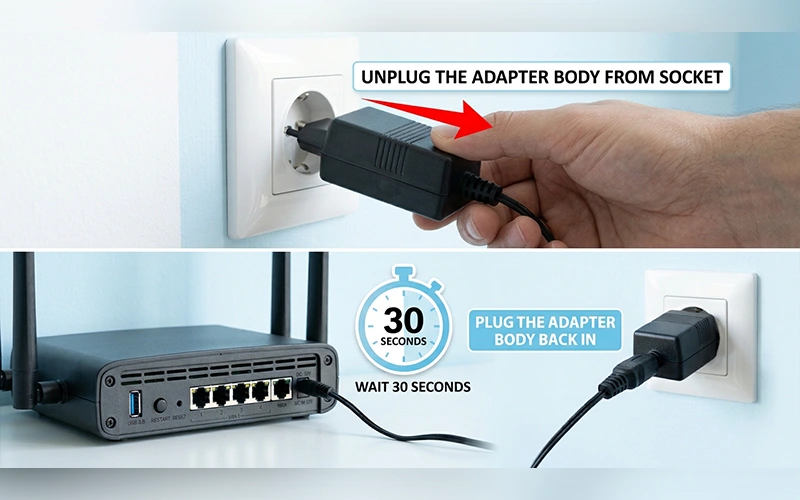
- Unplug the power cord from the back of the router, or from the wall socket.
- Wait 30 seconds so the internal circuits can drain.
- Plug it back in and give it 2 to 3 minutes, until the lights settle to steady green or white.
Some models have a power button instead. Switch it off, check that the lights go dark, wait about 10 seconds, then switch it on again.
Using the Admin Panel
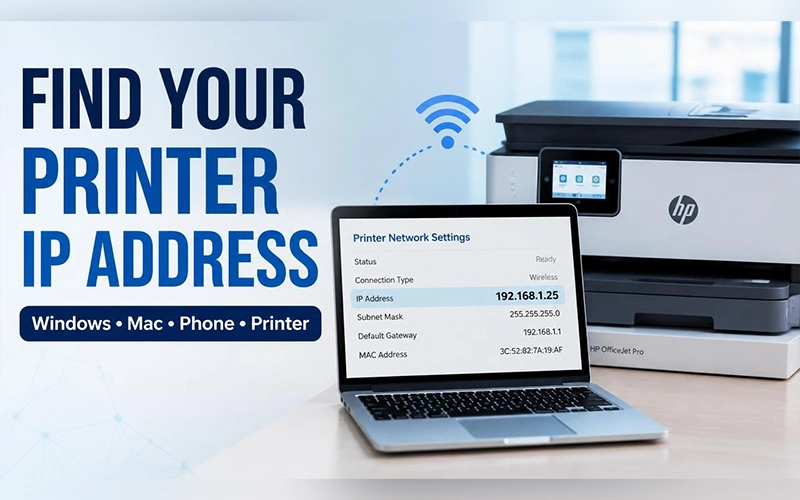
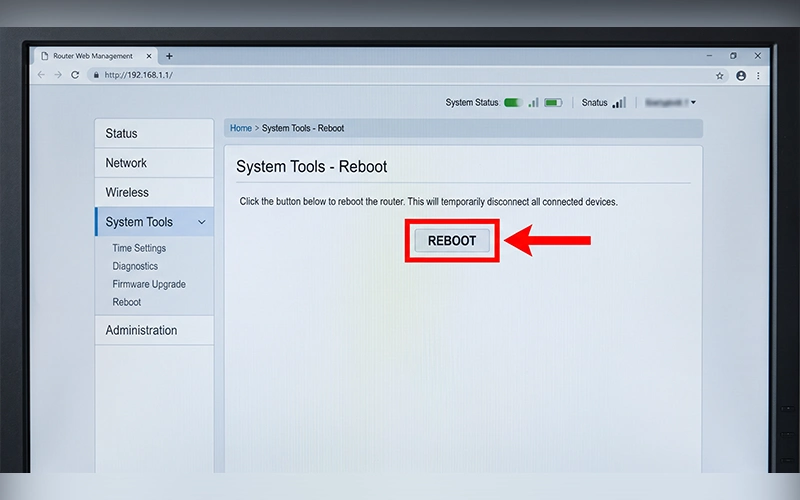
Connect to your network and type the router’s address into a browser. It’s usually 192.168.0.1 or 192.168.1.1, and the exact one is printed on the label. Sign in and look under System Tools, Administration or Advanced Settings for a Reboot button. Confirm it, and your devices will reconnect on their own after a few minutes.
For additional guidance on using a router’s web interface, see Linksys’ guide to rebooting or resetting a router, which explains the available options and their effects.
Can You Restart Your Router Without Touching It?
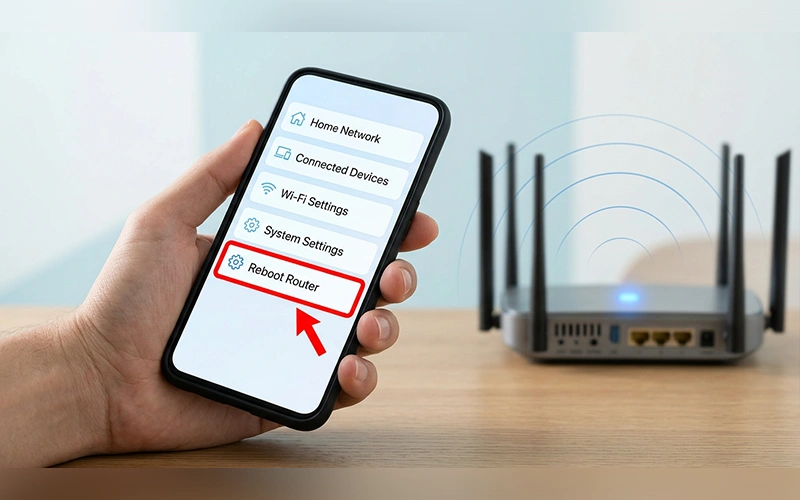
Yes, and it’s a real time-saver when the router sits behind the sofa or on a high shelf. Most modern routers come with a companion app, such as TP-Link Tether, Netgear Nighthawk, Linksys, Eero or Google Home. If you’re wondering how to restart a router from your phone, join your home Wi-Fi, open the app, go to Settings or System, and tap Reboot. No app? Your phone’s browser can open the admin page described above, and Desktop View helps if the layout looks cut off.
Things change when you’re away from home. A local login won’t reach your router from outside your network, so learning how to restart a router remotely means using one of three cloud-connected routes:
- Manufacturer app over mobile data: Turn off Wi-Fi on your phone to confirm you’re on mobile data. Open the app and sign in with your cloud account (the email login, not your local admin password). Select your network, go to Settings or System Tools, and tap Reboot.
- Your provider’s app: Many providers have their own, such as Xfinity, Spectrum, AT&T Smart Home Manager or Cox Connect. Look under Internet or My Devices, select the gateway and choose Troubleshoot or Restart Device. The command comes straight from the provider’s servers.
- Remote management (advanced): This only works if you set up remote access, usually through DDNS and port forwarding, before leaving home. Enter your DDNS address with the port number, sign in, and trigger a reboot from the Administration menu.
All three share one limit. If your internet is completely down, a remote command can’t reach the router, so you’ll have to restart it by hand.
Factory Reset: Starting Fresh
Use this when you’ve lost your admin password, want to clear messy settings, or are handing the router to someone else. It deletes your custom Wi-Fi name, password and configuration. If your provider requires a login for the connection, write those details down first, because you’ll need to enter them again afterward. If the router came from your provider, contact them before resetting, since some need to reconfigure it for you.
- Keep the router switched on and connected to its power source.
- Find the Reset hole on the back or bottom. It’s tiny and recessed, often labeled “Reset” or “WPS/Reset”.
- Straighten a paperclip, push it into the hole, and hold it down firmly for 10 to 15 seconds.
- Release when the LED lights start flashing quickly or change behavior.
- Wait 3 to 5 minutes while the router restarts.
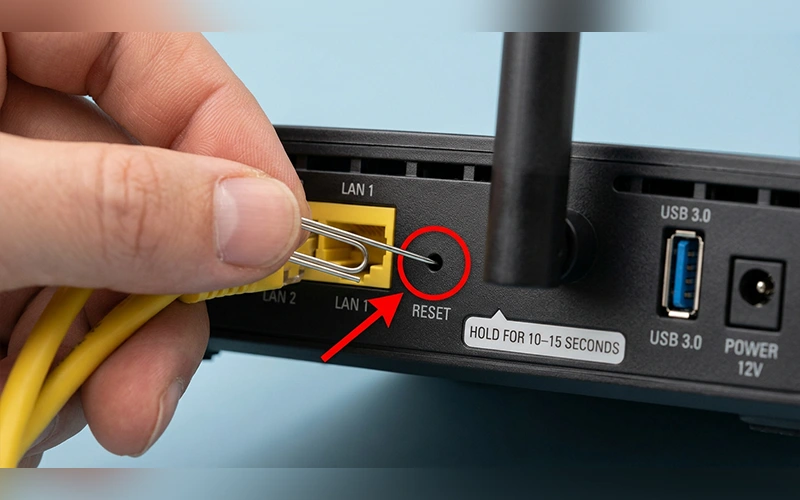
On a combined WPS/Reset button, a quick tap only starts WPS pairing, and the reset happens when you hold it down. If nothing changes, check your manual, since a few models need up to 30 seconds.
Resetting Your Router and Modem Together
Cutting power to both devices is a different job, and the order matters. The modem has to come online first so the router has a working connection to share. That is the heart of how to reset your router and modem properly, because the sequence lets both make a clean connection with your provider.
- Unplug both devices and leave them off for 60 seconds.
- Plug in the modem first and wait 2 to 3 minutes, until the Power, Online and Downstream/Upstream lights turn solid green or blue.
- Plug in the router and give it 2 minutes to start broadcasting Wi-Fi.
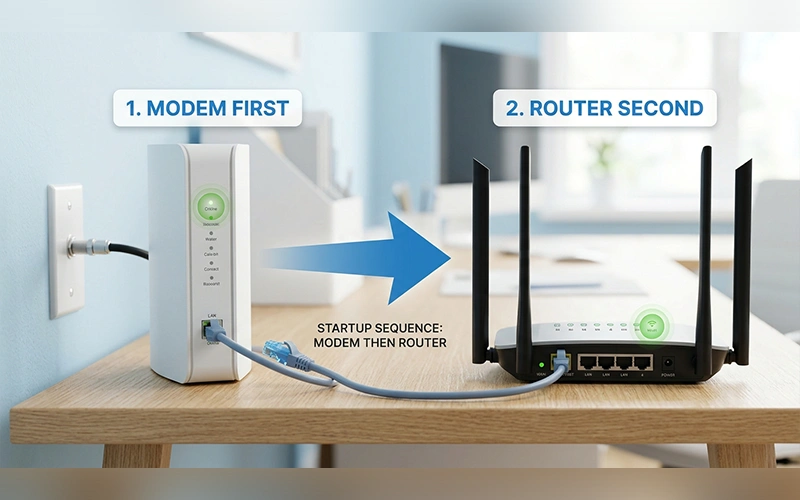
If you have a gateway, a single box that does both jobs, just unplug it for 60 seconds and plug it back in. A standalone modem rarely needs a factory reset, since it pulls its settings from your provider automatically, so only try one if your provider asks. In that case, hold its pinhole button for 5 to 10 seconds, then allow up to 5 minutes for it to reconnect.
What to Do After the Reset
Once the router is wiped, your old Wi-Fi network disappears. Check the sticker on the back or bottom for the default network name (SSID) and password. Connect your phone or computer to that network, open a browser, and the setup wizard will take it from there. Choose a new network name and a long, unique password, and install any firmware update you’re offered. If you get the choice, pick WPA3 or WPA2 security and switch off WPS when you don’t use it.
Two separate passwords are involved here. One is the Wi-Fi password your devices use. The other is the admin password that protects the settings page. If you’re unsure how to change your router’s password, first work out which of the two you need to change.
If You Know the Admin Password
Sign in to the dashboard. Open Wireless, Wi-Fi or WLAN Security to change the Wi-Fi password. For the admin login, look under Administration, System Tools or Set Password. Enter the new password, click Save or Apply, and give the router a moment to update. On Eero, Google Nest or Asus models, you can do all of this from the manufacturer’s app, with no IP address needed.
If You Forgot the Admin Password
If you changed the admin password and can’t remember it, a factory reset is usually the only way in. Run the reset described earlier, then sign in with the default username and password from the sticker, often just “admin” and “password”. The router will prompt you to create a new one right away. If the sticker lists no login, check the manual or your provider’s support page.
Can Command Prompt Reset a Router?
Not in the way people hope. Command Prompt can’t trigger a factory reset or wipe a router’s settings. If your goal is to learn how to restart your router through CMD, this method offers two practical benefits.
The first is a reboot, but only on routers that support Telnet or SSH, mostly advanced or enterprise models and those running custom firmware like DD-WRT. Windows keeps the Telnet client switched off by default, so enable it under Windows Features first. Then type telnet 192.168.1.1 (using your router’s address), enter your admin login, and run the model’s reboot command, often reboot. SSH is the safer choice where available, using ssh admin@192.168.1.1. Most home routers offer neither, so the app or admin page is the better route.
The second use is fixing your own computer’s connection when you see an IP conflict. Open Command Prompt as administrator and run these in order:
- ipconfig /release drops your current connection.
- ipconfig /renew requests a fresh IP address from the router.
- ipconfig /flushdns clears stored website address data.
- netsh int ip reset resets your PC’s network settings, so restart the computer afterward.
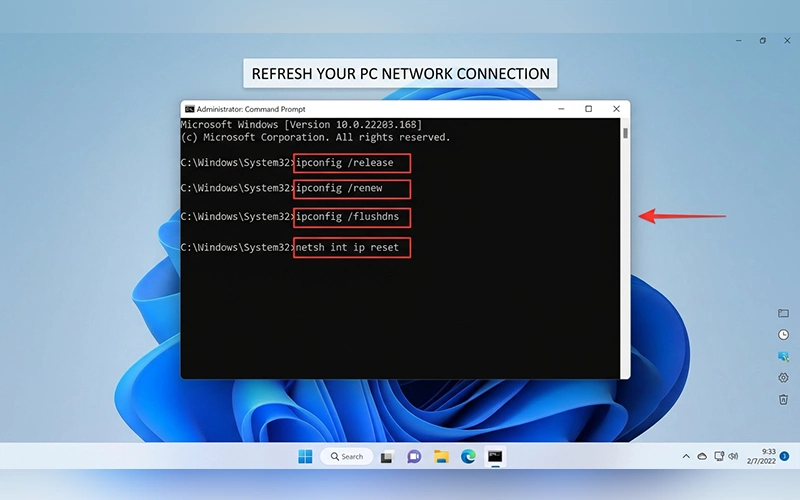
These commands refresh your PC’s connection and leave the router untouched.
Still Not Working? Try This Next
If the connection is still poor after a reset, the cause is probably elsewhere:
- Cables: Make sure every cable is seated firmly, especially the one between modem and router.
- Outages: Check your provider’s status page or app for a local fault. A red or orange internet light usually points to a line or provider problem, not your router settings.
- Placement: Move the router to a central, raised spot, away from microwaves and thick walls.
- Wi-Fi band: Switch from 2.4 GHz to 5 GHz, or pick a less crowded channel in the settings.
- Your provider: If none of that helps, ask them to test the line. The fault may be on their side.
If your router appears to be working but your laptop still cannot access the internet, follow our guide on laptop connected to WiFi but no internet for additional troubleshooting steps.
Final Thoughts
Most router trouble isn’t a sign that something is broken. It’s usually a tired device that needs a fresh start. Begin with a restart, because it fixes the majority of problems without touching your settings, and keep the factory reset for lockouts and stubborn faults.
A little preparation makes the next problem easier. Take a photo of the router’s label, save your admin password in a password manager, and keep your provider’s support number handy. If the connection keeps failing after a reset and the router is five or more years old, it may simply be time for a newer model, since older hardware struggles with today’s speeds and the number of devices in a home.
Frequently Asked Questions
How often should I restart my router?
Once every few weeks is enough for most homes. Restart sooner if speeds drop or devices keep disconnecting.
Does restarting a router change your IP address?
It can. Many providers assign a dynamic public IP, so you may get a new one after a restart. Your local network addresses usually stay the same.
Will a factory reset remove my internet connection?
It wipes your router’s settings, not your service. If your connection works automatically once the cable is plugged in, it will reconnect on its own. If your provider uses a username and password login, you’ll need to enter it again.
Is it bad to unplug a router to restart it?
No. Routers are built to handle losing power, so the unplug method does no harm. The one exception is a firmware update in progress, so wait until it finishes.
Can I schedule automatic router restarts?
Many routers can. Look for a reboot schedule under System Tools, Administration or Maintenance, and choose a quiet hour such as 3 a.m. If yours doesn’t offer it, a plug-in timer socket does the same job.
How do I find my router’s IP address?
On Windows, run ipconfig in Command Prompt and read the Default Gateway line. On a phone or Mac, open your Wi-Fi network’s details and look for Router or Gateway.
Do I need to reconnect my devices after a factory reset?
Yes, if you choose a new network name or password. Reusing the old ones during setup lets most devices rejoin automatically, though smart plugs, cameras and printers sometimes need pairing again.
Is it safe to restart my router remotely?
Yes, if you use the official app or your provider’s account with a strong password. Avoid opening remote management ports unless you really need them, since they give attackers an extra way in.